

Alert rules
An alert rule runs a query on a schedule, compares the result with one or more thresholds and sends a notification when a condition holds. Rules live on the Alerts page, under Respond in the sidebar. Creating, editing and deleting rules needs the Editor or Admin role; viewers can read them.
Use this page when you want to be told about a problem instead of watching for it, for example when a service’s error rate goes above 5%, or when you open a rule someone else wrote and want to know what it does. For a step-by-step first rule with Slack, see Set up your first alert.
Alerts in plain words
Section titled “Alerts in plain words”- A rule is a question FuseScope asks every minute or so: is the error rate of
redis-manualabove 5%? - A threshold is the line the answer is compared with, such as
5. A rule can have several, fromcriticaldown toinfo. - The evaluation window is how much recent data each check looks at, such as the last 5 minutes.
- When the condition holds, the rule fires: it creates an alert and sends a notification to one or more notification channels, such as Slack or email. When the condition stops holding, the alert resolves.
- Labels are
key: valuepairs on a rule and its alerts, such asteam: payments. They decide how alerts are grouped and, with routing policies, where they are sent.
The Alerts page
Section titled “The Alerts page”Click Alerts in the sidebar (/alerts). It has four tabs:
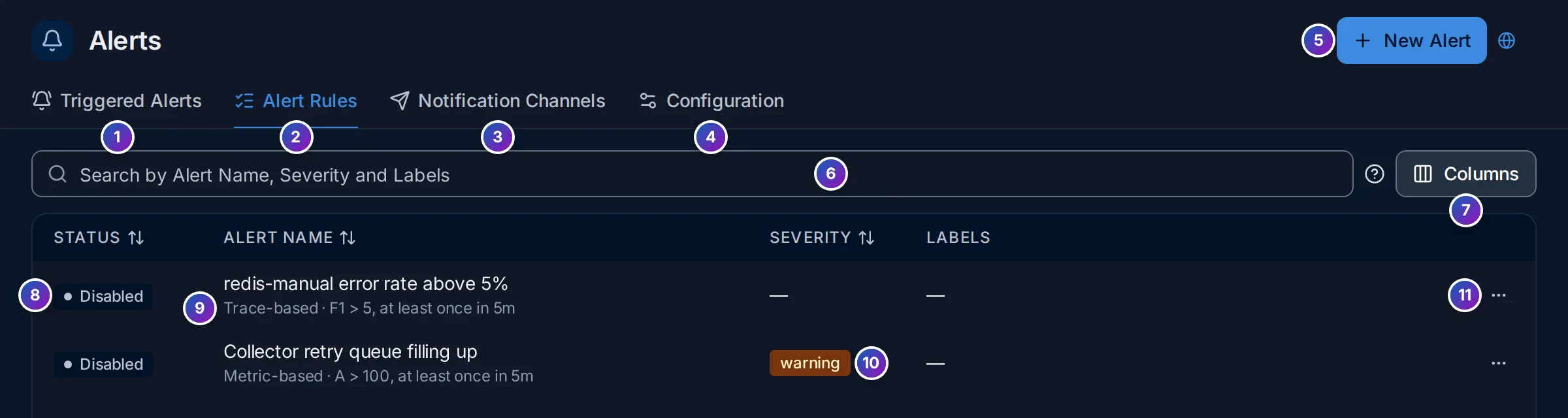
- Triggered Alerts: the alerts firing now. See Triggered alerts.
- Alert Rules: every rule, the default tab. See The rule list.
- Notification Channels: where alerts are sent. See Notification channels.
- Configuration: Planned Downtime and Routing Policies. See Routing and planned downtime.
- New Alert creates a rule. The button follows the tab: on Configuration it becomes New downtime or New routing policy, on Notification Channels New Alert Channel.
The tab is part of the address (?tab=AlertRules, ?tab=TriggeredAlerts,
?tab=Channels, ?tab=Configuration), so you can link to it.
The rule list
Section titled “The rule list”- Search by Alert Name, Severity and Labels: type part of any of them. The ? next to it links to this page.
- Columns: show or hide Severity, Labels, Created At, Created By, Updated At and Updated By.
- Status: the rule’s current state, such as Firing, OK or Disabled.
- Alert name, and under it a one-line summary of the rule: its type, the
condition and the window, such as
Trace-based · F1 > 5, at least once in 5m. - Severity: the
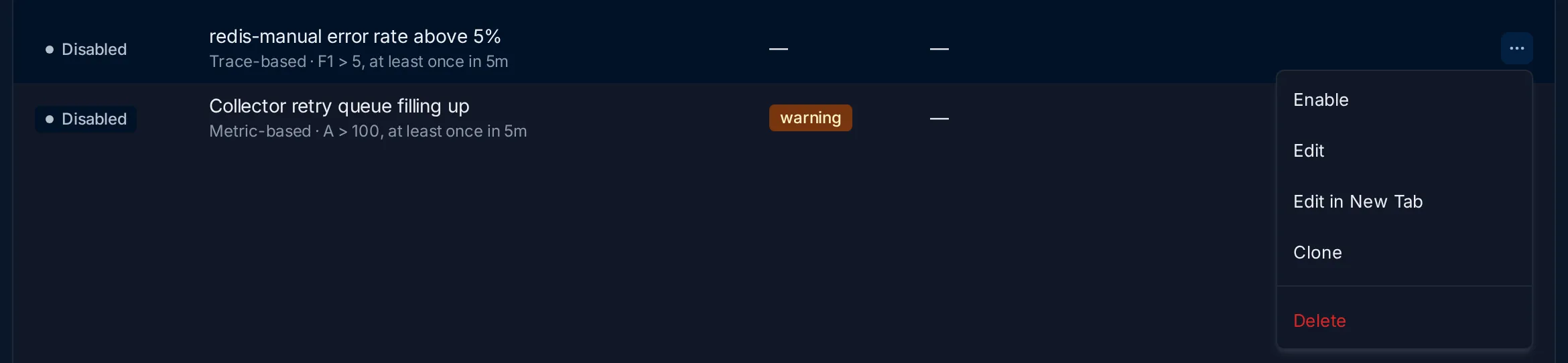
severitylabel, such aswarning, coloured by level. - Row menu (⋯):
| Item | Does |
|---|---|
| Enable / Disable | Turns the rule on or off. A disabled rule is not evaluated |
| Edit | Opens the rule (Edit in New Tab in a new browser tab) |
| Clone | Creates a copy you can change |
| Delete | Deletes the rule, after you confirm |
Click Status, Alert name or Severity to sort. Click a row to open the rule page. With no rules yet, the tab shows ready-made examples and a New Alert Rule button instead of the table.
Create a rule
Section titled “Create a rule”-
Click New Alert and choose what the rule watches:
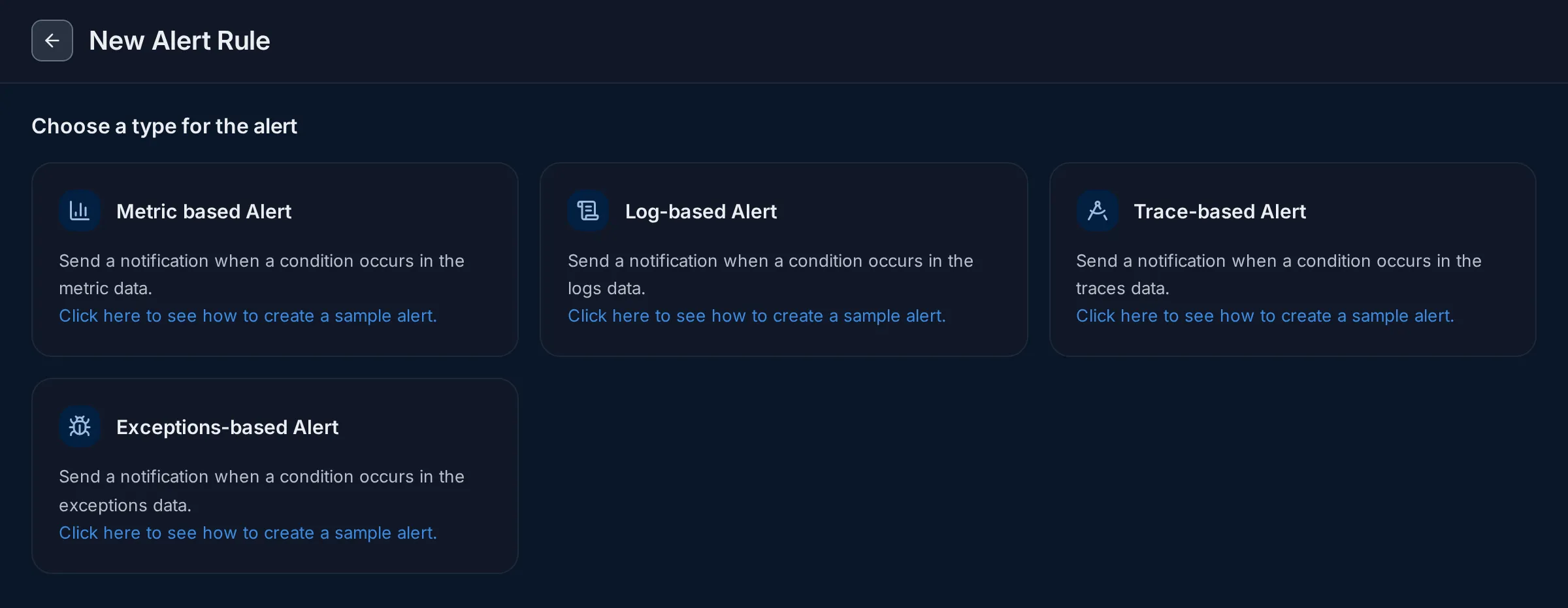
Type Watches Query editors Metric based Alert Metrics, such as CPU or a request counter Query Builder, ClickHouse Query, PromQL Log-based Alert Logs, such as a count of ERRORlinesQuery Builder, ClickHouse Query Trace-based Alert Spans, such as error rate or p99 latency Query Builder, ClickHouse Query Exceptions-based Alert Recorded exceptions Query Builder, ClickHouse Query (default) -
The editor opens with three steps: Define the query, Set alert conditions and Notification settings.
-
Give the rule a name and labels at the top, then click Save Alert Rule.
You can also start a rule from elsewhere: Create alert on a service chart, or from the explorers and dashboard panels, opens the editor with the query already filled in. For browser data, see Frontend alerts: a log-based rule offers templates for LCP, session error rate and JavaScript errors.
The rule editor
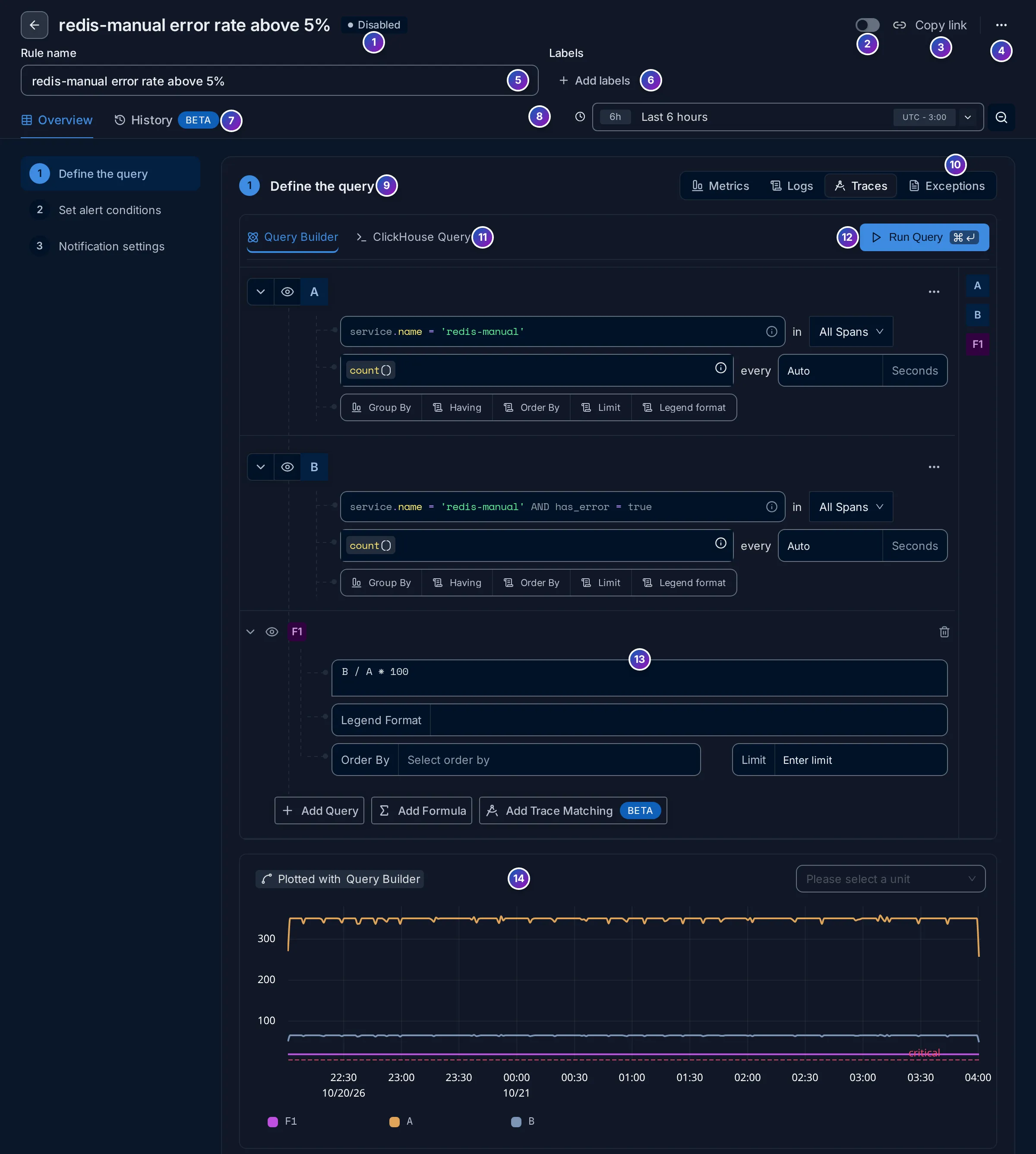
Section titled “The rule editor”The editor is the same when you create a rule and when you open an existing one. Here
it shows the demo rule redis-manual error rate above 5%:
The header
Section titled “The header”- Status: the rule’s state, here Disabled.
- Enable switch: turns the rule on or off, as the row menu does.
- Copy link: copies the rule’s address.
- ⋯: Clone and Delete.
- Rule name: what notifications and the list show. Make it say what is wrong,
such as
redis-manual error rate above 5%. - Add labels: add
key: valuelabels, such asteam: platform. Every alert of the rule carries them, so routing policies and grouping can use them. - Overview (the editor) and History (see History).
- Time range of the preview chart. It doesn’t change what the rule checks; that is the evaluation window.
Step 1: define the query
Section titled “Step 1: define the query”- Define the query: what number the rule watches.
- Data source: Metrics, Logs, Traces or Exceptions.
- Query Builder or ClickHouse Query (and PromQL for metrics). The query builder works as in the explorers; see Query builder.
- Run Query draws the preview.
- Queries and formulas. Each query (A, B…) gives one series per group;
Add Formula combines them, such as
B / A * 100for an error percentage. Group By gives one alert per value, for example one perservice.name. - Preview: the result over the time range, with each threshold as a dashed
line, such as
critical. Use it to check that the threshold sits where you expect.
Conditions
Section titled “Conditions”Set alert conditions reads as a sentence: Send a notification when F1 is ABOVE the threshold(s) AT LEAST ONCE during the Last 5 minutes.
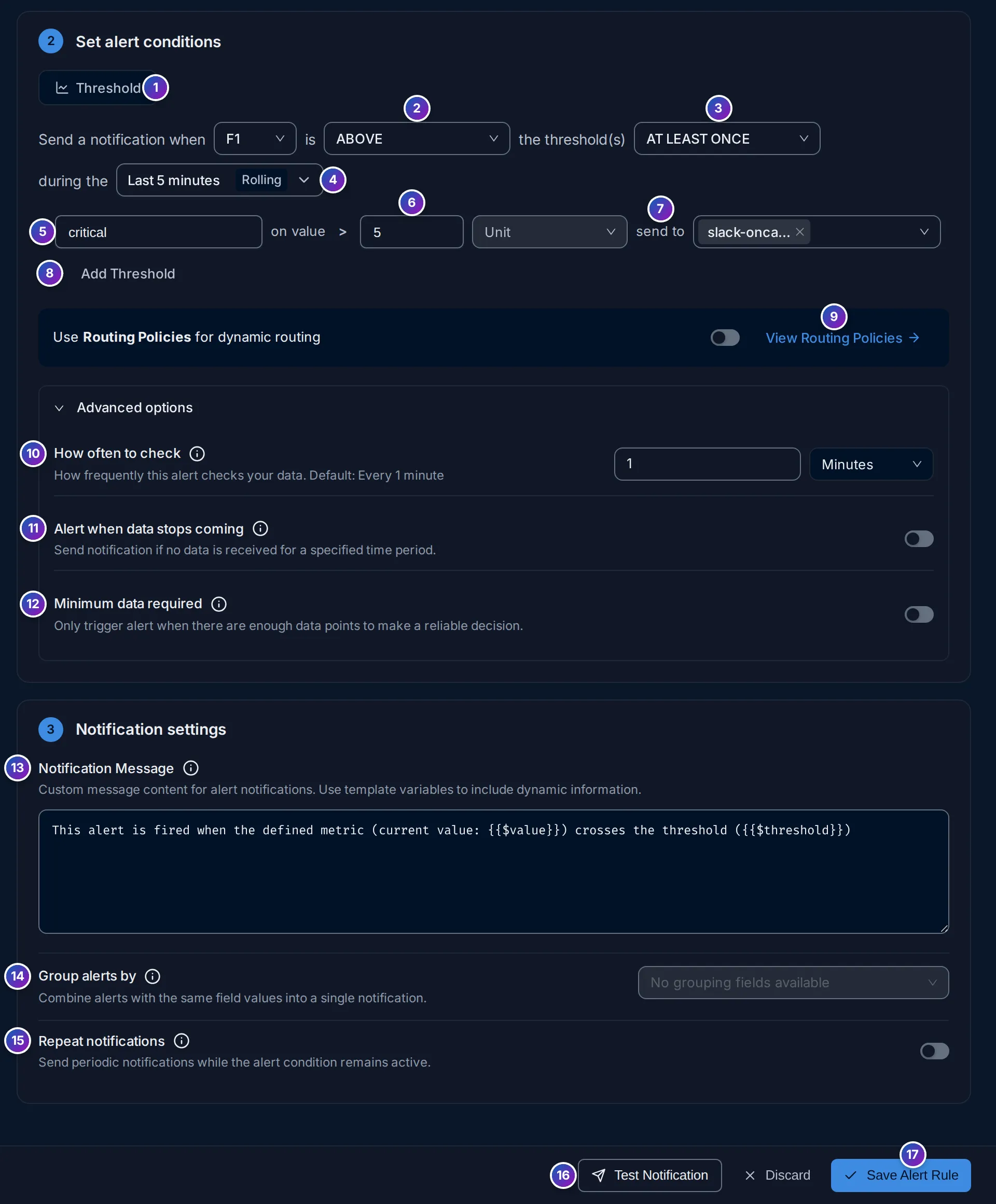
- Threshold: the kind of condition: a fixed value.
- Operator: ABOVE, BELOW, EQUAL TO, NOT EQUAL TO, ABOVE OR EQUAL TO or BELOW OR EQUAL TO. The drop-down before it, here F1, picks which query or formula the condition uses.
- Match type: which points of the window must meet the condition:
| Match type | Fires when | Good for |
|---|---|---|
| AT LEAST ONCE | any point meets the condition | catching every spike |
| ALL THE TIME | every point meets it | ignoring short spikes |
| ON AVERAGE | the average of the points meets it | noisy values |
| IN TOTAL | the sum of the points meets it | counts, such as errors in the window |
| LAST | the most recent point meets it | the current state |
- Evaluation window: see Evaluation window and frequency.
Values in the alert rules API
| In the editor | API value |
|---|---|
| ABOVE | above |
| BELOW | below |
| EQUAL TO | equal |
| NOT EQUAL TO | not_equal |
| ABOVE OR EQUAL TO | above_or_equal |
| BELOW OR EQUAL TO | below_or_equal |
| AT LEAST ONCE | at_least_once |
| ALL THE TIME | all_the_times |
| ON AVERAGE | on_average |
| IN TOTAL | in_total |
| LAST | last |
Thresholds and severity
Section titled “Thresholds and severity”- to 7. Each threshold row has a name, an on value, an optional Unit and
its own channels under send to. The first is named
critical. - Add Threshold adds
warning, theninfo. All thresholds share the operator and match type. - Use Routing Policies for dynamic routing: send alerts by their labels with routing policies instead of per-threshold channels. The send to pickers disappear when it is on; View Routing Policies opens the policies. Each threshold needs a channel unless this is on.
Each alert carries the labels threshold.name and severity, both set to the name of
the threshold it crossed, in lower case. When several thresholds fire for the same
series, only the most severe one notifies: the highest value for above conditions,
the lowest for below.
Evaluation window and frequency
Section titled “Evaluation window and frequency”The evaluation window is how much data each check looks at.
| Window | Options |
|---|---|
| Rolling | Last 5, 10, 15 or 30 minutes, Last 1, 2 or 4 hours, or a custom duration. Default: Last 5 minutes. |
| Cumulative | Current hour, Current day or Current month, from a starting minute, hour or day, in a chosen timezone. |
A rolling window moves forward with every check. A cumulative window starts at a fixed point and grows until it resets, for example for a daily error budget.
Advanced options
Section titled “Advanced options”Open Advanced options under the thresholds:
| Option | Effect |
|---|---|
| 10. How often to check | How often the rule runs. Default: every 1 minute; 1 to 5 minutes suits most rules. |
| 11. Alert when data stops coming | Notify when the query returns no data for the given number of minutes. The alert is named [No data] <rule name> and labelled nodata=true. Good for pipelines that should never go quiet. |
| 12. Minimum data required | Only decide when the window has at least this many data points, to avoid alerts on too little data. |
Missing data
Section titled “Missing data”Alert when data stops coming is the only way to be told that something stopped sending. A rule that only compares values never fires when there are no values at all.
Notification settings
Section titled “Notification settings”- Notification Message: the text of the alert. It can use template variables.
- Group alerts by: combine alerts with the same values of these fields into one
notification. Leave it empty to combine all alerts of the rule; choose All to
send one notification per alert. The fields offered are the query’s group-by
keys, so a rule with no Group By says
No grouping fields available. - Repeat notifications: notify again every n minutes or hours while the alert is firing or has no data. Off by default.
Message templates
Section titled “Message templates”The notification message and label values are Go templates. These variables are available:
| Variable | Value |
|---|---|
{{$value}} |
Observed value, formatted with the rule unit. |
{{$threshold}} |
Threshold value, formatted with the rule unit. |
$service.name, {{$service.name}} or {{.Labels.service.name}} |
Value of a label of the series, such as a group-by attribute. |
The default message is:
This alert is fired when the defined metric (current value: {{$value}}) crosses the threshold ({{$threshold}})Go template functions such as toUpper, toLower, title, humanize and
humanizeDuration are available. Templates are checked when the rule is saved.
Test and save
Section titled “Test and save”- Test Notification evaluates the rule once and sends the result to its channels, without saving it. When no series crosses a threshold, FuseScope says no alerts were found; lower the threshold to see a real message, then put it back. The message reaches real people, so warn the channel first.
- Save Alert Rule saves the rule. Discard drops your changes.
The rule page
Section titled “The rule page”Click a rule in the list to open it (/alerts/overview?ruleId=…). Overview is the
rule editor with the saved values; change anything and click
Save Alert Rule. History shows what the rule did.
History
Section titled “History”The History tab (/alerts/history?ruleId=…) answers “how often does this rule
fire, and for how long?” over the time range at the top:
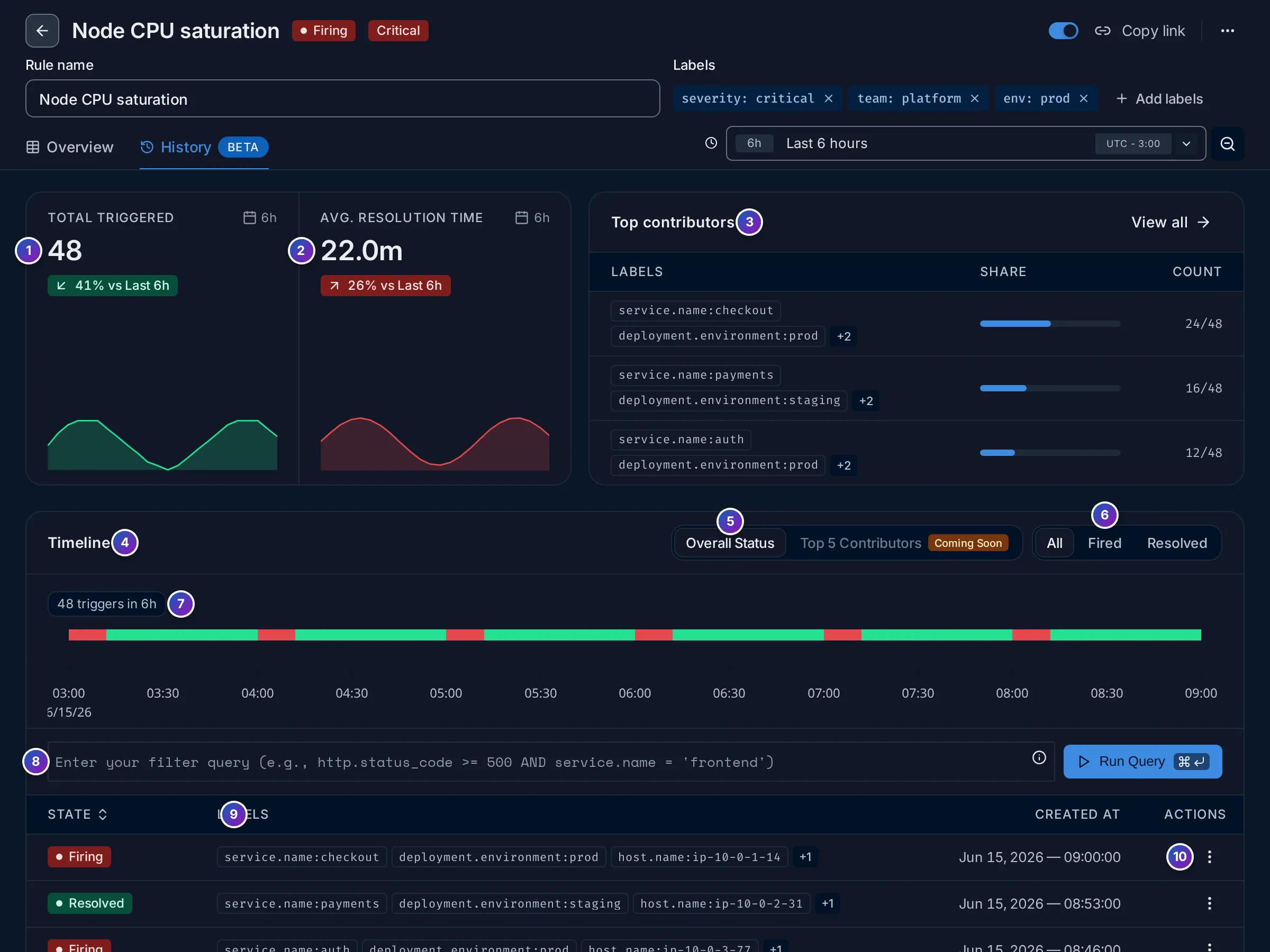
Sample data: this image is a Storybook story, not the demo.
- Total triggered: how many times the rule fired, against the same stretch of time before.
- Avg. resolution time: how long its alerts lasted on average, from firing to resolved. A long time means problems stay unfixed; a very short one often means a noisy rule.
- Top contributors: the label combinations that fired most, with their share,
such as
service.name:checkoutin 24 of 48 triggers. View all lists them all. - Timeline: the rule’s state over time: red while firing, green while OK.
- Overall Status is the rule as a whole. (Top 5 Contributors is not available yet.)
- All, Fired or Resolved filters the list below.
- The count of triggers in the range, such as
48 triggers in 6h. - Filter: narrow the list by labels, such as
service.name = 'frontend', then Run Query. - State changes: one row per change, Firing or Resolved (also No Data and Muted), with the alert’s labels and when it happened.
- ⋮ on a row links to View Logs or View Traces for that alert, when the rule has a query those signals can follow.
A rule that never fired reads None Triggered. and
No state changes in this time range.
Triggered alerts
Section titled “Triggered alerts”Triggered Alerts lists every alert that is active now, across all rules.
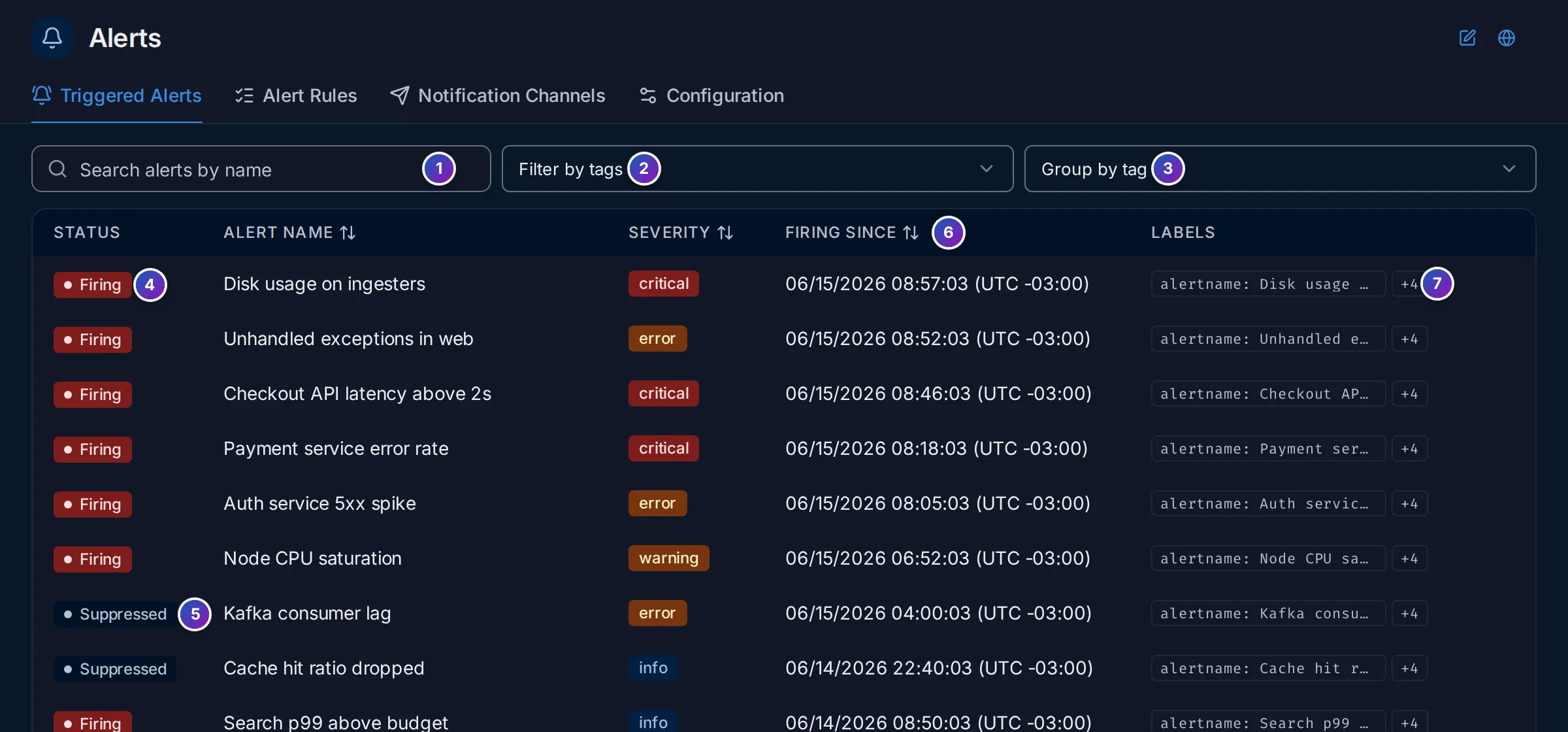
Sample data: this image is a Storybook story, not the demo.
- Search alerts by name.
- Filter by tags: keep alerts with given labels, such as
severity:critical. - Group by tag: group alerts by a label, such as
service, with a count per group. Expand a group to see its alerts. - Firing: the alert is active and notifications go out.
- Suppressed: the alert is active, but a planned downtime silences its notifications.
- Firing since: when it started.
- Labels: the first label and a
+Nchip; hover it for the rest.
With nothing active, the tab says No alerts firing and
All systems are healthy. No alerts are currently triggered.
States
Section titled “States”| State | Meaning |
|---|---|
| OK | The condition does not hold (inactive in the API). |
| Pending | The condition holds, but not yet for as long as the rule requires. |
| Firing | The condition holds and notifications are sent. |
| Recovering | The value is heading back to normal but hasn’t crossed the rule’s recovery threshold yet. Only rules with a recovery threshold, which is set through the API, use it. |
| No data | No data for the configured time (nodata). |
| Disabled | The rule is turned off. History shows it as Muted. |
Example: what would the demo rule do?
Section titled “Example: what would the demo rule do?”The demo has a rule, redis-manual error rate above 5%, that is Disabled. Before
turning a rule on, read it to see what it would do. The numbers are from the HotROD
demo.
-
Find it. In Alert Rules, the row reads Disabled,
redis-manual error rate above 5%andTrace-based · F1 > 5, at least once in 5m. So it watches spans and fires when a formula goes above 5. -
Read the query. Click the row. Define the query has three parts: A counts all spans of
redis-manual(service.name = 'redis-manual',count()), B counts the failed ones (... AND has_error = true), and F1 isB / A * 100, the error percentage. -
Look at the preview. The chart shows A at around 300 spans per step and B far lower, with the
criticalline at 5. F1, the error percentage of the cache, is about 18.5%, as on the service page: well above the line, all the time. -
Read the conditions. F1 is ABOVE the threshold AT LEAST ONCE during the Last 5 minutes, with one threshold,
criticalat5, sent toslack-oncall. Routing policies are off, and the rule is checked every minute. -
Conclude. If you turned it on now, it would start firing within a minute and post to
slack-oncallevery time its alerts change. The cache has failed at 18.5% for hours, so either fix the timeouts first or raise the threshold, and consider ON AVERAGE so a single bad minute doesn’t page anyone.
What you learn: the one-line summary in the list, the query and the preview tell you what a rule will do before you switch it on, without sending anything.
Related
Section titled “Related”- Set up your first alert: a rule and a Slack channel, step by step.
- Notification channels: where alerts are sent.
- Routing and planned downtime: route by label, silence during maintenance.