

See the logs for one request
Use this guide when you have found a slow or failed request and want to read what the code printed while it handled it, or when you have an error log and want to see the whole request around it.
How logs and traces are linked
Section titled “How logs and traces are linked”A log belongs to a request when it carries
that request’s trace ID and span ID, in
the trace_id and span_id fields. OpenTelemetry SDKs and logging bridges add them
for you when a log is written inside an active span. Logs without them can still be
searched, but FuseScope cannot tie them to a trace.
From a trace to its logs
Section titled “From a trace to its logs”-
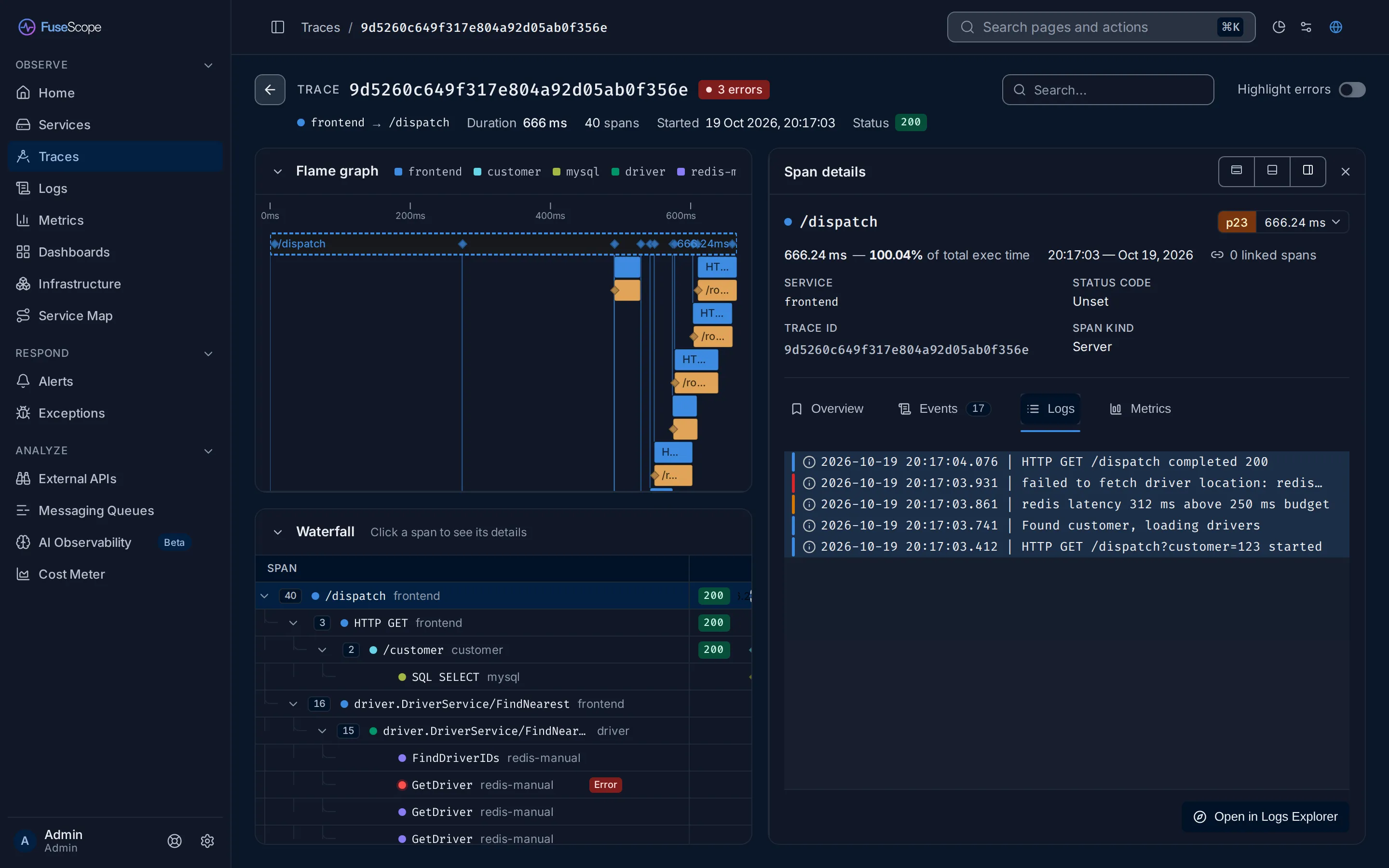
Open the trace. From the Traces explorer, a service page or an exception, open the trace of the request you care about.
-
Pick a span. In the Waterfall, click the span you want to look at, for example the service’s entry span or the one that failed. Span details opens on the right.
-
Open the Logs tab. It lists the logs written while that span ran, and other logs of the same trace around them for context, newest first. The stripe on each row is the log’s severity. Click a log to open it in the Logs explorer, in a new tab.
-
Search further. Click Open in Logs Explorer. The Logs explorer opens with a filter on the trace ID, where you can add filters, change the columns or save the view.
From a log to its trace
Section titled “From a log to its trace”-
Find the log. Open Logs in the sidebar and search, for example:
severity_text ILIKE 'error' AND service.name = 'frontend'ILIKEignores case, so it matchesERROR,Erroranderror. You can also hover ERROR in the Severity Text filter and click Only, which matches every spelling of the level. -
Open it. Click the log. Log details shows its service, severity, trace ID and span ID.
-
Open the trace. Click View trace at the top of the panel. The trace opens in a new tab with the log’s span selected. The trace ID under TRACE ID is a link to the trace too.
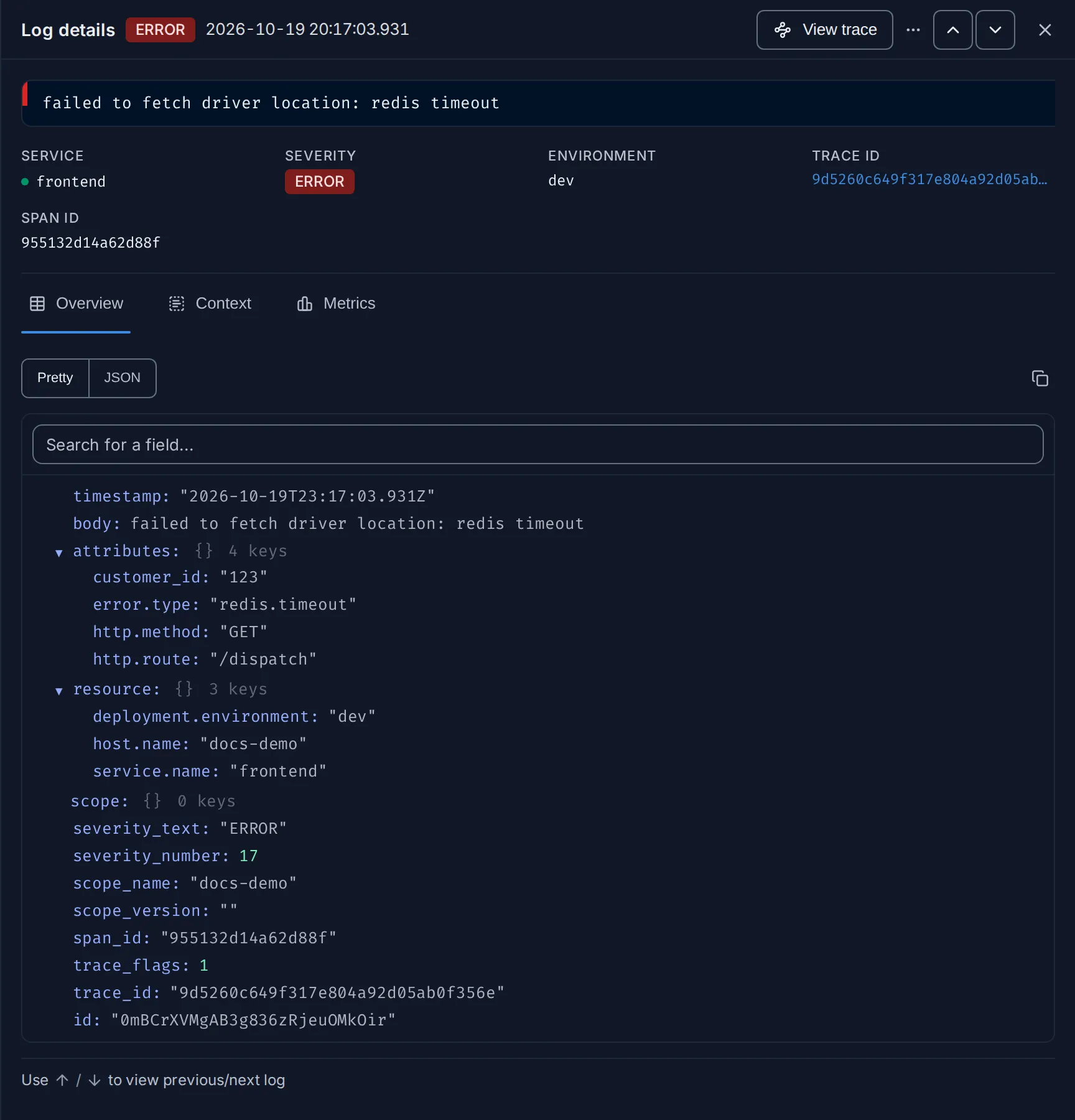
If View trace is missing, the log has no trace_id; see
How logs and traces are linked.
Search by trace ID
Section titled “Search by trace ID”If you already have a trace ID, from a support ticket or an error page, search for it directly:
In the Logs explorer:
trace_id = '434bfdb4aeb5d5a3e198d3535b5b586f'In the Traces explorer, use the Trace Id quick filter on the left, or:
trace_id = '434bfdb4aeb5d5a3e198d3535b5b586f'Expected result
Section titled “Expected result”You see the request’s spans and its log lines side by side, in time order, and can move between them in one click.
Related
Section titled “Related”- Logs explorer: log details and context.
- Trace details: the span details tabs.
- Find out why a service is failing.