

Trace details
The trace details page shows one trace: every span of a single request, from the first service it reached to the last database call, laid out on a shared timeline.
Use this page when you have found one request worth a closer look, such as a slow one, a failed one or one a user reported, and you want to know where its time went or which call broke. To find such a request first, use the Traces explorer.
Open a trace
Section titled “Open a trace”A trace has its own address, /trace/<trace-id>, so a link to it can be shared. You
usually get there by clicking through from another page:
| From | Do this |
|---|---|
| Traces explorer | Click a row in the List or Traces view. See Traces explorer. |
| A service | On the service page, click an operation on the Endpoints tab, a point on a chart and View traces, or View traces on the Errors tab, then click a row. See Services. |
| An exception | On the exception’s page, click See the error in trace graph. See Exceptions. |
| A log | Open the log and click View trace, or its trace ID. See See the logs for one request. |
| An alert | On the rule’s History tab, follow the link to the related traces, then click a row. See Alert rules. |
Read the page
Section titled “Read the page”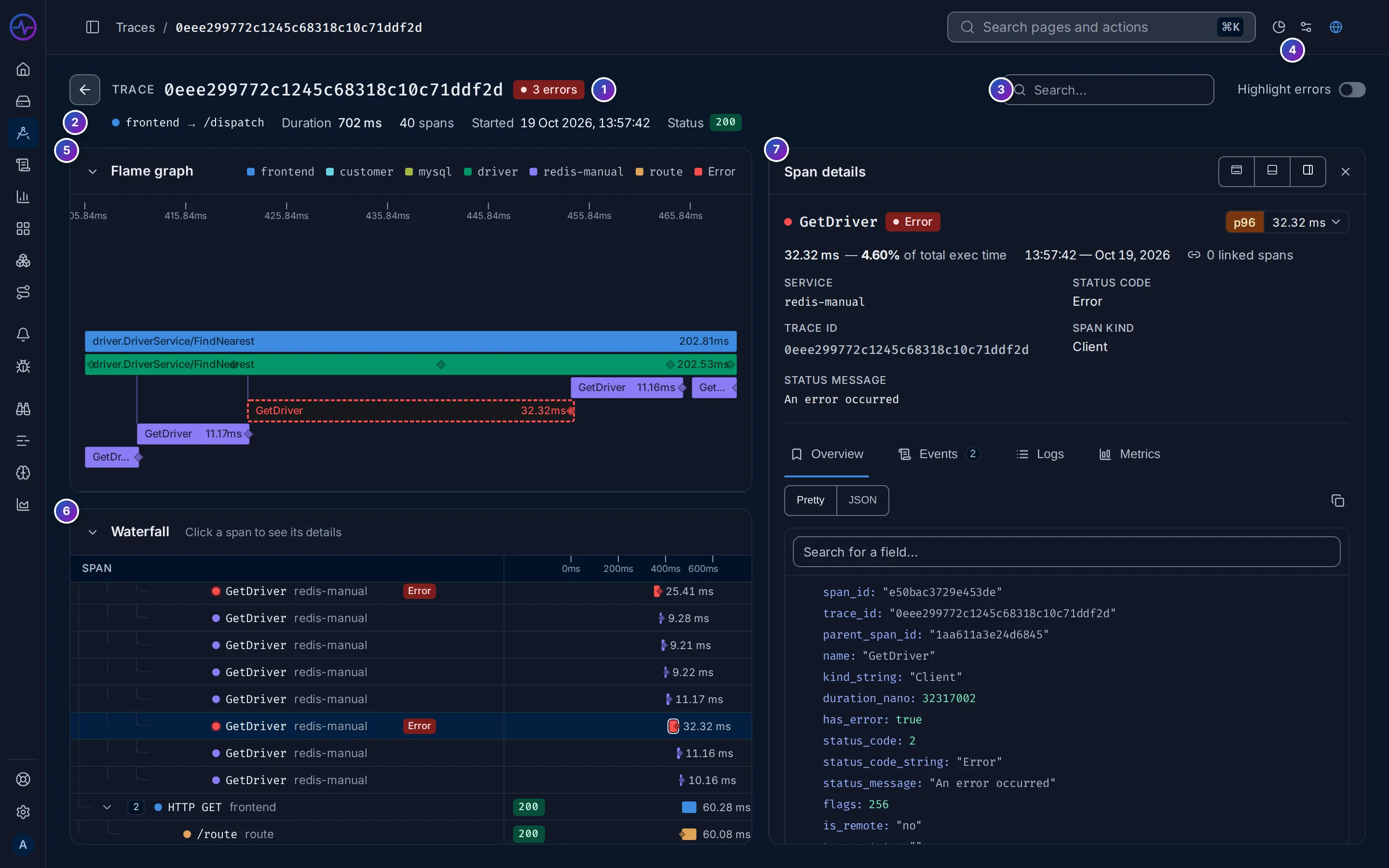
- Trace ID and, when any span failed, a red badge with the number of errors. The arrow on the left goes back to where you came from.
- Summary row: the root span’s
service and operation (
frontend → HTTP GET /dispatch), the Duration of the whole request, the number of spans, when it Started, and the root span’s Status code. - Search box and the Highlight errors switch. See Find spans in a trace.
- Analytics (the pie-chart icon) and Trace options (the sliders icon), in the top bar. See Analytics and Trace options.
- Flame graph, with a legend of the colours it uses.
- Waterfall, the list of spans as a tree.
- Span details for the selected span.
The bar at the very bottom of the window repeats the number of spans and errors. If FuseScope did not receive every span of the trace, a This trace has missing spans note appears under the summary row; see If something is missing.
Flame graph
Section titled “Flame graph”The flame graph is a picture of the whole request. It is the fastest way to see its shape.
- Time runs left to right. The left edge is when the request started and the right edge when it ended. A wider bar took longer.
- Below means “called by the bar above”. Each bar sits under the span that started it, so the top row is the root span and each row down is one level deeper.
- Colours are services. Every span of the same service has the same colour; the legend next to the title names them. To colour by host or another attribute instead, use Colour by in Trace options.
- Red is an error. A span that failed is red, whatever its service.
Scroll over the flame graph to zoom in around the pointer, and drag to move along the timeline. Hover a bar to see its name, service and duration; click it to select it in the waterfall and open its details. Drag the bottom edge to make the flame graph taller.
Waterfall
Section titled “Waterfall”The waterfall lists every span as a row of a tree.
- The tree on the left shows who called whom. Each row is indented under its parent, with a dot in its service’s colour, the span name and the service name. The number next to the arrow is how many spans are below it; click the arrow to fold or unfold them. Failed spans have an Error badge.
- The status column shows each span’s status code, such as
200or503, in red when it failed. - The bars on the right show when each span ran and for how long, on the same timeline as the flame graph, with the duration written next to the bar.
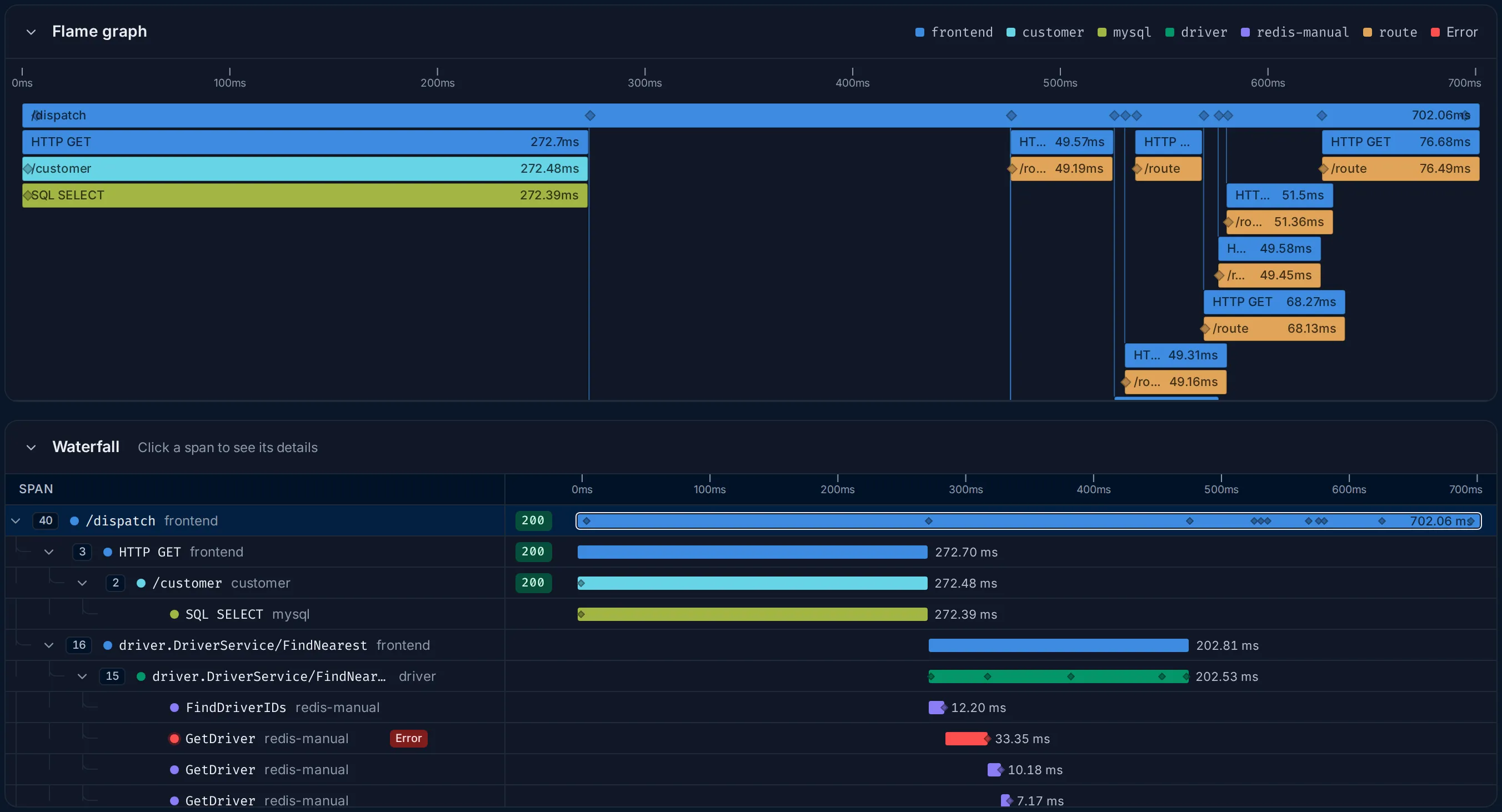
To find the slowest part, look for a long bar whose children are short or absent. A parent’s bar always covers its children, so a long parent with one equally long child is only waiting: follow the child. When the long bar has no children, or its children cover only a small part of it, the time is spent in that span itself. That span is where to look.
Gaps matter too: when a parent’s bar is long but its children are short and spread out, the time is spent between calls, in the parent’s own code or waiting on something that is not traced.
Click Flame graph or Waterfall in the section titles to fold a section and give the other more room.
Span details
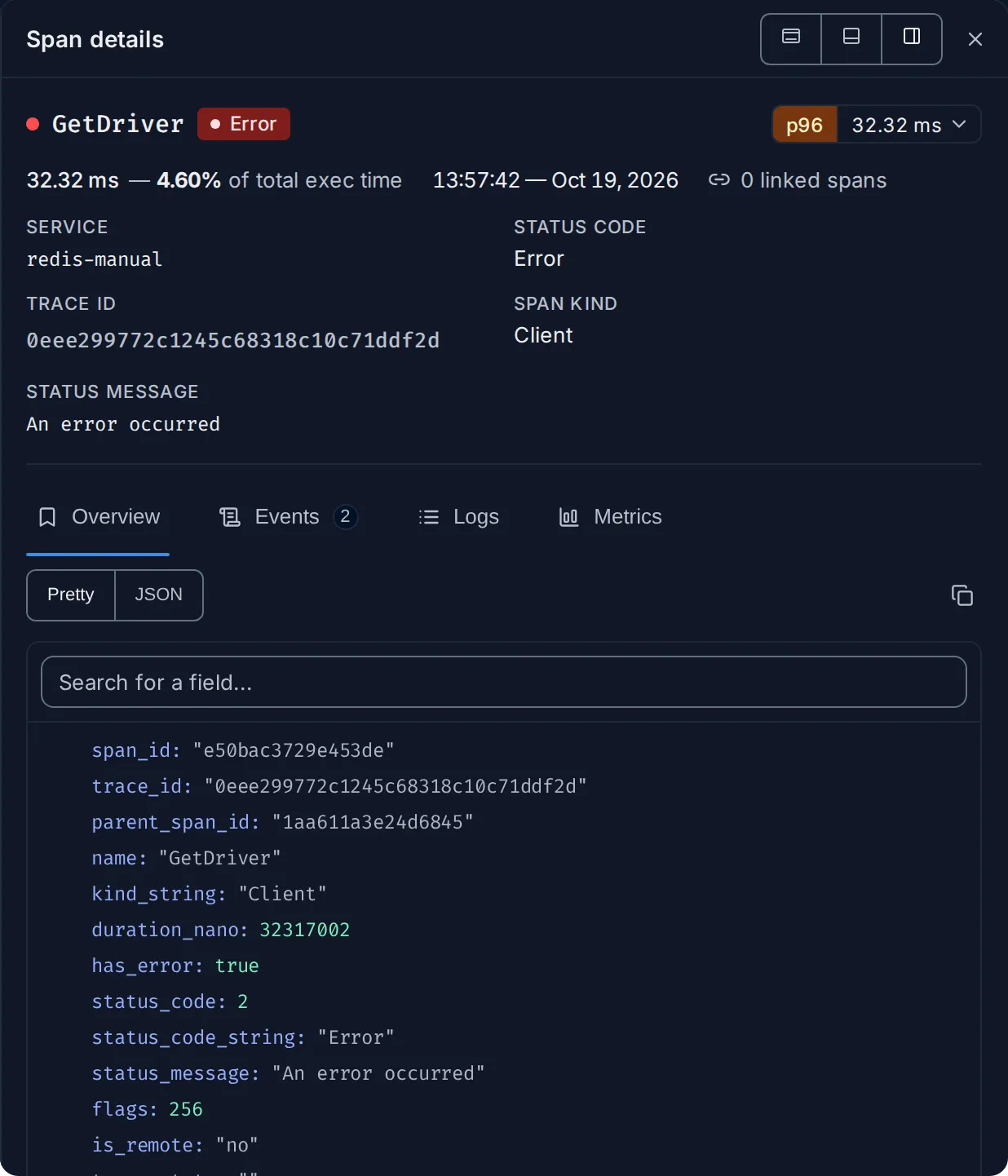
Section titled “Span details”Click a span in the waterfall or the flame graph to open Span details. The top of the panel always shows:
- the span name, with an Error badge if it failed;
- a percentile badge such as
p95: how this span’s duration compares with other spans of the same name and service. Click it for the full table over the last hours; - its duration and the share of the whole trace it covers (
of total exec time), when it started, and its linked spans; - SERVICE, STATUS CODE, TRACE ID, SPAN KIND and, on failures, STATUS MESSAGE.
Below them are up to four tabs. When the panel is docked at the bottom, this summary moves into the Overview tab.
Overview
Section titled “Overview”Every field and attribute of the span.
Attributes are the facts the program recorded about the work: which URL was called
(http.url), which status came back (http.status_code), which query ran
(db.statement), which host or pod ran it. They are what turns “this span was slow”
into “this query on this host was slow”.
Switch between Pretty, a readable list, and JSON, the raw data to copy, and use Search for a field… to find one attribute. Each value in the list has these actions:
| Action | Does |
|---|---|
| Copy | Copies the value |
| Pin | Keeps the field at the top of the list, on every span, for you |
| Filter for value | Opens the Traces explorer with spans that have this value |
| Filter out value | Opens the Traces explorer with spans that do not |
| Group by attribute | Opens the Traces explorer grouped by this attribute |
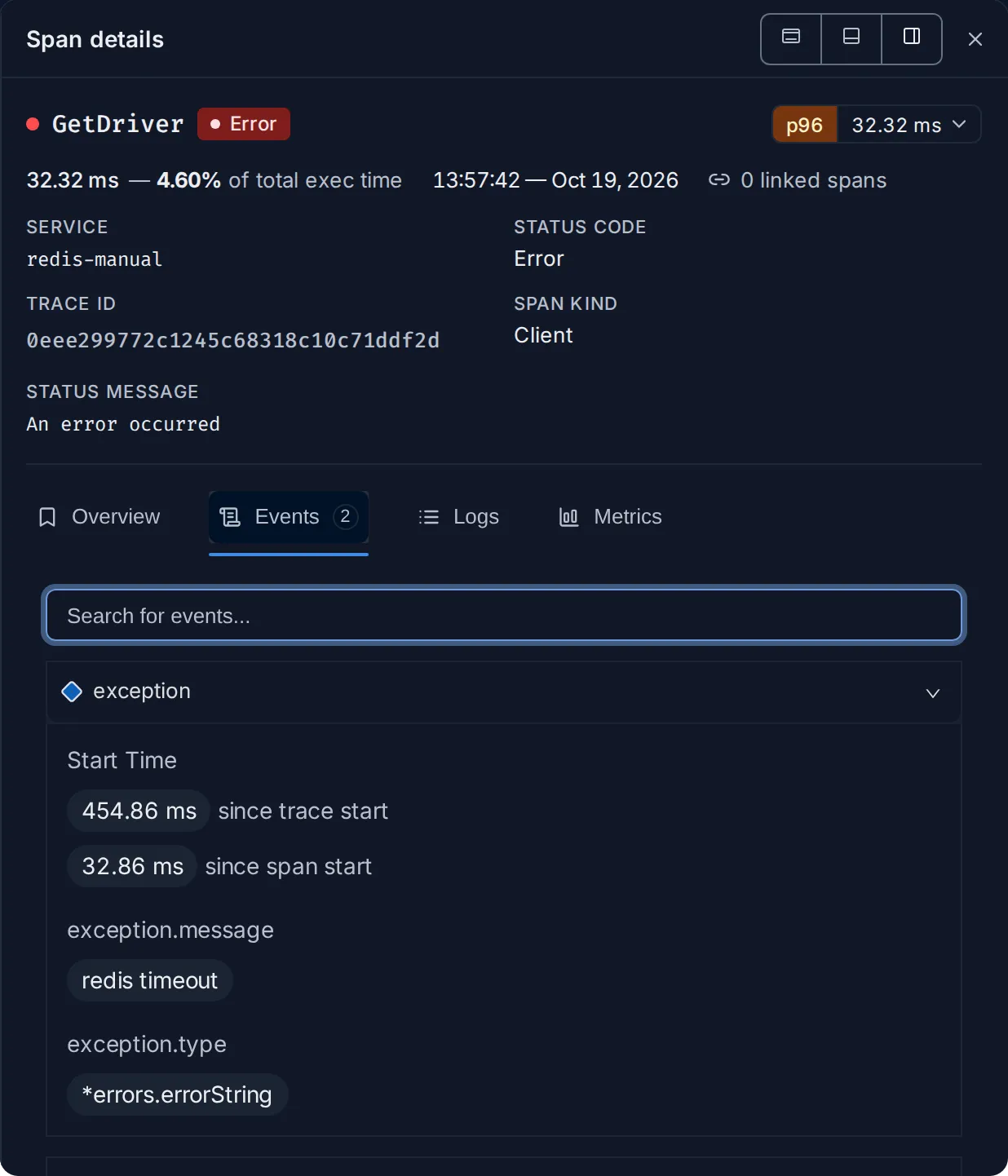
Events
Section titled “Events”Things that happened at one moment inside the span, each with a time and its own
attributes. The most common is an exception event: the error type, message and stack
trace your code raised. Use it to read the error itself. The tab shows a count when the
span has events; search them with the box on top. See
span event.
The logs your code wrote while this request ran, from five minutes before to five minutes after the trace. Logs of the selected span are marked; the others give context. Open in Logs Explorer opens the same search in the Logs explorer.
Metrics
Section titled “Metrics”CPU, memory and other metrics of the host or Kubernetes pod that ran the span, around the
time it ran. The tab is shown only when the span has host or Kubernetes attributes, such
as host.name or k8s.pod.name. Use it to tell whether a slow span was the code or a
busy machine.
Move the panel
Section titled “Move the panel”The three buttons at the top right of the panel choose where it sits. FuseScope remembers your choice.
| Mode | Use it when |
|---|---|
| Dock on the right (default) | You want the waterfall and the details side by side. Drag the panel’s left edge to widen it. |
| Dock at the bottom | You want the full width for the waterfall’s timeline, and read details below it. |
| Open as floating panel | You want to place it anywhere; drag it by its title. |
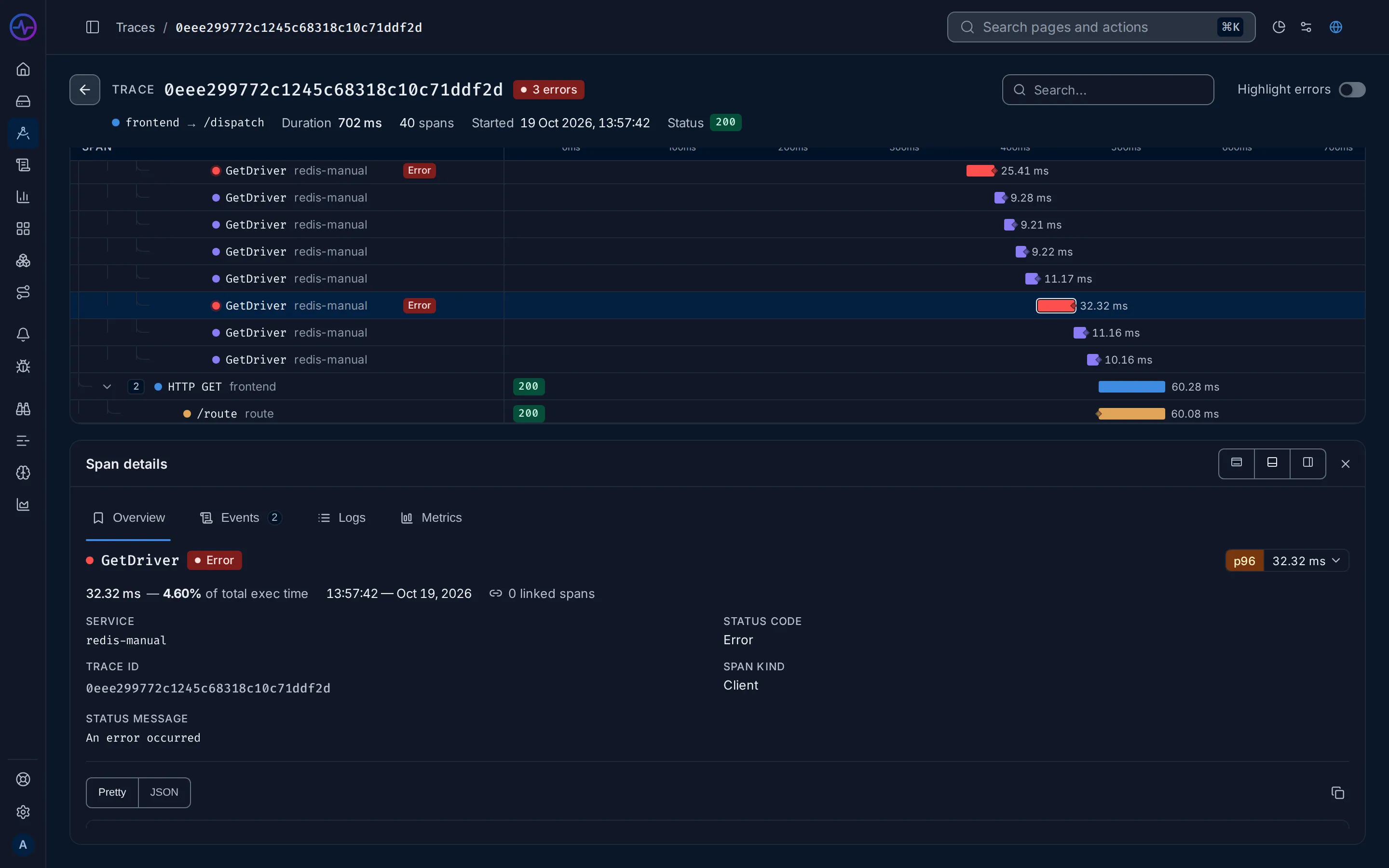
Close the panel with the × next to the dock buttons.
Find spans in a trace
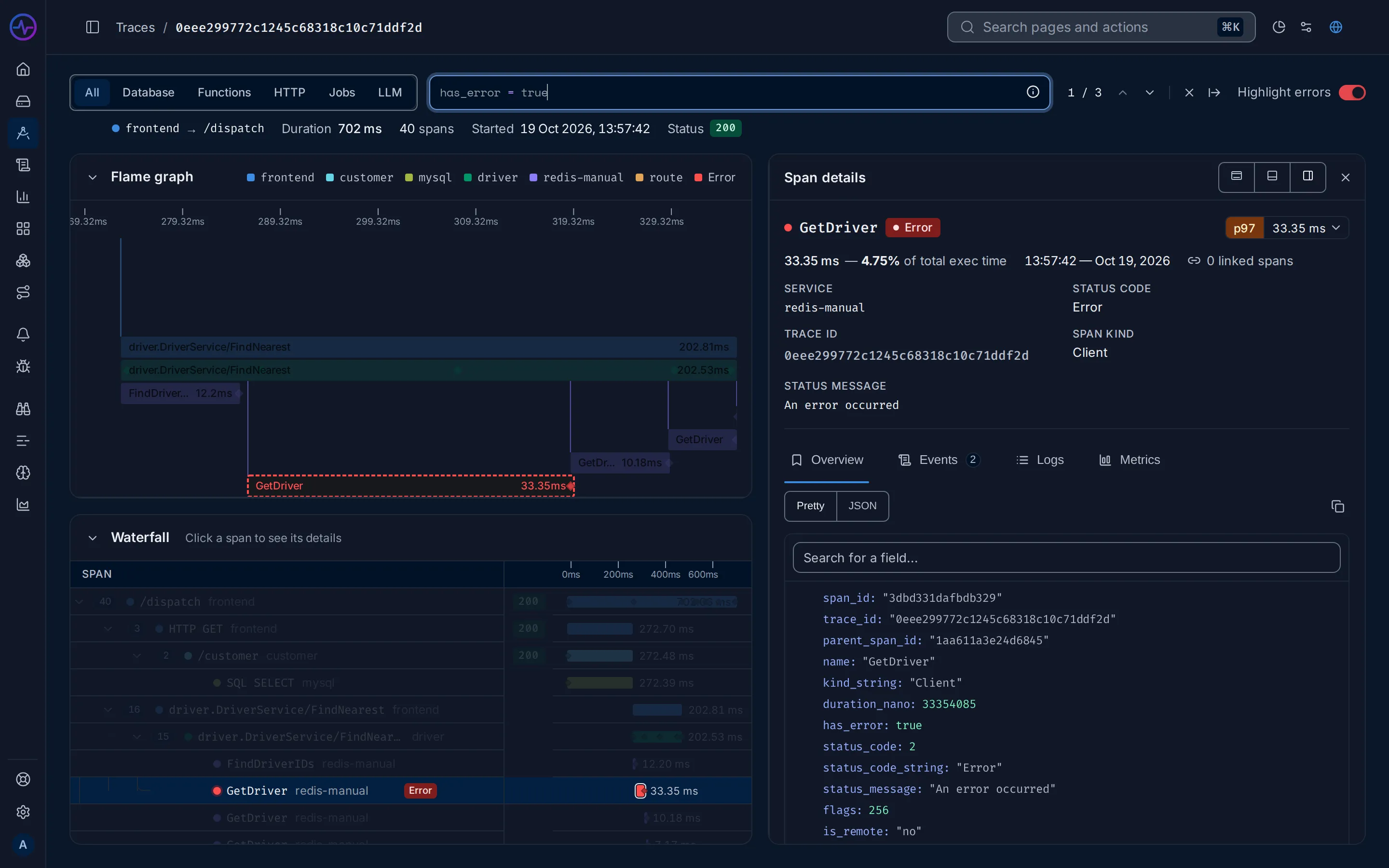
Section titled “Find spans in a trace”A trace can have hundreds of spans. Click Search… at the top of the page and write
a filter with the search syntax, for example
service.name = 'redis-manual' or duration_nano > 100000000 (100 ms). Matching spans
are highlighted in the flame graph and the waterfall, and the others are dimmed.
-
The arrows next to the count (
1 / 12) jump from one match to the next. -
The buttons above the search box limit it to one kind of span:
Category Matches spans with All Any span Database db.systemFunctions kind_string = 'Internal': work inside one serviceHTTP http.methodJobs messaging.system: queues and background jobsLLM gen_ai.request.model: calls to language models -
Highlight errors adds
has_error = trueto the search, so only failed spans stand out. -
The × clears the search; the arrow folds the box back.
Analytics
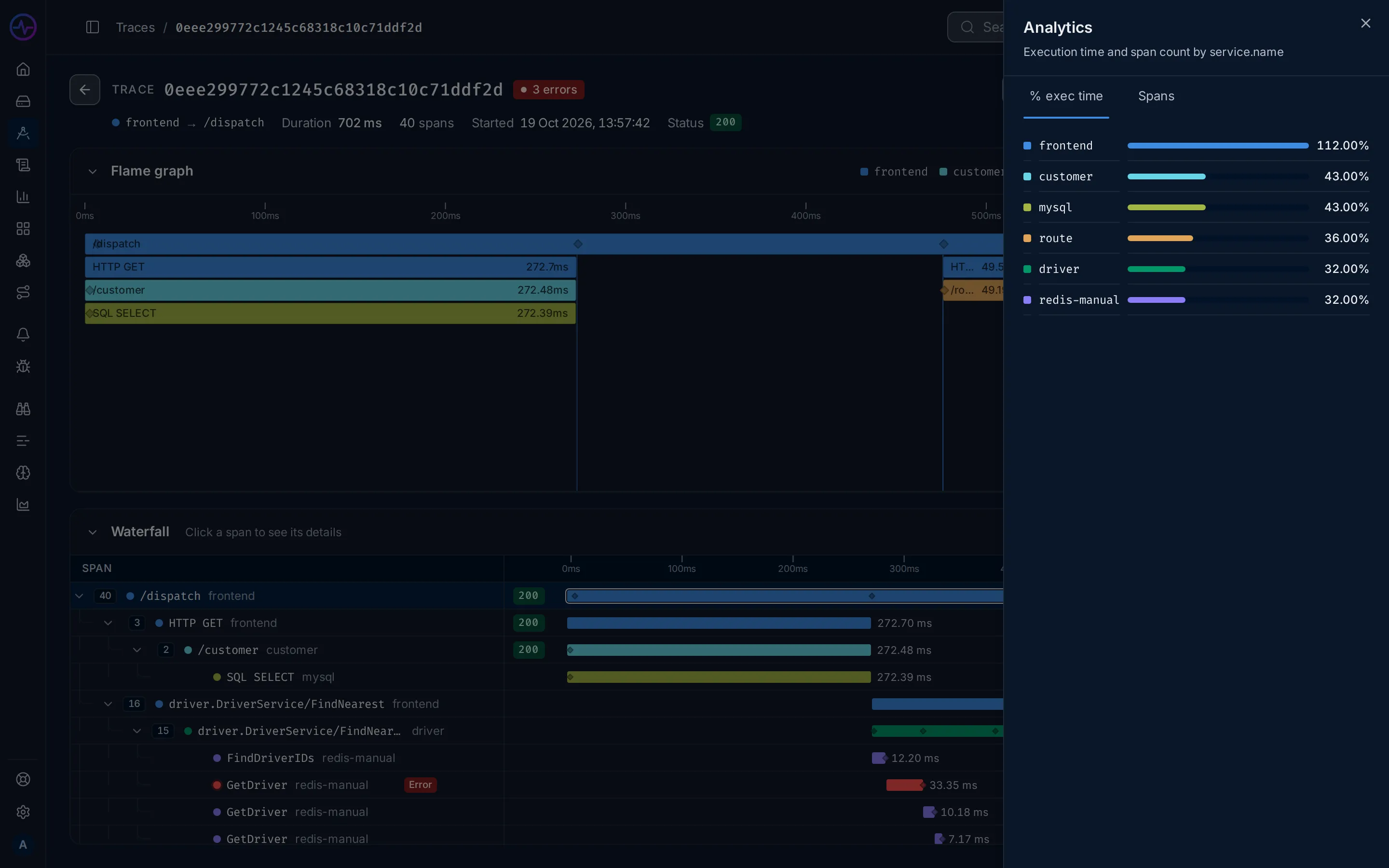
Section titled “Analytics”Click the pie-chart icon in the top bar to open Analytics on the right. It splits the trace by service (or by the Colour by attribute):
- % exec time: how much of the trace’s duration each service’s spans take. The
values don’t add up to 100%: a caller keeps running while it waits for the service it
called, and a service whose spans overlap can even go above 100%, as
frontenddoes below. - Spans: how many spans each service produced.
Read them together. A service with a high % exec time is on the request’s critical path. A service with many spans but little time is making lots of small calls, which is worth a look when they run one after another. A service with few spans and a lot of time is doing slow work in a few calls.
Trace options
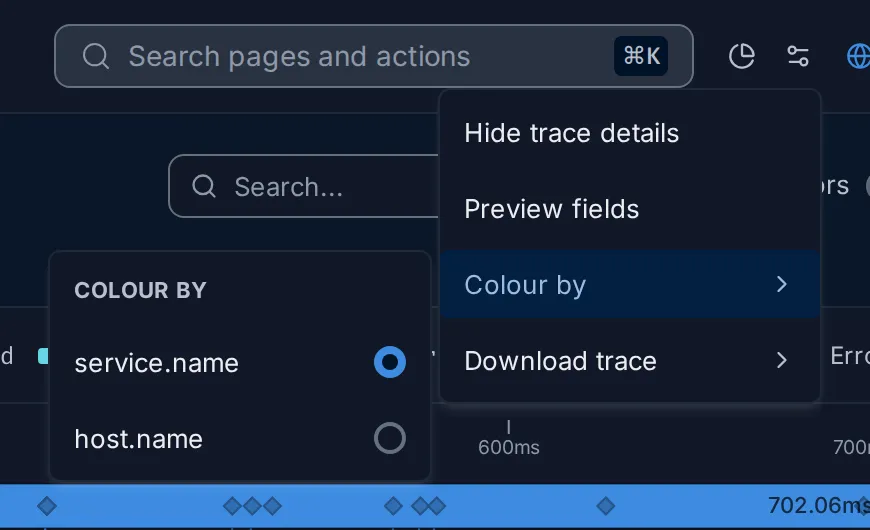
Section titled “Trace options”The sliders icon in the top bar opens Trace options:
- Hide trace details / Show trace details hides or shows the summary row.
- Preview fields picks up to 10 attributes to show on each span when you hover it, so you can compare spans without opening each one.
- Colour by colours the flame graph, the waterfall and the analytics by
service.name(the default) or another resource attribute the trace has, such ashost.nameork8s.node.name. Use it to see whether slow spans share a host. - Download trace saves every span as CSV or JSONL, to attach to a ticket or analyse elsewhere.
Next steps from a span
Section titled “Next steps from a span”Hover a row in the waterfall for two buttons at its right end:
- Copy Span Link copies a link that opens this trace with this span selected. Paste it into a ticket or a chat so others land on the same span.
- Add to Trace Funnel adds the span as a step of a new or existing funnel, to follow how many requests reach it.
From the span details you can also open its logs in the Logs explorer (Logs tab), or search for similar spans across all traces with Filter for value (Overview tab).
Example: why did this request take 700 ms?
Section titled “Example: why did this request take 700 ms?”The HotROD demo’s frontend answers /dispatch in about 700 ms. Here is how to find
out why from one trace.
-
Open a slow trace. In the Traces explorer, search
service.name = 'frontend' AND name = '/dispatch', set Order by toduration_nano (desc)and click the first row. -
Look at the shape. In the flame graph,
frontend’s/dispatchspans the whole width. Under it, three blocks run one after another:customer, thendriver, then a group ofroutecalls side by side. Nothing overlaps, so the request waits for each in turn. -
Find the longest block. In the waterfall, compare the bars under
/dispatch.driver.DriverService/FindNearestis one of the widest, and under it is a long staircase of shortredis-manualspans that run one at a time. -
Check the errors. Turn on Highlight errors. A few
redis-manualGetDriverspans light up in red. Click one: STATUS MESSAGE only saysAn error occurred, but the Events tab has anexceptionevent whoseexception.messageisredis timeout. -
Read the numbers. Open Analytics.
customerandmysqleach take about 43% of the trace: one SQL query of roughly 270 ms.driverandredis-manualtake about 32%, and on the Spans tabredis-manualhas by far the most spans: many small calls, made one after another.
Conclusion: the 700 ms is two slow steps in a row. The customer lookup is a single
SQL query of about 270 ms, the largest block, so it is the first thing to speed up. Then
FindNearest reads each driver from Redis one call at a time, about 200 ms, and every
timeout adds a retry. Fetching drivers in one batch, or in parallel, would remove most
of the second step.
The same steps, starting from the service list, are in Investigate a slow endpoint.
If something is missing
Section titled “If something is missing”- This trace has missing spans. Some spans the trace refers to never arrived: a service is not instrumented, dropped them, or sent them to another backend. The tree shows a gap where they belong.
- The trace stops at one service. The next service does not pass the trace context on. See Instrument applications.
- The Logs tab is empty. Your logs have no
trace_id; see Logs. - No trace found. The trace is older than your retention, or the ID is wrong.
- A warning next to Flame graph. The trace has too many spans to draw them all, so the flame graph shows a sample. The waterfall still has every span.
Related
Section titled “Related”- Traces explorer: find the traces to open.
- Investigate a slow endpoint.
- Find out why a service is failing.
- See the logs for one request.
- Core concepts: traces, spans and root spans.