

Set up a web application
This page takes a web application from nothing to its first session in FuseScope, in about ten minutes. You need the Admin or Editor role, and a web app you can change and deploy. It works with any framework that uses a bundler, such as React with Vite, Vue, Angular or Next.js.
If you don’t know what RUM records yet, start with Real User Monitoring.
The steps at a glance
Section titled “The steps at a glance”- Create the application in FuseScope: its name, the origins allowed to send data, and its privacy policy.
- Copy the public key. It is shown once.
- Install the SDK with npm and paste the generated
init()call. - Allow
traceparentin your API’s CORS, if the API is on another origin. - Open your site and watch the data arrive.
- Upload your source maps with each release, so errors show your original code.
Create the application
Section titled “Create the application”A RUM application is one web app in one environment, such as web-shop in
production. Open Frontend in the sidebar, then New application. When there is
no application yet, the page explains RUM and shows the same button:
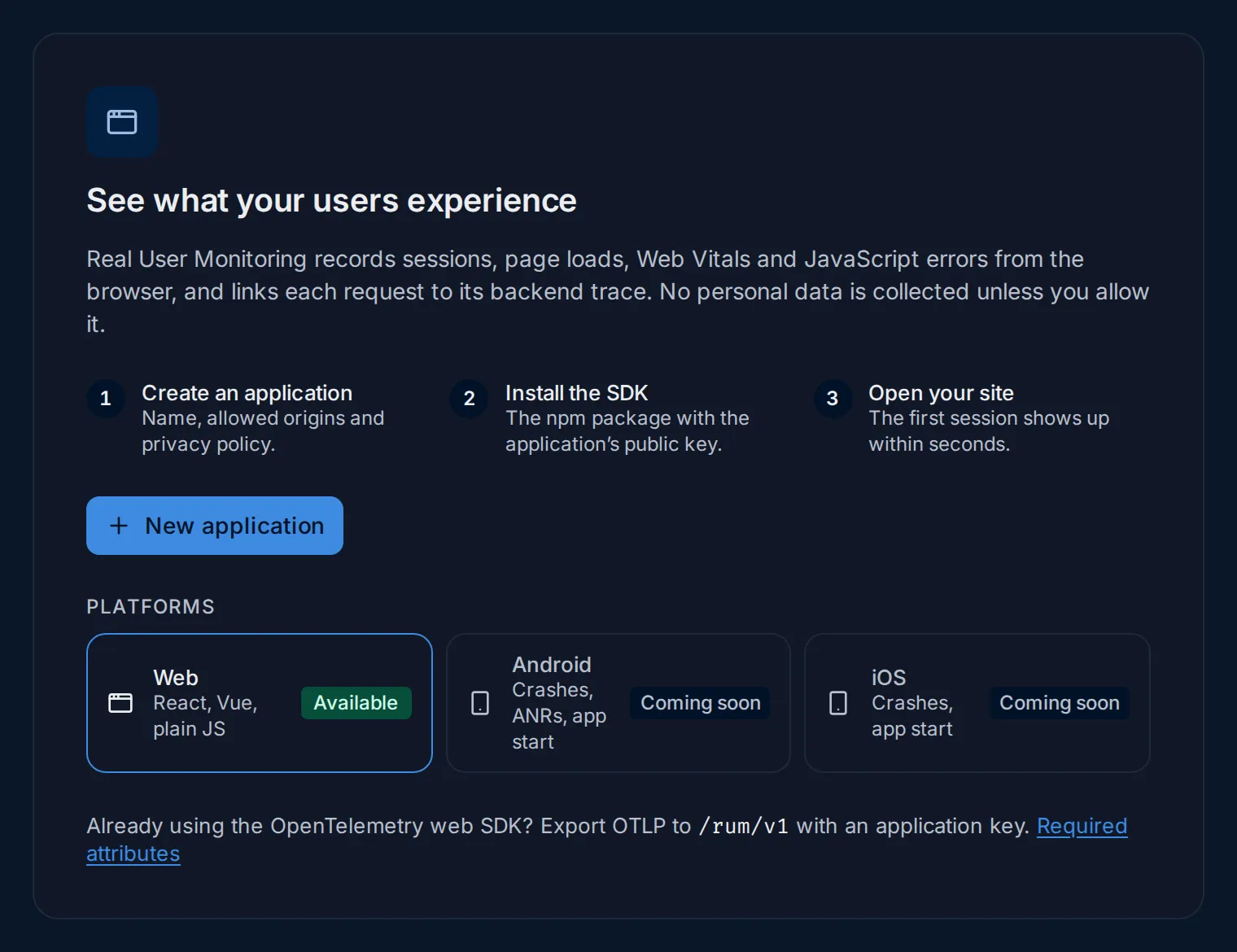
Sample data: this image is a Storybook story.
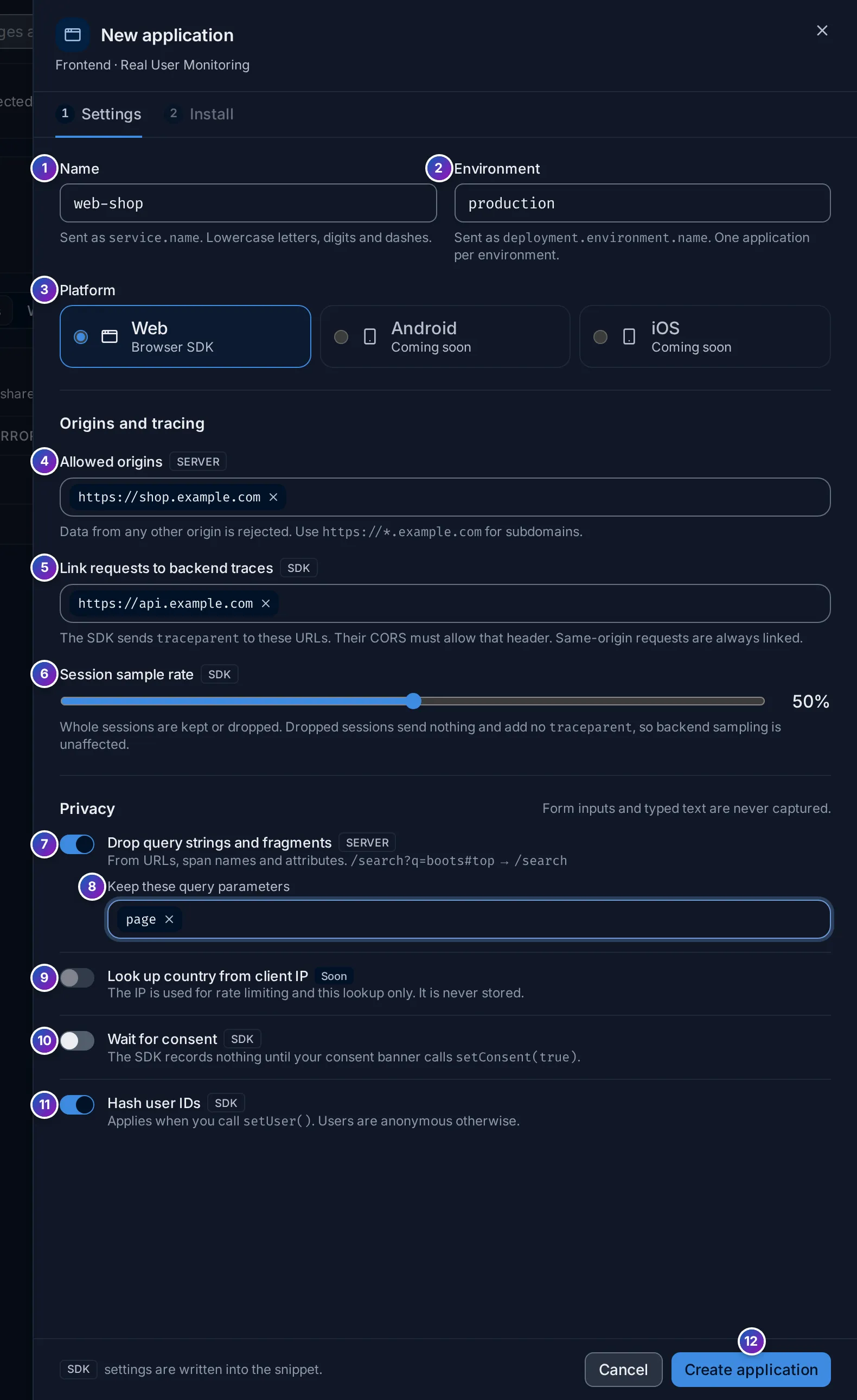
The New application sheet has two steps, Settings and Install. Here it is
filled for a shop at https://shop.example.com whose API is at
https://api.example.com:
1. Application
Section titled “1. Application”- Name: sent as
service.name, so it is also how the app appears in Services and the explorers. Use lowercase letters, digits and dashes, such asweb-shop. - Environment: sent as
deployment.environment.name, such asproductionorstaging. Create one application per environment, so each has its own key, origins and numbers. - Platform: Web. For an Android app, see Set up an Android application; iOS is coming soon.
2. Origins and tracing
Section titled “2. Origins and tracing”- Allowed origins: the sites allowed to send data with this application’s key.
Type an origin and press Enter. An origin is a scheme, host and optional port, with
no path:
https://shop.example.comorhttp://localhost:5173.https://*.example.comallows every subdomain ofexample.com, but notexample.comitself; add it separately.*allows any origin. Avoid it in production: anyone who copies your key could send data from their own site.- A browser request from any other origin is rejected. Add your local development origin too if you test from there.
- Link requests to backend traces: the URLs of your APIs on another origin,
such as
https://api.example.com. The SDK addstraceparentto requests sent to them, which links each browser request to its backend trace. Requests to your site’s own origin are always linked. Your API must accept the header; see Allow traceparent. - Session sample rate: the share of sessions recorded, in steps of 5%. The choice
is made once per session, so a session is recorded whole or not at all. Sessions
left out send nothing and add no
traceparent, so they don’t affect how your backend samples its traces. Keep 100% unless you have a lot of traffic.
3. Privacy
Section titled “3. Privacy”The line under Privacy reminds you that form inputs and typed text are never captured, whatever you choose here.
- Drop query strings and fragments: on by default. Removes everything after
?and#from URLs and span names:/search?q=boots#topbecomes/search. Query strings often hold emails, tokens or search terms, so keep it on. - Keep these query parameters: parameter names kept despite 7, such as
pageorutm_source. Only the name is matched; its value is kept as sent. - Look up country from client IP: marked Soon, off and disabled. A country lookup from the client’s IP comes in a later release. The IP is never stored.
- Wait for consent: the SDK records nothing until your consent banner calls
setConsent(true). Turn it on if you need consent before analytics, as under GDPR or LGPD. - Hash user IDs: on by default. When your code calls
setUser({ id }),user.idcarries the SHA-256 hash of the id instead of the id itself. Users are anonymous when you don’t callsetUser(). - Create application saves it, creates its first public key and opens the Install step.
Server or SDK
Section titled “Server or SDK”Each setting carries a tag that says where it is applied:
| Tag | Settings | Applied by | When you change it |
|---|---|---|---|
| SERVER | Allowed origins, Drop query strings, Keep these query parameters | The FuseScope RUM gateway, on every request | Takes effect when you save, for all users |
| SDK | Link requests to backend traces, Session sample rate, Wait for consent, Hash user IDs | The SDK, from the options in the init() snippet |
Copy the new snippet into your app and redeploy it |
Because the gateway applies the server settings itself, they hold even for a client that ignores them, such as an old build or a hand-configured OpenTelemetry SDK.
Copy the public key
Section titled “Copy the public key”Right after Create application, the Install step shows the application’s public key. It is the only time FuseScope shows it in full:
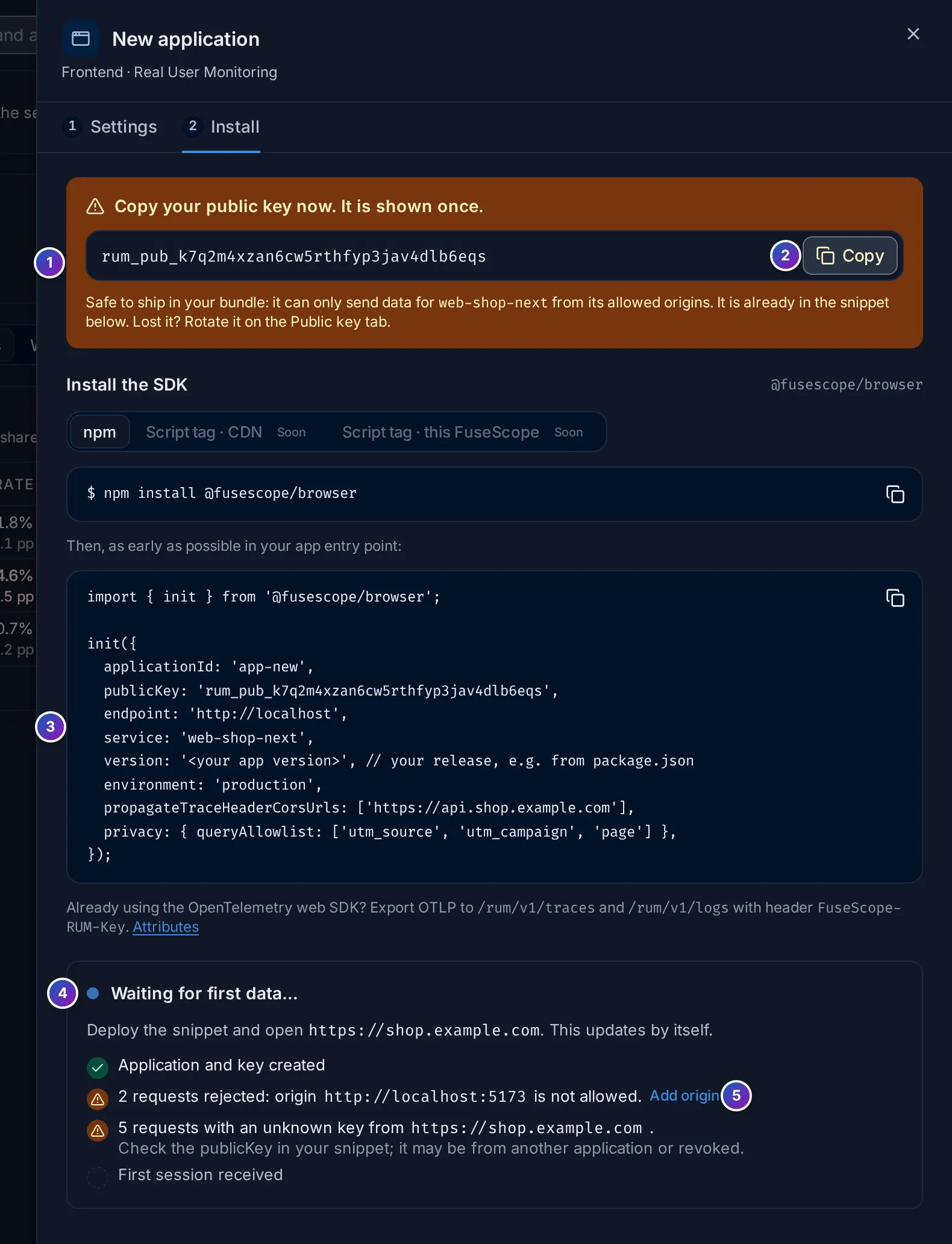
Sample data: this image is a Storybook story.
- Copy your public key now. It is shown once. FuseScope stores only a hash of
it, so it can’t show the key again. Keys start with
rum_pub_. - Copy puts the key on the clipboard.
- The
init()snippet already contains the key until you close the sheet.
The key is public and write-only: it is safe to ship in your JavaScript bundle, where anyone can read it. It can only send data for this application, from its allowed origins, within its rate limit. It can’t read anything.
Install the SDK
Section titled “Install the SDK”For React Router views and caught rendering errors, also follow Set up React RUM.
Install @fusescope/browser from
npm, with the next tag, which has the current beta, 0.2.0-beta.1:
npm install @fusescope/browser@nextThe Install tab shows npm install @fusescope/browser without the tag, which installs
an older beta; add @next.
Then paste the snippet from the Install step as early as possible in your app’s
entry point, before your app renders, such as src/main.tsx or src/main.ts. The
snippet is generated from the application’s settings; for the example above it reads:
import { init } from '@fusescope/browser';
init({ applicationId: '01a16431-12ca-7064-bae9-6ac64cf20a29', publicKey: 'rum_pub_…', endpoint: 'https://fusescope.example.com', service: 'web-shop', version: '<your app version>', // your release, e.g. from package.json environment: 'production', sessionSampleRate: 0.5, propagateTraceHeaderCorsUrls: ['https://api.example.com'], privacy: { queryAllowlist: ['page'] },});-
applicationIdis the application’s id, not its name. -
endpointis the FuseScope URL the snippet was generated on. Your users’ browsers must be able to reach it: if you opened FuseScope throughlocalhostor an internal host name, replace it with FuseScope’s public URL. See Self-hosted FuseScope. -
Replace
<your app version>with your app’s release, such as theversioninpackage.json. It is sent asservice.version, fills the Release filter and badge, and must be the--releaseyou upload source maps for. A bundler can inject it at build time:version: import.meta.env.VITE_APP_VERSION, // Vite, with define in vite.config.ts -
Options left at the SDK’s defaults are omitted, so the snippet only shows what this application changes. All options are in the SDK reference.
The SDK is published as ESM for bundlers.
Install with a script tag
Section titled “Install with a script tag”For a site without a bundler, choose Script tag on the Install tab. The SDK is
then a single file that defines a global FuseScope. Pick where browsers load it from:
| Source | URL | Use when |
|---|---|---|
| This FuseScope (default) | https://<your FuseScope>/rum/v1/sdk/browser/<version>/fusescope.min.js |
Self-hosted or air-gapped installs; browsers need to reach FuseScope anyway. |
| cdn.fuseone.io | https://cdn.fuseone.io/browser/<version>/fusescope.min.js |
A public CDN run by FuseOne. |
| jsDelivr | https://cdn.jsdelivr.net/npm/@fusescope/browser@<version>/dist/fusescope.min.js |
The npm package served by jsDelivr. |
All three serve the same file. Your FuseScope serves the version it was built with; the Install tab uses that version for every source. The snippet looks like this:
<script src="https://fusescope.example.com/rum/v1/sdk/browser/0.2.0-beta.1/fusescope.min.js" integrity="sha384-W9beoX1Dd3K5Qeu+f2RfXYn3RF/Z5NSY/TUye/4XmIr7RUnT23UwZSqyiY3UWDAs" crossorigin="anonymous"></script><script> FuseScope.init({ applicationId: '01a16431-12ca-7064-bae9-6ac64cf20a29', publicKey: 'rum_pub_…', endpoint: 'https://fusescope.example.com', version: '<your app version>', // your release });</script>- Put both tags in the
<head>, before your own scripts, so the first view and its Web Vitals are recorded. - Keep
integrityandcrossorigin="anonymous". The browser computes the file’s hash and refuses to run it if it differs, so a tampered CDN copy never executes. Each release publishes its hash infusescope.min.js.srinext to the file. - The page’s origin must be in the application’s Allowed origins, as with npm.
Allow traceparent in your API’s CORS
Section titled “Allow traceparent in your API’s CORS”If your site calls an API on another origin, such as https://api.example.com from
https://shop.example.com, the browser sends a CORS preflight before each request that
carries traceparent. The API must allow that header, or the browser blocks the request
itself, not only its trace. Same-origin APIs need nothing.
Add traceparent (and tracestate, if you use it) to the API’s
Access-Control-Allow-Headers:
import cors from 'cors';
app.use(cors({  origin: ['https://shop.example.com'],  allowedHeaders: ['content-type', 'authorization', 'traceparent', 'tracestate'],}));
add_header Access-Control-Allow-Headers "content-type, authorization, traceparent, tracestate" always;handler := cors.New(cors.Options{ AllowedOrigins: []string{"https://shop.example.com"}, AllowedHeaders: []string{"Content-Type", "Authorization", "traceparent", "tracestate"},}).Handler(mux)The backend must also be instrumented with OpenTelemetry and send its traces to
FuseScope; see Instrument applications.
OpenTelemetry instrumentations read traceparent and continue the browser’s trace.
Check that data arrives
Section titled “Check that data arrives”Deploy your app and open it in a browser. The Install step updates by itself: it reads Waiting for first data… until the gateway accepts the first request, then Receiving data:
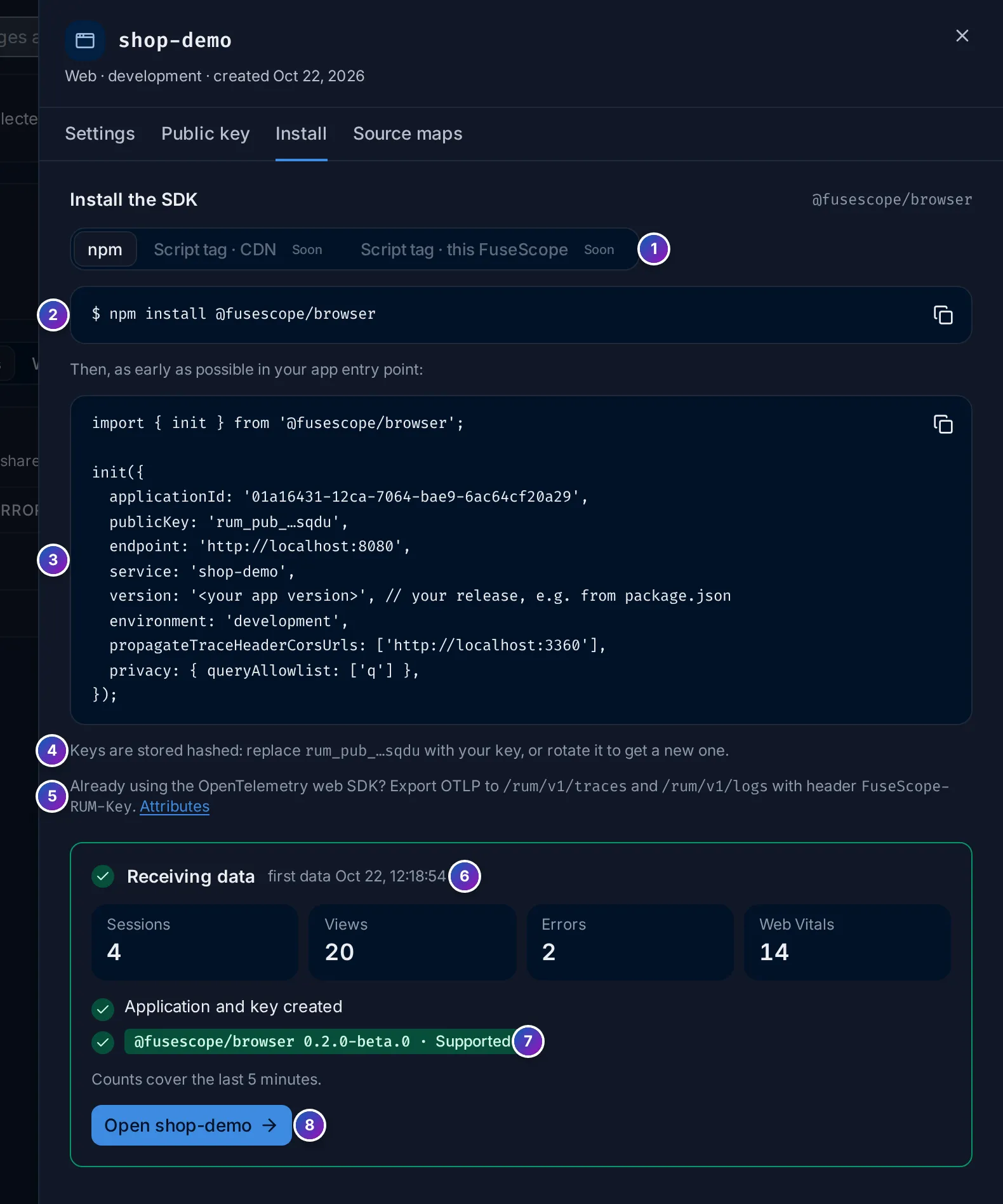
- Install method: npm; the two script-tag methods are coming soon.
- Install command, with a copy button.
- Snippet, with a copy button.
- When you come back later, the snippet shows the key masked, such as
rum_pub_…sqdu: replace it with your key. - A reminder for apps that already use the OpenTelemetry web SDK; see Use another OpenTelemetry client.
- Receiving data, with when the first data arrived and what arrived in the last 5 minutes: Sessions, Views, Errors and Web Vitals.
- The SDK seen and whether this server supports its version: Supported, Outdated (data is still accepted), or Other client for any other OpenTelemetry SDK. See Compatibility.
- Open shop-demo opens the application’s overview.
The first session shows up within seconds. Some Web Vitals, such as CLS and INP, are only final when the user hides or leaves the page, so switch tabs or close the page to send them sooner.
Troubleshoot rejected requests
Section titled “Troubleshoot rejected requests”Requests the gateway refuses are listed under the status with a warning icon and how
many were rejected in the last 5 minutes, such as
2 requests rejected: origin http://localhost:5173 is not allowed.
| Message | Cause | Fix |
|---|---|---|
| origin … is not allowed | The page’s origin is not in Allowed origins. The browser shows a CORS error and the gateway answers 403. |
Click Add origin on the line, then save. Check the scheme and port: http://localhost:5173 and http://localhost:3000 are different origins. |
| the key is not valid for this application | The key was revoked, or its rotation overlap ended. The gateway answers 401. |
Deploy the current key; see Keys. |
| with an unknown key from … | The key matches no key FuseScope issued, such as a typo or a key from another application or workspace, and the page’s origin is in Allowed origins. The gateway answers 401. |
Check the publicKey in your snippet against the last four characters on the Public key tab. |
| rate limited | More than 20 requests per second from one browser (bursts of 60), or 500 per second for the whole key (bursts of 1,000). The gateway answers 429. |
Usually a loop or a misbehaving page. Behind a proxy, check the client IP setting: otherwise all users share one limit. |
| payload too large | A request body over 4 MiB, before or after gzip. The gateway answers 413. |
The SDK sends small batches; this comes from a custom client. Send smaller batches. |
| not valid OTLP | The body is not OTLP, or its Content-Type is not application/json or application/x-protobuf. |
Check the exporter of a custom client. |
Other things to check when nothing arrives:
- No request to
/rum/v1/at all:init()is not called, the session was not sampled (checksessionSampleRate), or Wait for consent is on andsetConsent(true)hasn’t been called. - Requests fail without reaching FuseScope:
endpointis wrong, or the/rum/path is not exposed; see the next section. - The counts are kept in memory by each FuseScope server for 5 minutes. They start again after a restart and, with several replicas, cover only the replica that answers. The data itself is in the explorers either way.
Upload source maps
Section titled “Upload source maps”Your production bundle is minified, so a JavaScript error’s stack trace reads
kS · app.4GMSW5AF.js:2:11056. Upload the source maps of each release and the
Errors tab shows applyCoupon · src/cart/pricing.js:13:11
instead. In short:
-
Build with hidden source maps (Vite
build.sourcemap: 'hidden', webpackdevtool: 'hidden-source-map'). -
Create a service account with the Editor role and a key for it.
-
After each build, upload with the same release as
version:Terminal window FUSESCOPE_URL=https://fusescope.example.com \FUSESCOPE_APP=01a16431-12ca-7064-bae9-6ac64cf20a29 \FUSESCOPE_API_KEY=… \npx @fusescope/cli@next sourcemaps upload ./dist --release 1.8.0 --delete-after
The application’s Source maps tab has these commands filled in. See Source maps for the details.
Self-hosted FuseScope
Section titled “Self-hosted FuseScope”The RUM gateway runs inside the FuseScope backend, on its HTTP port (8080), under
/rum/. Users’ browsers send data straight to it, so:
- Expose
/rum/publicly. Theendpointin the snippet must reach the backend’s/rum/v1/tracesand/rum/v1/logsfrom the internet. The Helm chart’s default ingress path/already does; if you route only some paths, add/rum. See Expose FuseScope. - Let the gateway answer CORS. Your ingress or proxy must pass
OPTIONSrequests and theOriginheader through and must not add CORS headers of its own. With ingress-nginx, don’t setenable-corson this ingress, and raiseproxy-body-size(1 MB by default) to 4 MB. - Trust the client IP behind a proxy. The per-browser rate limit keys on the client
IP. Behind an ingress or load balancer every browser would share the proxy’s IP, and
one limit. Set the chart’s
trustForwardedForvalue totrue, or the backend environment variableSIGNOZ_RUM_RATELIMIT_TRUST__FORWARDED__FOR=true, so the gateway reads the firstX-Forwarded-Foraddress. Only do this behind a proxy that sets that header, since a browser could otherwise choose its own address. - Point the gateway at your collector. It forwards to
http://localhost:4318by default. Outside Helm, setSIGNOZ_RUM_COLLECTOR__ENDPOINTto your collector’s OTLP/HTTP address, such ashttp://otel-collector:4318.
The gateway’s settings are under rum in the
configuration file, such as
rum.max_body_size and rum.ratelimit.client.rate. rum.enabled: false turns the
gateway off. See Install with Helm for the chart.
Related
Section titled “Related”- Applications and Overview: read what arrives.
- Source maps: original stack traces.
- Keys: rotate or revoke the public key.
- SDK reference: every
init()option.