

Build your first dashboard
Use this guide when you want one page that shows the health of your services at a glance, to keep open on a screen or to share with your team.
You will build the dashboard below from trace data: how much each service does, how often it fails, and how slow it is. No metrics setup is needed.
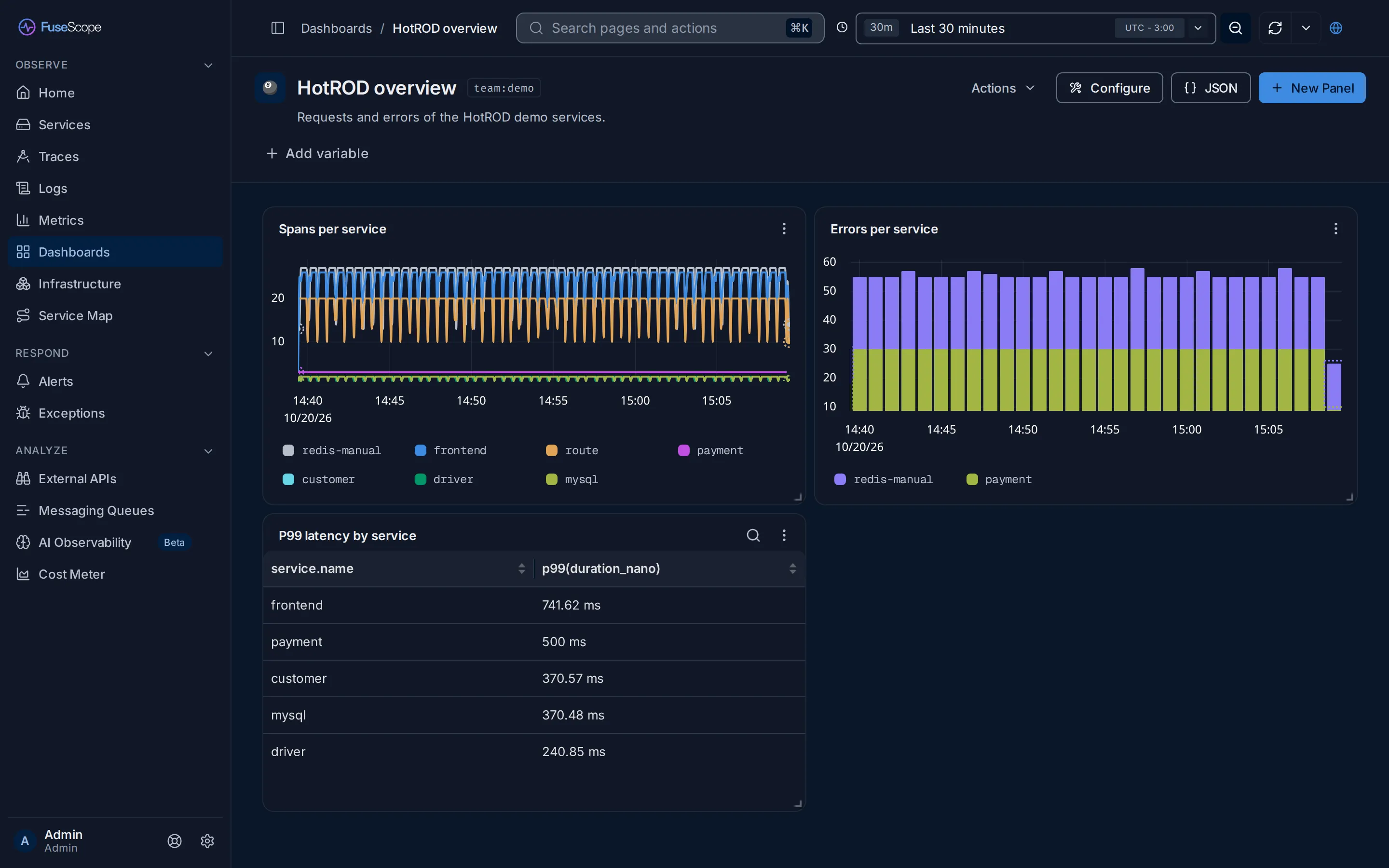
You need the Editor or Admin role.
Create the dashboard
Section titled “Create the dashboard”- Open Dashboards in the sidebar and click New dashboard.
- On the Blank tab, replace
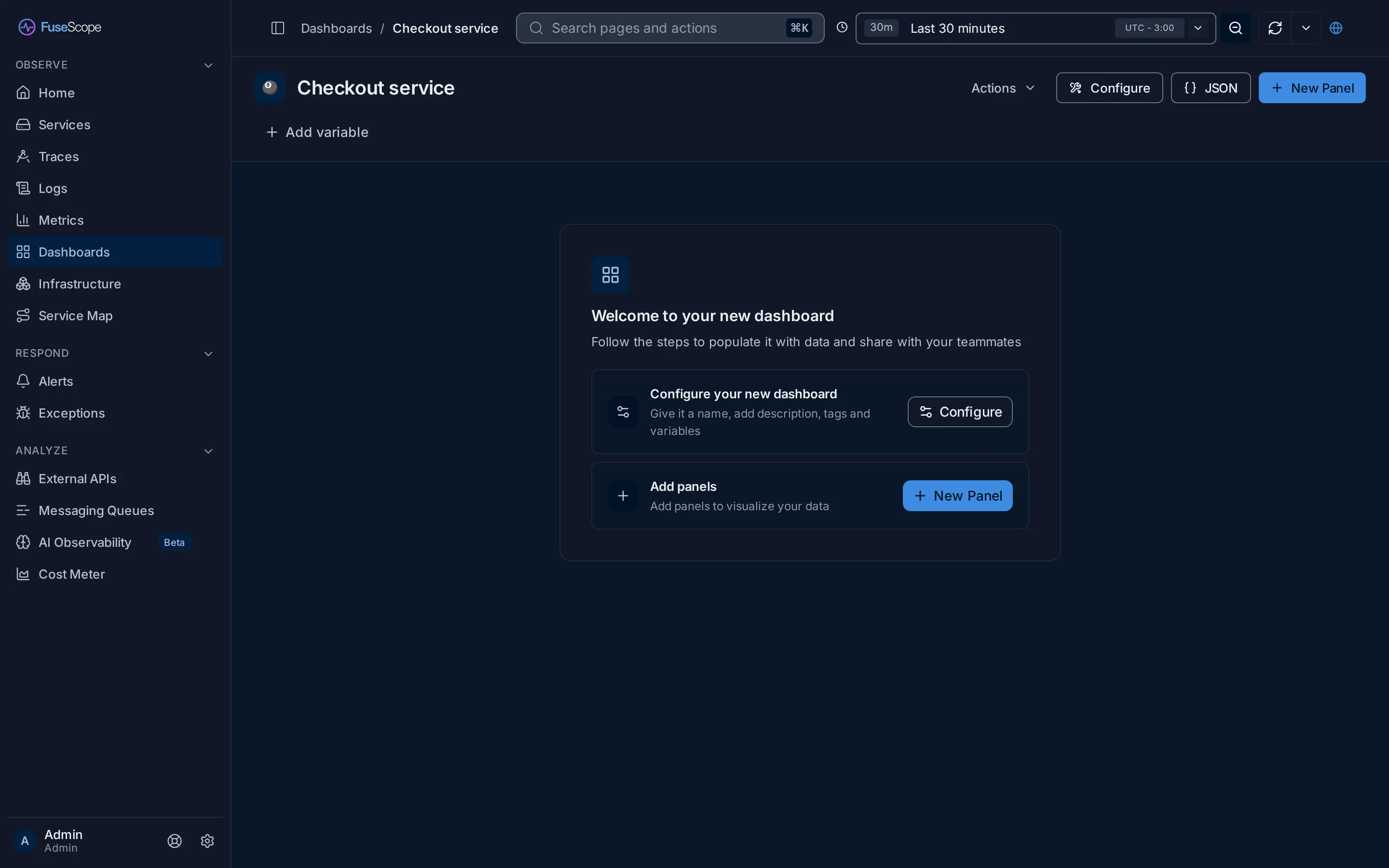
Sample Dashboardin Title with a name, such asHotROD overview, and add an optional Description. In Tags, typeteam:demoand press Enter. - Click Create dashboard. The new dashboard opens on Welcome to your new dashboard.
Panel 1: spans per service
Section titled “Panel 1: spans per service”A panel is one chart on the dashboard.
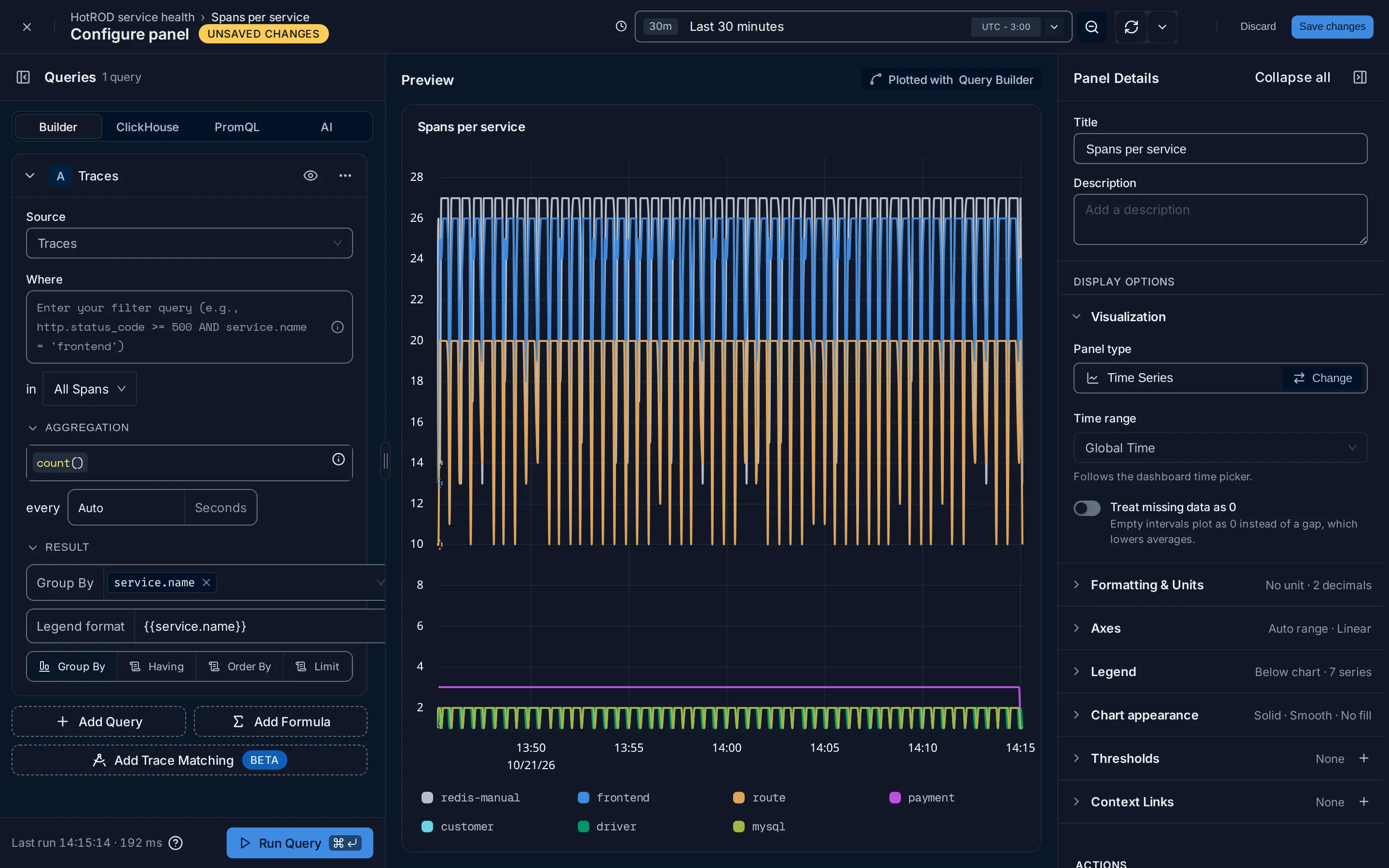
- Click New Panel. In the New panel picker, click Time Series, then Add panel. The panel editor opens: the query on the left, a preview of the chart in the middle and the panel settings on the right.
- In the query card, change Source from Metrics to Traces. The
aggregation is
count(): the number of spans. - Open Result, click Group By and pick
service.name, to draw one line per service. - In Legend format, enter
{{service.name}}, so each line is labelled with its service name. - On the right, set Title to
Spans per service. - Click Run Query to check the chart, then Save changes.
Panel 2: errors per service
Section titled “Panel 2: errors per service”-
Click New Panel at the top of the dashboard, pick Bar Chart and click Add panel.
-
Change Source to Traces and type this filter in Where:
has_error = true -
In Result, group by
service.nameand set the legend to{{service.name}}. Set the title toErrors per service. -
Click Run Query, then Save changes.
Panel 3: P99 latency per service
Section titled “Panel 3: P99 latency per service”- Click New Panel, pick Table and click Add panel.
- Change Source to Traces. Replace
count()withp99(duration_nano), the duration that 99 in 100 spans stay under. - In Result, group by
service.name. Set the title toP99 latency by service. - Durations are stored in nanoseconds. On the right, open Formatting & Units,
and under Column units pick Nanoseconds for the
p99(duration_nano)column. The table now shows values such as737.86 ms. - Click Run Query, then Save changes.
Arrange and share
Section titled “Arrange and share”- Drag a panel by its header to move it, and drag its bottom-right corner to resize it. The layout is saved when you let go.
- Change the time range at the top of the page; every panel follows it.
- Click Share (the globe icon at the top right), then Copy page link. Anyone with access to FuseScope who opens it sees the same dashboard and time range.
- To group panels later, use Actions › New section. See Sections.
Expected result
Section titled “Expected result”A dashboard with three panels that update with the time range. Open it from Dashboards at any time; click the pin icon on its row to find it in the Pinned view.
Next steps
Section titled “Next steps”- Turn errors into a percentage with two queries and a formula
B / A * 100: see Several queries and formulas. - Get notified when a number crosses a line: see Set up your first alert.
Related
Section titled “Related”- Dashboards: panel types, options, sections and JSON.
- Query builder: aggregations, group by and formulas.