

Errors
The Errors tab of an application (/frontend/applications/<id>/errors) groups the
errors your users hit, so that one bug is one row however many times it
happened. Click a group to see its stack trace, what the user did before it, and the
backend request that may have caused it.
Use it when you want to know which errors affect the most users, whether a release brought a new one, or why a particular error happens.
The browser SDK reports uncaught errors (onerror), unhandled promise rejections
(unhandledrejection), and errors you report yourself with
addError() (manual). For Android,
see Crashes and ANRs. All numbers follow the time range and the
Release filter.
Error groups
Section titled “Error groups”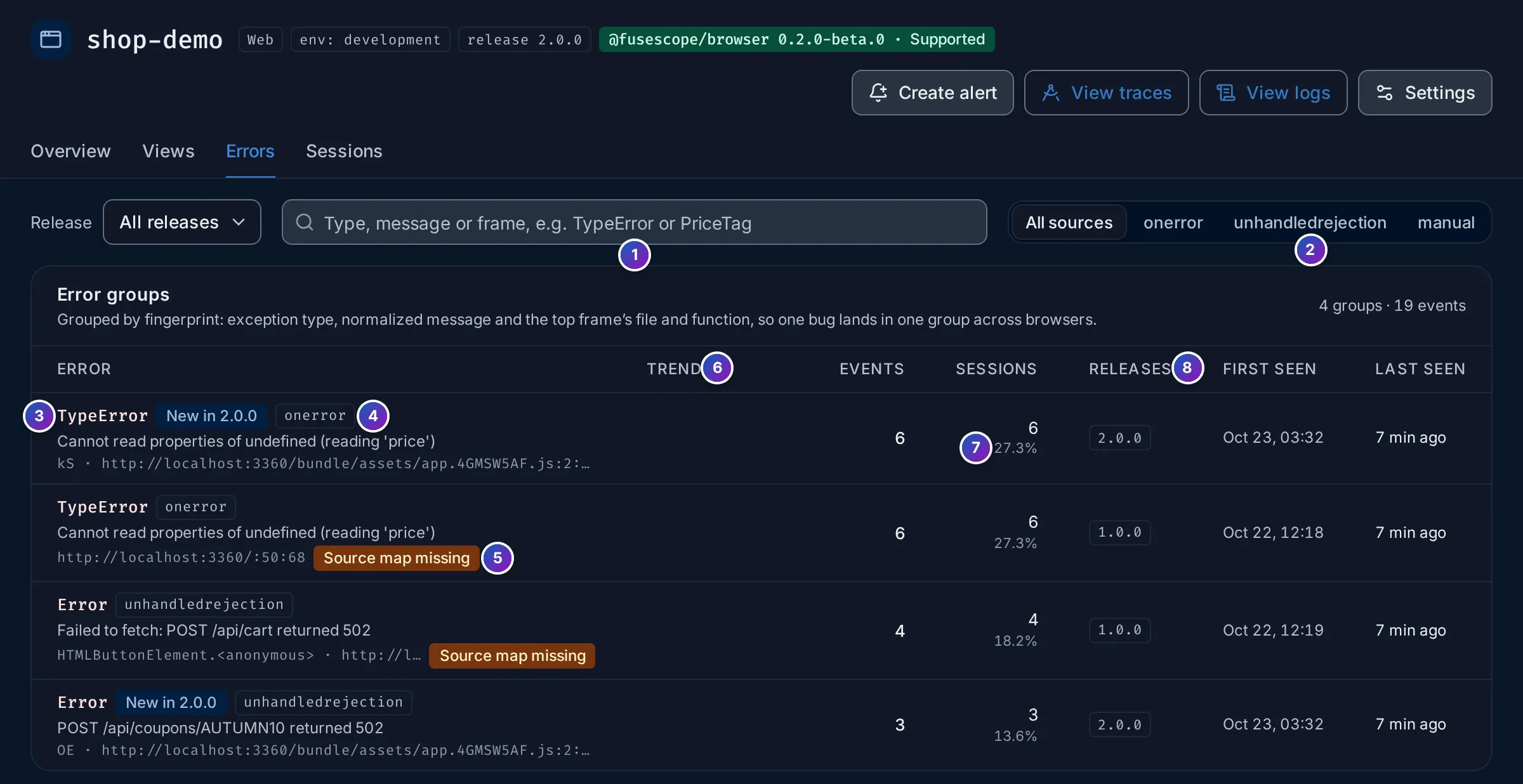
- Search by type, message or frame, such as
TypeErrororPriceTag. - Source: All sources,
onerror,unhandledrejectionormanual. When you come from a route, a chip shows the route filter, with a button to clear it. - Error: the exception type, then the message of the latest event and the top frame: the function and file where it was raised. Click the type to open the detail.
- Badges:
- New in 2.0.0: the group first appeared in the newest release seen in the range, and an older release exists. These are the errors a deploy introduced. Their trend line is red.
- the source, such as
onerror.
- Source map missing: the group’s latest release has no uploaded source maps, so its stack trace is minified. See Source maps.
- Trend: the number of events over the range.
- Events and Sessions, with the share of all sessions in the range that hit the error, such as 27.3%. Sort your attention by sessions, not events: one user stuck in a loop can send hundreds of events.
- Releases with events in the range: the latest one, then +1 for each other. First seen and Last seen look back 30 days (or your log retention, if shorter), not only the range.
The tab lists the 200 groups with the most events.
How errors are grouped
Section titled “How errors are grouped”Each group has a fingerprint, 16 hexadecimal characters such as 786705ba6798eadc,
computed from:
- the exception type, such as
TypeError; - the message, normalized: URLs become
<url>, ids become<id>and numbers become<n>, soOrder 1234 failedandOrder 98 failedare one group; - the file and function of the top frame. The file loses its origin, query string
and content hash (
/assets/app.4GMSW5AF.jscounts as/assets/app.js); line and column are left out, since they move with every minified build.
The same bug in Chrome, Safari and Firefox therefore lands in one group, and stays in that group from one deploy to the next.
Android errors are Java stack traces and group differently; see Grouping Android errors.
Error detail
Section titled “Error detail”Click a group to open its detail (…/errors/<fingerprint>).
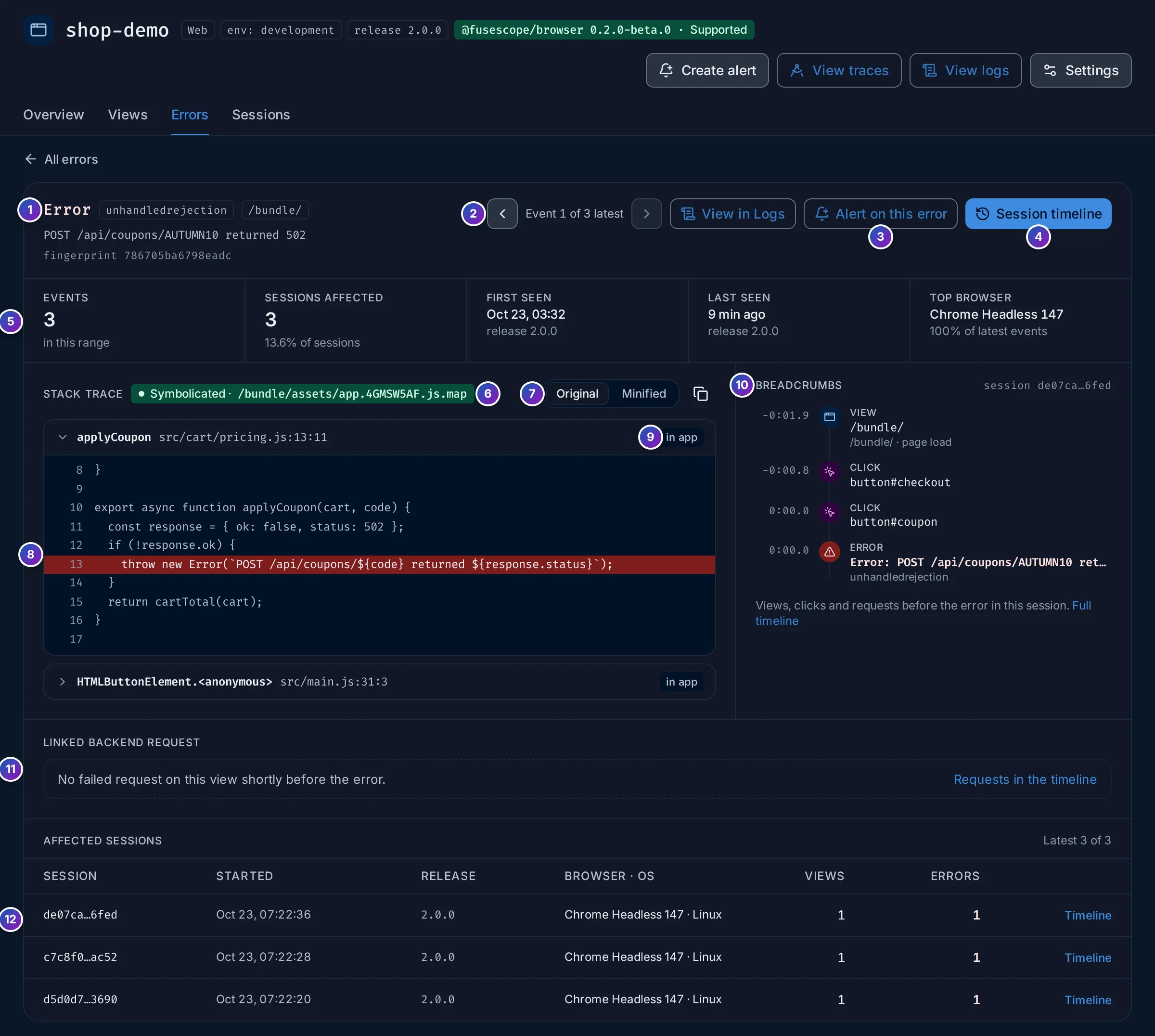
- Header: the type, the source, the route, the message and the fingerprint.
- Event: the group keeps its 10 latest events. The arrows move between them, such as Event 1 of 3 latest; the stack, breadcrumbs and linked request follow the selected event. View in Logs opens the events in the Logs explorer.
- Alert on this error opens the alert editor with the JS errors above 10 template, filtered to this exception type and message. See Frontend alerts.
- Session timeline opens the timeline of the selected event’s session.
- Key numbers: Events in the range, Sessions affected and their share, First seen and Last seen with their release, and the Top browser.
- Stack trace: Symbolicated with the source map that resolved it, such as
/bundle/assets/app.4GMSW5AF.js.map, or Minified when no map matched. - Original shows your source files, functions and lines; Minified shows the stack as the browser sent it. The copy button copies the raw stack.
- Source context: a few lines around each original frame, the failing line highlighted. Click a frame to open or close it.
- in app marks frames from your code. Frames from
node_modulesand the browser are folded into a line such as Show 3 frames from node_modules/@tanstack/query-core. - Breadcrumbs: the views, clicks and requests of the same session in the 2 minutes
before the error, timed relative to it (
-0:01.9). Full timeline opens the whole session. - Linked backend request: the last request of the session that failed in the 5 seconds before the error. See below.
- Affected sessions: the 5 sessions with the latest events, with their release, browser, views and how many times they hit the error. Timeline opens each one.
The request behind an error
Section titled “The request behind an error”Many frontend errors are a backend failure in disguise: an API answers 502 and the page
throws Failed to fetch. When a request of the same session failed in the 5 seconds
before the error, the detail shows it:

Sample data: this image is a Storybook story.
- The request’s status, method and path, its duration, the backend service that answered and how long before the error it started.
- View backend trace opens it in Trace details, where the failing backend span is.
When there is none, the section reads No failed request on this view shortly before the error, with a link to the requests in the timeline.
When the source map is missing
Section titled “When the source map is missing”Without a source map for the event’s release, the stack stays minified and the detail says what to upload:
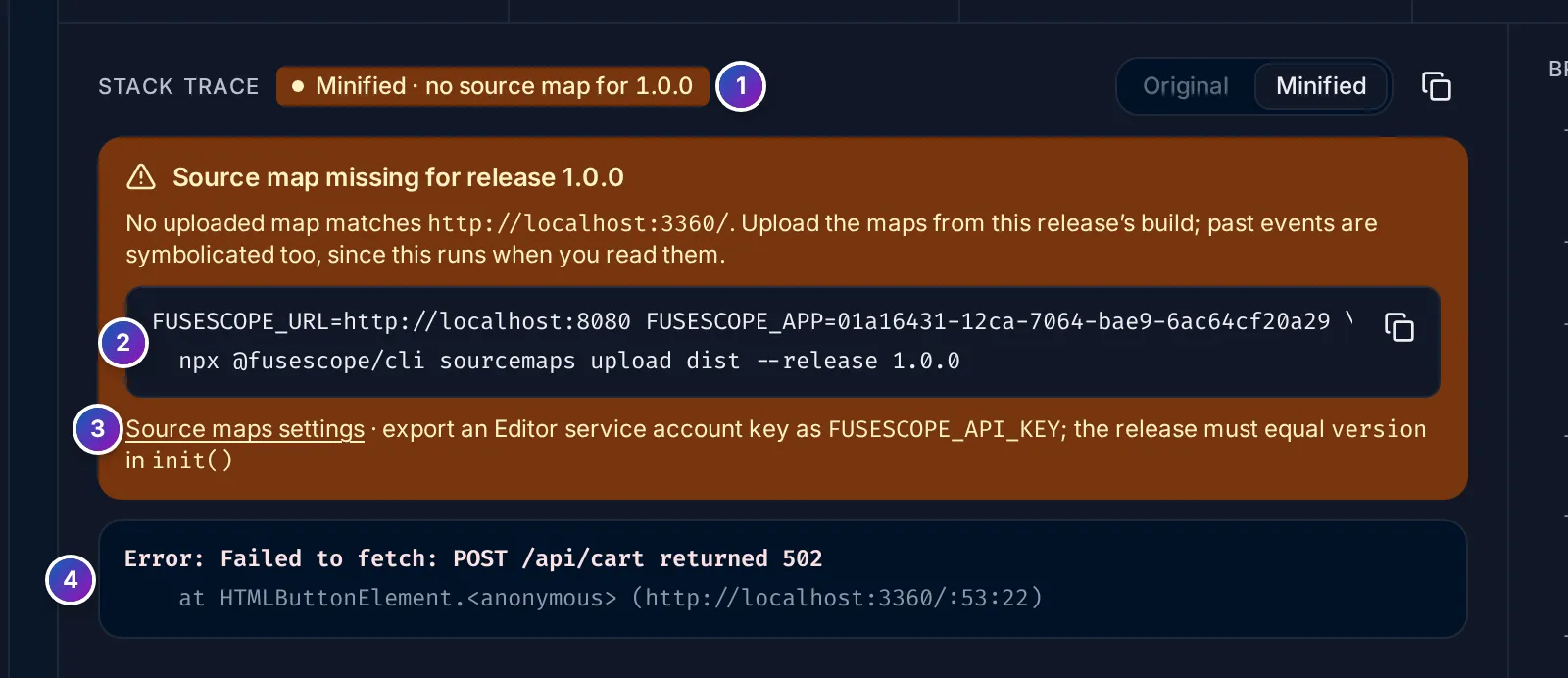
- Minified · no source map for 1.0.0: the release the event came from.
- The upload command, with this FuseScope’s URL, the application id and the
release filled in. Export an Editor service account key as
FUSESCOPE_API_KEYfirst. - Source maps settings opens the application’s Source maps tab.
- The minified stack, as received.
Upload the maps of that release and reload the page: stack traces are symbolicated when you read them, so past events are fixed too.
Crashes and ANRs
Section titled “Crashes and ANRs”An Android application has three kinds of error, each in its own groups, since the same exception crashing the app and caught by your code are different problems:
| Kind | Source | What it is | Badge |
|---|---|---|---|
| Crash | crash |
An uncaught Java or Kotlin exception that killed the app. The SDK writes it out before the process dies. | Crash, red |
| ANR | anr |
Application Not Responding: the main thread was blocked for about 10 seconds. The stack trace is the main thread’s at that moment: what it was stuck on. | ANR, amber |
| Handled | manual |
An exception your code passed to FuseScope.addError(). |
none |
The source shows next to the type, as fusescope.rum.error.source, and the Source
filter offers Crash, ANR and Manual on Android. An ANR’s type is ANR; the
gateway also stores the ApplicationNotResponding type of SDK 0.1.0-beta.1 as ANR
on new events. Native (NDK) crashes are not captured yet; they are planned.
Retraced stack traces
Section titled “Retraced stack traces”Release builds minified with R8 report obfuscated frames, such as
at a.b.c(SourceFile:12). With the release’s
R8 mapping uploaded, the stack trace shows
Retraced and Original gives your classes, methods, files and lines, including
inlined methods; Obfuscated shows it as the app sent it. Like source maps, retracing
runs when you read the error, so uploading a mapping later fixes past events.
- The causes of the exception (
Caused by:,Suppressed:) are retraced and shown under it. - in app marks your frames. Frames from the platform and common libraries, such as
java.,android.,androidx.,kotlin.,okhttp3.and the SDK itself, are folded. - Without a mapping, the group shows R8 mapping missing and the detail reads
Obfuscated · no R8 mapping for 1.8.0, with the
curlcommand to upload it. See When a stack stays obfuscated.
Grouping Android errors
Section titled “Grouping Android errors”A Java stack trace keeps the same frames from one build to the next, so Android errors group by source, not message. The fingerprint is computed from:
- the source:
crash,anrormanual; - the exception type, retraced, such as
java.lang.IllegalStateException; - the class and method of the top three in-app frames, retraced, looking at the thrown exception first, then its causes. Line numbers are left out, so a bug stays in one group when code around it moves.
With no in-app frame at all, the normalized message is used instead. A release without its mapping groups on obfuscated names, so its errors may land in other groups until the mapping is uploaded.
Example: did the last release break something?
Section titled “Example: did the last release break something?”-
Look for new errors. Open Errors. Groups marked New in 2.0.0 first appeared in the newest release.
-
Read the original code. Click the group. The stack shows
applyCouponinsrc/cart/pricing.jsat line 13: the coupon request returned502and the code threw. -
See what the user did. Breadcrumbs show the page load of
/bundle/, a click onbutton#checkout, thenbutton#couponjust before the error. -
Be told if it comes back. Click Alert on this error, pick a notification channel and save.
Related
Section titled “Related”- Source maps and R8 mappings
- Sessions
- Exceptions: errors raised by your backend services.