

Traces explorer
The Traces explorer searches every span your services send, and opens the trace each one belongs to.
Use this page when you need to find specific requests: the slowest ones, the failed ones, or the ones that touched a given route, customer or host. To see a service’s overall health first, start from Services.
Open Traces in the sidebar (/traces-explorer). The page has three tabs:
Explorer, Funnels and Views.
Search spans
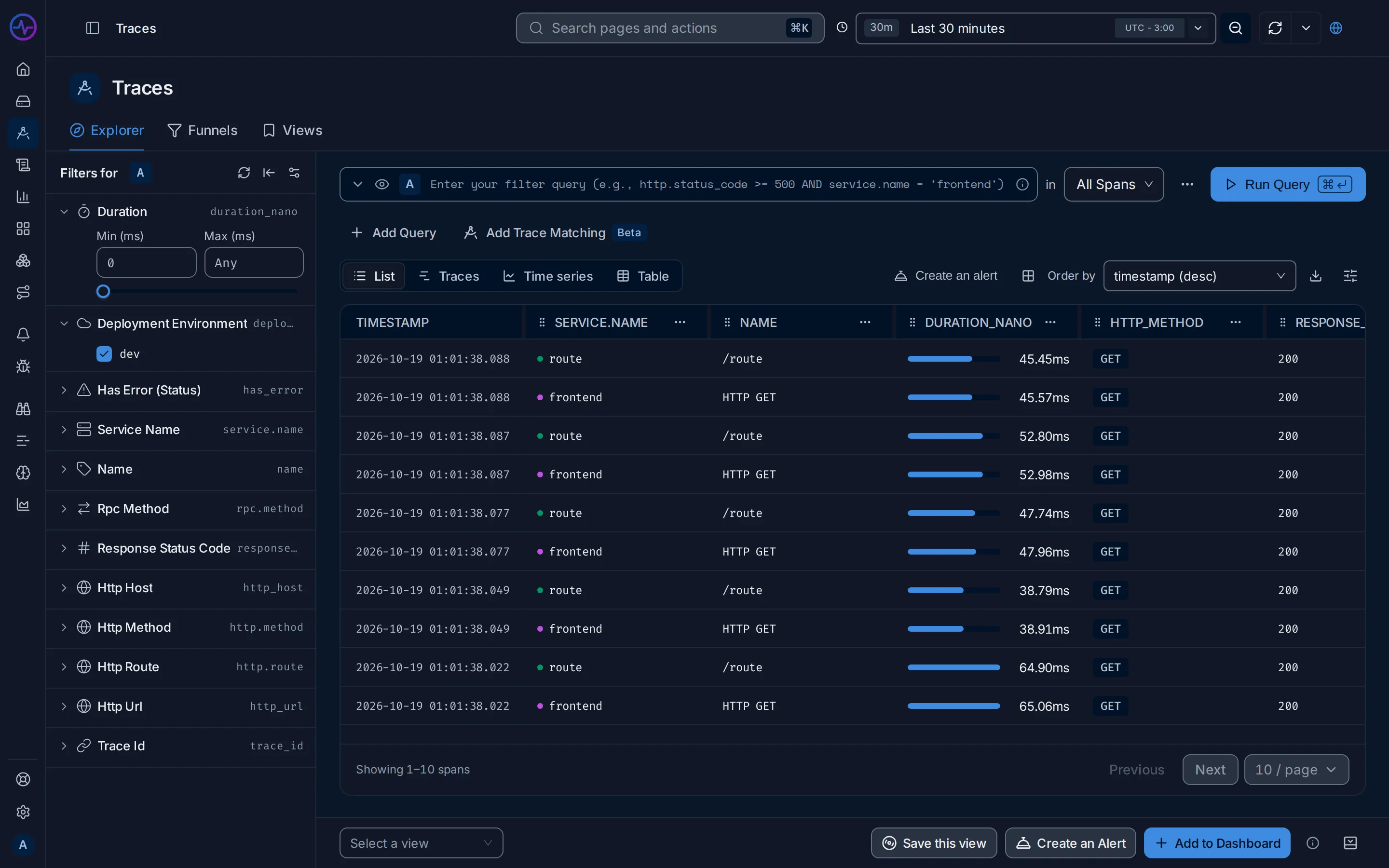
Section titled “Search spans”Write a filter in the search box with the search syntax, pick a time range in the top bar and click Run Query. The scope selector next to the search box limits the query:
| Scope | Searches | Use it to |
|---|---|---|
| All Spans | Every span | Find any operation, such as one database query |
| Root Spans | Only the first span of each trace, the one with no parent (root span) | Look at whole requests as the user saw them |
| Entrypoint Spans | The first span of a request in each service (entrypoint span) | Look at the requests each service received |

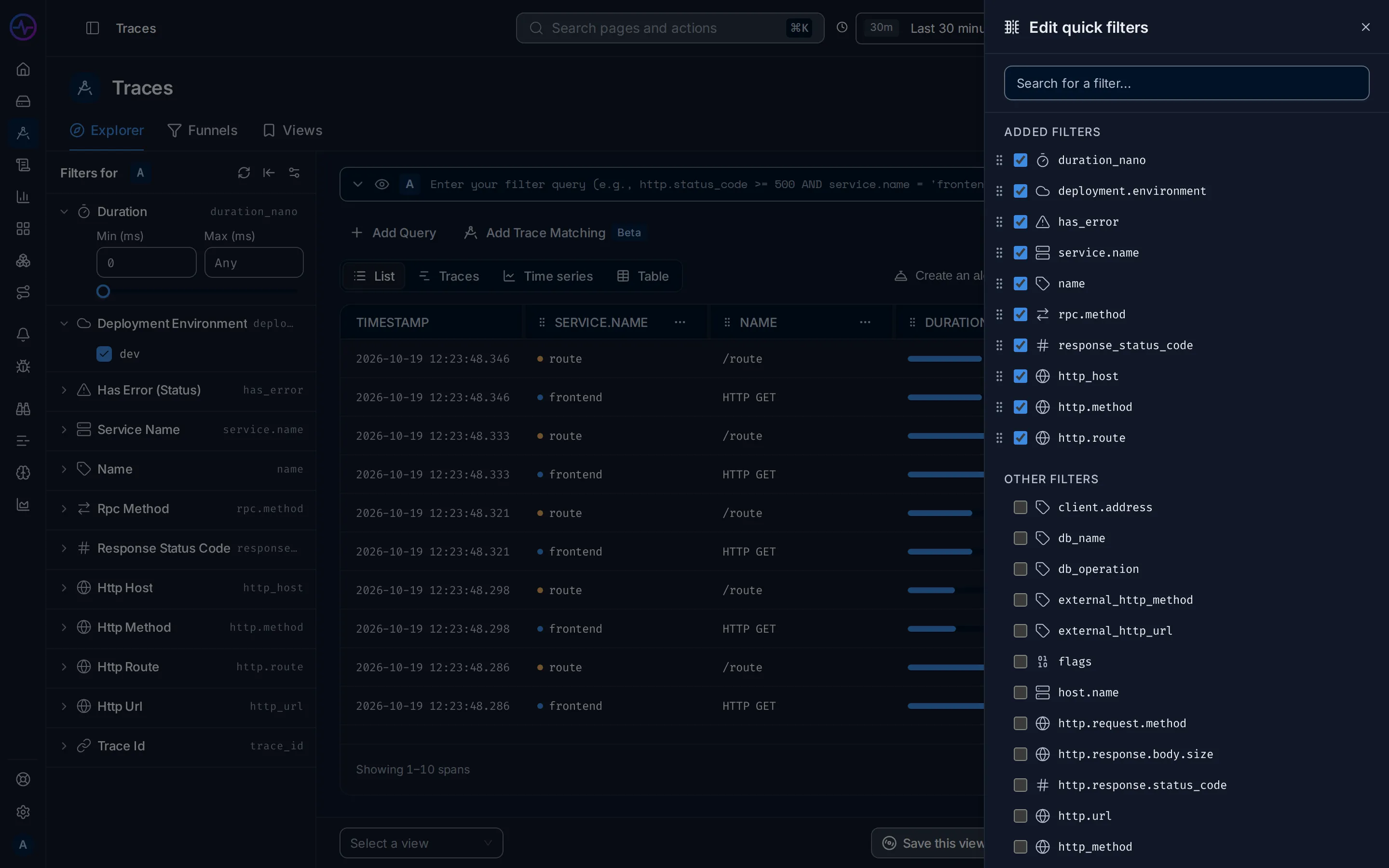
The filter panel on the left lists quick filters. By default: Duration, Deployment Environment, Has Error (Status), Service Name, Name, Rpc Method, Response Status Code, Http Host, Http Method, Http Route, Http Url and Trace Id. Duration is a range; the others list values to tick. Each filter shows the attribute it filters on, with an icon for its kind. Above the filters:
- Settings opens the Edit quick filters sheet on the right, to add, remove and reorder filters for everyone in the organization.
- Reset All clears the selected values.
- Collapse Filters folds the panel into a narrow rail of icons that still marks the active filters with a badge. The explorer remembers it.
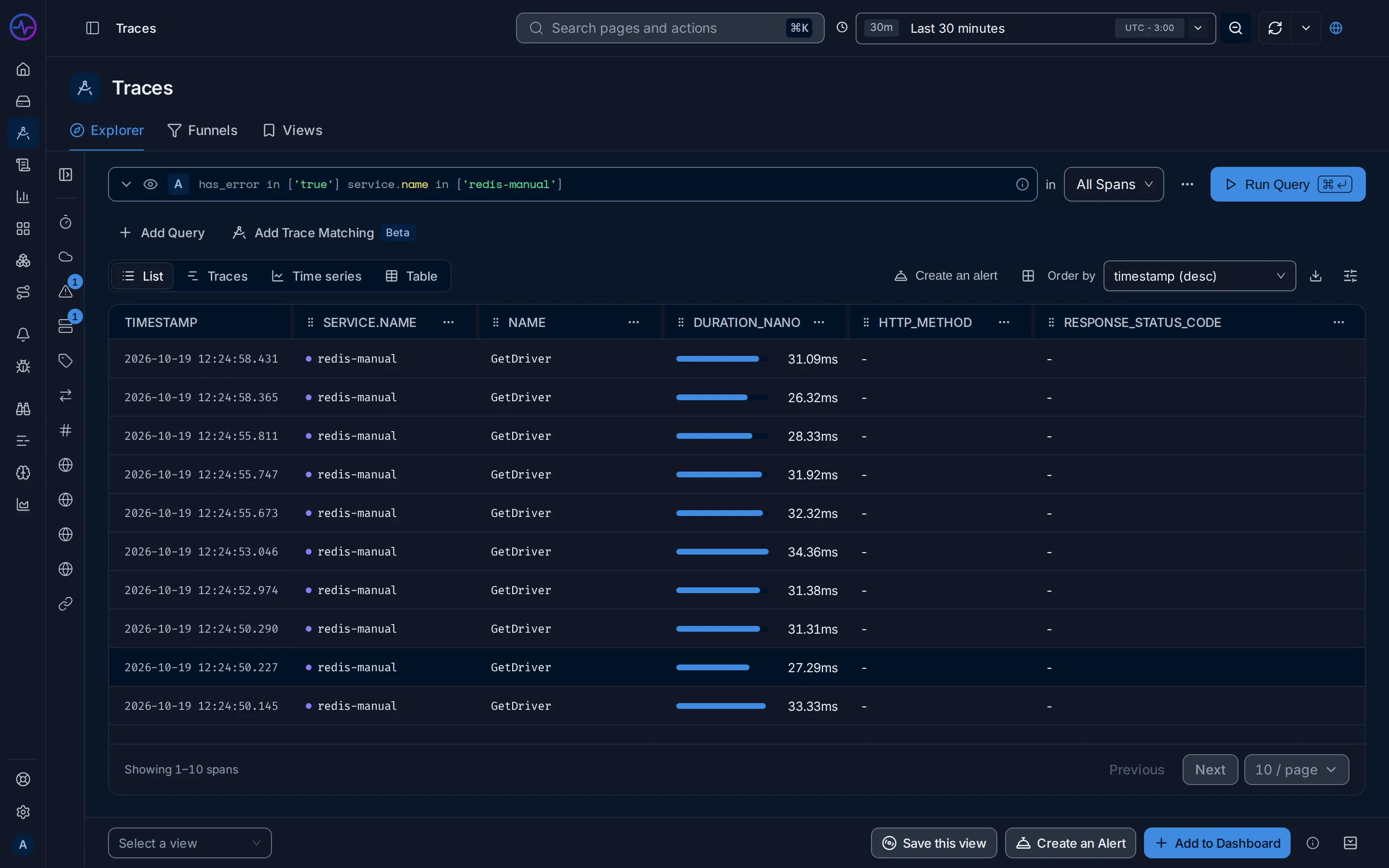
The toolbar switches between four views of the same query:
| View | Shows |
|---|---|
| List | One row per span: timestamp, service, span name, duration, HTTP method and response status code |
| Traces | One row per trace, from its root span: service, name, duration, span count and trace ID |
| Time series | The query’s aggregation as a chart |
| Table | The query’s aggregation as a table, one row per group |
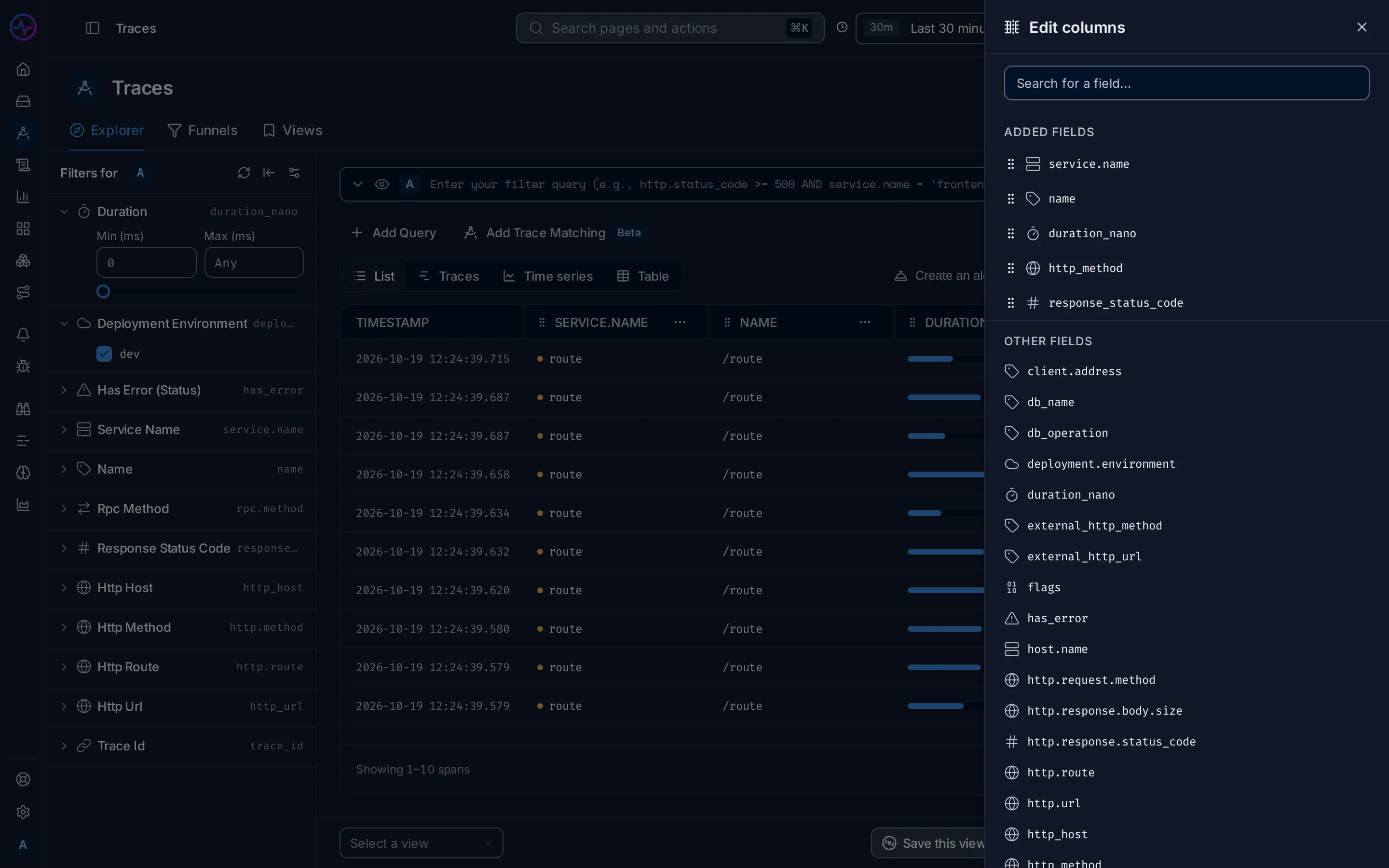
Time series and Table use the query’s aggregation and group by; see Query builder. In List, Order by sorts the spans, and Columns and options opens the Edit columns sheet to add, remove and reorder columns with any attribute.
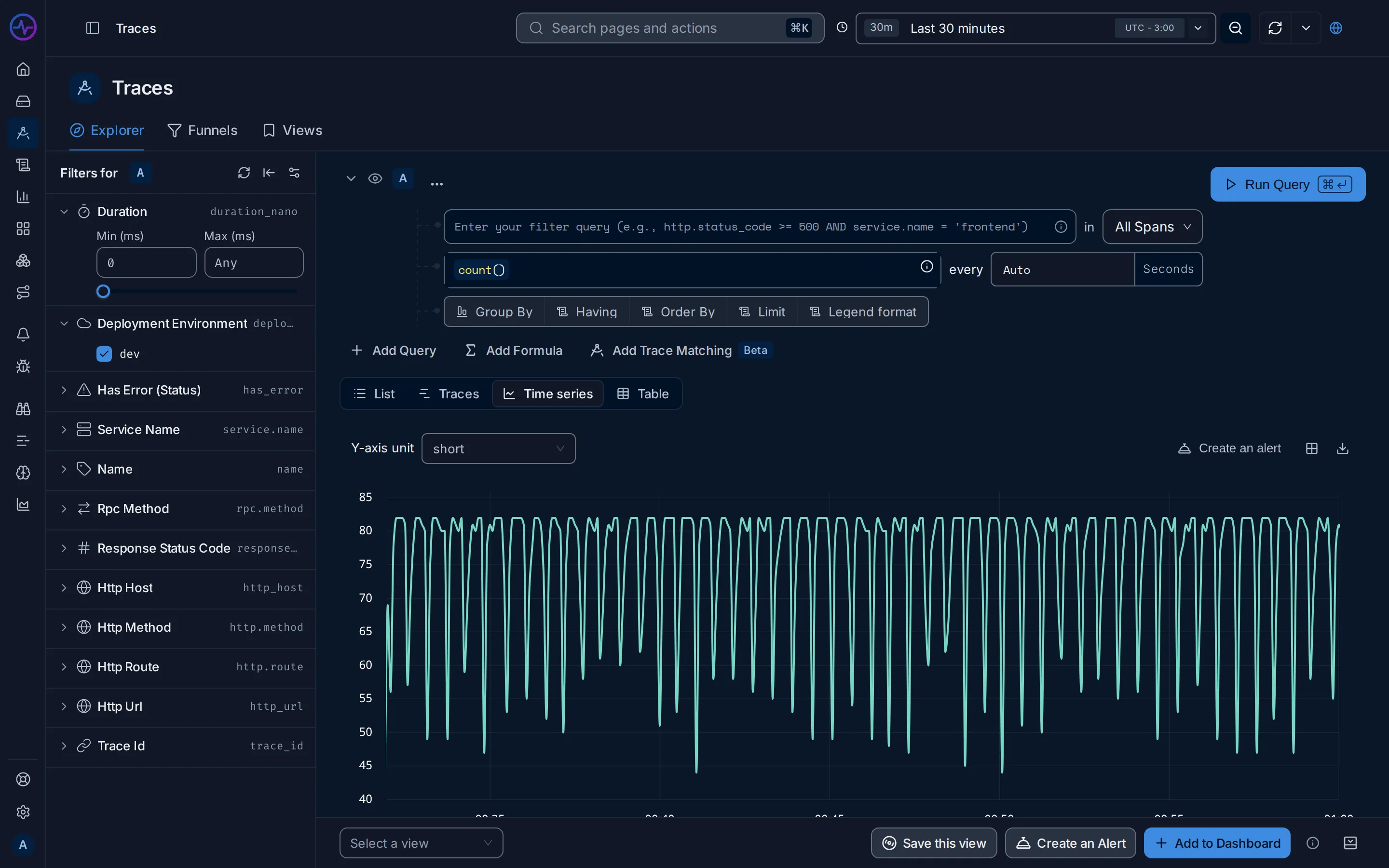
Click a row to open its trace; see Trace details.
Example: the slowest requests of a service
Section titled “Example: the slowest requests of a service”- In the search box, type
service.name = 'frontend'and set the scope to Entrypoint Spans, so you get one row per request the service received. - In the List view, set Order by to
duration_nano (desc). - Click Run Query. The slowest requests are at the top; click one to open its trace.
- Click Save this view at the bottom and name it
frontend slowest, to come back to it later.
The full walkthrough is in Investigate a slow endpoint.
Export, alert, add to dashboard
Section titled “Export, alert, add to dashboard”Above the results:
- Download exports the List or Traces view as
csvorjsonl, up to 10k, 30k or 50k rows. Table and Time series results export the same way. - Create an alert starts an alert rule from the current query.
- Add to dashboard adds the query as a panel to a new or existing dashboard.
Both need a query that has run.
Trace details
Section titled “Trace details”Click a row to open its trace at /trace/<trace-id>: a header with the request’s
service, duration and status, a flame graph, a waterfall and the details of each span.
How to read it, with a worked example, is in
Trace details.
Span details
Section titled “Span details”Click a span in a trace to see its attributes, events, logs and host metrics. See Span details.
Funnels
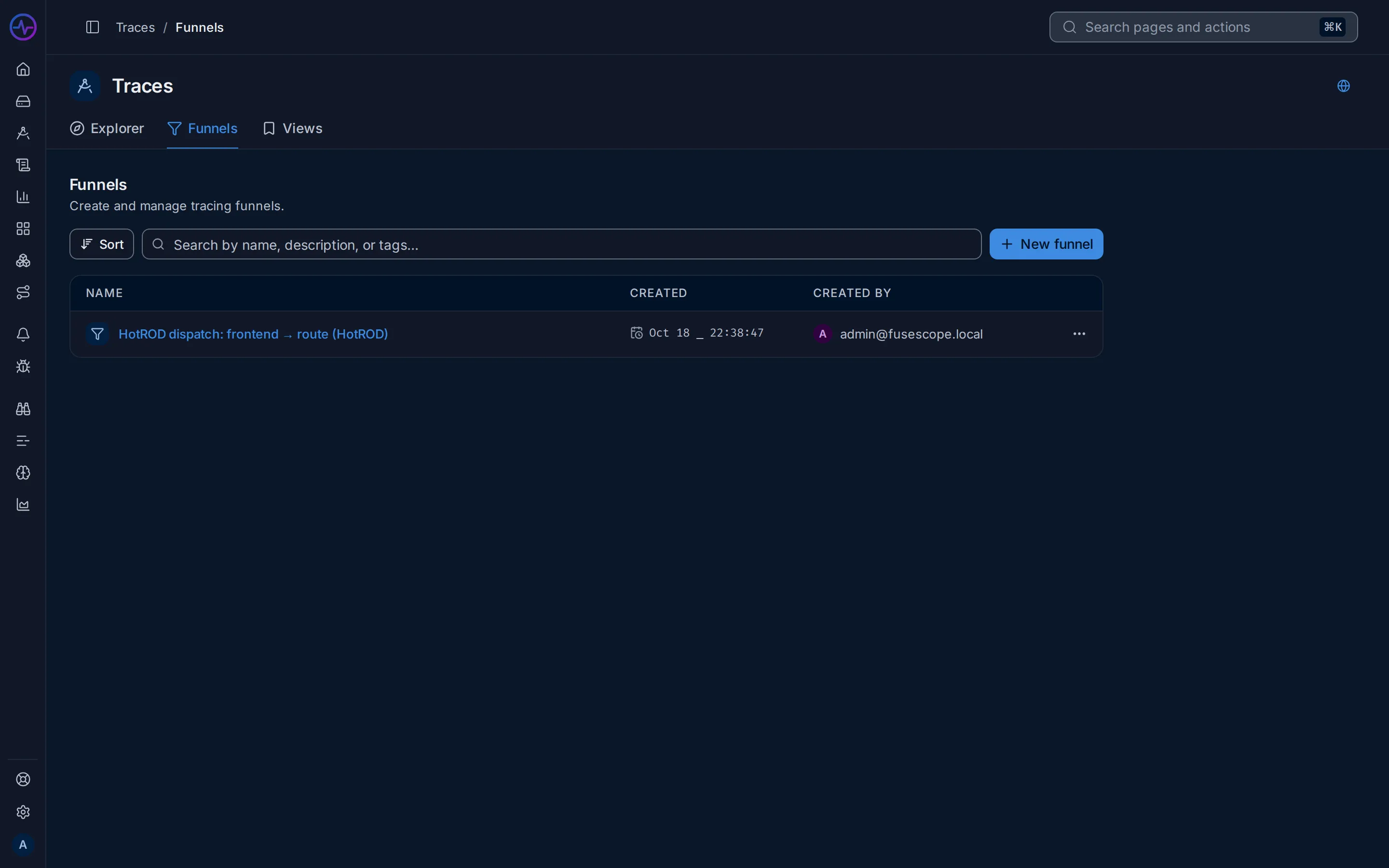
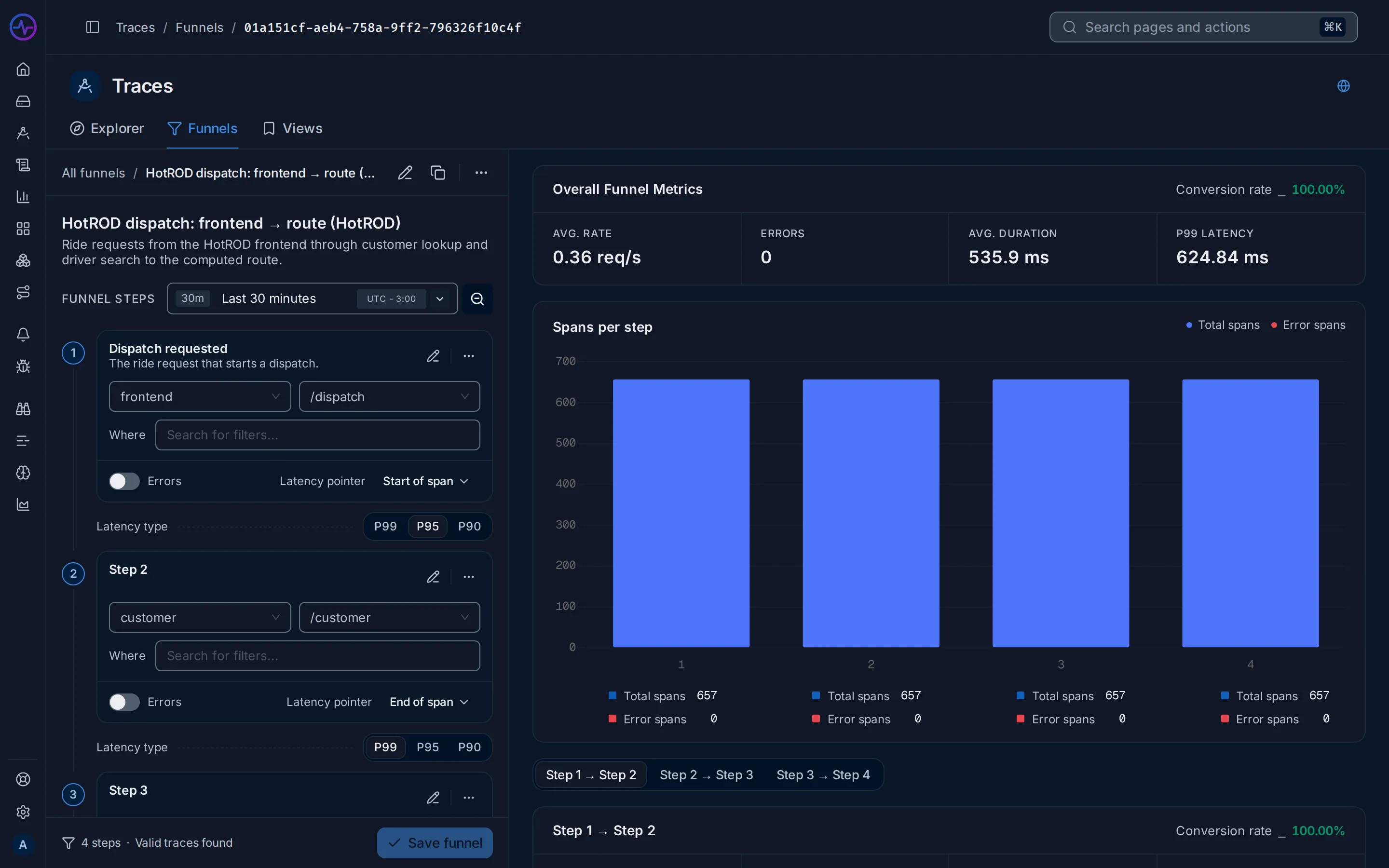
Section titled “Funnels”A funnel follows requests through an ordered set of steps. Each step is a service and a span name, with optional filters. In the Funnels tab, click New funnel, name it and add steps; spans can also be added from a trace with Add to Trace Funnel. The results show the Overall Funnel Metrics, the traces that pass every step, and the Slowest 5 traces and Traces with errors. Editing funnels needs the Editor or Admin role.
Saved views
Section titled “Saved views”A view saves the query, the explorer view and its columns. The bar at the bottom of the explorer has Select a view and Save this view: give the view a label and a colour. With a view open, Update this view saves changes and Clear this view starts over. The Views tab lists the saved views, to open, edit or delete them.
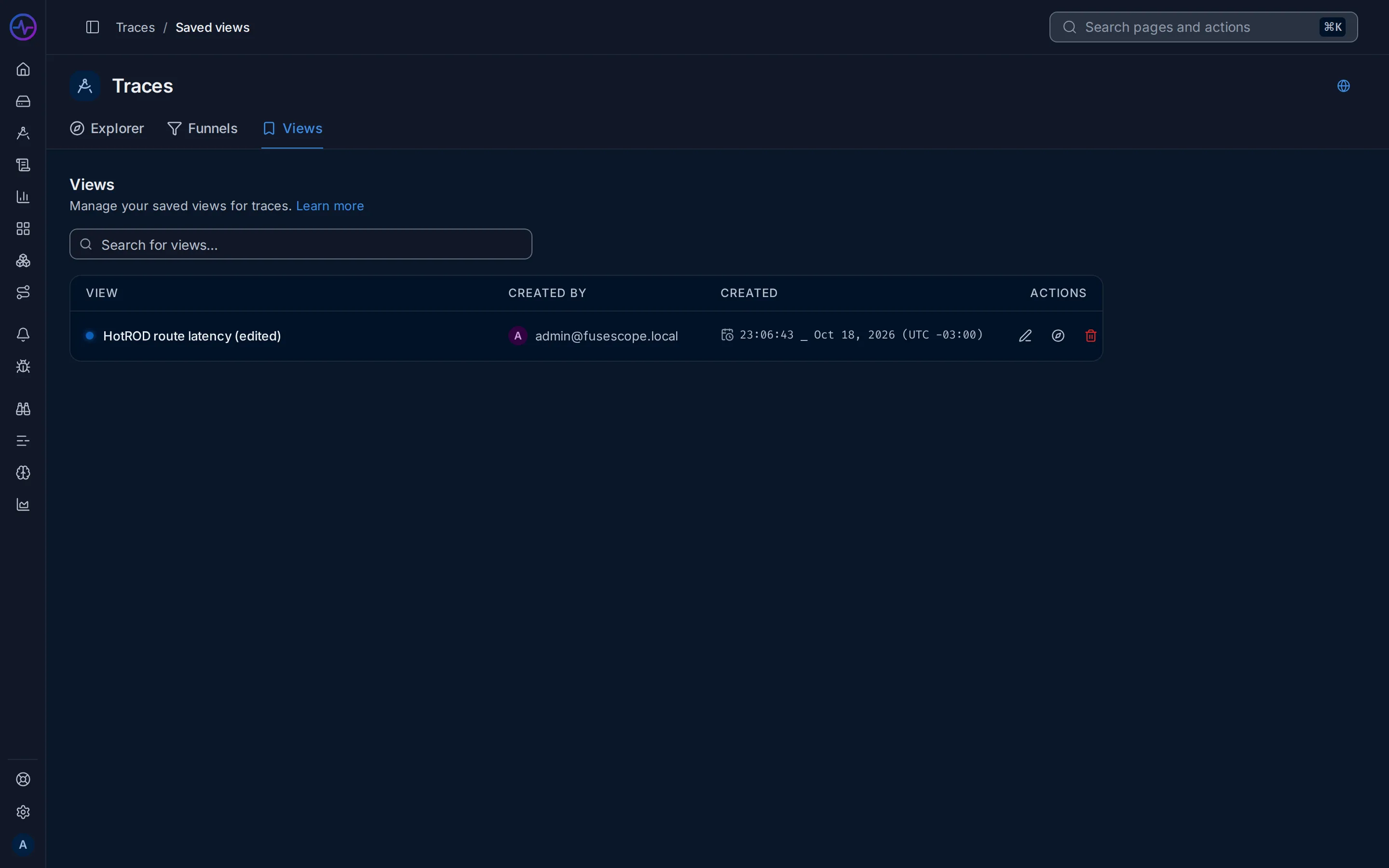
Saving, editing and deleting views needs the Editor or Admin role.