

Investigate a slow endpoint
Use this guide when users report that something is slow, or a latency alert fires, and you need to find where the time goes.
You will start from the service, find its slowest operation, open the slowest requests
and read their traces. The example uses the
HotROD demo app, where the frontend service answers /dispatch in about 700 ms.
-
Find the slow service. Open Services in the sidebar. A service whose p99 latency doubled against the previous period has an amber p99 ↑2× badge and sits at the top. Otherwise, click the p99 latency column header to sort the slowest first. P99 is the time 99 in 100 requests stay under, so it shows the slow tail that averages hide.
In the demo,
frontendhas the highest p99, about 780 ms. -
Open the service. Click
frontend. On the Overview, check the Latency chart: is it slow all the time, or did it jump at one moment? The dashed line is the previous period, so you can see whether this is new. To focus on a spike, drag across the chart to zoom into that time, or click the spike and choose View traces to jump straight to the requests of that moment. -
Find the slow operation. Open the Endpoints tab. Each row is one kind of request or call the service makes, with its average, p50, p95 and p99 latency and its % time spent. Click the p99 column header to sort the slowest first.
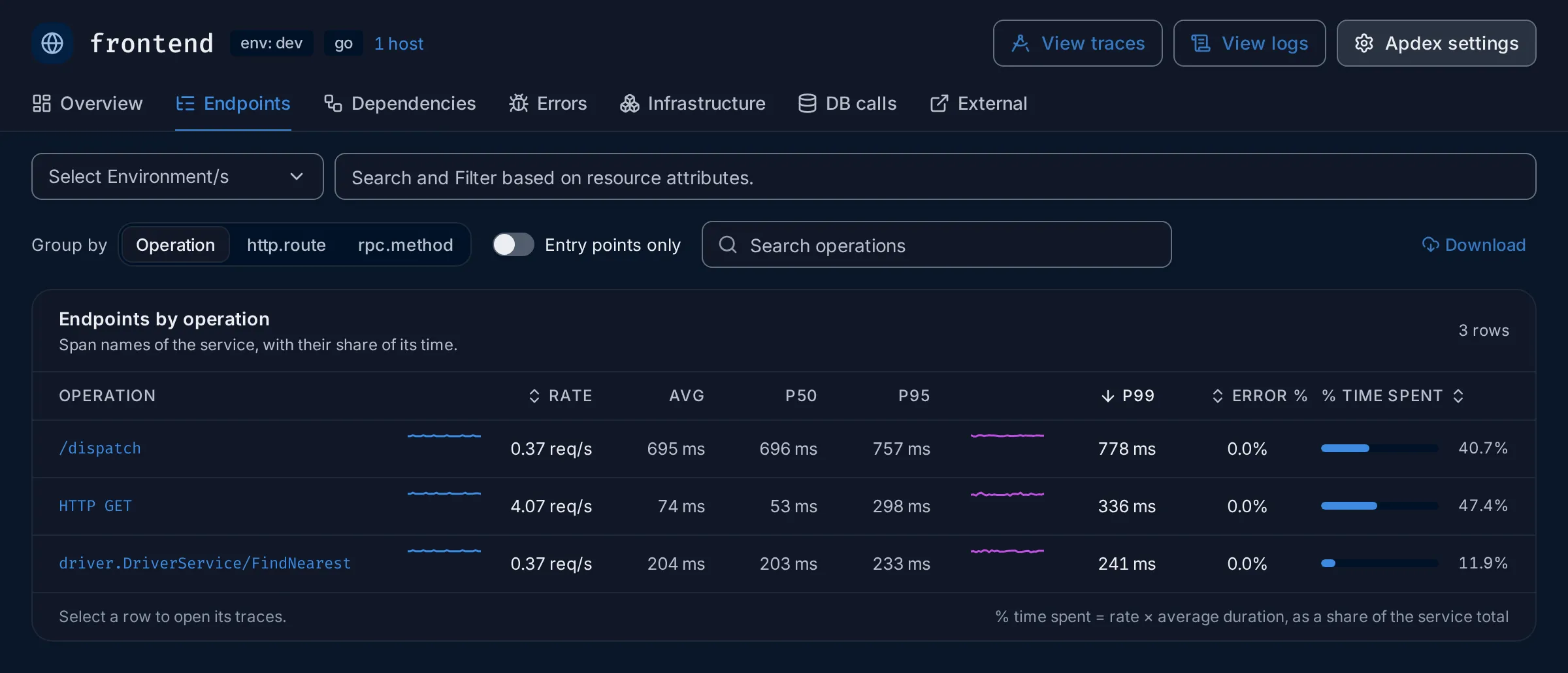
For HTTP services, Group by › http.route shows the same numbers per route template, which is often closer to what users call “a page”.
-
See its requests. Click the operation, here
/dispatch. The Traces explorer opens with a filter for that service and operation, in the same time range. -
Sort by duration. Next to the results, set Order by to
duration_nano (desc). The slowest spans are now at the top.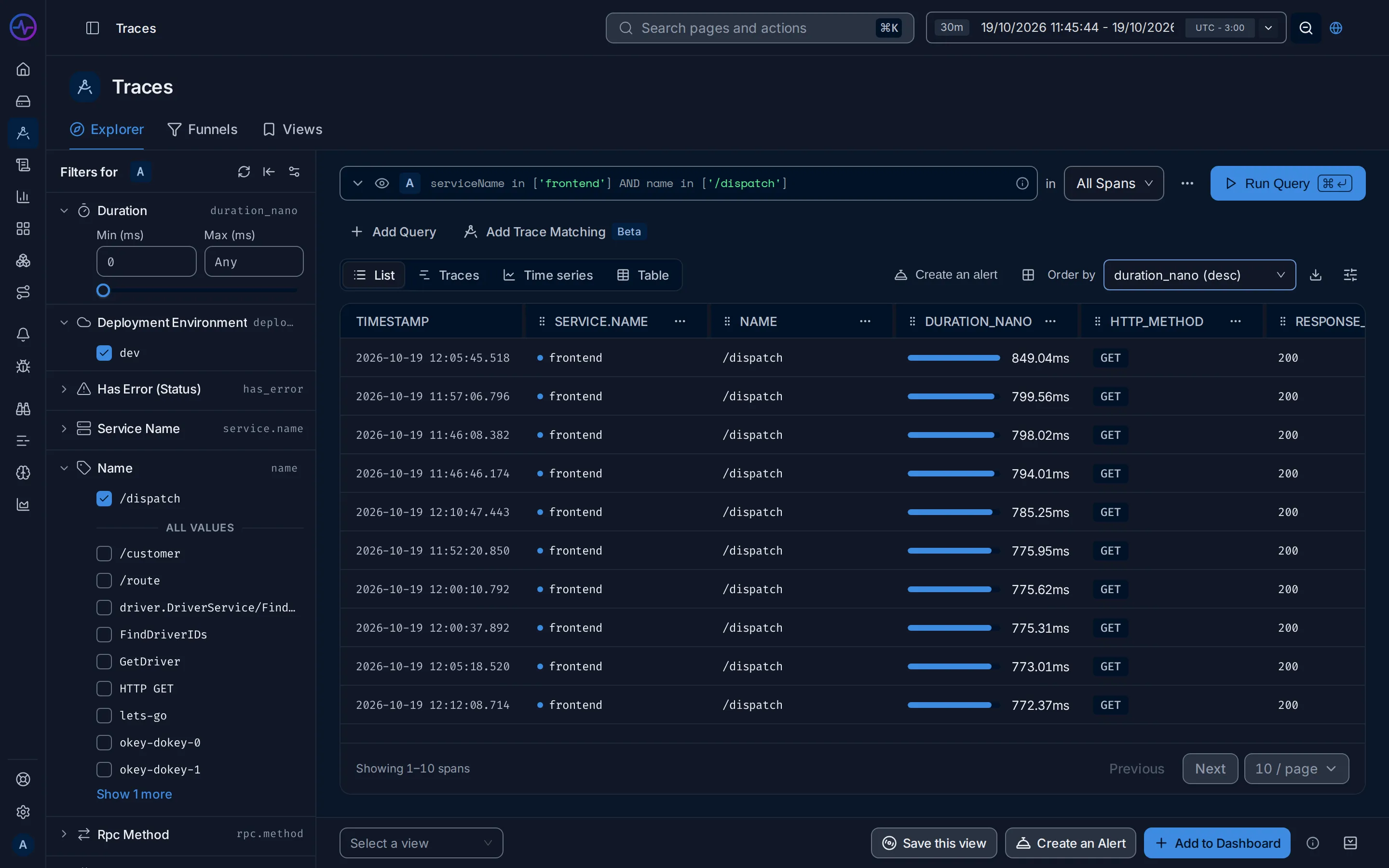
-
Open the slowest trace. Click the first row. The trace opens with a Flame graph and a Waterfall; see Trace details for how to read them.
-
Find the longest span. In the Waterfall, each span is a bar on a time axis, indented under the span that called it. Look for the widest bar that has no wide children: that is where the time is actually spent. Click it to see its attributes in Span details, such as the SQL statement or the URL it called.
Expected result
Section titled “Expected result”You know which service and which call make the request slow. In the demo, most of the
/dispatch time is spent waiting on customer and its mysql query, and on
driver lookups.
If you don’t find it
Section titled “If you don’t find it”- No slow spans in the list? Widen the time range in the top bar. Slow requests may be rare.
- The trace stops at one service? The next service is not instrumented, or does not pass the trace context on. See Instrument applications.
- Only some requests are slow? In step 5, add a filter on an attribute, such as
http.routeorhttp.method, to compare slow and fast ones. See Search syntax.
Related
Section titled “Related”- Services: every chart and column on the service page.
- Endpoints: grouping, entry points and % time spent.
- Traces explorer: views and ordering.
- Trace details: flame graph, waterfall, span details and a worked example.
- Set up your first alert: get notified next time.