

Messaging Queues
Messaging Queues (/messaging-queues, under Analyze in the sidebar) shows
the work your services hand to each other through a queue instead of a direct call:
Kafka topics and Celery tasks. It has three tabs: Overview, Kafka and
Celery.
Use this page when messages pile up or arrive late, when a consumer falls behind, when background tasks fail or retry, or when you want to see which services produce and consume which topics.
Queues in plain words
Section titled “Queues in plain words”- A producer is a service that sends a message, such as
checkout-apipublishing “order created”. A consumer reads it later and does the work, such aspayments-worker. The queue between them, a topic in Kafka, keeps the messages until they are read. - A Kafka topic is split into partitions, numbered
0,1,2…, so several consumers can read it in parallel. Each partition keeps its messages in order. See partition. - Consumers that share the work of a topic form a consumer group.
- Consumer lag is how many messages a consumer group still has to read in a partition: the newest message’s position (offset) minus the group’s position. Lag that keeps growing means the consumers can’t keep up. See consumer lag.
- Celery is a Python task queue. Your code queues a task; Celery workers, separate processes, pick tasks up and run them. A task can succeed, fail, or be retried. See Celery worker.
The views read two kinds of data: spans from your producers and consumers (the SDK records one per message sent or processed), and metrics from the brokers and workers.
Overview
Section titled “Overview”Overview lists every producer and consumer operation found in your spans, from any messaging system: Kafka, Celery, RabbitMQ and others.
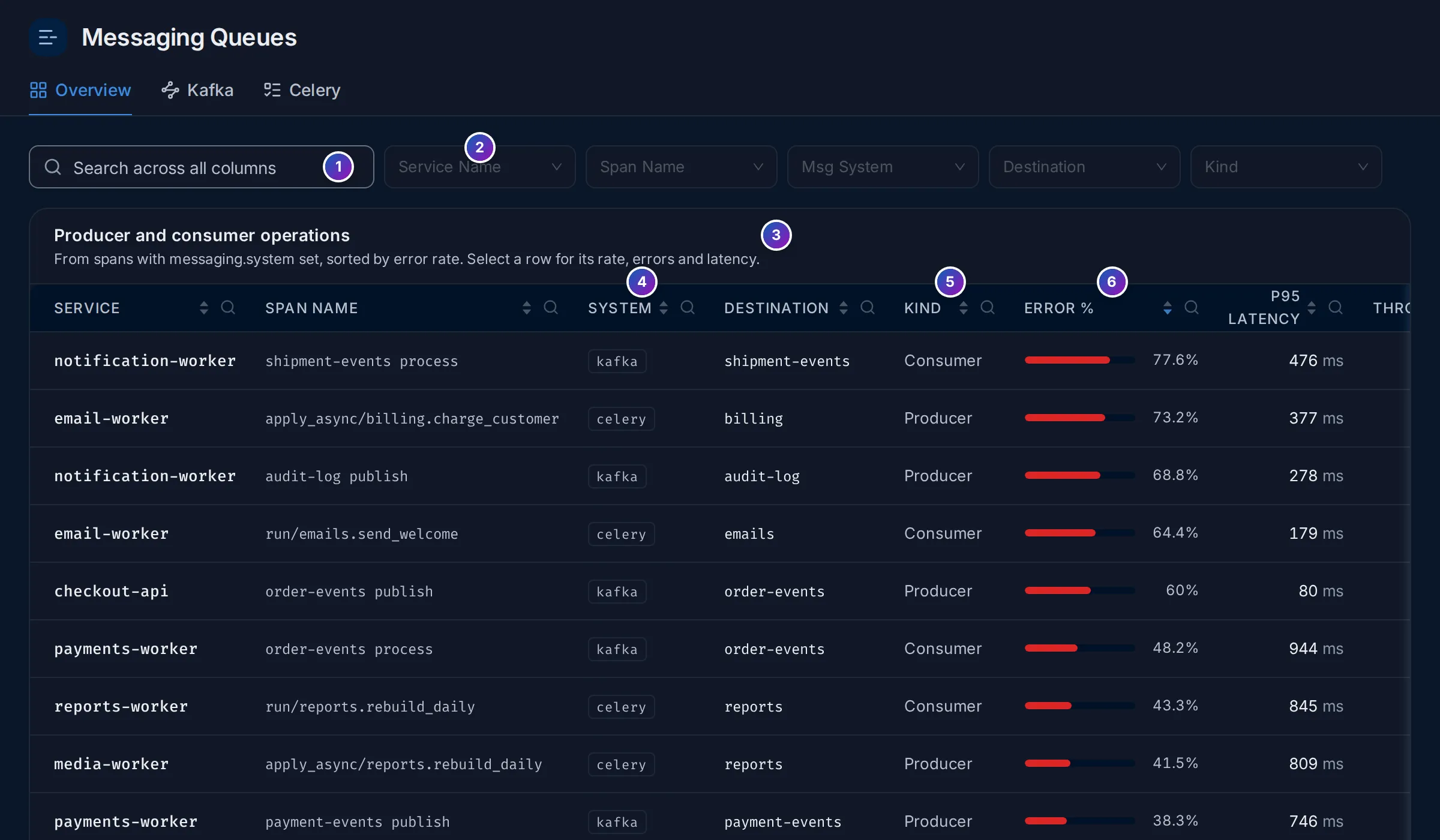
Sample data: this image is a Storybook story, not the demo.
- Search across all columns.
- Filters: Service Name, Span Name, Msg System, Destination and Kind.
- Producer and consumer operations: one row per service, span name, system and
destination, from spans that have
messaging.systemset, the most failing first. - System: the value of
messaging.system, such askafkaorcelery. - Kind: Producer (sends) or Consumer (receives).
- Error %, then P95 latency and Throughput in operations per second.
Click a row for its rate, errors and latency over time. With no messaging spans in the
range, the table says No producer or consumer operations in this time range.
Set up Kafka monitoring
Section titled “Set up Kafka monitoring”The Kafka tab first checks that the data its views need is arriving. Until it is, the tab shows the setup steps and the Kafka configuration panel opens on the right:
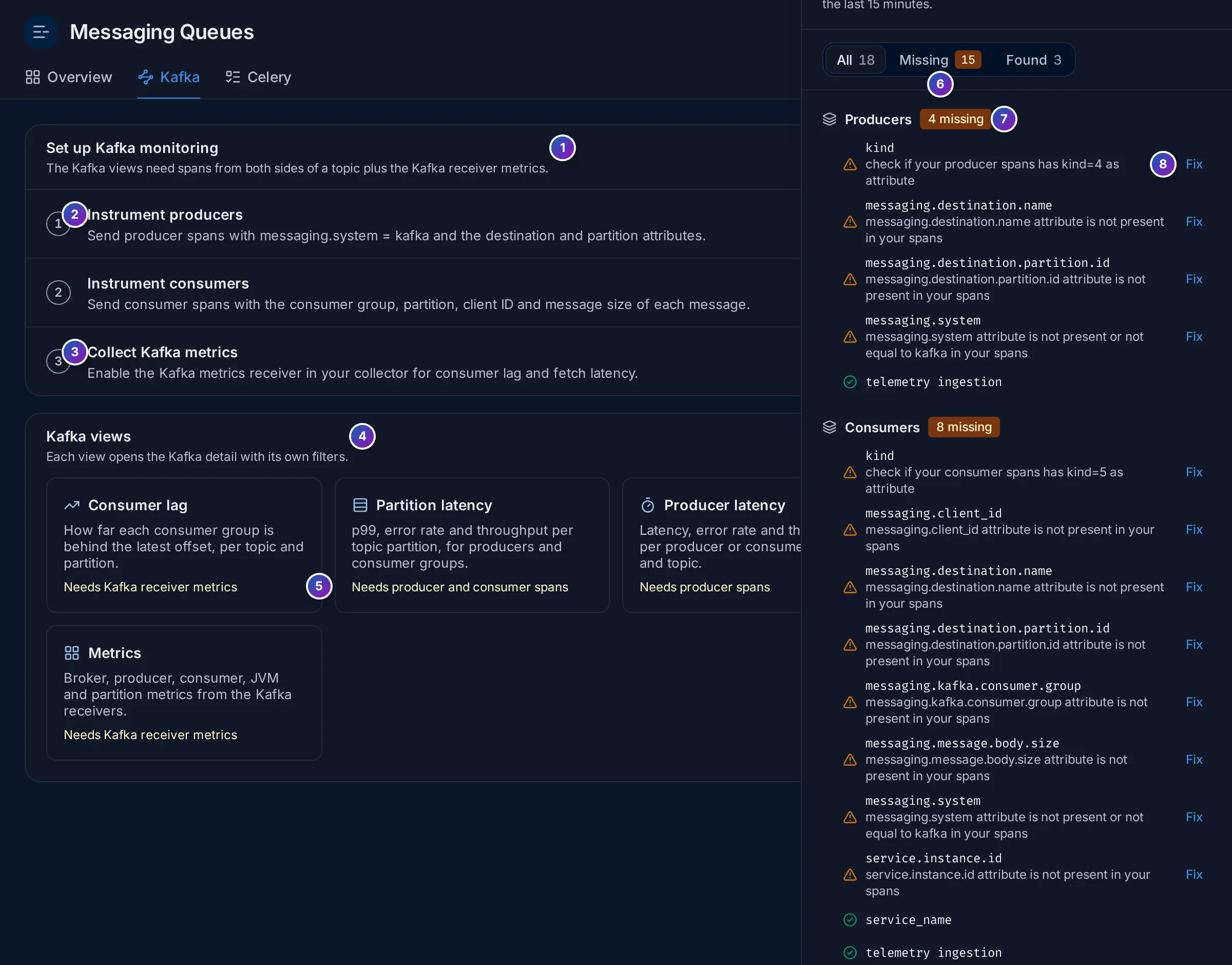
- Set up Kafka monitoring: three steps, with how many are done (
0 of 3 done). A step reads Receiving data when its data arrives. - Instrument producers and Instrument consumers: see Instrument Kafka producers and consumers.
- Collect Kafka metrics: see Collect Kafka metrics.
- Kafka views: the five views, as cards. Click one to open it.
- Under each card, what it needs, such as Needs Kafka receiver metrics, or Ready.
- Kafka configuration: every attribute and metric the views read, checked over the last 15 minutes. All, Missing and Found filter the list. The button Kafka configuration at the top of the tab reopens it.
- The checks are grouped by Producers, Consumers and Kafka, each with how many are missing.
- Fix opens the instructions for that item.
The checks are:
| Group | Checked |
|---|---|
| Producers | Spans with kind Producer (kind=4), messaging.system = kafka, messaging.destination.name, messaging.destination.partition.id |
| Consumers | Spans with kind Consumer (kind=5), messaging.system = kafka, messaging.destination.name, messaging.destination.partition.id, messaging.kafka.consumer.group, messaging.client_id, messaging.message.body.size, and the resource attribute service.instance.id |
| Kafka | The metrics kafka.consumer_group.lag and kafka.consumer.fetch_latency_avg |
Instrument Kafka producers and consumers
Section titled “Instrument Kafka producers and consumers”The span checks pass when your producers and consumers are traced with an OpenTelemetry Kafka client instrumentation, which records a span for each message sent and each message processed, with the attributes above:
-
Add the instrumentation for your Kafka client. The zero-code agents for Java, Python, Node.js and .NET include instrumentations for the common Kafka clients, such as
kafka-clients(Java),confluent-kafkaandkafka-python(Python) andkafkajs(Node.js). For Go, wrap the client with an OpenTelemetry instrumentation library. See Instrument applications. -
Set
service.instance.idon consumers, one value per process, such as the pod name, so the views can tell the consumers of a group apart:Terminal window OTEL_RESOURCE_ATTRIBUTES=service.instance.id=$(HOSTNAME) -
Propagate the trace context through the message headers. The instrumentations do this by default; it is what links a consumer span to the producer span of the same message, for drop rate and for following a message in Trace details.
-
Check. Open the Kafka configuration panel and choose Missing. Attributes still listed there are not set by your instrumentation; older instrumentations may use older attribute names, so update them first.
Collect Kafka metrics
Section titled “Collect Kafka metrics”The Kafka checks need metrics, which no application span carries:
-
kafka.consumer_group.lagcomes from the brokers. Add the collector’skafkametricsreceiver, which FuseScope’s collector includes, pointed at your brokers, and add it to a metrics pipeline:receivers:kafkametrics:brokers: ["kafka-0.kafka:9092"]protocol_version: 2.0.0scrapers: [brokers, topics, consumers]collection_interval: 30sservice:pipelines:metrics:receivers: [otlp, kafkametrics]Run it in any collector that can reach the brokers, and send its data to FuseScope as in From another collector.
-
kafka.consumer.fetch_latency_avgis a metric of the Kafka consumer client itself. The OpenTelemetry Java agent reports the Kafka client metrics under these names when it instrumentskafka-clients; for other languages, export the client’s metrics through OpenTelemetry.
The Metrics view also reads broker and JVM metrics, such as the ones the
collector’s jmx receiver gathers from the brokers.
The Kafka views
Section titled “The Kafka views”Click a view card to open the Kafka detail (/messaging-queues/kafka/detail). The
tabs at the top switch between the views; each keeps its own filters in the address,
so Copy link shares exactly what you see.
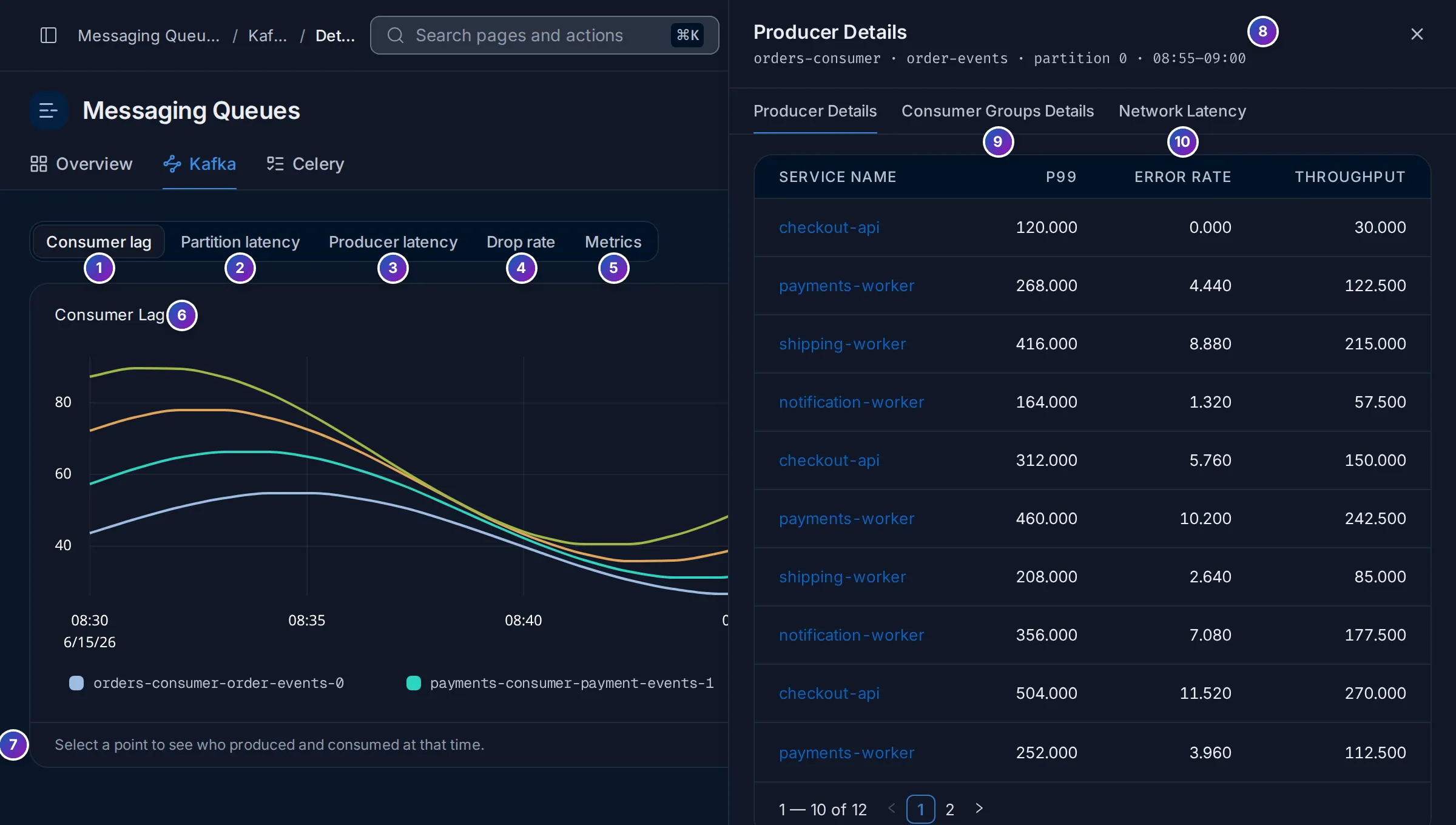
Sample data: this image is a Storybook story, not the demo.
| View | Shows | Needs |
|---|---|---|
| Consumer lag | Lag over time, one line per consumer group, topic and partition | Kafka metrics |
| Partition latency | p99, error rate and throughput per topic partition, for producers and consumer groups | Producer and consumer spans |
| Producer latency | Latency, error rate and throughput per producer or consumer service and topic | Producer spans |
| Drop rate | Messages that took too long from producer to consumer | Producer and consumer spans |
| Metrics | Broker, producer, consumer, JVM and partition metrics | Kafka metrics |
On Consumer lag, click a point on a line to see who produced and consumed that partition at that time (7). The panel on the right (8) names the group, topic, partition and window, and has three tabs: Producer Details, Consumer Groups Details and Network Latency (9, 10), each with P99, Error rate and Throughput per service. The window is ±5 minutes around the point.
On Partition latency and Producer latency, select a row of the table for the same kind of detail for that service, topic and partition.
Drop rate
Section titled “Drop rate”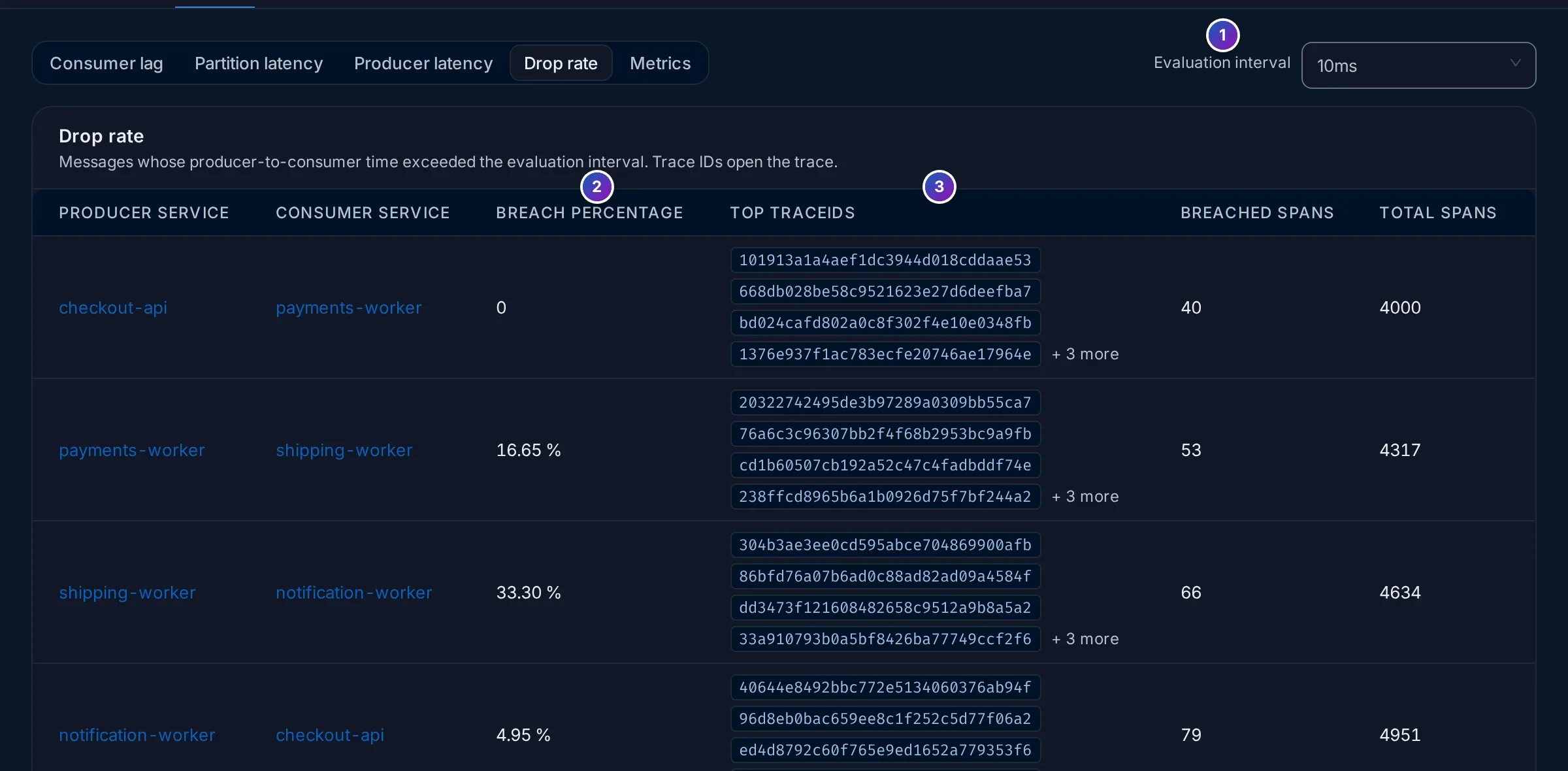
Sample data: this image is a Storybook story, not the demo.
Drop rate compares, for each producer and consumer pair, the time between a message being sent and being processed with the Evaluation interval (1), from 10 ms to 500 ms or a custom value. Breach percentage (2) is the share of messages slower than that; Breached spans and Total spans give the counts. Top trace IDs (3) lists examples; click one to open the trace. A high breach percentage means messages wait in the queue, or consumers are slow to pick them up.
Metrics
Section titled “Metrics”Metrics groups charts into sections you can fold:
| Section | Charts |
|---|---|
| Broker metrics | Request times, broker count, purgatory, network throughput, I/O wait |
| Producer metrics | Request and response rate, request latency, byte rate |
| Consumer metrics | Bytes and messages consumed, offsets, group members, lag by group, fetch rate |
| Broker JVM metrics | Garbage collection, CPU and heap of the broker JVMs (needs new_gc_metrics enabled in the JMX collection) |
| Partition metrics | Partitions per topic, current and oldest offsets, in-sync replicas |
Celery
Section titled “Celery”Celery shows your Celery workers and tasks.
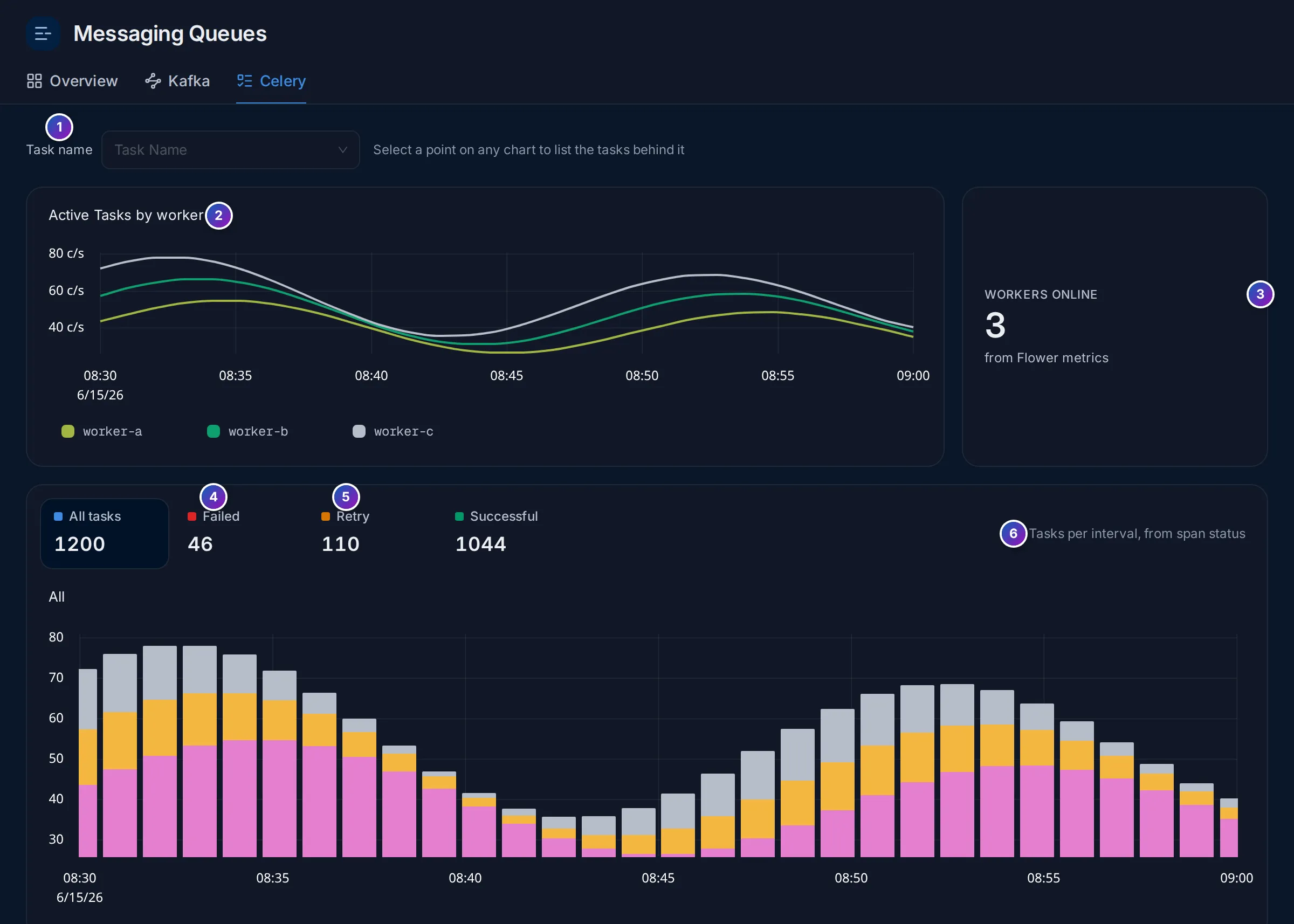
Sample data: this image is a Storybook story, not the demo.
- Task name: narrow every chart to one task, such as
billing.tasks.charge_customer. - Active Tasks by worker: tasks running on each worker over time.
- Workers online: how many workers report in.
- and 5. All tasks, Failed, Retry and Successful: task counts in the range. Click one to chart only those.
- Tasks per interval, coloured by outcome.
Below them: Task Latency (P99, P95 or P90 per task), and Tasks/s, Error% and Latency by worker. Click a point on any chart to list the tasks behind it.
Send Celery data
Section titled “Send Celery data”-
Trace the workers and the code that queues tasks with the OpenTelemetry Celery instrumentation for Python (
opentelemetry-instrumentation-celery, included inopentelemetry-bootstrap). Its spans carrycelery.task_name,celery.stateandcelery.hostname, which the task charts read. See Instrument applications. -
Collect Flower metrics for Active Tasks by worker and Workers online. Run Flower, Celery’s monitoring tool, and scrape its
/metricsendpoint with the collector’sprometheusreceiver:receivers:prometheus:config:scrape_configs:- job_name: celery-flowerscrape_interval: 30sstatic_configs:- targets: ["flower:5555"]The charts read
flower_worker_number_of_currently_executing_tasksandflower_task_runtime_seconds_sum.
Without Flower metrics, the worker charts say No Data and Workers online is
0, while the task charts still work from spans.
Example: why is shipment processing late?
Section titled “Example: why is shipment processing late?”On the sample data of the Overview image:
-
Find the failing operation. Overview puts
notification-worker/shipment-events processat the top: a Kafka Consumer with 77.6% errors and a p95 of 476 ms. -
Check the backlog. Open Kafka → Consumer lag. If the line for the notification consumer group on
shipment-eventskeeps rising, messages arrive faster than they are processed: failures and retries slow the consumer down. -
See who was involved. Click the highest point of the line. The panel lists the producers of that partition and the consumers of the group in that window, with their error rate and p99.
-
Measure the delay. In Drop rate, set the evaluation interval to what your users can accept, such as 500 ms, and read the breach percentage for the producer and
notification-workerpair. Open a top trace ID to follow one late message from producer to consumer.
What you learn: Overview finds the failing side, consumer lag shows whether a backlog builds, and drop rate turns “late” into a number you can alert on.
Related
Section titled “Related”- Instrument applications: the SDKs and agents.
- OTLP endpoints: send metrics from your own collector.
- Trace details: follow one message from producer to consumer.