

Infrastructure
Infrastructure (/infrastructure-monitoring, under Observe in the sidebar)
shows what your services run on: Hosts (servers and virtual machines) and
Kubernetes (containers, pods, nodes, namespaces, clusters, deployments, jobs,
daemon sets, stateful sets and volumes). Each object has its usage, its state and a
panel with its metrics, logs, traces and events.
Use this page when a service is slow and you want to know if its machine or pod is out of CPU or memory, when pods restart or don’t start, or when you want to see how full your nodes are before adding more work to them.
Infrastructure in plain words
Section titled “Infrastructure in plain words”- A host is one machine, physical or virtual, named by
host.name. - In Kubernetes, a container runs your program; a pod is one or more containers scheduled together; a node is the machine pods run on; a namespace groups objects; a cluster is the whole set of nodes. Deployments, stateful sets, daemon sets and jobs are the controllers that create pods.
- A container’s request is the CPU and memory Kubernetes reserves for it; its limit is the most it may use. A container over its memory limit is killed; one over its CPU limit is slowed down. Request utilization and limit utilization say how much of each a pod or container uses. See requests and limits.
- Restarts count how often a container was restarted. A growing count, with a
state such as
CrashLoopBackOff, means the container keeps failing at start.
These numbers are metrics sent by the collector, not by your applications. They
need the Kubernetes chart, or the
hostmetrics receiver on a host outside Kubernetes.
Instrumentation checks
Section titled “Instrumentation checks”Every tab starts with Instrumentation checks: what the tab needs, and whether it is arriving.
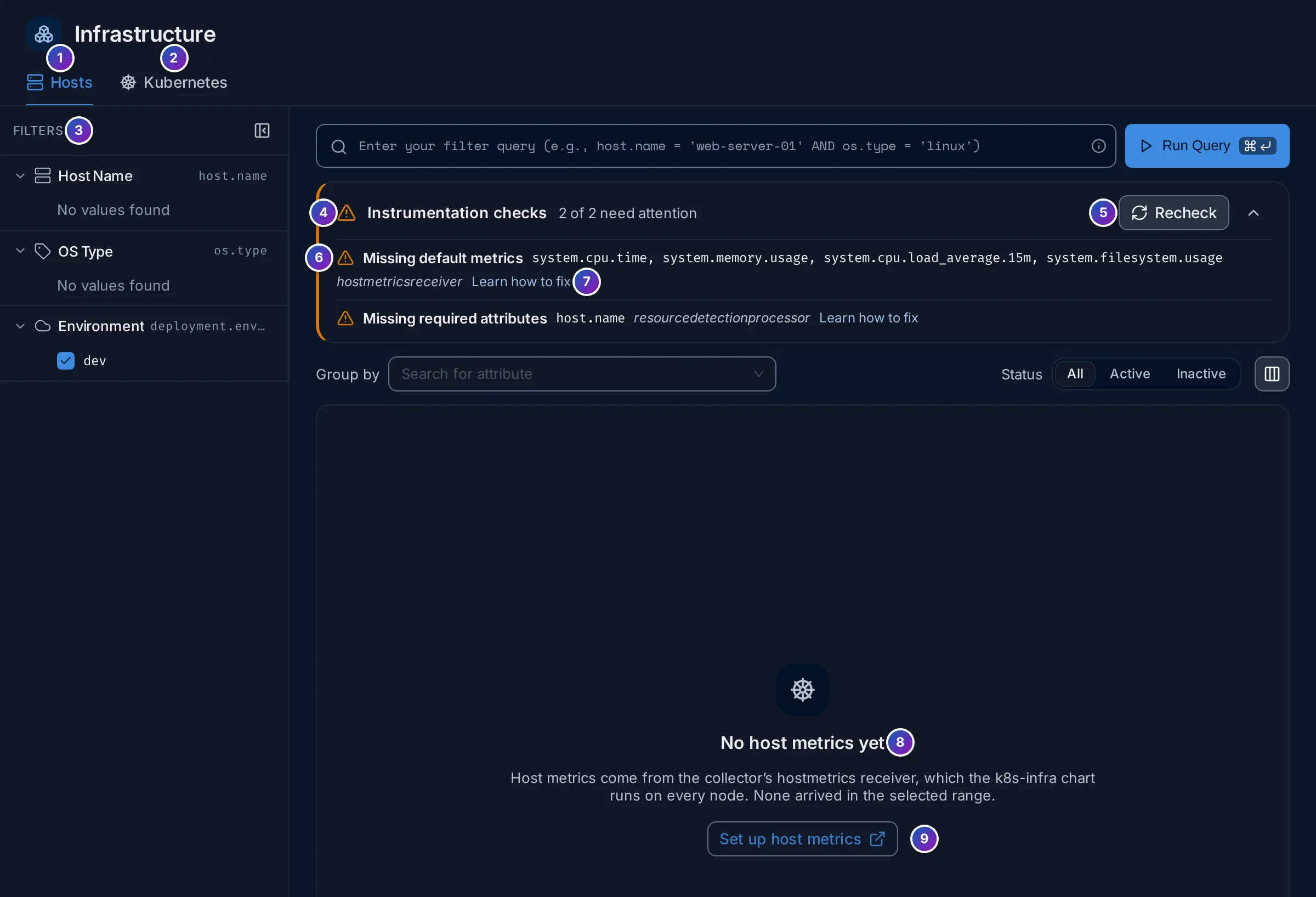
- Instrumentation checks counts the checks that need attention, such as
2 of 2 need attention. Each line is one of:- Default enabled metrics / Missing default metrics: metrics the tab needs.
- Missing optional metrics: metrics that fill extra columns, such as request and limit utilization.
- Required attributes / Missing required attributes: attributes the tab
groups by, such as
host.nameork8s.pod.uid.
- Recheck runs the checks again, for example after you change the collector.
- Each line names the metrics or attributes, in code font, and the collector
component that produces them, in italics, such as
hostmetricsreceiver. - Learn how to fix opens the Kubernetes page, which explains each component.
- and 9. With no data, the tab says No host metrics yet (or No Kubernetes metrics yet), with a link to set it up.
A check line with a green tick is satisfied. Click the arrow at the right to fold the checks away once everything is green.
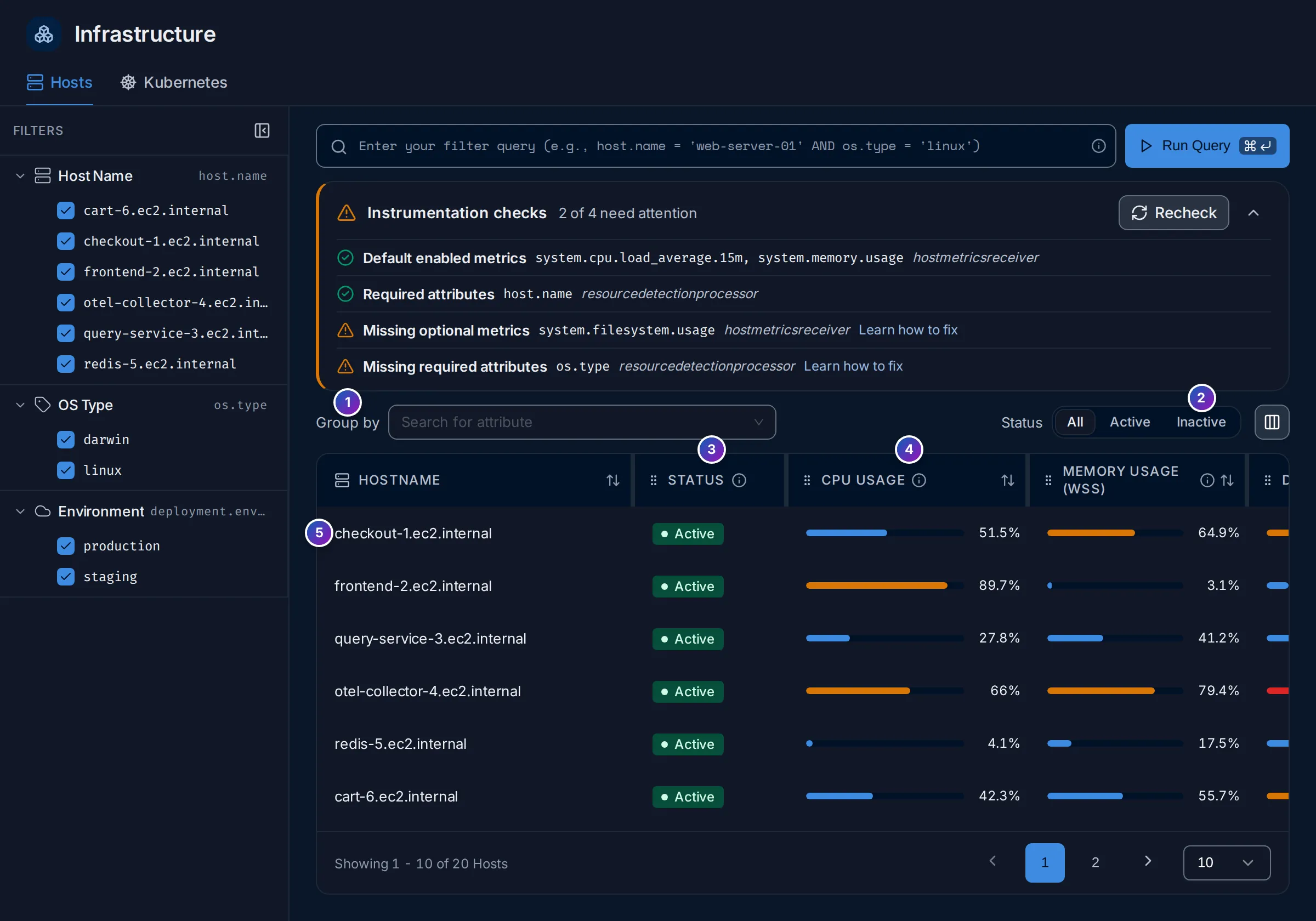
Sample data: this image is a Storybook story, not the demo.
The list has one row per host, with Status, CPU usage, Memory usage (WSS) (working set: memory in use that can’t be freed right away), Disk usage, Iowait (time the CPU waits for the disk) and Load avg (15min). The bars turn amber, then red, as they fill up.
- Filters on the left: Host Name, OS Type and Environment. The query
box above takes any attribute, such as
host.name = 'web-server-01'.
- Group by: one row per value of an attribute, such as
deployment.environment, with the totals of its hosts. - Status: All, Active or Inactive.
- A host is Active when it sent metrics in the last 10 minutes, Inactive otherwise, for example a machine that was shut down.
- Click a column title to sort, such as CPU usage to find the busiest hosts.
- Click a host to open its details panel.
The column button at the right of the toolbar shows or hides columns.
Kubernetes
Section titled “Kubernetes”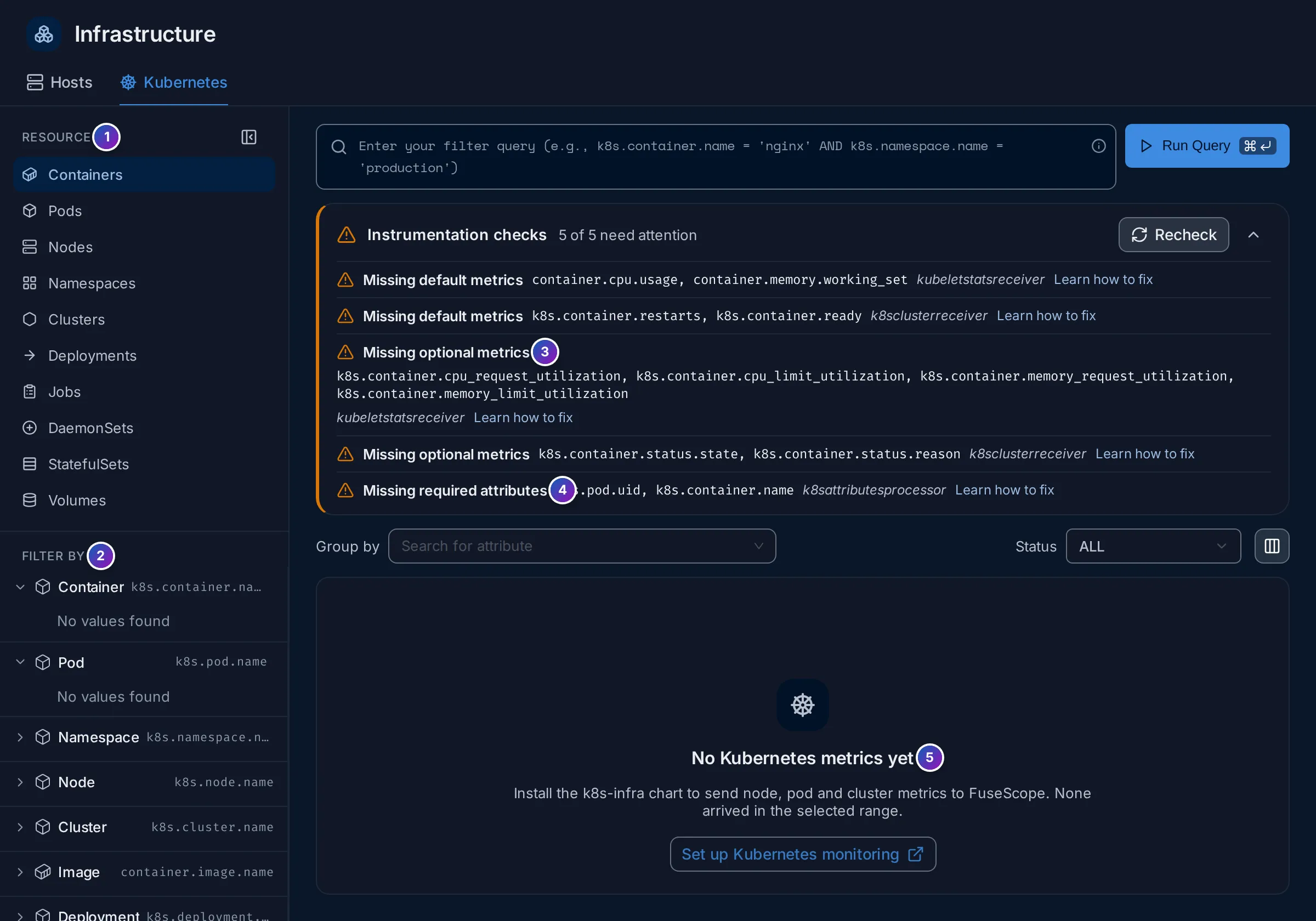
- Resource: choose what to list: Containers, Pods, Nodes, Namespaces, Clusters, Deployments, Jobs, DaemonSets, StatefulSets or Volumes. Each has its own checks and columns.
- Filter by: quick filters such as Pod, Namespace, Node, Cluster, Deployment and Environment.
- and 4. The checks for the chosen resource.
- The empty state until metrics arrive, with Set up Kubernetes monitoring.
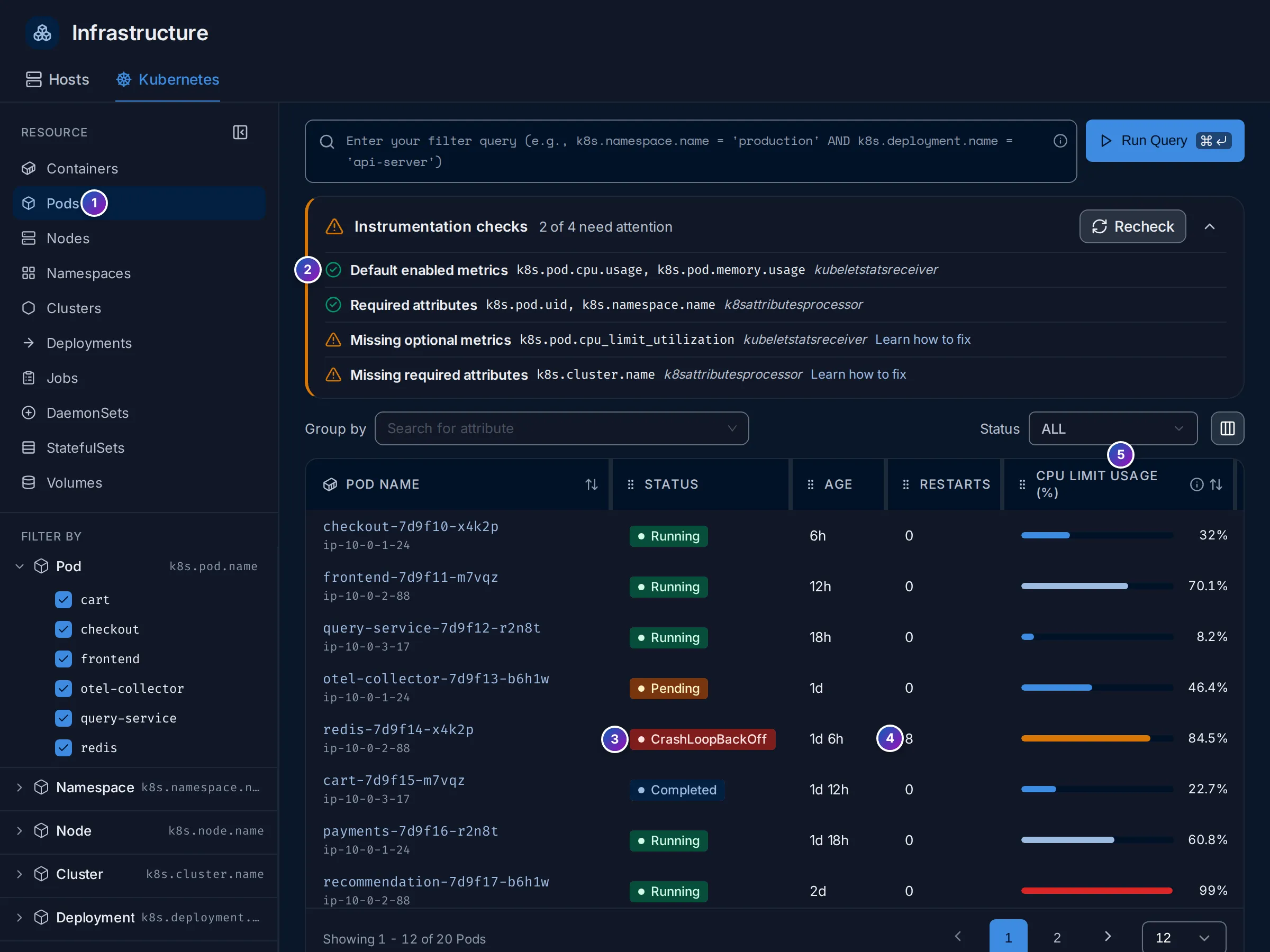
Sample data: this image is a Storybook story, not the demo.
For pods (1), the list shows each pod with its node, Status (3), Age, Restarts (4), CPU limit usage (%) (5), CPU usage (cores), Memory limit usage (%) and Memory usage (WSS). CPU request usage (%) and Memory request usage (%) can be added with the column button. The Status filter keeps one phase, such as Running or Pending. Nodes have Node Readiness and Pod Status filters instead.
How to read the usage columns:
| Column | Near 100% means |
|---|---|
| CPU request usage (%) | The pod uses all the CPU it reserved; it may use more if the node has spare |
| CPU limit usage (%) | The pod is about to be slowed down (throttled) |
| Memory request usage (%) | The pod uses all the memory it reserved |
| Memory limit usage (%) | The pod is about to be killed for using too much memory (OOMKilled) |
A column without values means the pods don’t set requests or limits, or the optional metrics are off; the checks say which.
The details panel
Section titled “The details panel”Click a host, pod, node or any other object to open its panel on the right.
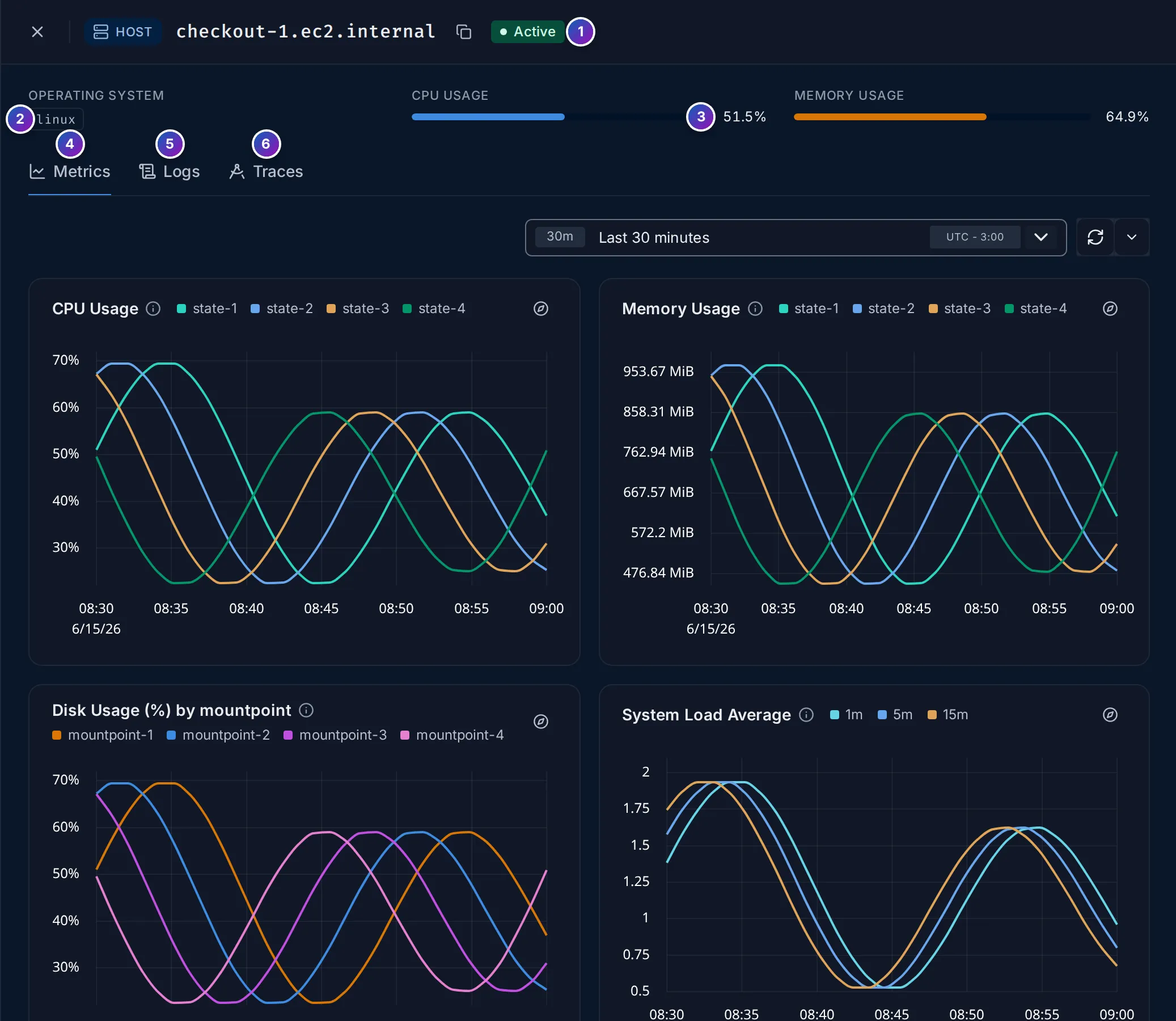
Sample data: this image is a Storybook story, not the demo.
- to 3. The header: name, status and the main facts, such as the operating system and the current CPU and memory use; for a pod, its namespace, cluster and node.
- Metrics: charts over the panel’s own time range, such as CPU, memory, disk, load and network for a host, or CPU and memory by container for a pod.
- Logs: the object’s logs, such as its pods’ logs.
- Traces: traces from services running there, matched by
host.nameor the Kubernetes attributes.
Pods, nodes and other Kubernetes objects also have Overview and Events:
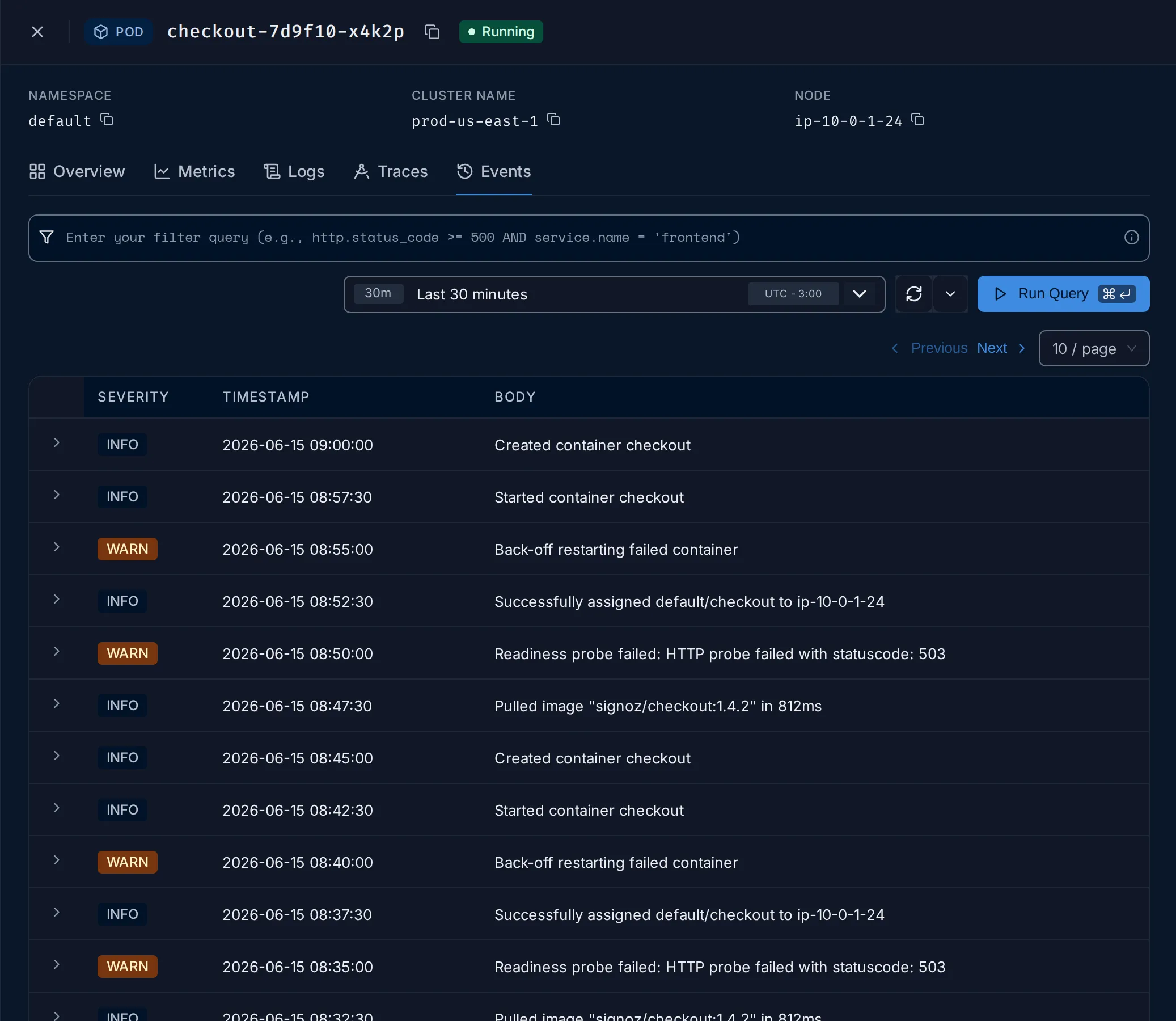
Sample data: this image is a Storybook story, not the demo.
Events lists the Kubernetes events of the object, such as image pulls, probe
failures and restarts, with their severity. It needs presets.k8sEvents in the
chart; without it the tab explains how to turn it on.
A service’s Infrastructure tab links to its hosts here with Host.
Example: why does a pod keep restarting?
Section titled “Example: why does a pod keep restarting?”On the sample data of the Pods image:
-
Spot it. Open Infrastructure › Kubernetes › Pods.
redis-7d9f14-x4k2pon nodeip-10-0-2-88is in CrashLoopBackOff with 8 restarts, and its CPU limit usage is 84.5%. -
Open its panel. Click the pod. Metrics shows whether memory climbs to the limit before each restart, the sign of an
OOMKilledcontainer, or whether usage stays low, which points at the program failing at start. -
Read the events. Events shows entries such as
Back-off restarting failed containerandReadiness probe failed: HTTP probe failed with statuscode: 503: Kubernetes restarts the container because it doesn’t answer its health check. -
Read the logs. Logs shows what the container printed before it stopped, usually the real error, such as a missing configuration value.
What you learn: restarts, events and logs in one panel tell you whether a pod dies from lack of memory, a failing health check, or its own error.
Related
Section titled “Related”- Kubernetes: install the
k8s-infrachart, and what each component sends. - Services: the hosts behind a service.
- Logs explorer: search the same logs with filters.