

Single sign-on
Use this page when you want people to sign in with their company account instead of a FuseScope password.
FuseScope signs users in through one of three protocols:
| Protocol | Use it for |
|---|---|
| OpenID Connect (OIDC) | Microsoft Entra ID, Keycloak, Okta, Auth0 or any OIDC provider |
| Google Workspace | Google accounts of one Workspace domain |
| SAML 2.0 | Identity providers that only speak SAML, such as AD FS or JumpCloud |
An auth domain ties an email domain, such as example.com, to one provider. Users
whose email is in that domain sign in through it. Creating auth domains needs the Admin
role.
Auth domains are created in the UI or declared in the configuration file.
Choose a protocol
Section titled “Choose a protocol”Go to Settings → Single Sign-on and click Add Domain.
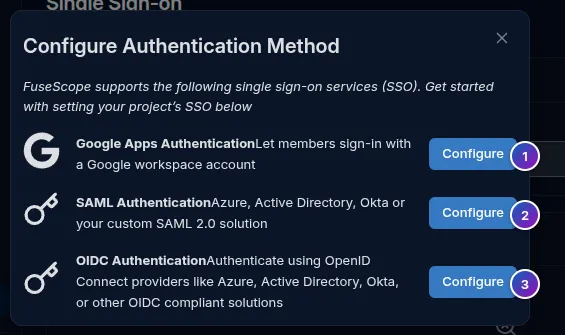
- Google Apps Authentication: see Google Workspace.
- SAML Authentication: see SAML 2.0.
- OIDC Authentication: continue below.
The domain list shows each domain, an Enforce SSO switch, the IDP Initiated SSO URL for SAML domains, and Configure and Delete actions.
Register FuseScope at the provider
Section titled “Register FuseScope at the provider”Create a confidential OIDC client (authorization code flow) and register this redirect URI:
https://<fusescope-host>/api/v1/complete/oidcWhen FuseScope is served under a path, set global.external_url to the full URL; its
path goes before /api/v1/complete/oidc.
FuseScope always requests the openid, email and profile scopes and adds the ones you
configure. Okta only sends group membership when the groups scope is requested.
Configure in the UI
Section titled “Configure in the UI”- Go to Settings → Single Sign-on and click Add Domain.
- Choose OIDC Authentication.
- Pick a preset: Generic OIDC, Microsoft Entra ID, Keycloak, Okta or Auth0. Presets only prefill the issuer placeholder and scopes.
- Fill in the domain, issuer URL, client ID and client secret, then save.
| Issuer for | Format |
|---|---|
| Microsoft Entra ID | https://login.microsoftonline.com/<tenant-id>/v2.0 |
| Keycloak | https://<host>/realms/<realm> |
| Okta | https://<your-org>.okta.com |
| Auth0 | https://<tenant>.<region>.auth0.com/ |
How sign-in is checked
Section titled “How sign-in is checked”- The ID token is verified against the issuer’s discovery document and the client ID.
- The email claim must be present and
email_verifiedmust be true. Turn oninsecureSkipEmailVerifiedonly for providers that never send it. - The email must belong to the auth domain, compared case-insensitively.
- With
getUserInfo, claims missing from the ID token are read from the userinfo endpoint. If that endpoint fails, sign-in continues with the ID token claims; a userinfo subject that differs from the ID token is rejected.
OIDC settings
Section titled “OIDC settings”| Field | Description |
|---|---|
issuer |
Issuer URL; discovery is read from <issuer>/.well-known/openid-configuration. Required. |
issuerAlias |
Issuer to validate tokens against when it differs from the discovery URL, for example Entra ID multi-tenant. |
clientId, clientSecret |
Client credentials. Required. |
scopes |
Scopes added to openid email profile. |
getUserInfo |
Merge claims from the userinfo endpoint. |
insecureSkipEmailVerified |
Accept emails without email_verified. |
claimMapping |
Claim names for email, name, groups and role; the defaults are those names. |
Google Workspace
Section titled “Google Workspace”Google sign-in lets the accounts of one Google Workspace domain in. Users from other domains, and personal Gmail accounts, are rejected.
Create the OAuth client
Section titled “Create the OAuth client”-
In the Google Cloud console, open APIs & Services → Credentials and create an OAuth client ID of type Web application.
-
Add this authorized redirect URI:
https://<fusescope-host>/api/v1/complete/google -
Copy the client ID and client secret.
FuseScope requests the email and profile scopes.
Fill in the form
Section titled “Fill in the form”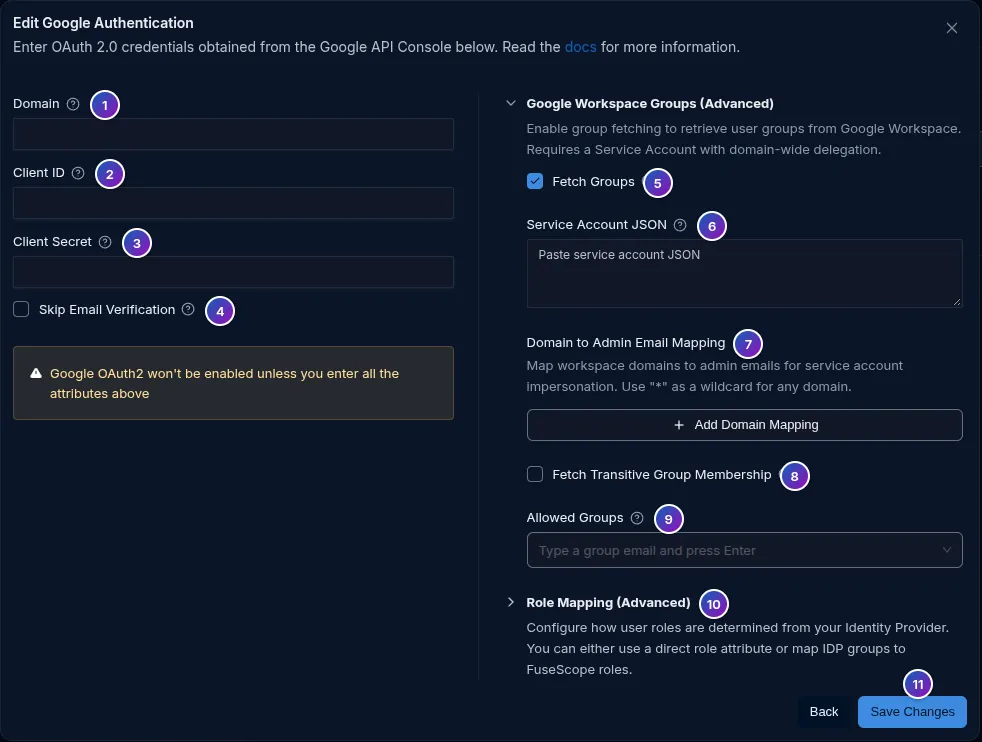
- Domain: the Workspace domain, such as
example.com. Google must report the same domain for the account (thehdclaim), so sign-in fails for other domains. - Client ID: from the OAuth client.
- Client Secret: from the OAuth client.
- Skip Email Verification: accept accounts whose email Google has not verified. Leave it off.
- Fetch Groups: read the user’s Workspace groups at sign-in, for role mapping or to restrict who may sign in. Needs fields 6 and 7.
- Service Account JSON: the key file of a Google Cloud service account with
domain-wide delegation for the
admin.directory.group.readonlyscope. - Domain to Admin Email Mapping: a Workspace admin the service account acts as, per
email domain. Use
*as the domain to match any domain. - Fetch Transitive Group Membership: also include groups that contain the user’s groups.
- Allowed Groups: group emails. When set, only members of one of these groups can sign in.
- Role Mapping: see Role mapping.
- Save Changes.
If groups cannot be read, sign-in fails rather than continuing without them.
SAML 2.0
Section titled “SAML 2.0”Register FuseScope at the identity provider
Section titled “Register FuseScope at the identity provider”Create a SAML application with these values:
| Setting | Value |
|---|---|
| Assertion Consumer Service (ACS) URL, also called reply or single sign-on URL | https://<fusescope-host>/api/v1/complete/saml |
| Entity ID, also called audience or SP entity ID | <fusescope-host>: the host, with its port if any, without scheme or path |
| Name ID | The user’s email address |
Under a base path, set global.external_url; its path goes before
/api/v1/complete/saml. Set global.external_url in any case: FuseScope only accepts
SAML sign-ins for that host, or for global.allowed_origins.
From the identity provider’s metadata, note the entity ID, the single sign-on URL and the signing certificate.
Fill in the form
Section titled “Fill in the form”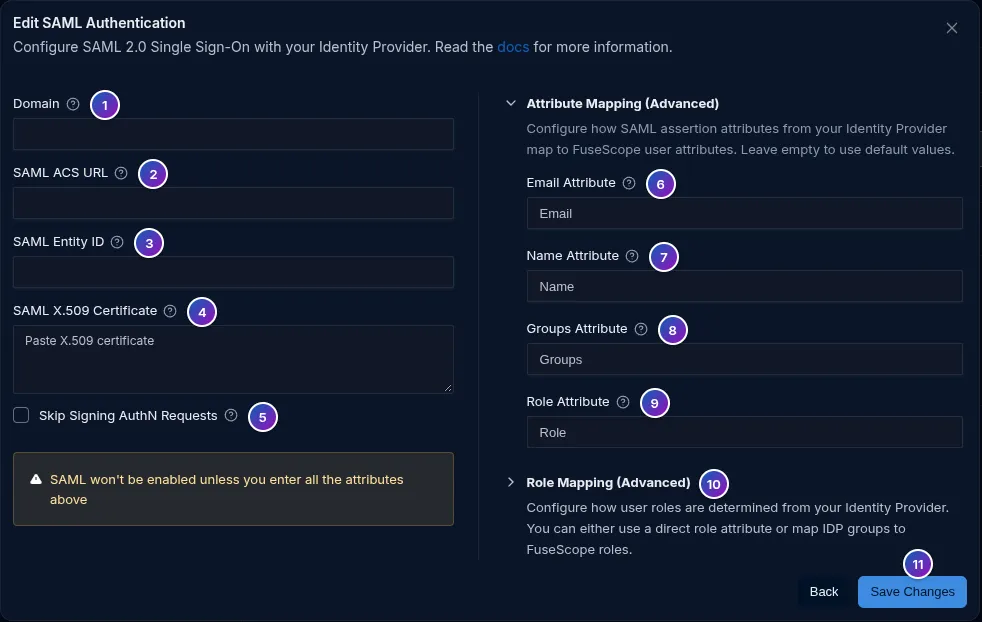
- Domain: the email domain, such as
example.com. - SAML ACS URL: despite its label, the identity provider’s single sign-on URL
(
SingleSignOnServiceLocationin its metadata), where FuseScope sends users. - SAML Entity ID: the identity provider’s entity ID (
entityIDin its metadata). - SAML X.509 Certificate: the identity provider’s signing certificate, as the base64
body of
X509Certificateor a PEM block. - Skip Signing AuthN Requests: turn on for providers that require unsigned requests, such as JumpCloud.
- Email Attribute: the assertion attribute with the email. Empty uses
email. When the attribute is missing, the Name ID is used. - Name Attribute: empty uses
name. - Groups Attribute: the groups used by role mapping. Empty uses
groups. - Role Attribute: the role used with Use Role Attribute Directly. Empty uses
role. - Role Mapping: see Role mapping.
- Save Changes.
How a SAML sign-in is checked
Section titled “How a SAML sign-in is checked”- The response must be signed with the configured certificate and addressed to FuseScope.
- An assertion outside its validity window is rejected.
- Each assertion is accepted once. With several backend replicas, use the
rediscache so replays are caught across replicas. - The email must belong to the auth domain.
Sign in from the identity provider
Section titled “Sign in from the identity provider”To start the sign-in from the identity provider’s portal instead of the FuseScope login page, copy the domain’s IDP Initiated SSO URL from the domain list and set it as the application’s default relay state.
Role mapping
Section titled “Role mapping”FuseScope assigns roles when it creates the user at the first SSO sign-in. Existing users keep their roles.
Every provider form has a Role Mapping (Advanced) section with these fields:
| Key | Form field | Description |
|---|---|---|
defaultRole |
Default Role | Role when no group mapping applies. Defaults to viewer. |
groupMappings |
Group to Role Mappings | Map of provider group to role. A user in several mapped groups gets every mapped role. |
useRoleAttribute |
Use Role Attribute Directly | Use the role claim as the role name when it names an existing role, instead of group mappings. |
Role names are signoz-admin, signoz-editor and signoz-viewer, or a custom role.
ADMIN, EDITOR and VIEWER are accepted and converted.
Declare domains in the configuration file
Section titled “Declare domains in the configuration file”Domains under authdomain.domains are created or updated at startup, deleted when
removed from the list, and re-applied every reconcile_interval (default 1m), which
also picks up an organization created at first sign-up. Domains created in the UI are not
affected.
authdomain: reconcile_interval: 1m domains: - name: example.com config: kind: oidc spec: issuer: https://login.microsoftonline.com/<tenant-id>/v2.0 clientId: <application-id> clientSecret: ${FUSESCOPE_ENTRA_CLIENT_SECRET} role_mapping: defaultRole: VIEWER groupMappings: <group-object-id>: ADMIN - name: example.org config: kind: oidc spec: issuer: https://keycloak.example.org/realms/<realm> clientId: fusescope clientSecret: ${FUSESCOPE_KEYCLOAK_CLIENT_SECRET} getUserInfo: true| Key | Description |
|---|---|
name |
Email domain. Each domain may appear once. |
org |
Organization ID or name. May be omitted when there is a single organization. |
enabled |
Defaults to true. |
config |
kind (oidc, google or saml) and spec. For oidc, see the OIDC settings; google and saml take the Google and SAML keys below. |
role_mapping |
defaultRole, groupMappings, useRoleAttribute. |
Google settings
Section titled “Google settings”| Key | Form field |
|---|---|
clientId, clientSecret |
Client ID, Client Secret |
insecureSkipEmailVerified |
Skip Email Verification |
fetchGroups |
Fetch Groups |
serviceAccountJson |
Service Account JSON, as a string |
domainToAdminEmail |
Domain to Admin Email Mapping, such as {"*": "admin@example.com"} |
fetchTransitiveGroupMembership |
Fetch Transitive Group Membership |
allowedGroups |
Allowed Groups |
SAML settings
Section titled “SAML settings”| Key | Form field |
|---|---|
entityId |
SAML Entity ID |
location |
SAML ACS URL, the identity provider’s single sign-on URL |
certificate |
SAML X.509 Certificate |
insecureSkipAuthNRequestsSigned |
Skip Signing AuthN Requests |
attributeMapping |
email, name, groups and role attribute names |
String values may reference environment variables as ${NAME}; use this for client
secrets. A referenced variable that is not set stops the backend at startup.
Declared domains are read-only: the UI marks them Managed by configuration, and
changing or deleting one through the API returns 403 with the error code
auth_domain_managed. Edit the file instead.