

Cost Meter
Cost Meter (/meter, under Analyze in the sidebar) counts what your workspace
takes in: how many log records, spans and metric data points arrive, and how big they
are. Storage, and on a hosted plan the bill, grows with these numbers, so this is the
page to watch when you want to keep costs in check.
Use this page when you want to know which signal or service sends the most data, when you check whether a change (more logs, a new service) increased your volume, or when you want to compare your usage with a bill.
Meter signals in plain words
Section titled “Meter signals in plain words”-
A meter signal is a count of what was ingested. FuseScope keeps five, as metrics named
signoz.meter.*:Metric Counts signoz.meter.log.countLog records signoz.meter.log.sizeSize of log records, in bytes signoz.meter.span.countSpans signoz.meter.span.sizeSize of spans, in bytes signoz.meter.metric.datapoint.countMetric data points -
They are counted by the collector as data passes through it, and written once per hour. A range shorter than an hour, or the first hour after you turn the meter on, shows nothing.
-
Each count carries the
service.name,deployment.environmentandhost.nameof what was sent, so you can split usage by service, environment or host. -
Billing days run in UTC. To compare with a bill, pick whole UTC days, even if your browser shows another timezone.
See meter signal.
The Meter tab
Section titled “The Meter tab”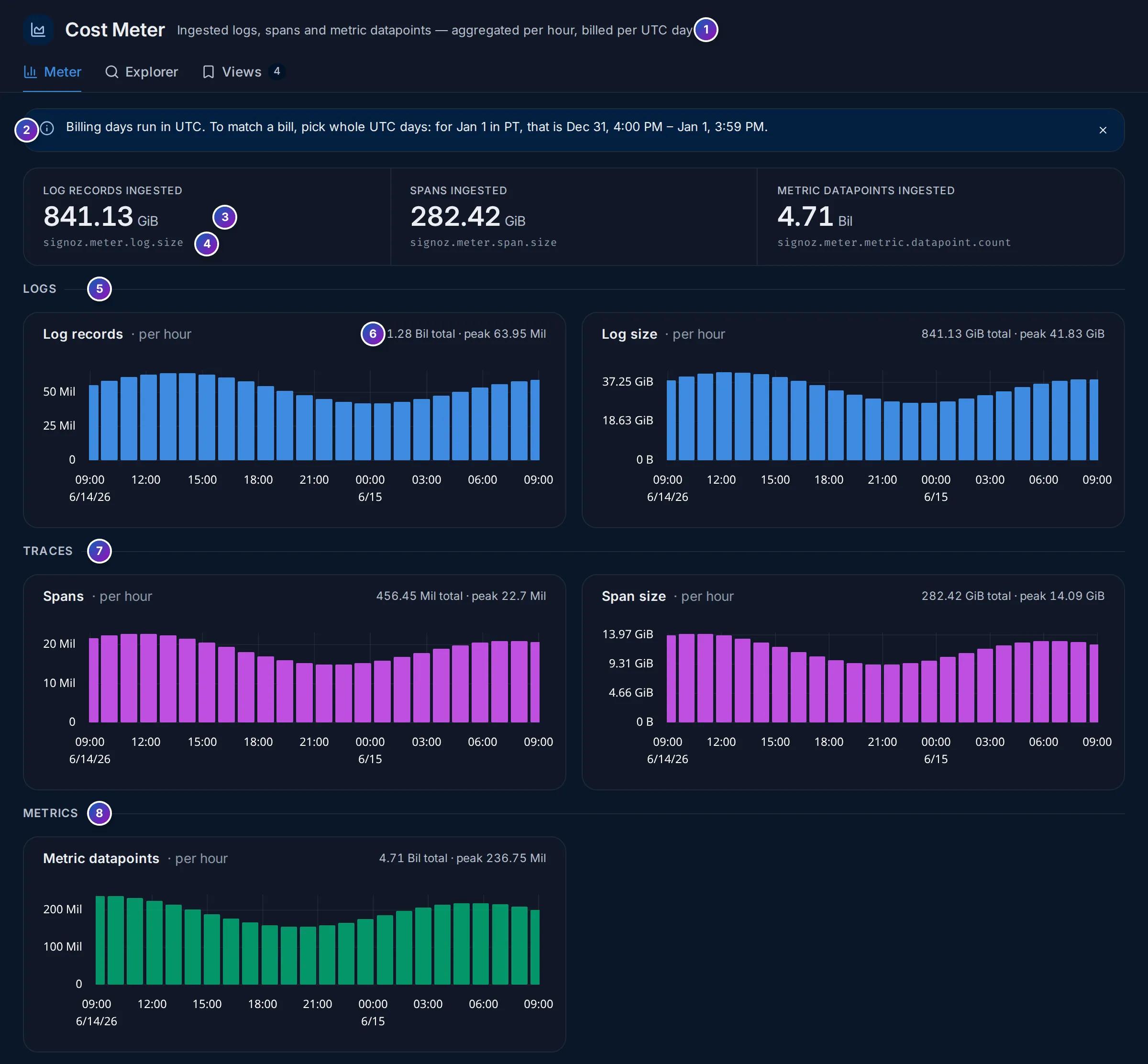
Sample data: this image is a Storybook story, not the demo.
- Subtitle: what is counted, and how often.
- Billing note: how to pick a range that matches a bill. Click × to hide it; FuseScope remembers this in your browser.
- Totals for the time range: Log records ingested and Spans ingested (in bytes) and Metric datapoints ingested (a count).
- Under each total, the meter metric it comes from.
- Logs: Log records and Log size, one bar per hour.
- Each chart’s total and its peak hour, such as
1.28 Bil total · peak 63.95 Mil. - Traces: Spans and Span size.
- Metrics: Metric datapoints.
Drag across a chart to zoom into those hours. The bars follow the daily rhythm of your traffic; a bar much higher than its neighbours is worth a look, for example a service that started logging at debug level.
The Explorer tab
Section titled “The Explorer tab”Explorer charts any meter metric, split the way you want, with the query builder.
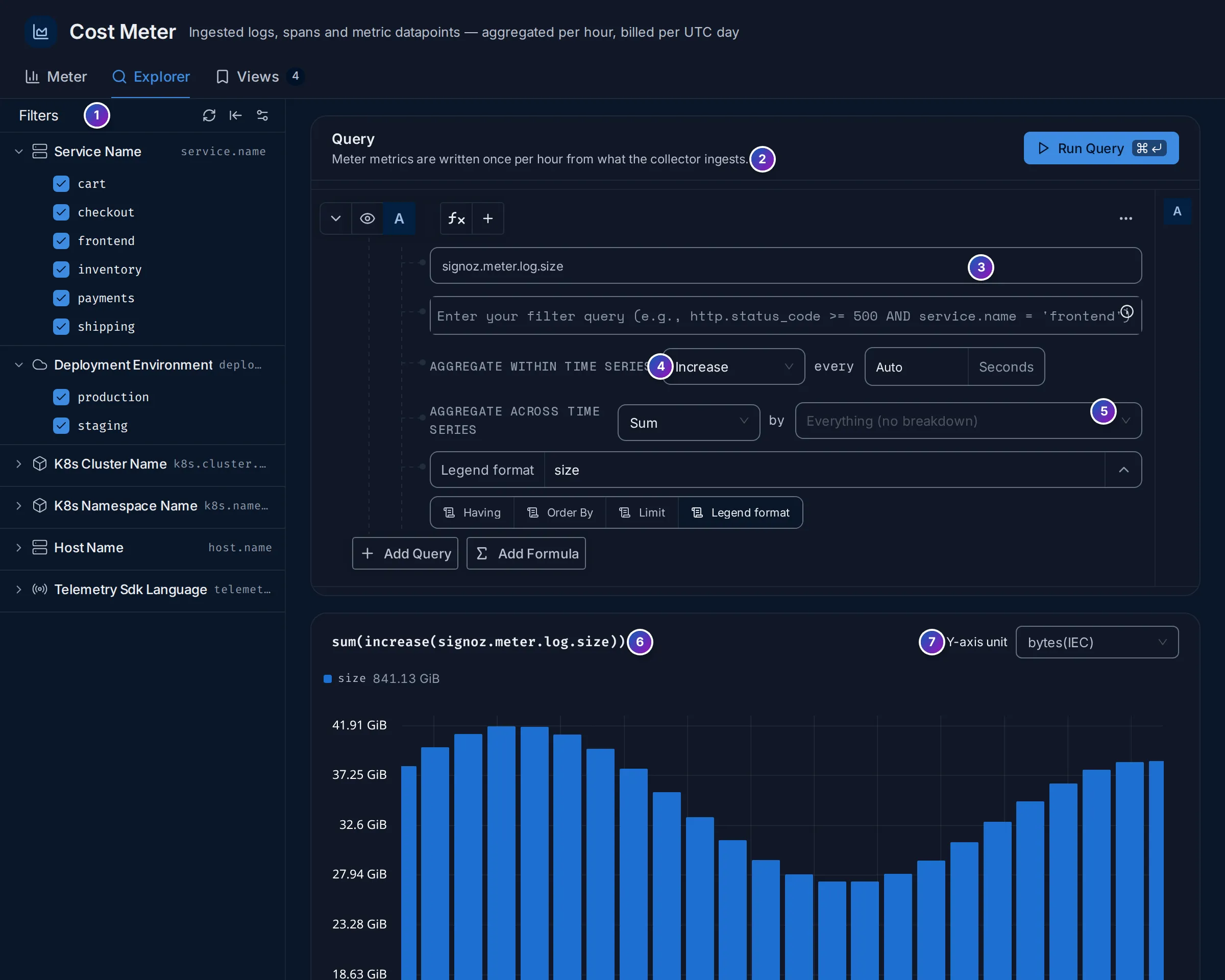
Sample data: this image is a Storybook story, not the demo.
- Filters: tick or untick Service Name, Deployment Environment, K8s Cluster Name, K8s Namespace Name, Host Name or Telemetry Sdk Language values.
- A reminder that meter metrics are written once per hour.
- The meter metric to chart, such as
signoz.meter.log.size. - Aggregate within time series: Increase adds up what arrived in each interval, which is what you want for usage.
- Aggregate across time series … by: Sum, and the attribute to split by,
such as
service.name. Everything (no breakdown) gives one total. - The query, written out, such as
sum(increase(signoz.meter.log.size)), above its chart. - Y-axis unit, such as bytes(IEC) for sizes.
Use the bar at the bottom to Save this view, add the chart to a dashboard, or create an alert, for example when log volume per hour goes above a budget.
Views lists the explorer queries saved with Save this view, with who created them and when. Click one to open it in Explorer. The count next to the tab says how many there are.
Turn on the Cost Meter
Section titled “Turn on the Cost Meter”When the page says No usage recorded for this range, no meter data has been written for the range:
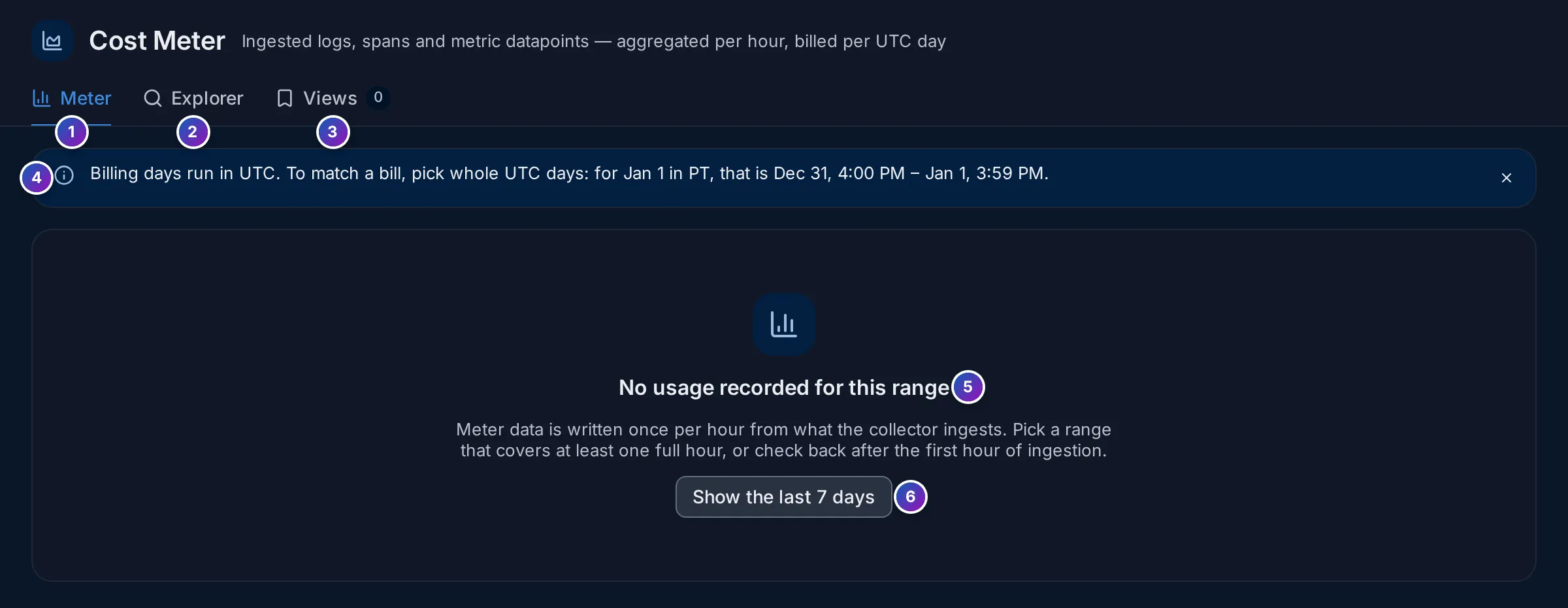
-
Widen the range. Click Show the last 7 days (6). Meter data is hourly, so a short range, or the first hour after you start, has nothing yet.
-
Check the collector pipeline. The meter is counted by the
signozmeterconnector in the FuseScope collector and written to thesignoz_meterdatabase by thesignozclickhousemeterexporter. The FuseScope Helm chart turns both on by default, with this shape:connectors:signozmeter:metrics_flush_interval: 1hdimensions:- name: service.name- name: deployment.environment- name: host.nameservice:pipelines:traces:exporters: [clickhousetraces, metadataexporter, signozmeter]metrics:exporters: [metadataexporter, signozclickhousemetrics, signozmeter]logs:exporters: [clickhouselogsexporter, metadataexporter, signozmeter]metrics/meter:receivers: [signozmeter]processors: [batch/meter]exporters: [signozclickhousemeter]If you replaced the collector configuration, add
signozmeterback to the exporters of each pipeline and keep themetrics/meterpipeline. See Install with Helm and Architecture. -
Wait an hour. With
metrics_flush_interval: 1h, the first bars appear about an hour after data starts flowing.
The local demo stack runs a collector without the meter pipeline, which is why its Cost Meter is empty.
Example: which signal costs the most?
Section titled “Example: which signal costs the most?”On the sample data above, over one day:
-
Read the totals. Logs are 841.13 GiB, spans 282.42 GiB, and there are 4.71 billion metric data points. Logs are three times the size of spans.
-
Find the peak. Log records peaks at 63.95 million records in one hour, and the bars are highest from 09:00 to 15:00, during business hours.
-
Split by service. Open Explorer, keep
signoz.meter.log.size, and set by toservice.name. One line per service shows which ones send the most logs. -
Act. For a service that logs far more than the others, lower its log level, or drop noisy logs with a log pipeline. Then save the query as a view and check it again next week.
What you learn: logs are the biggest share of this workspace’s volume, and the Explorer shows which service to talk to first.
Related
Section titled “Related”- Data retention: how long data is kept, the other half of storage cost.
- Log pipelines: filter logs before they are stored.
- Metrics explorer: the same query builder for any metric.