

Panel editor
The panel editor is the full-screen page where you build one panel: you write its query, check the chart it draws, and set its title, units, colours and other options.
Use this page when you are adding a panel to a dashboard, or changing one that already exists, and want to know what each part of the editor does.
Open the editor
Section titled “Open the editor”- A new panel: click New Panel on the dashboard, pick a panel type and click Add to …. See Add a panel.
- An existing panel: open the panel menu (⋮) and click Edit panel.
- From View mode: click Switch to Edit Mode. Any changes you made there come with you.
The editor has its own address, so you can bookmark it or send it to someone.
The editor at a glance
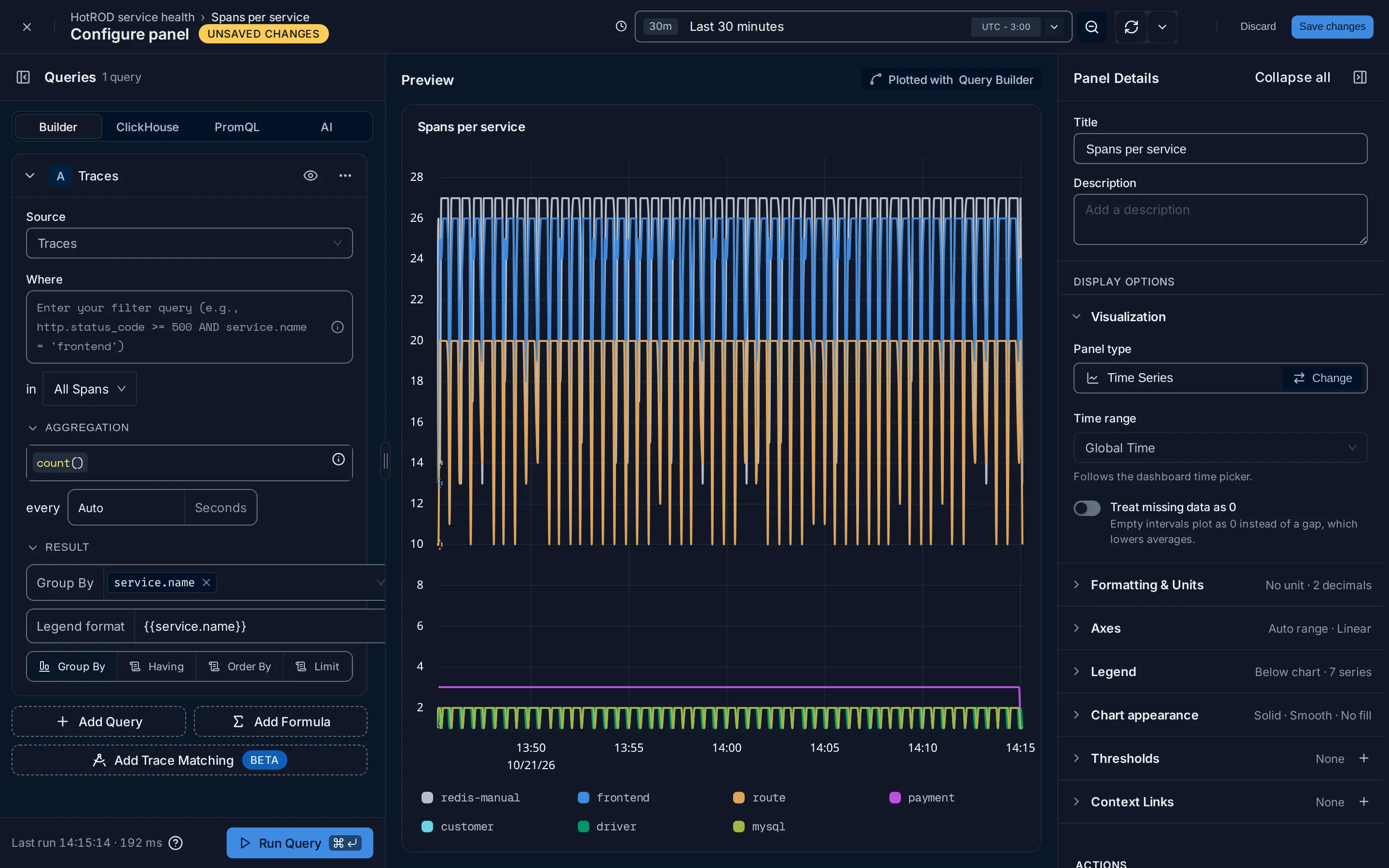
Section titled “The editor at a glance”The page has a header across the top and three columns below it: your queries on the left, a live preview of the panel in the middle, and the panel settings on the right.
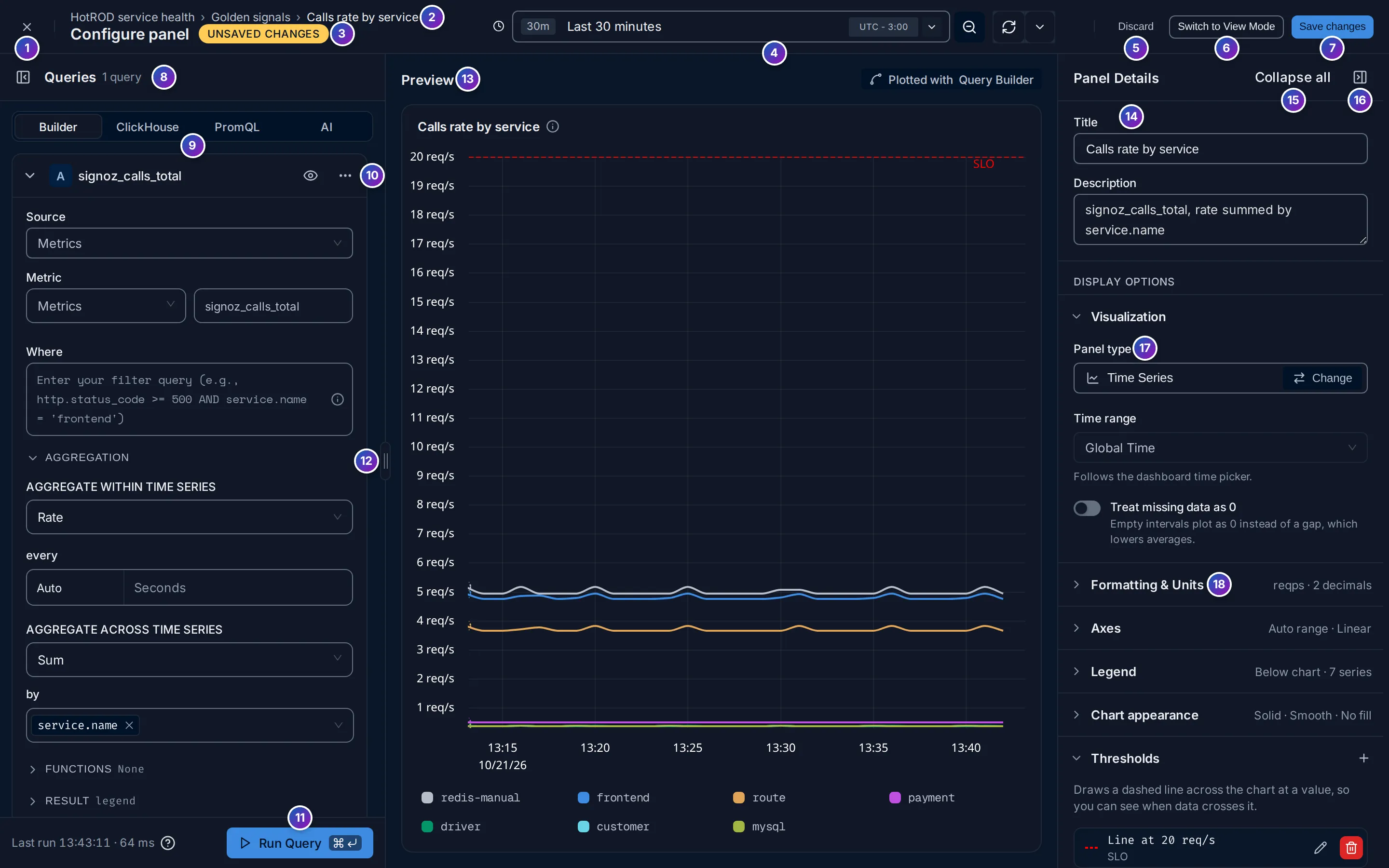
Header
- Close (✕) takes you back to the dashboard. If you have unsaved changes, FuseScope asks first; see Save or discard.
- Breadcrumb: where the panel lives, as dashboard › section › panel.
- Unsaved Changes: appears as soon as you change anything, and goes away when you save or discard.
- Time range, refresh and auto-refresh for the preview. Changing it here doesn’t change the dashboard’s time range.
- Discard throws your changes away. It is greyed out while there is nothing to discard.
- Switch to View Mode opens the panel full size on the dashboard, with your changes, but without saving them. It is only shown for panels that already exist.
- Save changes saves the panel to the dashboard and takes you back to it.
Queries panel (left)
- Queries and how many the panel has. The icon on its left folds the panel; see Make more room.
- Query type: Builder, ClickHouse, PromQL or AI. See Query types.
- A query card. Its header shows the query’s letter and what it reads, such as the metric name. See Query cards.
- Run Query redraws the preview with your query. See Run the query.
- Resize handle: drag it to make the Queries panel wider or narrower.
Preview (middle)
- Preview: the panel exactly as it will look on the dashboard. The label on the right, such as Plotted with Query Builder, says which query type drew it.
Settings pane (right)
- Title and Description of the panel. The description is shown when you hover the ⓘ next to the title on the dashboard.
- Collapse all closes every settings section at once.
- Fold the settings pane into a narrow rail.
- Panel type, with Change to switch to another one. See Change the panel type.
- A settings section. Click its name to open or close it. Closed sections show a
short summary on the right, such as
reqps · 2 decimals, so you can see the setting without opening it. See Panel settings.
Query types
Section titled “Query types”The tabs at the top of the Queries panel choose how you write the query:
| Tab | Use it to |
|---|---|
| Builder | Pick a source (metrics, logs or traces), a filter, an aggregation and a group by from lists. The best place to start. See Query builder. |
| ClickHouse | Write SQL against the ClickHouse tables yourself. See ClickHouse SQL and PromQL. |
| PromQL | Write a Prometheus query over metrics. |
| AI | The query builder set up for AI and LLM spans, the data behind AI Observability. It reads traces. |
Each tab keeps its own query. The tab that is selected when you save is the one the panel uses. Switching tabs counts as a change, so Unsaved Changes appears.
Not every panel type takes every query type: a List panel, for example, only takes the builder on logs or traces. The type picker shows what each type accepts.
Query cards
Section titled “Query cards”On the Builder tab each query is a card, named with a letter: A, B, C… Only one card is open at a time, so the list stays short: click a closed card’s header to open it, and the open one closes.
The card header has:
- the arrow, to open or close the card;
- the eye, to hide the query: a hidden query still exists but is not drawn. Use it for a query that only feeds a formula;
- ⋯, with Clone (copy the query) and Delete. A panel’s only query can’t be deleted.
Inside the card, Source, Where (the filter) and Aggregation come first.
Functions and Result are folded, with a summary next to them, such as None
or legend. Open Result for Group By, Having, Order By, Limit and
Legend format.
Below the cards, Add Query adds another query and Add Formula adds a formula
that combines them, such as B / A * 100. On traces, Add Trace Matching finds
traces whose spans match several queries. See
Several queries and formulas.
Run the query
Section titled “Run the query”The preview does not redraw on every keystroke. When your query is ready:
- click Run Query at the bottom of the Queries panel, or
- press ⌘ + Enter (Ctrl + Enter on Windows and Linux).
The line next to the button says when the query last ran and how long it took, such as
Last run 13:33:45 · 84 ms, or Not run yet. While a query runs, the button lets you
cancel it.
Panel settings
Section titled “Panel settings”The settings pane starts with Title and Description, then the display options in sections. Which sections you see depends on the panel type.
| Section | What it sets |
|---|---|
| Visualization | Panel type; Time range: Global Time follows the dashboard, or pin the panel to its own range; Treat missing data as 0 (Time Series, Area Chart) |
| Formatting & Units | Unit and Decimal places; Column units for tables |
| Axes | Y axis soft min and max, and the Scale: Auto, Linear, Logarithmic or Symlog |
| Legend | Position, below or right of the chart; Series colors |
| Chart appearance | Line style, how points connect, area fill, Show points, and whether to connect or break the line on missing data |
| Buckets | Count, Width and Combine queries (Histogram) |
| Thresholds | A dashed line on charts, a colour for Number panels, or per-column colours for tables. The + on the section adds one |
| Context Links | Links on the panel, with a Label and a URL that can include variables as {{variable}} |
Visualization starts open. Thresholds and Context Links start open when the panel already has some; the others start closed. At the bottom, Actions has Create alert, which starts an alert rule from the panel’s query. It isn’t offered for queries on the AI tab.
Change the panel type
Section titled “Change the panel type”Click Change next to Panel type. The Change panel type picker opens: the same tiles as the type picker, with the current type highlighted. Click a type to switch to it; the preview redraws straight away.
A type that can’t show your current query is greyed out; hover it for the reason, for example List doesn’t support metrics data. Change the query first, then the type.
Make more room
Section titled “Make more room”Both side panels fold away, so the preview can use the whole width.
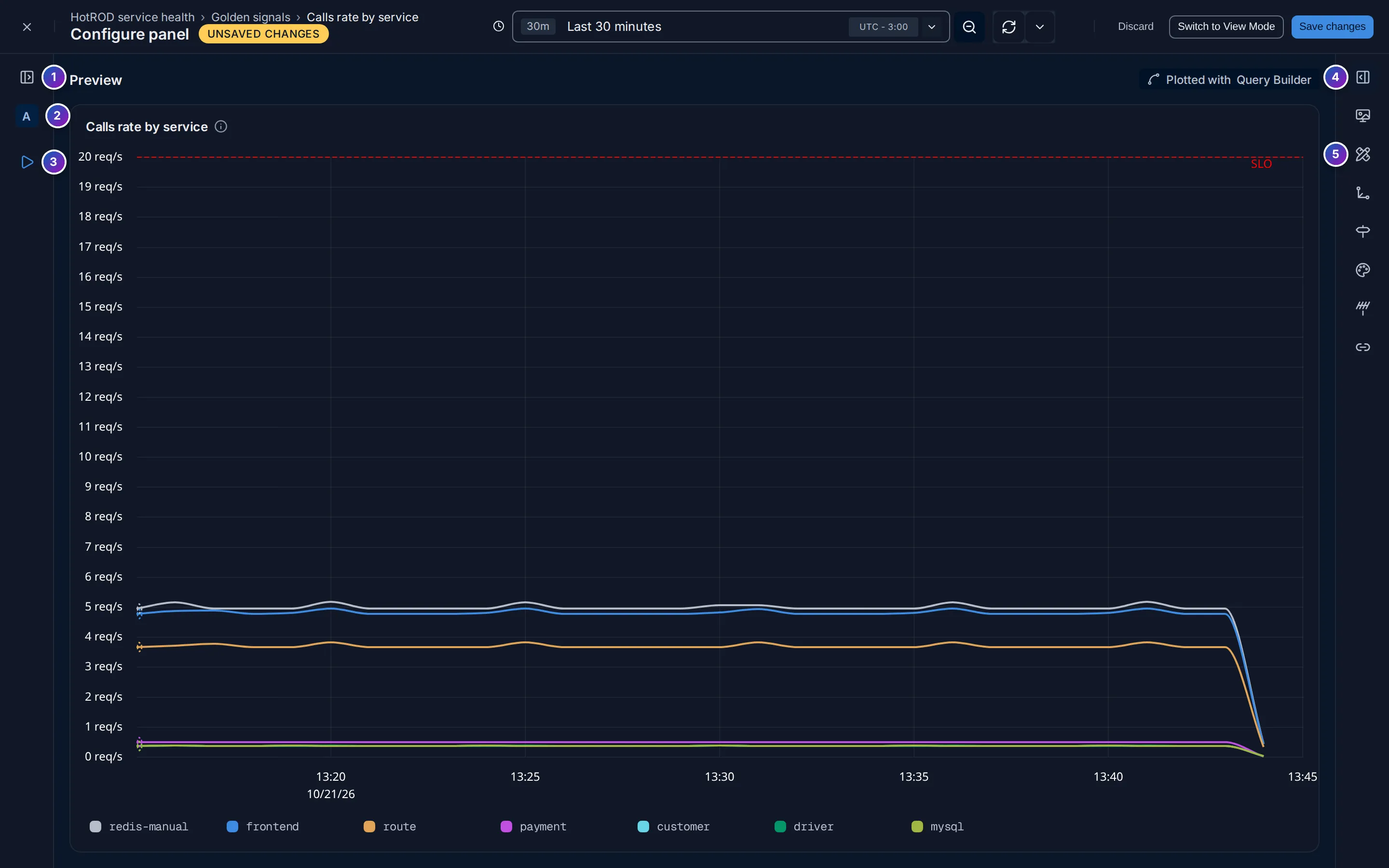
- The Queries panel: click the icon left of Queries. It becomes a rail with:
- the button that unfolds it again;
- one letter per query and formula. Click a letter to unfold the panel with that query open;
- Run query (▷), so you can still run the query with the panel folded.
- The settings pane: click the icon right of Collapse all. It becomes a rail with: 4. the button that unfolds it again; 5. one icon per settings section. Hover an icon for its name, and click it to unfold the pane with only that section open.
FuseScope remembers the width of the Queries panel and which side panels are folded, in this browser, the next time you open the editor.
Save or discard
Section titled “Save or discard”Any change, whether to a query, a setting, the title or the query tab, shows the Unsaved Changes badge in the header. Nothing reaches the dashboard until you save.
- Save changes saves the panel and takes you back to the dashboard, where the panel is scrolled into view. Panel saved confirms it.
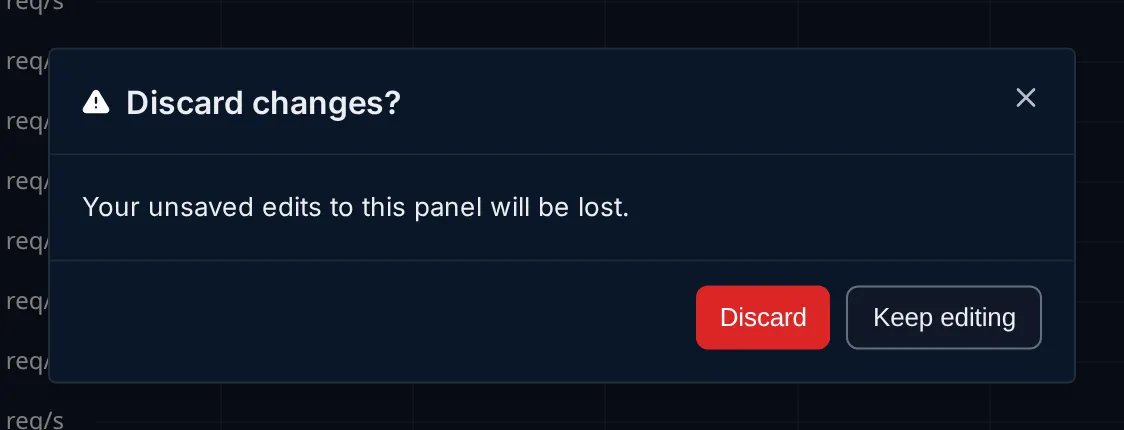
- Discard asks Discard changes? first. Click Discard to throw your edits away and go back to the dashboard, or Keep editing to stay.
- Close (✕) does the same as Discard when there are unsaved changes, and simply closes the editor when there are none.
- Leaving the page another way, such as closing the browser tab, also warns you when there are unsaved changes.
On a locked dashboard, or if your role can’t edit it, Save changes is greyed out; hover it for the reason.
Add a panel
Section titled “Add a panel”Click New Panel at the top of the dashboard, or Add panel in a section’s menu (⋮). The New panel picker opens on the right.
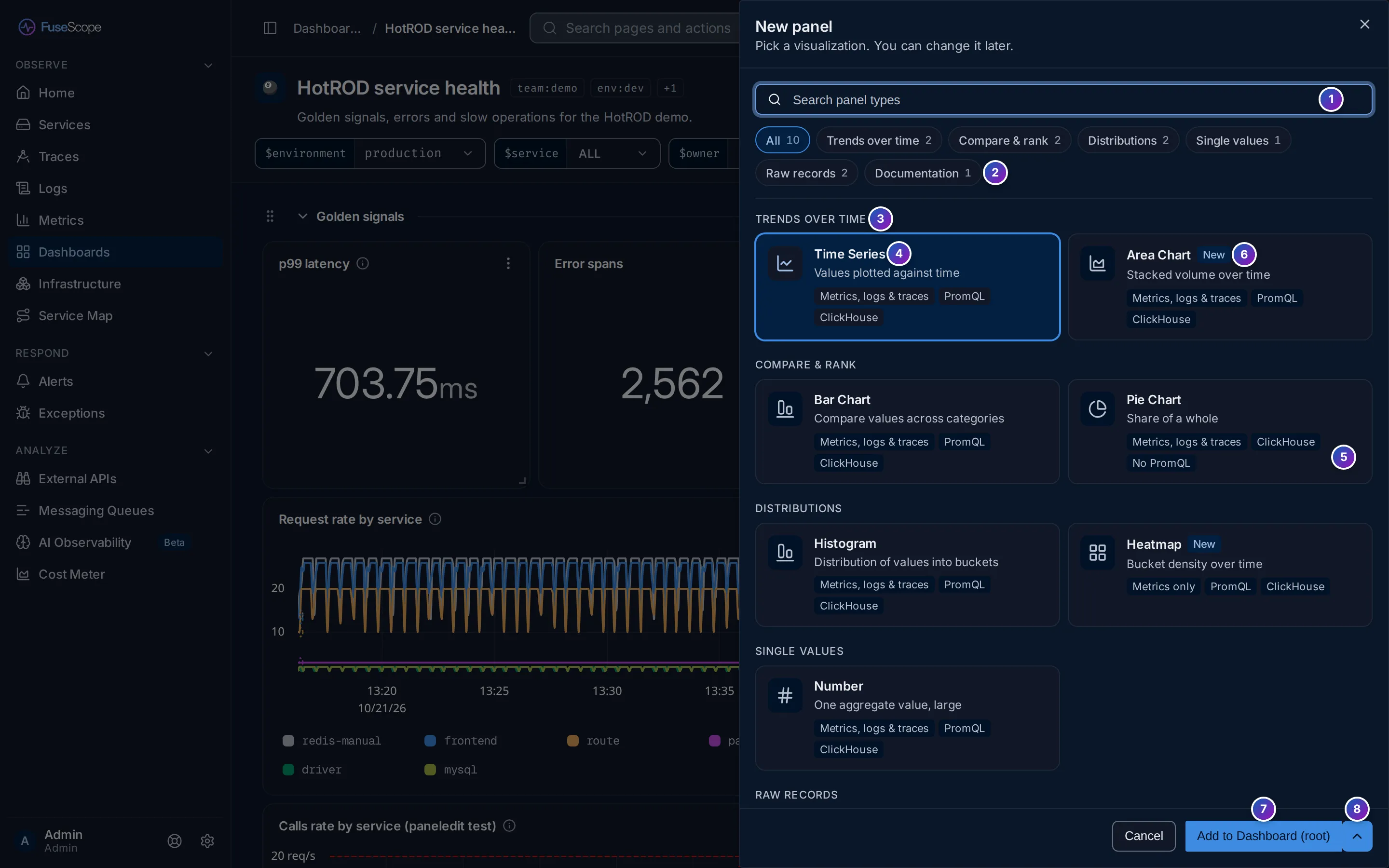
- Search panel types narrows the tiles as you type.
- Categories: All, Trends over time, Compare & rank, Distributions, Single values, Raw records and Documentation. Each shows how many types it has. Click one to see only those types.
- Category headings group the tiles.
- A tile: the type’s name and what it is for. Click it to select it.
- Data chips: what the type can show. See What the chips mean.
- New marks types that were added recently.
- Add to … creates the panel and opens the panel editor. The button names where the panel goes.
- The arrow next to it chooses another place.
What the chips mean
Section titled “What the chips mean”The chips on each tile tell you, before you pick, what data the type can draw and which query types it accepts:
| Chip | Meaning |
|---|---|
| Metrics, logs & traces | The query builder can read any of the three |
| Logs & traces | The query builder can read logs or traces, not metrics |
| Metrics only | The query builder can only read metrics |
| PromQL | You can write the query in PromQL |
| ClickHouse | You can write the query in ClickHouse SQL |
| No PromQL | The type takes metrics, but only through the query builder, not PromQL |
| No query | The type shows no data, such as a Text panel |
For example, Pie Chart shows Metrics, logs & traces, ClickHouse and No PromQL: build a metrics pie chart with the query builder, not with PromQL. Heatmap shows Metrics only, PromQL and ClickHouse.
Choose where the panel goes
Section titled “Choose where the panel goes”On a dashboard with sections, the arrow next to the main button opens Add to section:
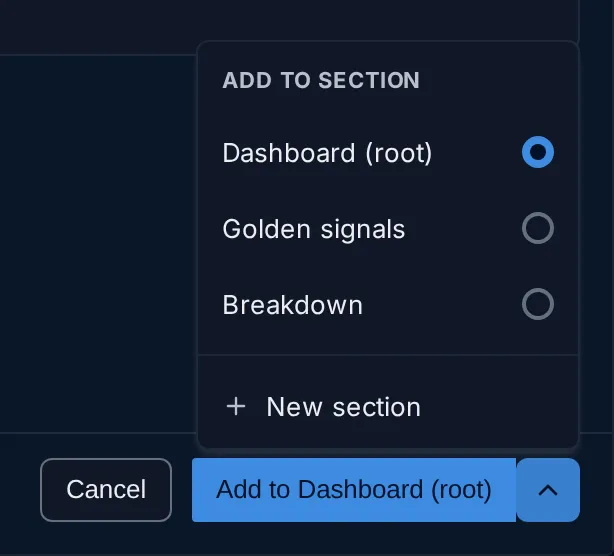
- Dashboard (root): the top level, outside any section;
- a section’s name, such as Golden signals;
- New section: type a name for a new section, created together with the panel.
The main button follows your choice: Add to Dashboard (root), Add to Golden signals, Add to new section. On a dashboard without sections it just reads Add panel. If you opened the picker from a section’s menu, that section is already chosen.
The new panel is not added to the dashboard until you click Save changes in the editor. If you discard, nothing is created.
Example: a first panel
Section titled “Example: a first panel”- Click New Panel, pick Time Series and click Add to Dashboard (root).
- In the query card, set Source to Traces. The aggregation is
count(), the number of spans. - Open Result, click Group By and pick
service.name, to draw one line per service. In Legend format, enter{{service.name}}. - On the right, set Title to
Spans per service. - Click Run Query. The preview shows one line per service.
- Click Save changes.
Related
Section titled “Related”- Dashboards: the dashboard page, sections and the panel menu.
- Query builder: aggregations, group by and formulas.
- Dashboard variables: use
$namein a panel’s query and title. - Build your first dashboard: a step-by-step guide.