

Logs explorer
The Logs explorer searches the logs your services and hosts send, and streams new ones as they arrive.
Use this page when you need the exact words behind a problem: an error message, a stack trace a program printed, or what happened just before a crash. If you already have the request’s trace, you can open its logs from the trace instead; see See the logs for one request.
Open the explorer
Section titled “Open the explorer”Click Logs in the sidebar (/logs/logs-explorer). The page has three tabs:
- Explorer, described here;
- Pipelines, which transform logs before they are stored; see Log pipelines;
- Views, the log searches you saved.
Read the page
Section titled “Read the page”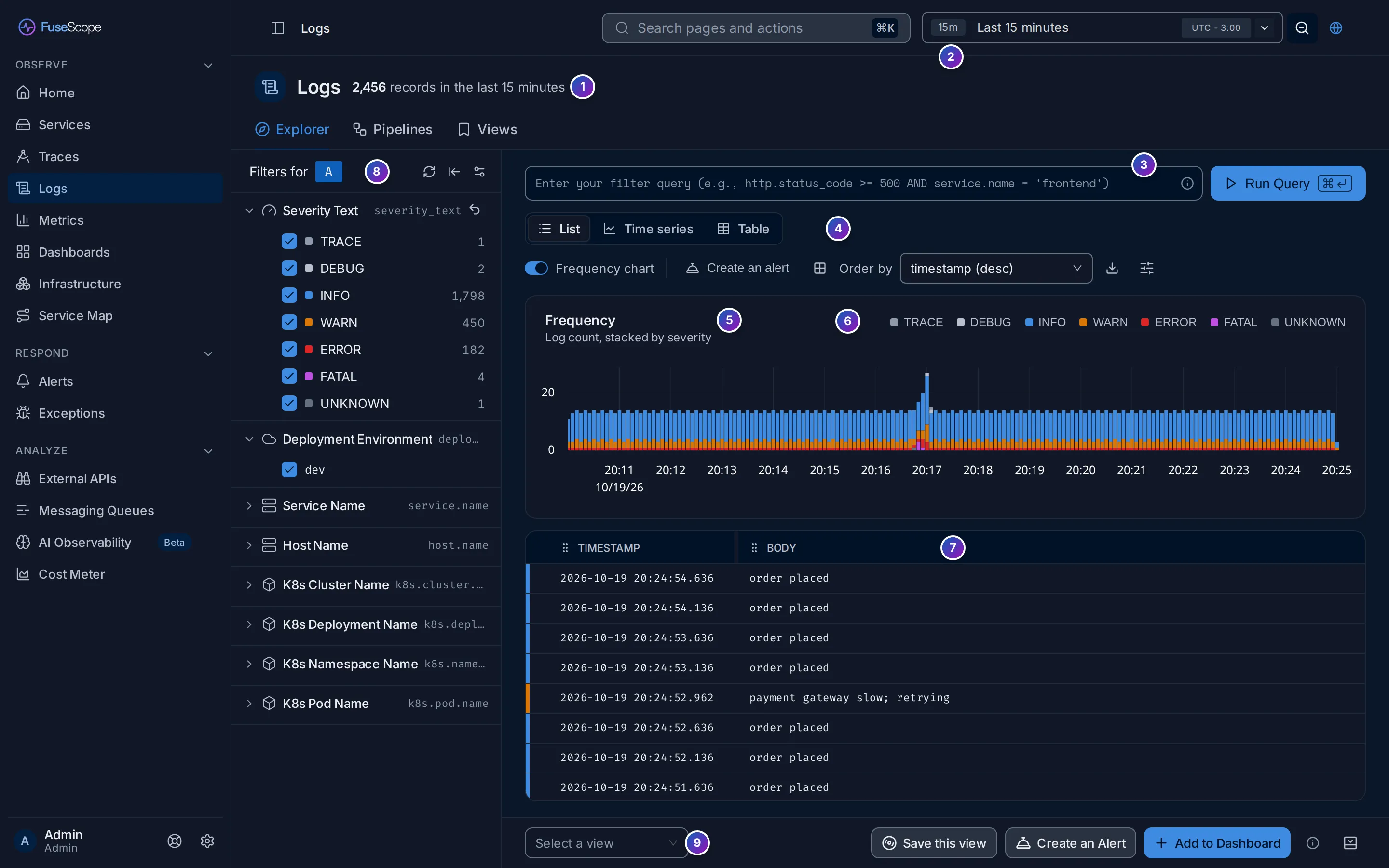
- Record count: how many logs match, such as
2,456 records in the last 15 minutes. It follows the query and the time range, and readsbetween … and …for a custom range. The number comes from the frequency chart, so it is hidden when the chart is off and during live tail. - Time picker, in the top bar. Pick a range such as Last 15 minutes, or a custom one. Its first option, Live, streams new logs; see Live tail.
- Query bar. Write a filter and click Run Query; see Search logs.
- Toolbar: List, Time series and Table (Views), the Frequency chart switch, Create an alert, Order by, download, and the options button (List options).
- Frequency chart: how many logs arrived over time, one stacked bar per interval, coloured by severity.
- Legend of the chart. Click a level to show only it; click it again to show all.
- Log list, newest first. The coloured stripe on the left of each row is its severity. Click a row to open its details.
- Filters rail: quick filters with a count for each value. See Search logs.
- Bottom bar: load or save a view, Create an Alert and Add to Dashboard. See Alerts, dashboards and saved views.
Severity levels
Section titled “Severity levels”A log’s severity says how serious it
is. Programs spell it in many ways: one writes Fatal, another FATAL, a third
critical. Listed as they are, these would be three separate rows in a filter and
three colours in a chart, though they mean the same thing.
So FuseScope groups every log into one of seven levels, everywhere it shows a severity: the filter, the chart, the row colours and the log details.
| Level | Colour | severity_number |
Also matches the text |
|---|---|---|---|
| TRACE | grey | 1–4 | trace, trc |
| DEBUG | light grey | 5–8 | debug, dbg |
| INFO | blue | 9–12 | info, information, notice |
| WARN | amber | 13–16 | warn, warning, wrn |
| ERROR | red | 17–20 | error, err, fail |
| FATAL | purple | 21–24 | fatal, critical, crit, emerg, emergency, alert, panic |
| UNKNOWN | dark grey | none | anything else |
How a log gets its level:
- By number first. OpenTelemetry gives every log a
severity_numberfrom 1 to 24, in fixed ranges per level. If the log has one, its range decides the level. - By text otherwise. If the number is 0 (not set), FuseScope reads
severity_text, ignoring case, and looks it up in the table. - UNKNOWN if neither matches, such as a text-only
verbose.
Filter by severity
Section titled “Filter by severity”The Severity Text filter at the top of the rail lists the levels that appear in
the current range, with their counts. In the example above, FATAL 4 counts four
logs written as Fatal, FATAL, critical and emerg.
- Untick a level to hide it, or tick it to bring it back.
- Hover a level and click Only to keep just that one; All brings the others back.
- The arrow next to the title clears the filter.
FuseScope writes the matching condition into the query bar for you. Only on ERROR gives:
(severity_number IN [17, 18, 19, 20] OR (severity_number = 0 AND severity_text REGEXP '(?i)^(error|err|fail)$'))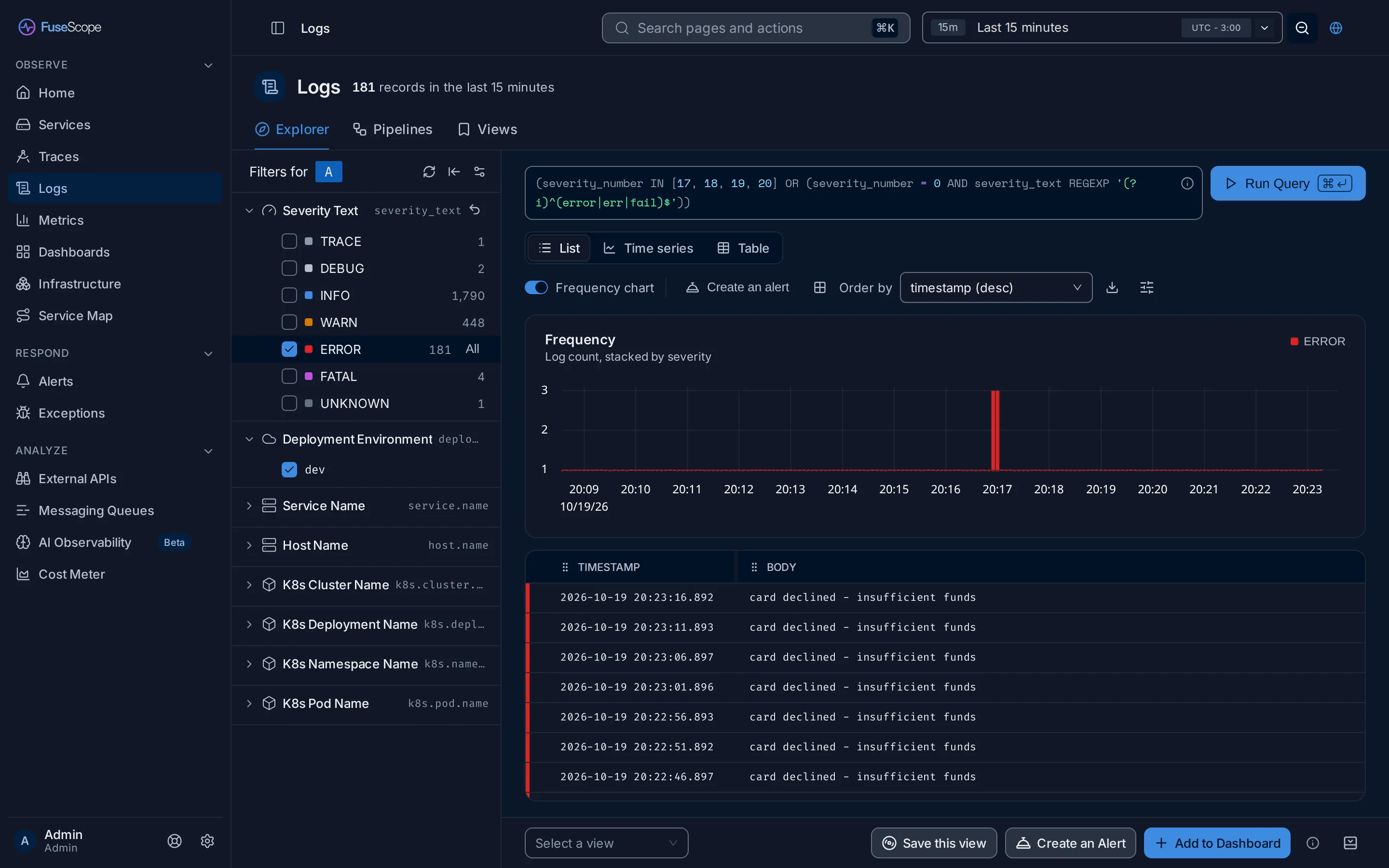
Search logs
Section titled “Search logs”Write a filter in the query bar with the search syntax, pick a time range and click Run Query. A quoted string on its own searches the log body:
"connection refused" AND service.name = 'checkout'The filters rail does the same without typing. Under Filters for, each section is one attribute; expand it and tick values. By default the rail has Severity Text, Deployment Environment, Service Name, Host Name, K8s Cluster Name, K8s Deployment Name, K8s Namespace Name and K8s Pod Name. The icons at the top refresh the counts, collapse the rail and open the settings, which add or remove quick filters for everyone in the organization.
An attribute appears as a quick filter only when logs carry it as an attribute, not just as text inside the body. A log pipeline can parse it out.
| View | Shows |
|---|---|
| List | The matching logs, newest first |
| Time series | The query’s aggregation as a chart, such as count() grouped by severity_text |
| Table | The query’s aggregation as a table, one row per group |
Aggregation and group by are described in Query builder.
List options
Section titled “List options”-
Frequency chart turns the chart (and the record count) on or off.
-
Order by sorts by timestamp or another field; the default is
timestamp (desc). -
The download button exports
csvorjsonl, up to 10k, 30k or 50k rows, with all columns or only the selected ones. -
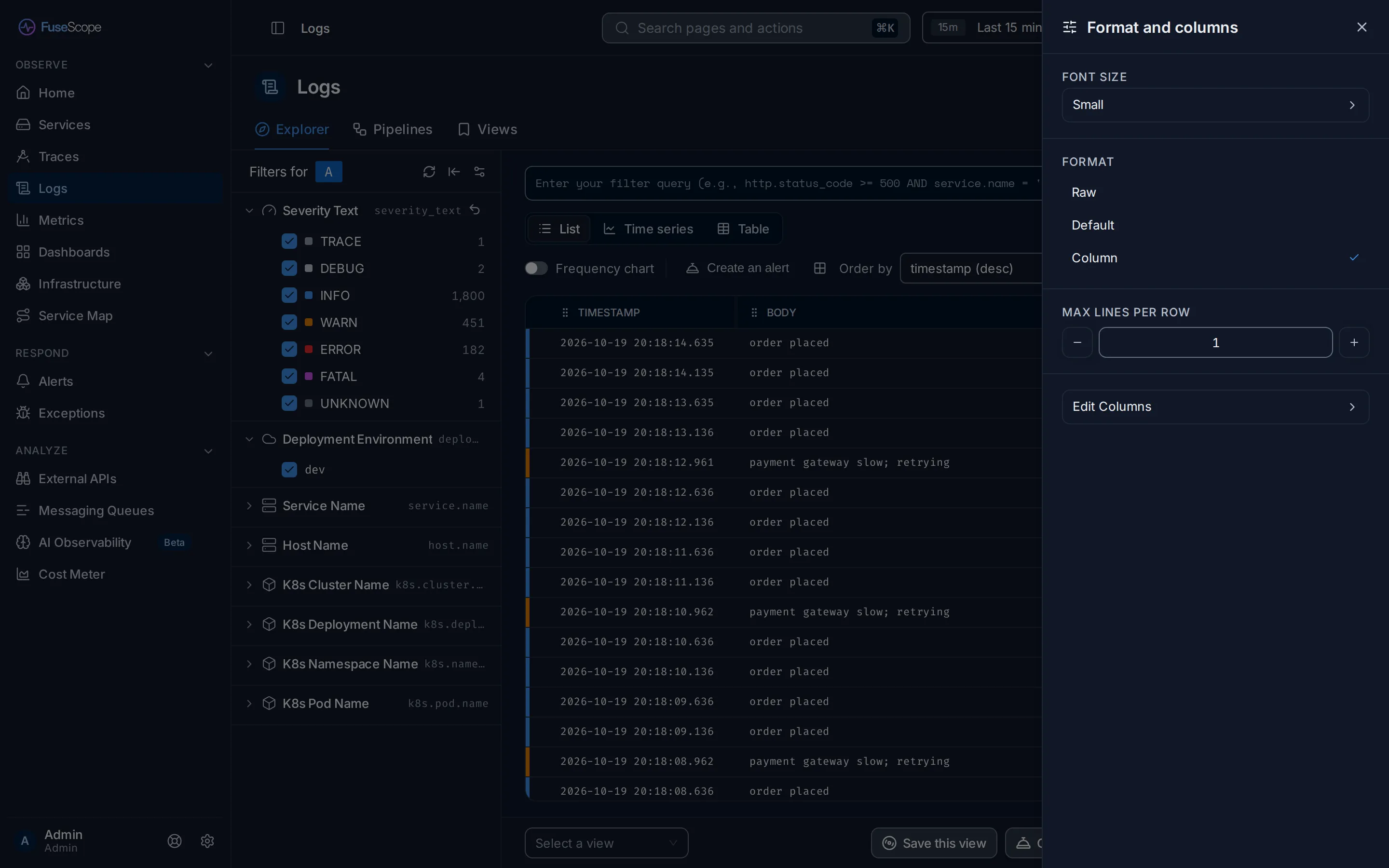
The options button (sliders icon) opens Format and columns:
Setting Does Font Size Small, Medium or Large text Format Raw (the default): the body on one line. Default: the timestamp and body, with the selected fields below. Column: a table with one column per field. Max lines per row How many lines of a long body to show, 1 to 10 Edit Columns In Column format, add attributes as columns; timestampandbodyalways stay
Hover a row for two buttons: Show in Context opens the log on its Context tab, and Copy Link copies a link to it.
Live tail
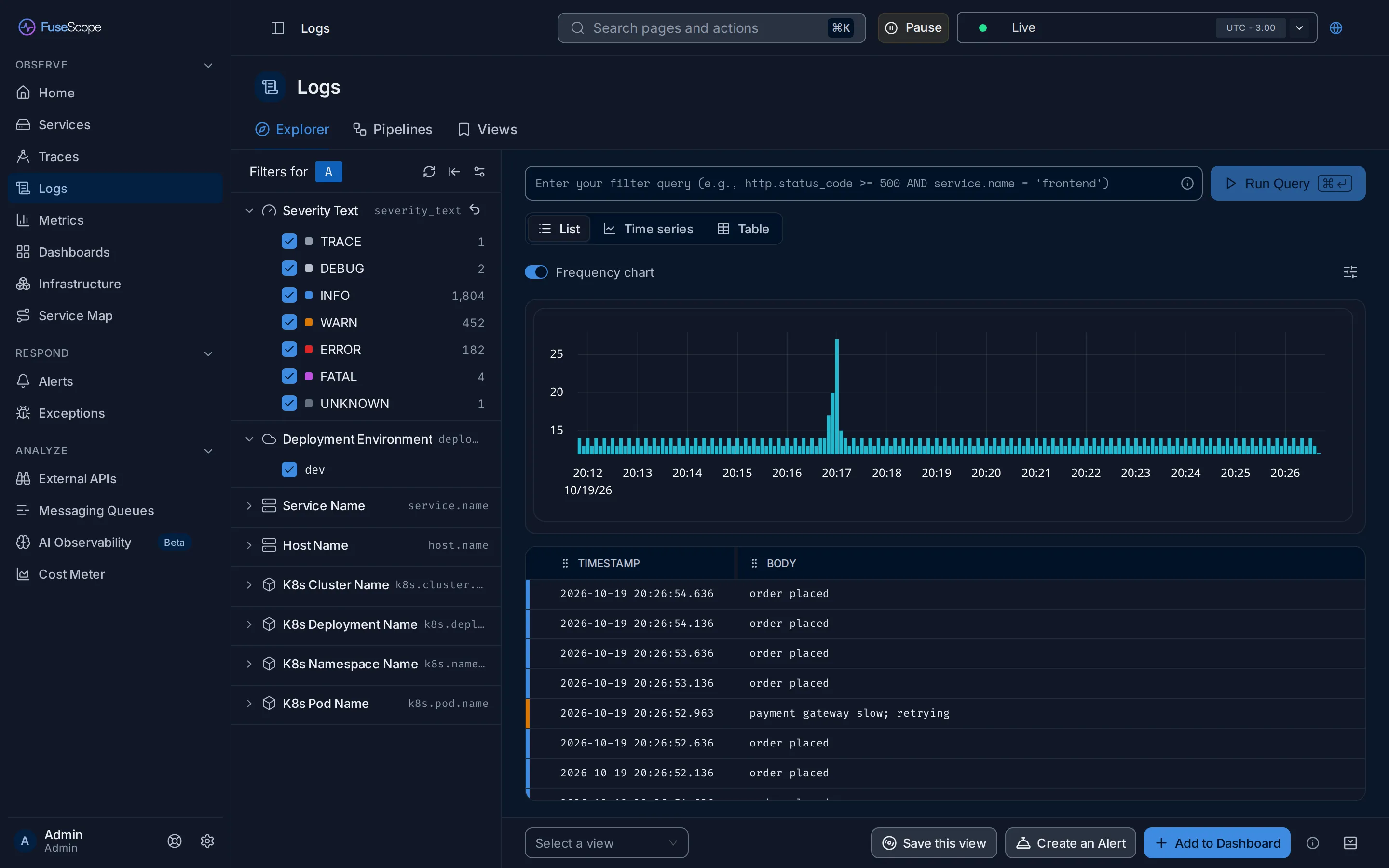
Section titled “Live tail”Live tail shows logs as they arrive, like tail -f on a server.
- Write a filter if you only want some logs, for example
service.name = 'payment'. - Open the time picker in the top bar and choose Live.
- New logs appear at the top of the list. The list keeps the latest 1000.
While live, a Pause button sits next to the time picker; Resume starts the stream again. The chart shows one total bar per interval instead of the severity colours, and the record count is hidden. To stop, pick a time range in the time picker.
Log details
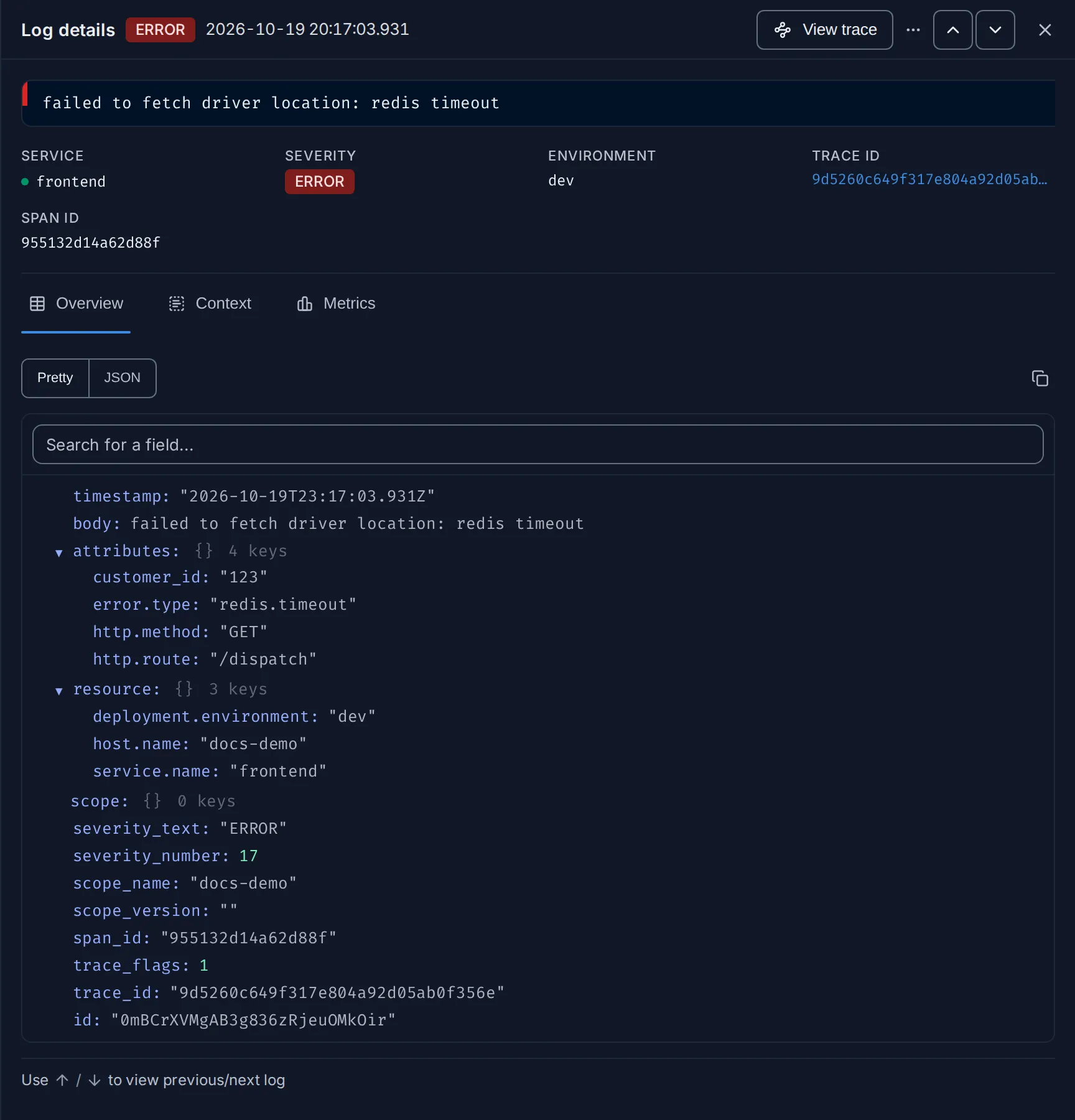
Section titled “Log details”Click a log to open Log details on the right. Move to the previous or next log with the arrows at the top, or the ↑ and ↓ keys.
The top of the panel shows:
- the severity level and the time the log was written;
- View trace, when the log carries a
trace_id. It opens the request’s trace in a new tab, with the log’s span selected; - the ⋯ menu, with Copy log and Copy link to log;
- the body, and the highlighted fields SERVICE, SEVERITY, NAMESPACE, ENVIRONMENT, TRACE ID and SPAN ID, each when the log has it. The trace ID is a link to the trace too.
Below them are three tabs.
Overview
Section titled “Overview”Every field of the log: the body, its attributes, its resource attributes, the severity fields as stored, and the trace and span IDs. Switch between Pretty, a readable tree, and JSON, the raw record to copy. Search for a field… finds one field in a long log.
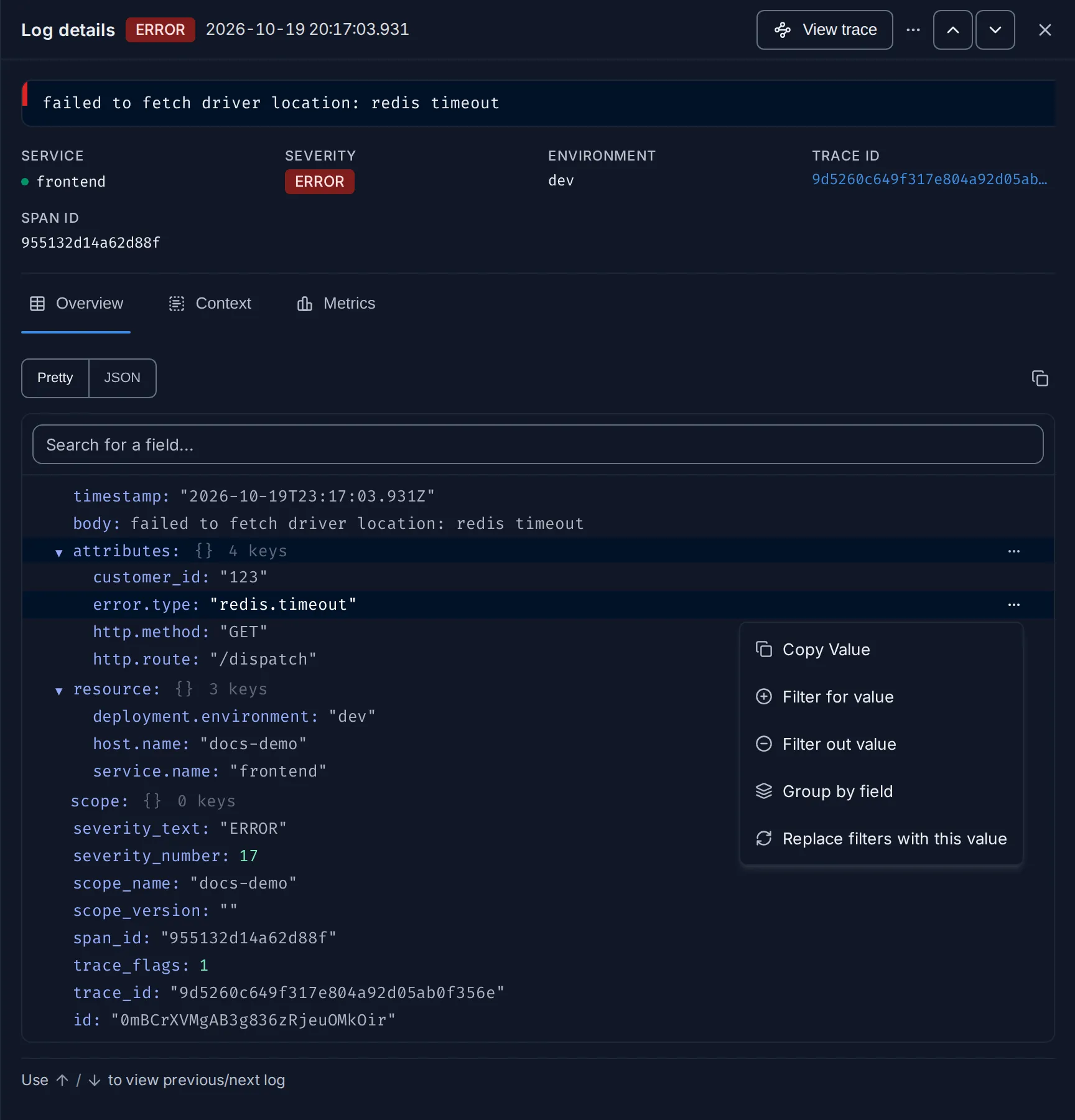
Hover a value and click ⋯ for its actions:
| Action | Does |
|---|---|
| Copy Value | Copies the value |
| Filter for value | Adds a condition to the query that keeps logs with this value |
| Filter out value | Adds a condition that hides logs with this value |
| Group by field | Switches to Time series, grouped by this field |
| Replace filters with this value | Replaces the whole query with this one condition |
Context
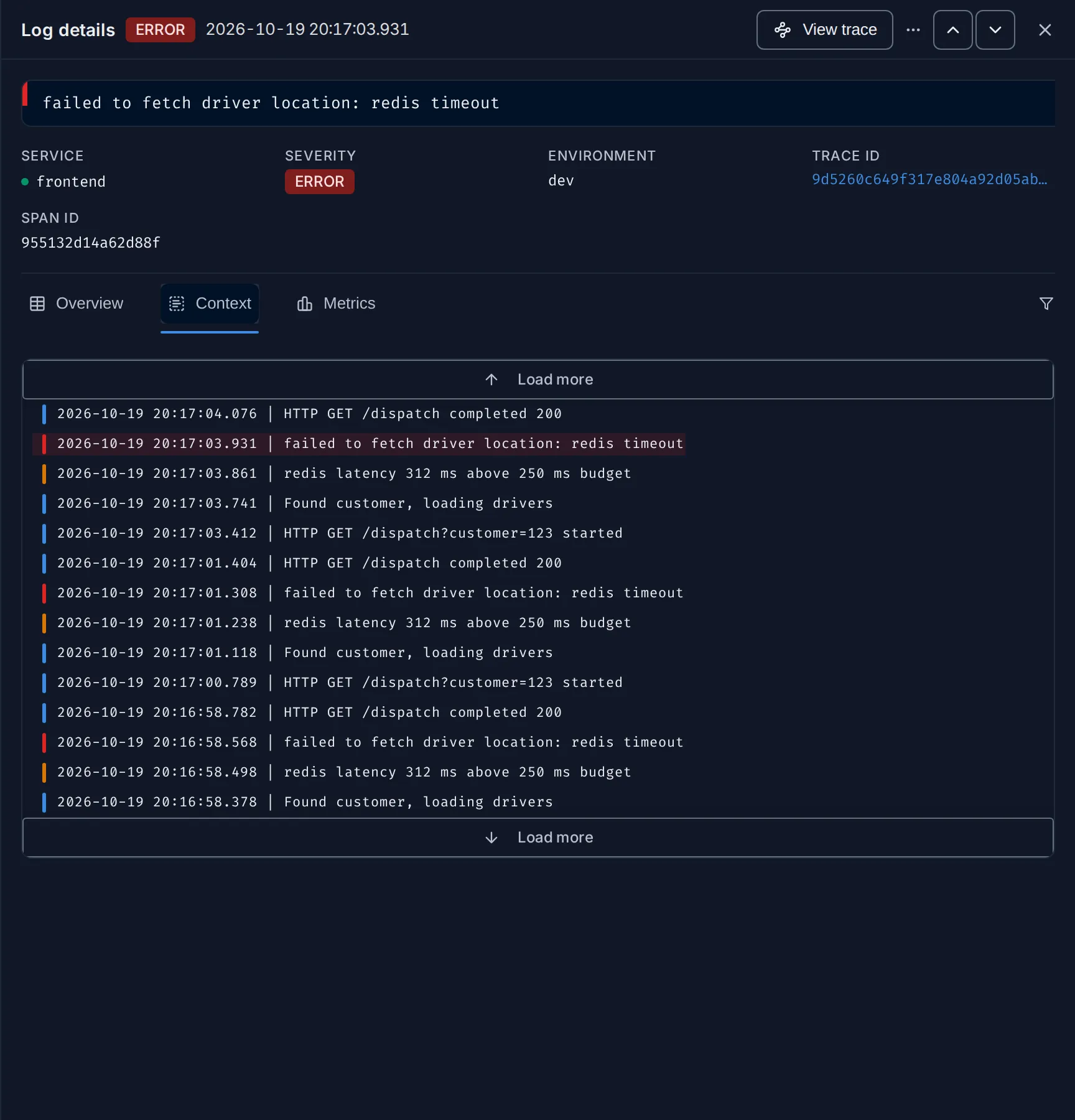
Section titled “Context”The logs written just before and after this one by the same source: same service, host and other resource attributes. The current log is highlighted. Load more at the top and bottom fetches 10 more in each direction, and the filter icon narrows the context with a query. Use it to see what led up to an error.
Metrics
Section titled “Metrics”CPU, memory and other metrics of the host or Kubernetes pod that wrote the log, around
the time it was written. It needs host or Kubernetes attributes on the log, such as
host.name or k8s.pod.name.
Example: from an error log to its request
Section titled “Example: from an error log to its request”Two services are failing. Find their errors, and follow one to the request that caused it.
-
See the errors. Set the time picker to Last 1 hour. In the rail, hover ERROR under Severity Text and click Only. The list turns red and only error logs are left.
-
Narrow to payment. In the query bar, add
AND service.name = 'payment'after the severity condition and click Run Query. Every row readscard declined - insufficient funds. Open one: its details have no trace ID and no View trace, because the payment service writes these logs outside any traced request. The log is all there is. -
Try frontend. Change
'payment'to'frontend'and run the query again. The errors readfailed to fetch driver location: redis timeout. -
Open one. Click a row. The details show SERVICE
frontend, SEVERITYERROR, a trace ID, a span ID and View trace. -
Read the context. Open the Context tab; newer logs are above the highlighted error, older ones below. Just before it, the request logged
redis latency 312 ms above 250 ms budget; just after it,HTTP GET /dispatch completed 200. The request survived the timeout. -
Jump to the trace. Click View trace. The
/dispatchtrace opens in a new tab with the frontend span selected and a red 3 errors badge. Turn on Highlight errors: the first match (1 / 3) is aGetDriverspan ofredis-manual, the Redis call that failed.
Conclusion: the frontend error is a Redis read that timed out inside a
/dispatch request, which still answered. The payment errors are business errors
(declined cards) and have no request to follow. The trace page is described in
Trace details.
Alerts, dashboards and saved views
Section titled “Alerts, dashboards and saved views”As in the Traces explorer, Create an Alert (Alert rules) and Add to Dashboard reuse the current query. In the bottom bar, Save this view stores the current search under a name, and Select a view loads one. The Views tab lists every saved log view.
Related
Section titled “Related”- See the logs for one request.
- Log pipelines: parse and normalise logs before they are stored.
- Search syntax.
- Core concepts: body and severity.