

Dashboard variables
A variable is a value you
pick at the top of a dashboard, such as a service name or an environment. Panels use
it in their queries as $name. Change the value, and every panel that uses it shows
the data for the new value.
Without variables you would need one dashboard per service. With a $service
variable, one dashboard shows any service: pick checkout, and every panel shows
checkout; pick payment, and they show payment.
Use this page when you want to add a variable to a dashboard, change one, or understand what the variables bar shows. How viewers use the bar is described in The variables bar.
Variable types
Section titled “Variable types”There are four types. They differ in where the list of values comes from.
| Type | The values come from | Use it when |
|---|---|---|
| Dynamic | An attribute in your telemetry, such as every service.name seen in traces |
You want a list that stays up to date by itself. The best choice in most cases |
| Textbox | Whatever the viewer types | The value is free text, such as a team name or an ID |
| Custom | A fixed list you type, separated by commas | The list is short and doesn’t change, such as production,staging,development |
| Query | A ClickHouse SQL query you write | No attribute gives the list you need. Marked Not Recommended: it is slower and harder to maintain than Dynamic |
Dynamic carries a Beta badge: it works, but may still change.
Manage variables
Section titled “Manage variables”Click Configure on the dashboard and open the Variables tab, or click Add variable in the variables bar. The tab lists every variable in the order the bar shows them.
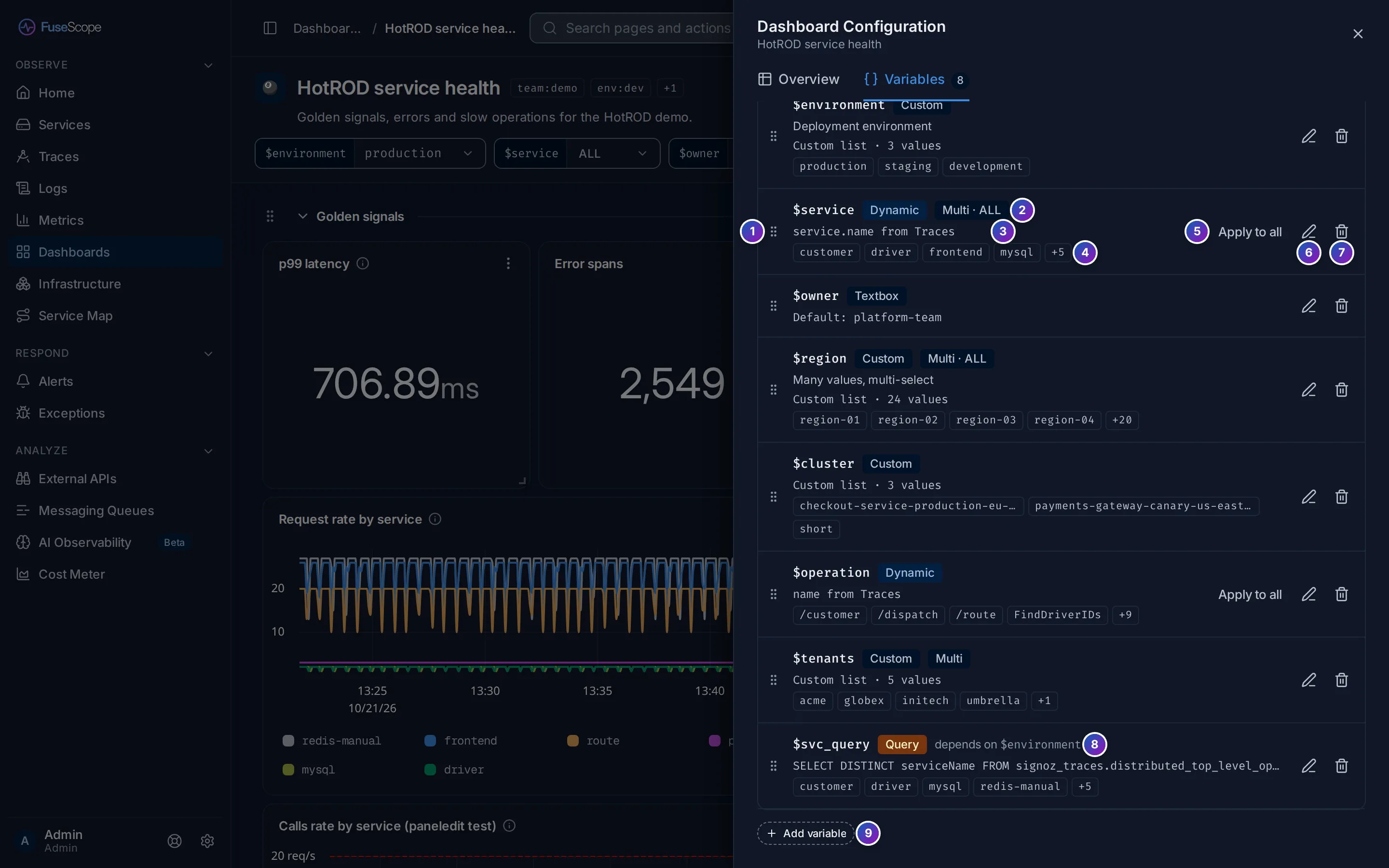
- Drag handle: drag a row up or down to change the order of the variables in the bar.
- Name and badges: the variable’s name, its type (Dynamic, Textbox, Custom or Query) and, when set, Multi (several values can be picked) and ALL (an “all values” option). See Multiple values and ALL.
- Summary: where the values come from, such as
service.name from Traces,Custom list · 24 valuesor the query, and the description, if any. - Sample values: the first few values the variable offers;
+Ncounts the rest. - Apply to all (Dynamic only) adds the variable as a filter to every panel. See Add a variable to panels.
- Edit (pencil) opens the variable’s form.
- Delete (bin) asks Delete?: click ✓ to confirm or ✕ to cancel. If a panel still uses the variable, a dialog lists where, so you can fix those first.
- depends on: this variable’s values are calculated from another variable. See Dependencies.
- Add variable opens an empty form.
Adding, editing, reordering and deleting variables are saved to the dashboard straight away; there is no separate save step.
Create or edit a variable
Section titled “Create or edit a variable”Click Add variable, or Edit on a row. The form replaces the list; All variables at the top takes you back.
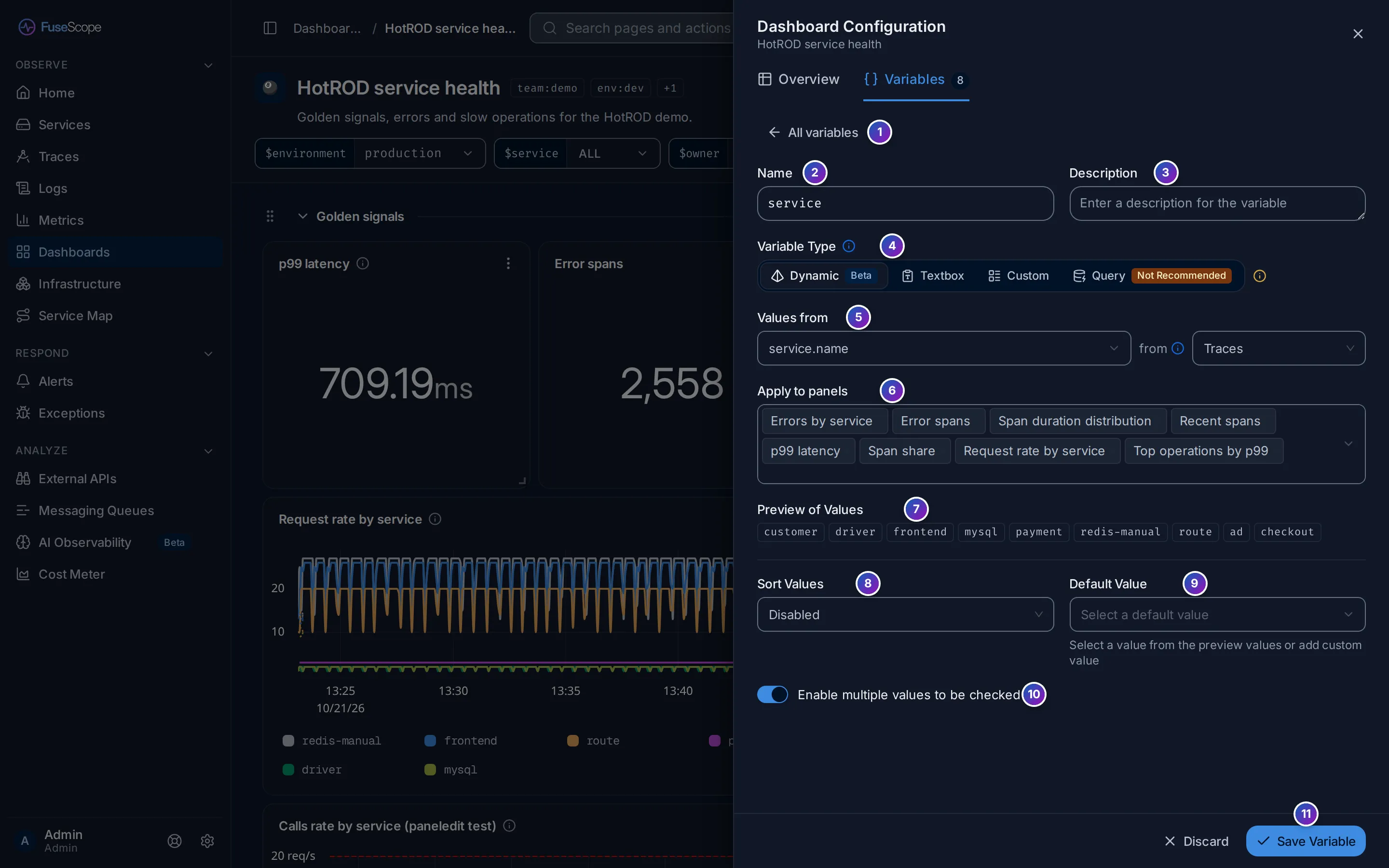
- All variables goes back to the list without saving.
- Name: what you type after
$in queries. No spaces, and unique in the dashboard.servicebecomes$service. - Description (optional): shown when someone hovers the variable’s name in the bar.
- Variable Type: Dynamic, Textbox, Custom or Query. The fields below change with the type; see The fields of each type.
- Values from (Dynamic): the attribute, such as
service.name, and next to from, the signal to read it from. - Apply to panels (Dynamic): the panels that should filter on this variable.
- Preview of Values: the values the variable will offer, so you can check them before saving.
- Sort Values: keep the order as it comes (Disabled), or sort alphabetically or numerically, ascending or descending.
- Default Value: the value selected when someone opens the dashboard for the first time. Pick one of the preview values or type your own.
- Enable multiple values to be checked: let viewers pick several values at once.
- Save Variable saves it. Discard, next to it, leaves without saving.
If something is wrong, the form says so before saving: Variable name is required, Variable name cannot contain whitespaces, Variable name already exists, or, for two Query variables that use each other, Cannot save: circular dependency detected….
The fields of each type
Section titled “The fields of each type”Dynamic variables
Section titled “Dynamic variables”- Values from: start typing an attribute name, such as
service.name,k8s.namespace.nameorhttp.route, and pick it. - from: All telemetry, Traces, Logs or Metrics. Reading from one signal is faster than All telemetry on large data.
- Apply to panels: pick panels here and FuseScope adds
<attribute> IN $<name>to their filters when you save, after you review the change.
The values are the ones seen in the dashboard’s time range. A Dynamic variable is
also narrowed by the other Dynamic variables: when $namespace is checkout,
$pod only lists the pods in checkout.
Textbox variables
Section titled “Textbox variables”- Default Value: the text the box starts with. Leave it empty for none.
The viewer types a value in the bar and presses Enter, or clicks away, to apply it. Emptying the box goes back to the default.
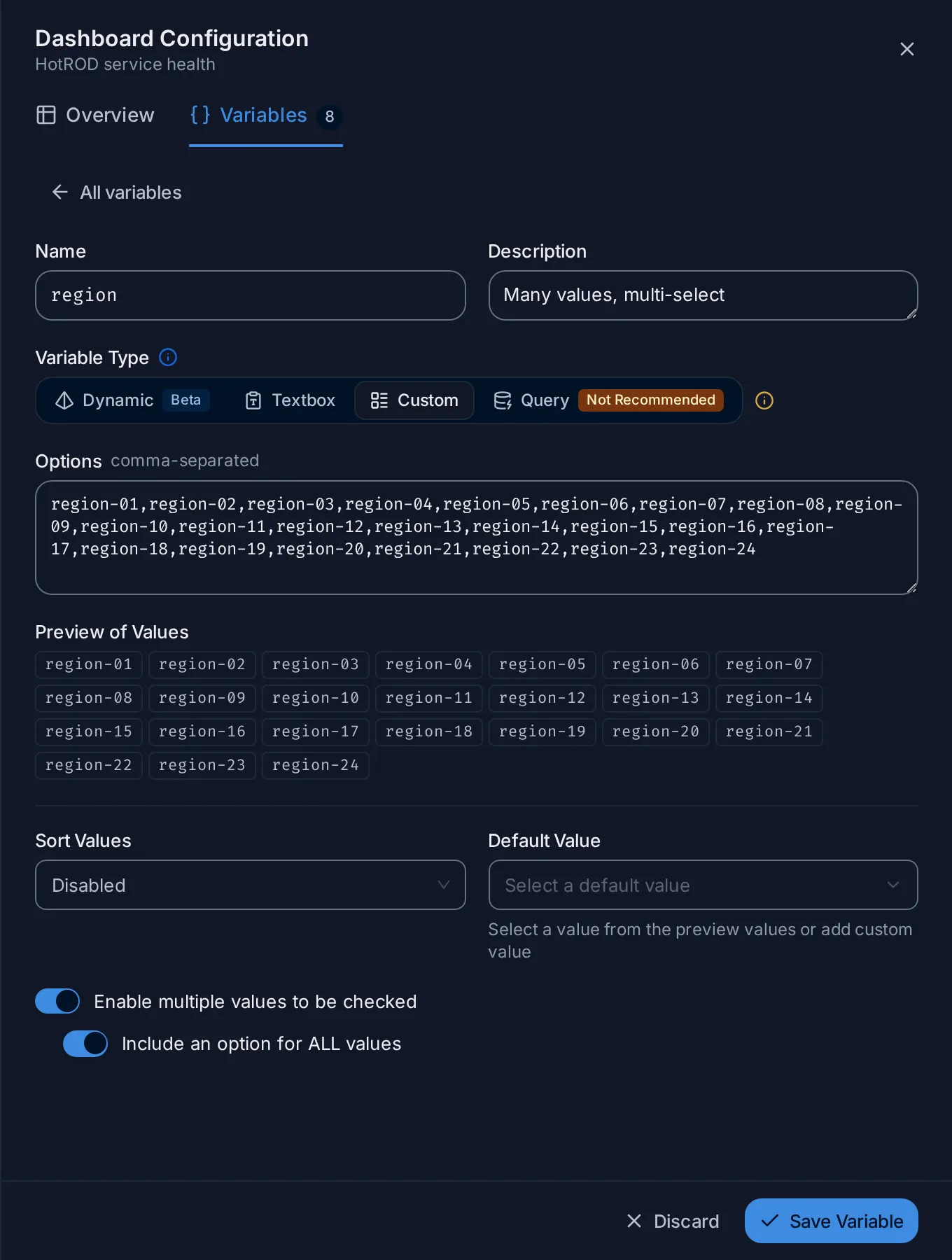
Custom variables
Section titled “Custom variables”- Options: the values, separated by commas, such as
production,staging,development.
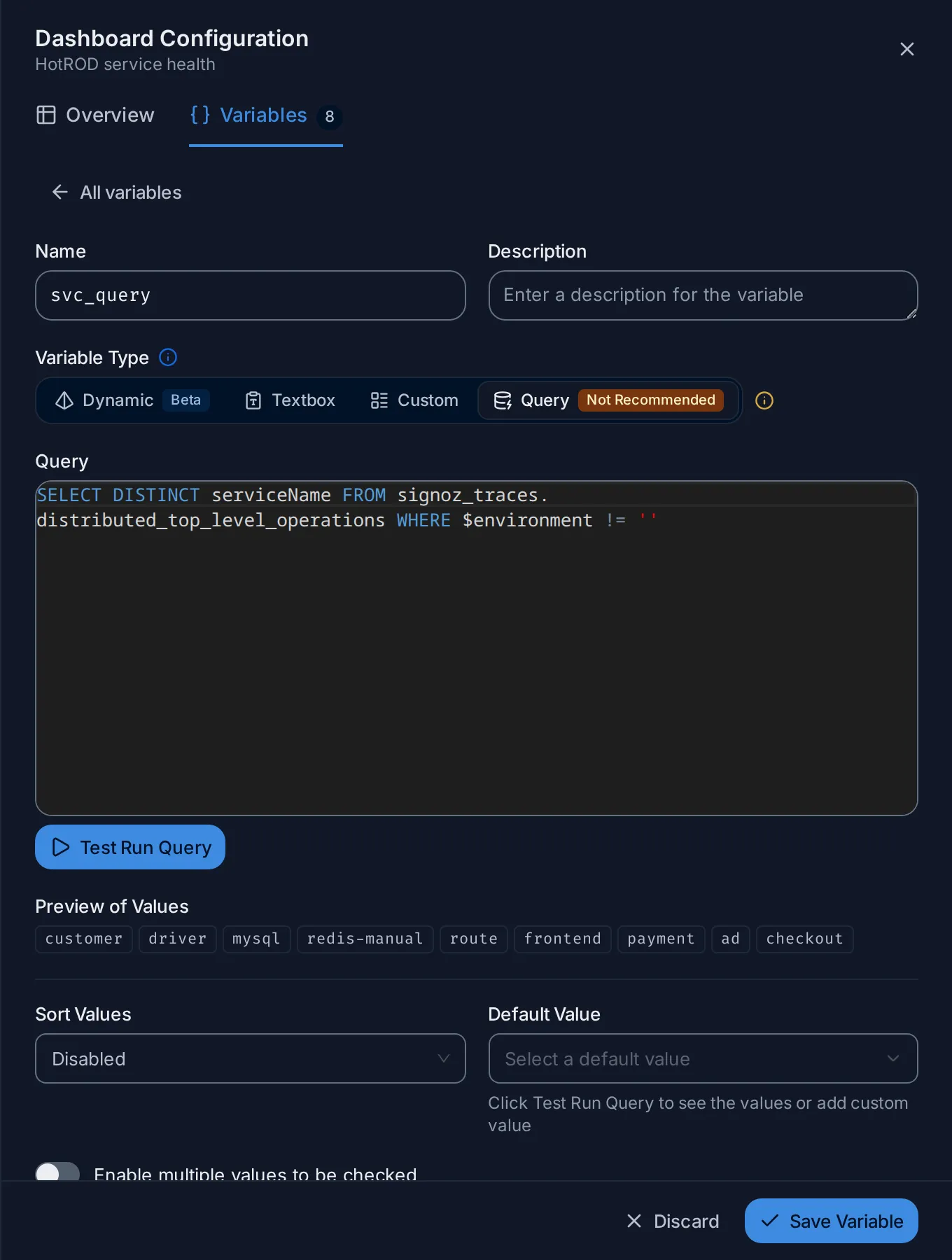
Query variables
Section titled “Query variables”- Query: a ClickHouse SQL query whose first column becomes the list of values.
Select one column, with
DISTINCT. - Test Run Query runs it and fills Preview of Values. If it fails, the form shows the reason.
SELECT DISTINCT resource_string_service$$nameFROM signoz_traces.distributed_signoz_index_v3WHERE ts_bucket_start >= $start_timestamp - 1800 AND ts_bucket_start <= $end_timestampThe query runs with the dashboard’s time range. Besides other variables, it can use
$start_timestamp and $end_timestamp, and their _ms and _nano forms.
Statements that drop, alter or truncate are rejected. See
ClickHouse SQL and PromQL for
the tables.
Dependencies
Section titled “Dependencies”A Query variable can use another variable in its query, written $environment,
{{environment}}, {{.environment}} or [[environment]]. It then depends on
that variable:
- its list is recalculated whenever the other variable changes;
- the list shows depends on $environment on its row;
- in the bar, a link icon sits next to its name, and hovering the name shows Depends on and the variables it depends on. The other variable shows Used by.
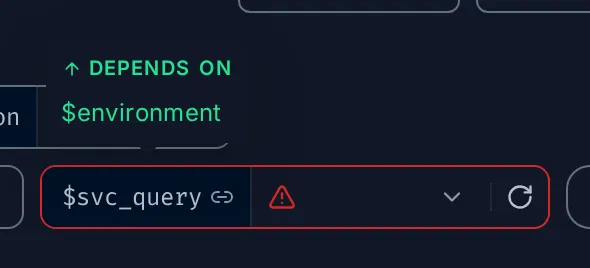
While the variable it depends on is loading, the dependent one waits, with a spinner. Two variables can’t depend on each other; the form refuses to save a loop.
Multiple values and ALL
Section titled “Multiple values and ALL”Enable multiple values to be checked lets viewers tick several values, for example two services at once. In the bar the list then has a checkbox per value, and hovering a value shows Only, to select just that one.
The ALL option
Section titled “The ALL option”With multiple values turned on, Custom and Query variables get a second switch: Include an option for ALL values. It adds ALL at the top of the list, to tick every value at once. A Dynamic variable with multiple values always offers ALL.
What ALL sends to the panels:
- Dynamic: the condition is dropped, so
service.name IN $servicematches every service, including ones that appear later and aren’t listed yet. In PromQL the label matcher is removed. - Custom and Query: the full list of values.
The list row shows Multi for multiple values, and Multi · ALL when ALL is offered too.
Use variables in queries and titles
Section titled “Use variables in queries and titles”Write the variable’s name with a $ in front.
Use it in the Where filter:
service.name IN $service AND deployment.environment = $envUse IN with variables that allow multiple values, and = with single values.
Write $service, {{service}}, [[service]] or {{.service}}. Values are inserted as
SQL literals, so don’t add quotes:
WHERE resource_string_service$$name IN $serviceA single string value comes quoted ('checkout') and a multiple value as an array
(['checkout', 'cart']).
Values are inserted as they are; multiple values are joined with |. Use a regex
matcher:
sum(rate({"http.server.duration.count", "service.name"=~"$service"}[5m]))Variables also work outside queries:
- Panel titles: a title such as
Latency of $servicereads Latency of checkout on the dashboard. Several values are joined with commas. - Text panels: write
$ownerin the Markdown and the panel shows the value. - Context links: write
{{service}}in the link’s URL. See Panel settings.
A variable that doesn’t exist is left as it is written.
Add a variable to panels
Section titled “Add a variable to panels”A Dynamic variable can add its filter to panels for you, so you don’t have to edit each query:
- in its form, pick panels in Apply to panels and click Save Variable; or
- in the list, click Apply to all to add it to every panel. The button is greyed out when every panel already uses the variable.
Either way, Apply $name to panels opens first, so you can see each change before it happens:
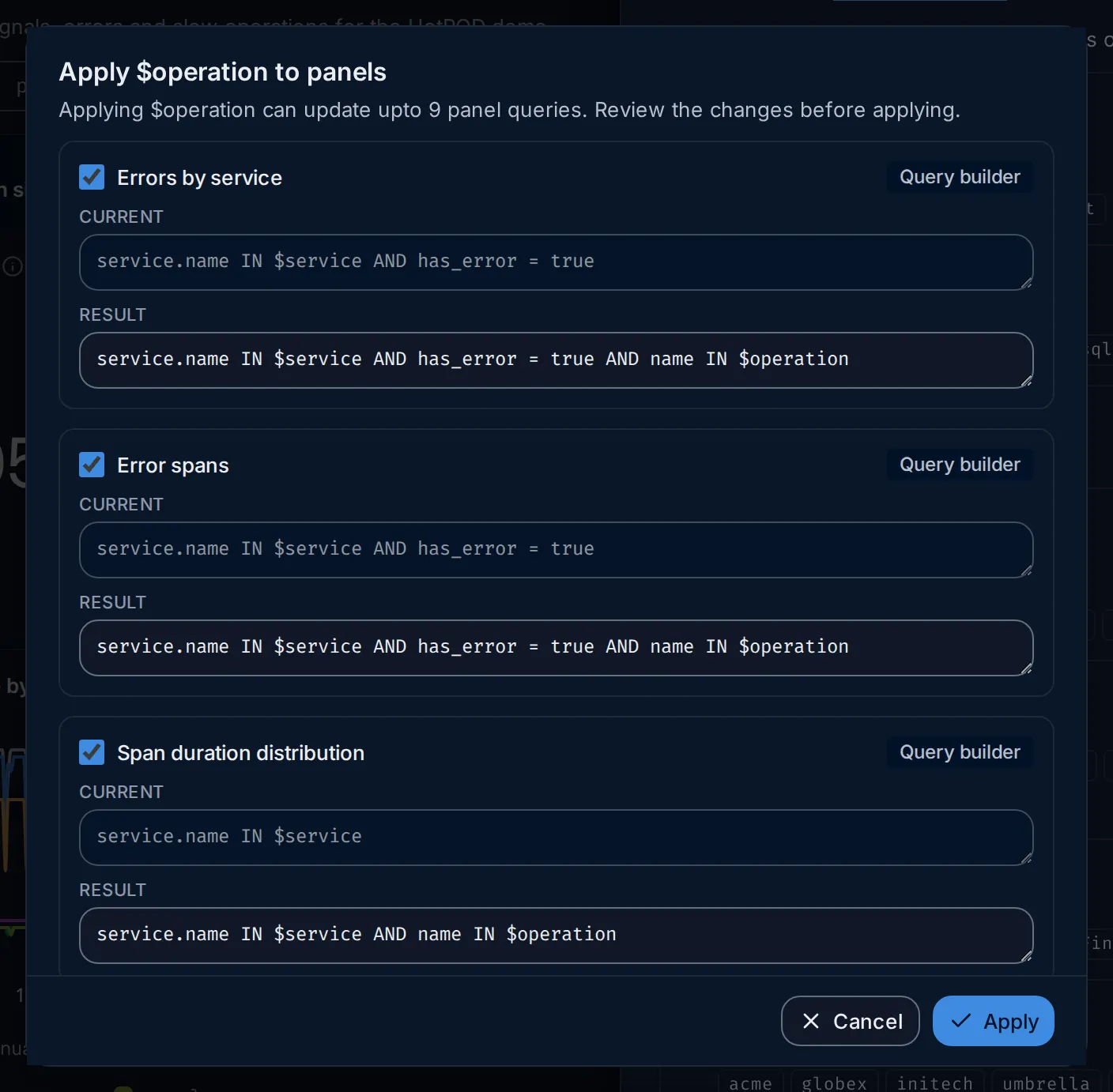
- One card per panel query, with the query type, the Current filter and the Result. You can edit the result before applying.
- Untick a card to leave that panel as it is.
- Apply saves the changes; Cancel changes nothing.
Renaming a variable that panels use opens the same kind of review, Rename $name, with the queries rewritten to the new name.
The variables bar
Section titled “The variables bar”The bar under the dashboard title shows one pill per variable, in the order of the
list: $name | value. Click the value to change it.

- +N more: when the pills don’t fit on one line, the rest are folded behind this button. Hover it to see what the hidden variables are set to; click it to show all of them over several lines, and Less (5) to fold them again.
Loading and errors
Section titled “Loading and errors”- Loading: a spinner in the pill means the values are being fetched, or the variable is waiting for one it depends on.
- Error: the pill turns red with a warning icon when the values can’t be loaded, for example when the query of a Query variable fails. Hover the icon for the reason.
- Retry fetches the values again. It is only shown when the server failed; when the request itself is wrong, such as a query with a mistake in it, edit the variable instead.
- Link icon: the variable depends on another one. Hover the name to see which.
Your selection and links
Section titled “Your selection and links”The values you pick are remembered in your browser, per dashboard. They are not saved in the dashboard, so every viewer has their own selection; the default value is what a new viewer starts with.
To send a selection to someone, click Share and turn on Include variables
before Copy page link. The link then carries ?variables= followed by a JSON
object, for example {"service":"checkout"}; ALL is written __ALL__. When the
link is opened, those values are applied and the parameter is removed from the
address.
Example: one dashboard for every service
Section titled “Example: one dashboard for every service”- On the dashboard, click Add variable.
- Set Name to
serviceand Variable Type to Dynamic. - In Values from, pick
service.name, and next to from, pick Traces. Preview of Values lists your services. - Turn on Enable multiple values to be checked.
- In Apply to panels, pick the panels to filter, then click Save Variable.
- Review the changes in Apply $service to panels and click Apply.
- A
$servicepill appears in the bar, set to ALL. Hoverfrontendin its list and click Only: every panel you picked now shows onlyfrontend.
Related
Section titled “Related”- Dashboards: the dashboard page and the variables bar.
- Panel editor: write the queries that use the variables.
- Query builder: filters and
IN.