

RUM keys
Each RUM application has a public key, such as rum_pub_…9fxa, that your web app
sends with its data in the FuseScope-RUM-Key header. Manage it in the application’s
Settings sheet, on the Public key tab. You need the Admin or Editor
role; viewers can open the application’s settings but not its keys.
What a public key can do
Section titled “What a public key can do”The key ships inside your JavaScript bundle, so anyone can read it. That’s expected:
- it is write-only: it can send data, never read it;
- it only sends data for its application, whose name and platform the gateway sets on every request whatever the client claims;
- browser requests are only accepted from the application’s allowed origins;
- it is rate-limited per key and per browser.
FuseScope stores only a SHA-256 hash of the key, so it shows the full key once, when it is created or rotated, and then only its last four characters.
Rotate the key when it was copied somewhere it shouldn’t be, when someone abuses it from an allowed origin, or on a schedule if your policy asks for one.
The Public key tab
Section titled “The Public key tab”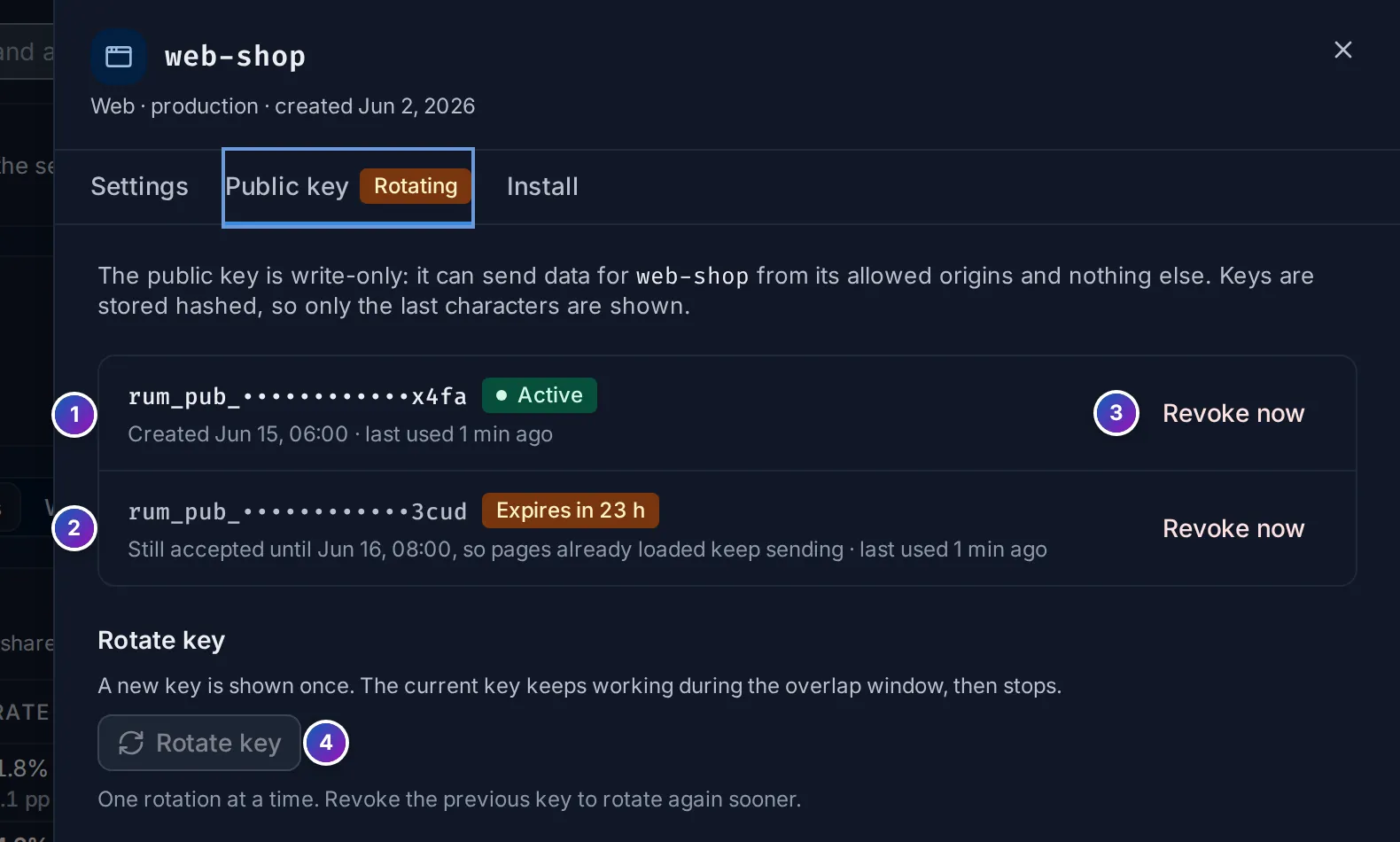
Sample data: this image is a Storybook story.
- Active key: the current one, with when it was created and last used. Last used is updated about once a minute.
- Expiring key: the previous key during a rotation, with how long it still works, such as Expires in 23 h. The tab title shows Rotating meanwhile.
- Revoke now stops a key at once.
- Rotate key starts a rotation. Only one rotation runs at a time, so it is disabled until the previous key expires or you revoke it.
Rotate a key
Section titled “Rotate a key”A rotation creates a new key and keeps the current one working for an overlap window. Pages your users already have open still carry the old key in their bundle; the window lets them keep sending until they reload with the new one.
-
Open Frontend, click Settings on the application’s row, then the Public key tab.
-
Click Rotate key and choose the Overlap window: 1 hour, 24 hours (the default) or 7 days. Pick a window longer than it takes you to deploy the new key, plus how long users keep a tab open.
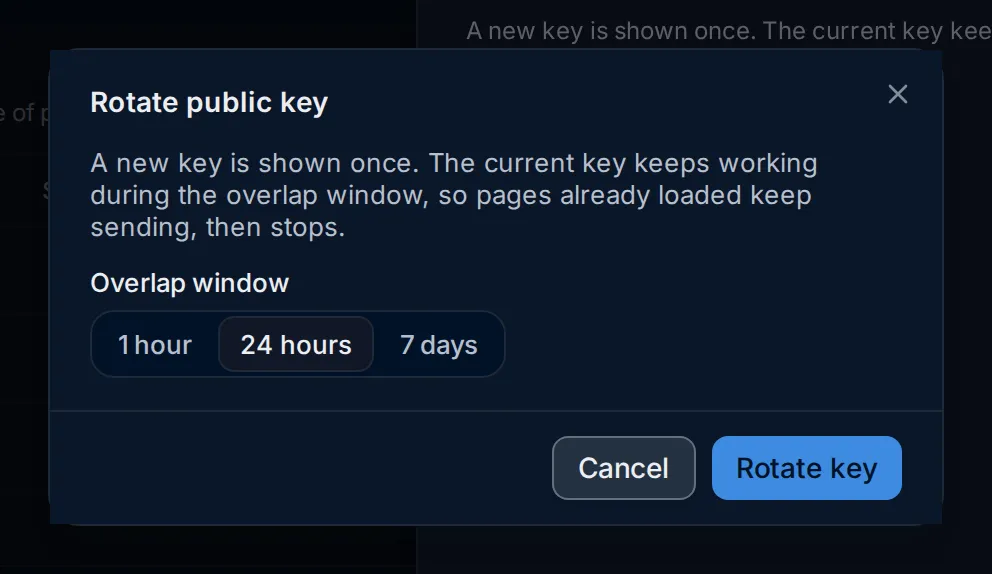
-
Click Rotate key. The new key is shown once: copy it. The Install tab shows the snippet with the new key until you close the sheet.
-
Replace
publicKeyin your app’sinit()call and deploy. -
When the overlap window ends, the old key stops working. Requests that still use it are rejected and show under the Install tab’s status as the key is not valid for this application.
Revoke a key
Section titled “Revoke a key”Revoke now stops a key immediately: data sent with it is refused from then on. It can’t be undone. Use it when a key leaked and an overlap window would be too long.
Revoking the only active key leaves the application with no usable key, and all its data is refused until you click Create key and deploy the new key.
Related
Section titled “Related”- Set up a web application: rejected requests.
- SDK reference: the
publicKeyoption.