

Log pipelines
A log pipeline changes logs on their way in, before they are stored. Use one to turn a line of text into fields you can filter on, to give every service the same severity spelling, or to add facts the logs lack, such as which team owns them.
Use this page when your logs arrive as one long line of text and you want fields you can filter and group by, such as a status code or a user ID, or when services spell the same severity differently.
How a pipeline works
Section titled “How a pipeline works”Each pipeline has three parts:
- A filter that picks the logs it handles, such as
service.name = checkout. Other logs pass by untouched. - Processors, small steps that run in order on each matching log. Each one does one thing: parse JSON, set the severity, add an attribute. See Processors.
- The stored log: what comes out of the last processor is what FuseScope keeps and what you see in the Logs explorer.
When there are several pipelines, a log goes through them in list order, so a later pipeline sees the changes of an earlier one.
Pipelines run in the FuseScope collector, so they apply to every log it receives, whichever SDK or agent sent it. They change only logs that arrive after you save; logs already stored stay as they are.
The pipelines list
Section titled “The pipelines list”Open Logs in the sidebar and click the Pipelines tab. The line next to the
title gives the number of pipelines and the current configuration version, such as
2 pipelines, configuration version 3.
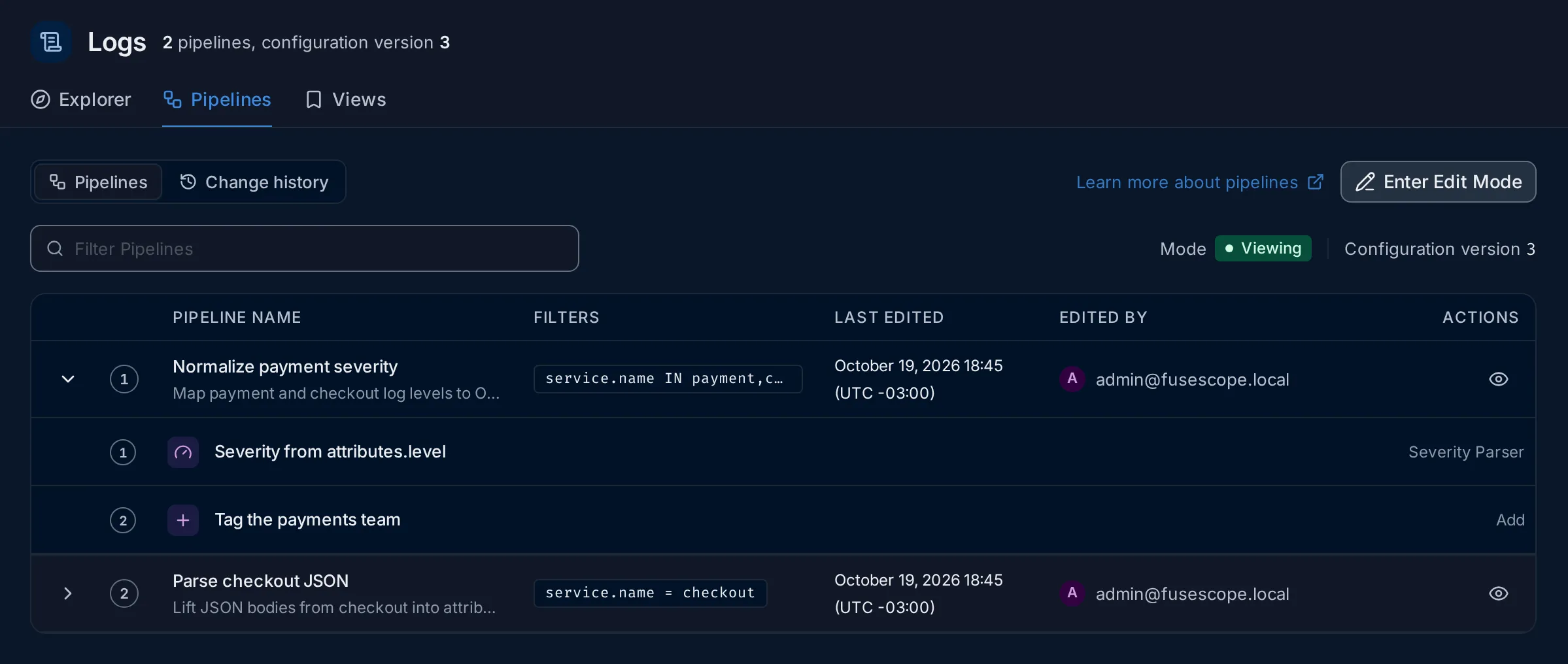
- Each row shows the pipeline’s order, Pipeline Name and description, Filters, Last Edited and Edited By.
- Click the arrow on the left to expand a pipeline and see its processors, in order, each with its type on the right.
- The eye icon in Actions opens the preview.
- Filter Pipelines searches the list.
- Learn more about pipelines opens this page.
The list opens in Viewing mode, where nothing can be changed by accident.
Edit mode
Section titled “Edit mode”Click Enter Edit Mode to make changes. The mode badge turns to Editing, and each row gains actions: the pencil edits, the bin deletes, the switch in Enabled turns a pipeline or processor on or off without deleting it, and the handle on the right drags it to a new place in the order.
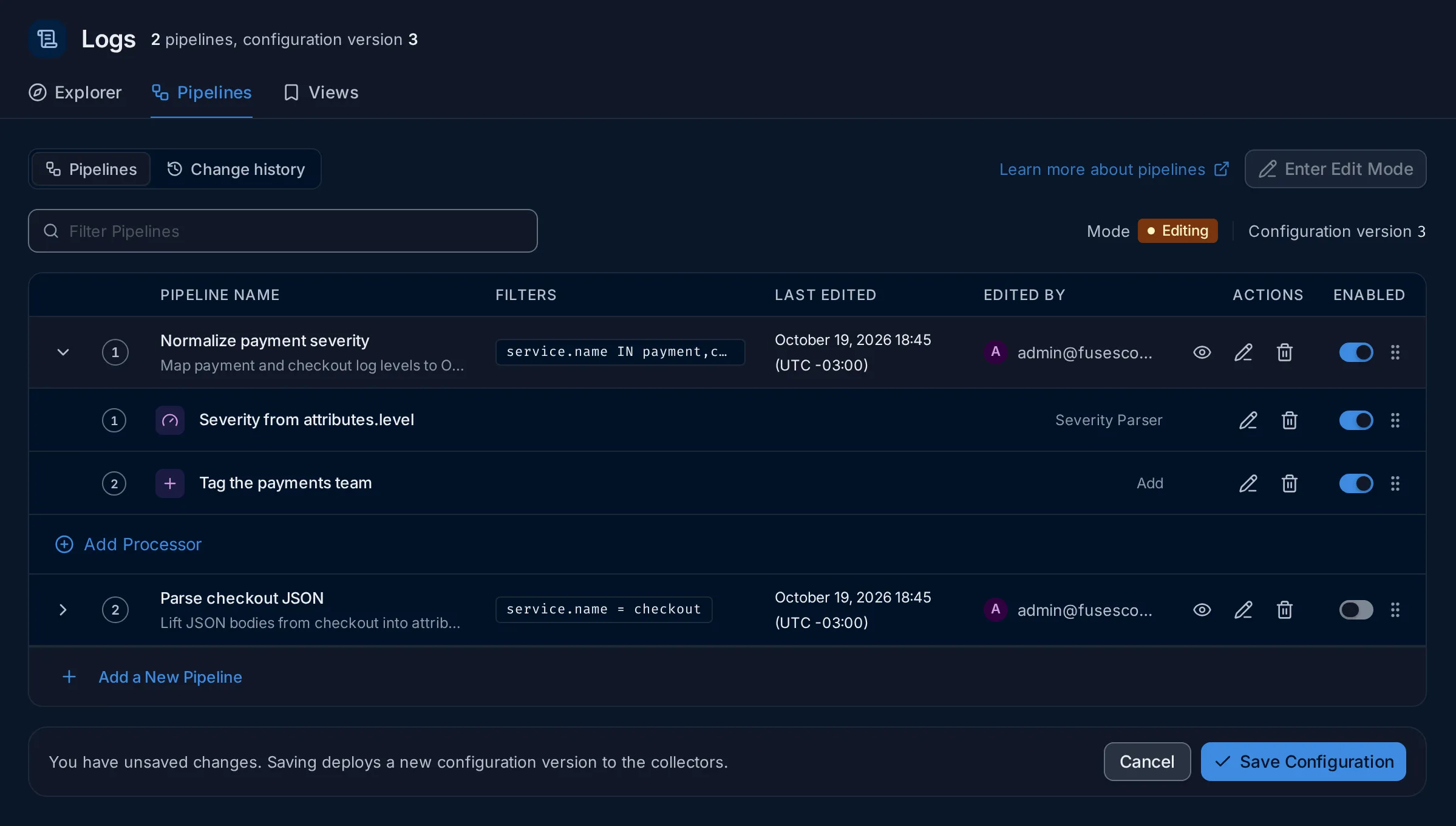
Nothing is applied while you edit. The bar at the bottom says what is pending:
- with no changes, it lists what you can do, and Cancel leaves edit mode;
- with changes, it reads You have unsaved changes, and Save Configuration deploys them as a new configuration version. Cancel throws them away.
Saving needs the Editor or Admin role; viewers can read and preview pipelines.
Create a pipeline
Section titled “Create a pipeline”- Click Enter Edit Mode, then Add a New Pipeline under the list.
- Enter a Name, an optional Description and a Filter that selects the logs to process. The form previews the logs that match, so you can check the filter before going on.
- Expand the new pipeline and click Add Processor for each step. See Processors.
- Click Save Configuration.
Processors
Section titled “Processors”A processor is one step of a pipeline. Add Processor, or the pencil on a processor, opens a sheet on the right. Pick the type in Select Processor Type, give the step a name, fill in its fields and click Create (or Update).
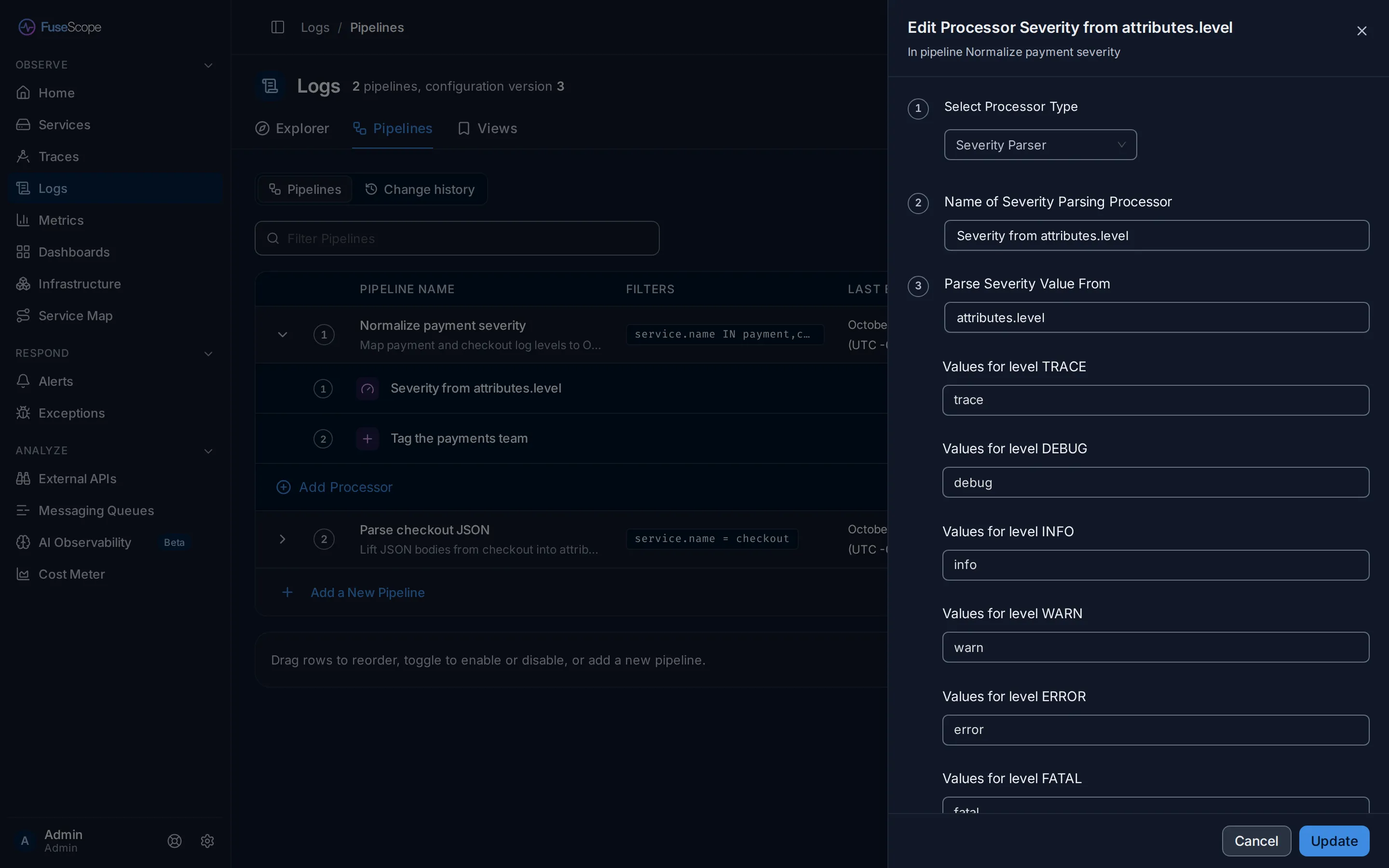
Fields are written as paths that start with body, attributes or resource, for
example attributes.user_id.
| Processor | What it does |
|---|---|
| Grok | Splits text into fields with a Grok pattern, such as %{WORD:method} %{NUMBER:status}. |
| Regex | Splits text into fields with a regular expression; each named group, (?P<name>...), becomes a field. |
| Json Parser | Reads a JSON string, by default the body, and turns its keys into attributes. |
| Trace Parser | Sets the log’s trace ID, span ID and trace flags from fields, so the log links to its trace. |
| Timestamp Parser | Sets the log’s time from a field, as a Unix epoch or a strptime format. |
| Severity Parser | Sets the severity from a field, mapping your values to the standard levels. |
| Add | Sets a field to a fixed value. |
| Remove | Deletes a field. |
| Move | Renames a field, moving its value. |
| Copy | Copies a field’s value into another field. |
The parsers have Parse From and Parse To fields (by default body and
attributes) and an On Error setting. With send, a log the processor cannot
parse is kept unchanged and goes on to the next step.
Severity parser
Section titled “Severity parser”The Severity Parser reads a field, such as attributes.level, and sets the log’s
severity from its value. It has one Values for level field for each of TRACE,
DEBUG, INFO, WARN, ERROR and FATAL. Each takes a comma-separated list of the values
that mean that level, such as error, err, 5xx under ERROR.
It sets severity_number and, by default, rewrites severity_text to the level
name, so every service ends up with the same spelling in storage. The Logs explorer already groups spellings on screen (see
Severity levels); the parser makes
the stored data agree, which helps queries, alerts and exports that read the raw
fields.
Example: normalise payment severity and tag the team
Section titled “Example: normalise payment severity and tag the team”The payment and checkout services write their level in an attribute called level,
and the payments team wants every log from them tagged with its name. One pipeline
does both.
-
Start a pipeline. Click Enter Edit Mode, then Add a New Pipeline. Name it
Normalize payment severity, describe it, and set the filter to the servicespaymentandcheckout(service.name IN payment,checkout). -
Add the severity step. Expand the pipeline and click Add Processor. Choose Severity Parser, name it
Severity from attributes.level, and set Parse Severity Value From toattributes.level. Under each level, list the spellings your services use, for examplewarn, warningunder WARN. -
Add the team. Click Add Processor again. Choose Add, name it
Tag the payments team, set Field toattributes.teamand Value topayments. -
Check the order. The severity step is 1 and the tag is 2. Drag them if not.
-
Preview. Click the eye icon on the pipeline, then Simulate Processing (see Preview). Open a processed payment log: it now has
team: "payments". -
Save. Click Save Configuration. A new version appears in Change history.
What the preview tells you: in this data, the processed payment log keeps
severity_text Warn. These sample logs have no level attribute, so the Severity
Parser has nothing to read and leaves them as they are, while the Add step still
tags them. That is what the preview is for: it shows what your logs really contain
before you rely on a step.
Preview
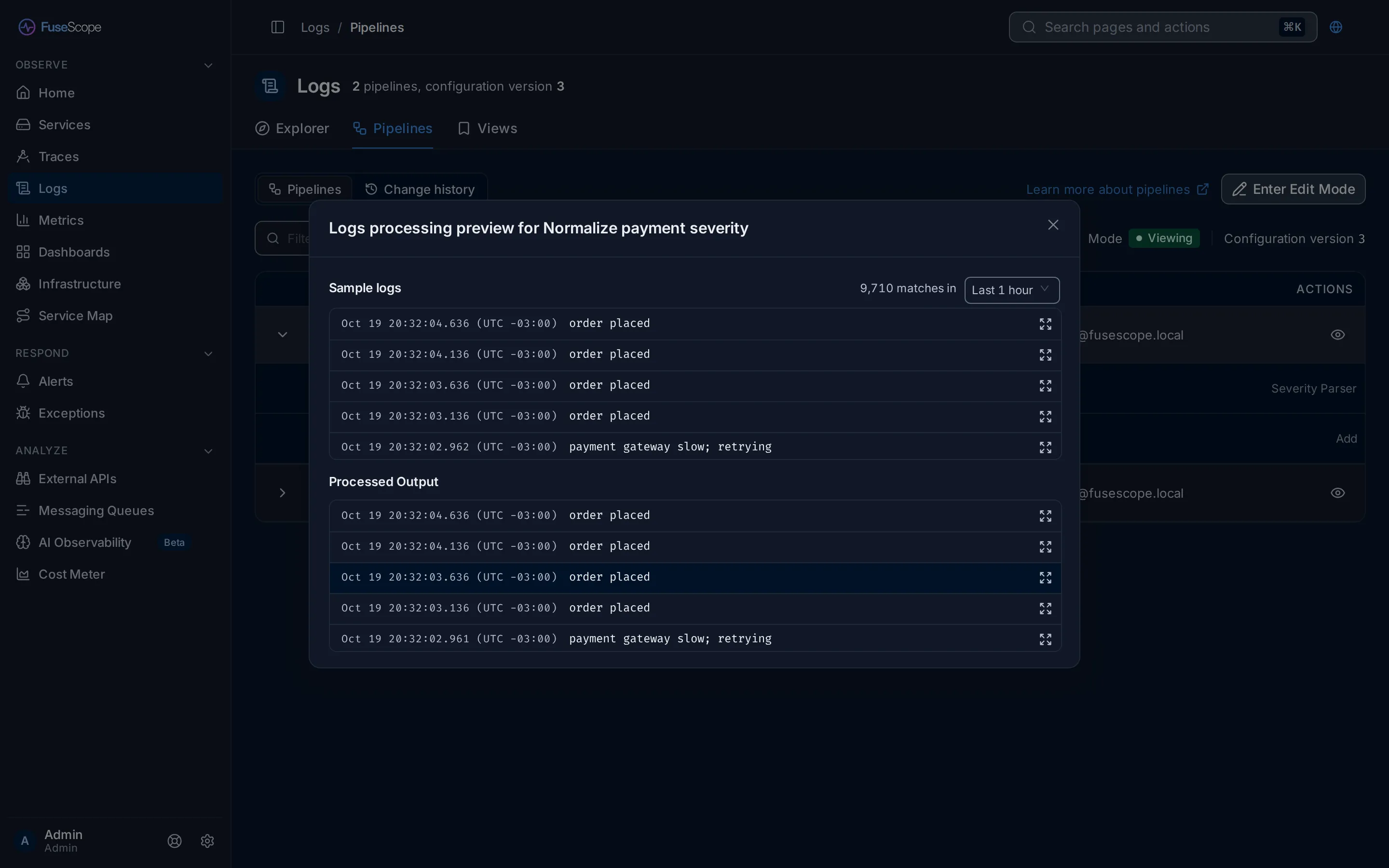
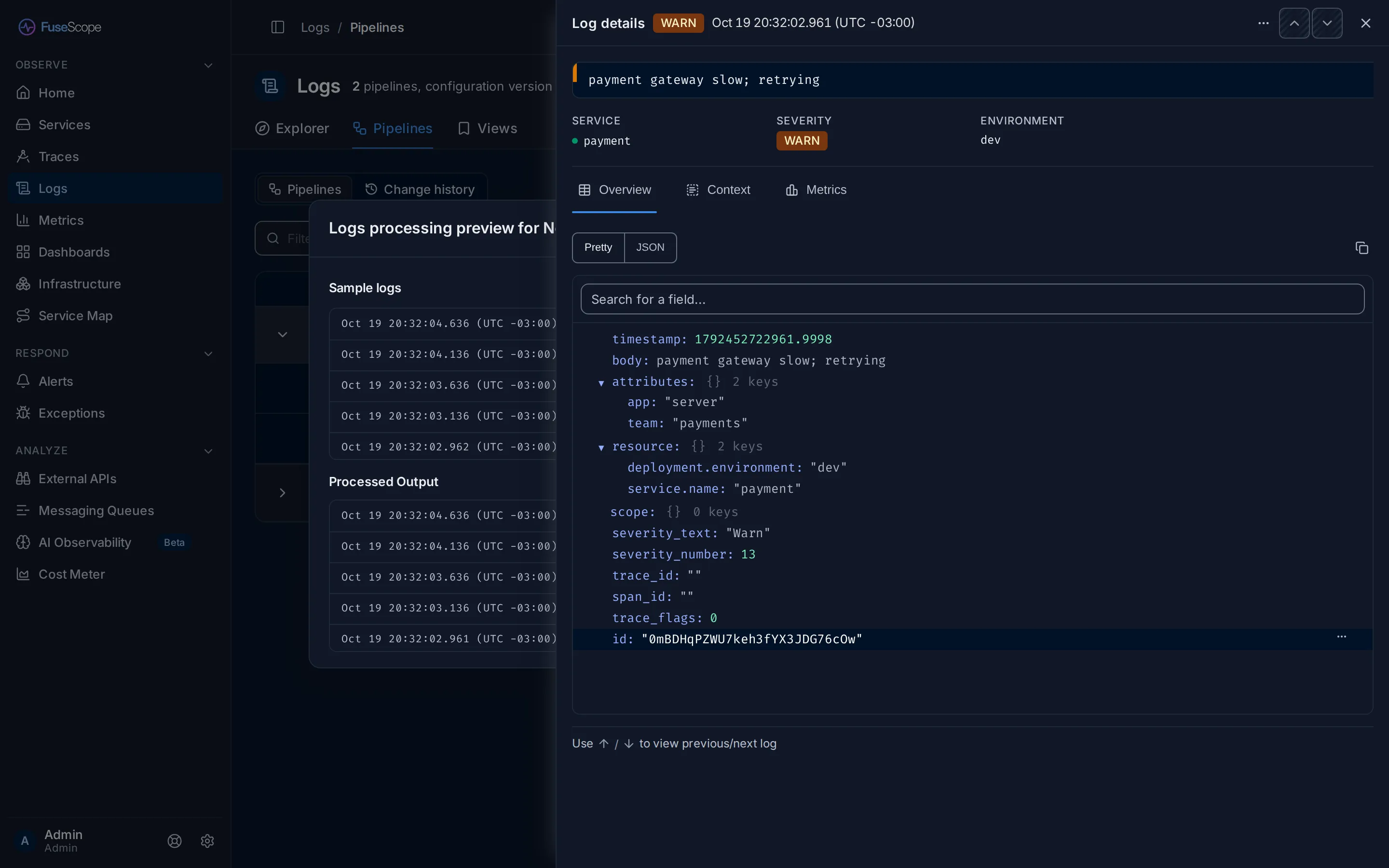
Section titled “Preview”The eye icon on a pipeline opens Logs processing preview for it, with real logs and no risk:
- Sample logs loads recent logs that match the pipeline’s filter, with the number of matches. The menu next to it changes the period (Last 1 hour by default).
- Simulate Processing runs the pipeline on those logs without saving or deploying anything, and shows the result under Processed Output.
- The expand icon at the end of a row opens that log in Log details, to compare fields before and after.
Change history
Section titled “Change history”Every Save Configuration creates a new configuration version. The Change history tab lists them, newest first, with the Deployment Stage, the Last Deploy Message, the Last Deployed Time and who edited it. Click a version to see its details on the right.
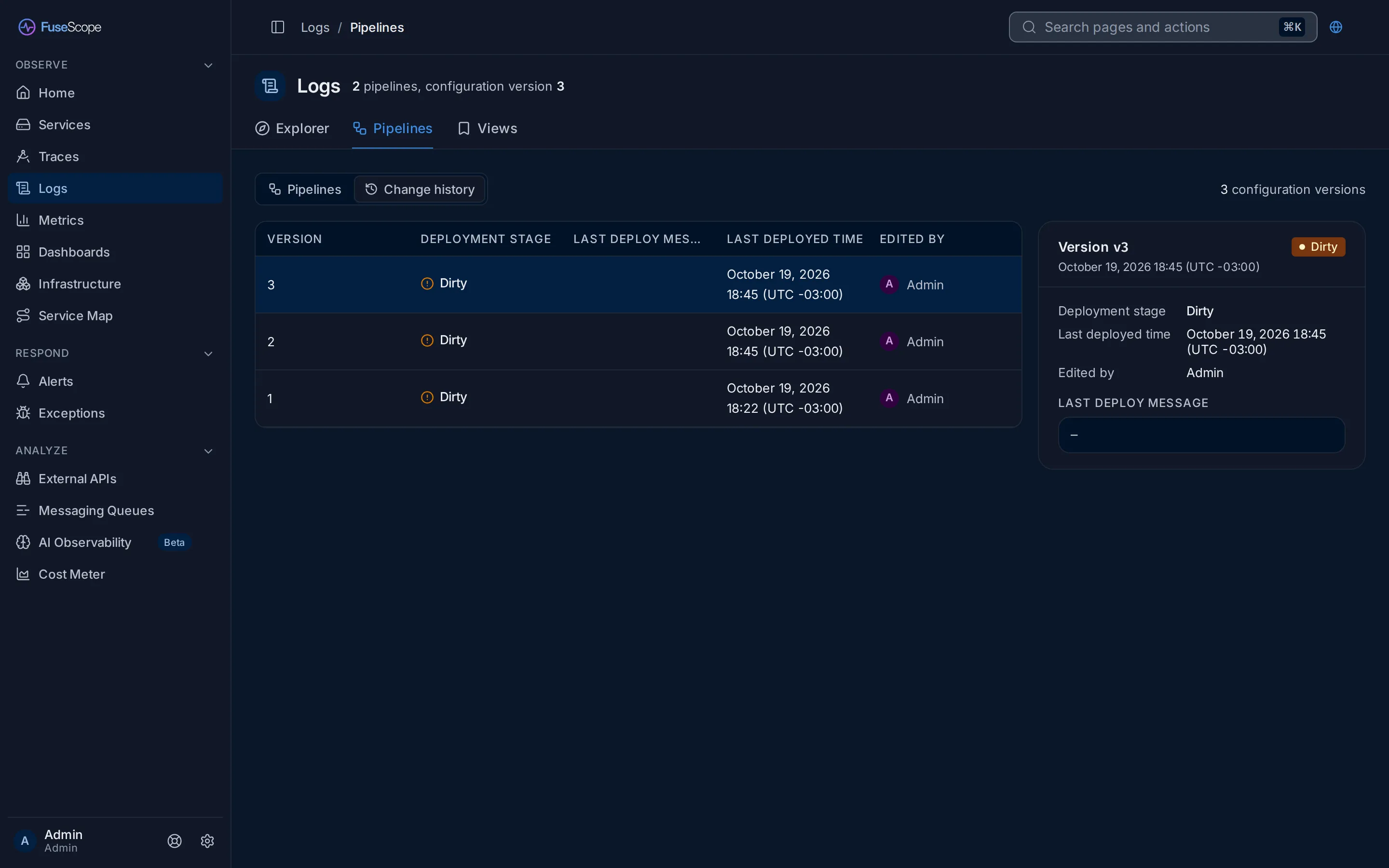
The deployment stage says how far a version got:
| Stage | Means |
|---|---|
| Dirty | Saved, but no collector has taken it yet. |
| In Progress | Being sent to the collectors. |
| Deployed | The collectors run it. |
| Failed | A collector could not apply it; the deploy message says why. |
| Unknown | FuseScope has no status for it. |
How a version reaches the collectors
Section titled “How a version reaches the collectors”The backend sends each version to the FuseScope collectors over OpAMP, and each enabled pipeline becomes a processor in the collector’s logs pipeline. Collectors connect to the backend’s OpAMP server on port 4320; the Helm chart configures this. If versions stay Dirty, check that the collector can reach that port.
Before the first pipeline
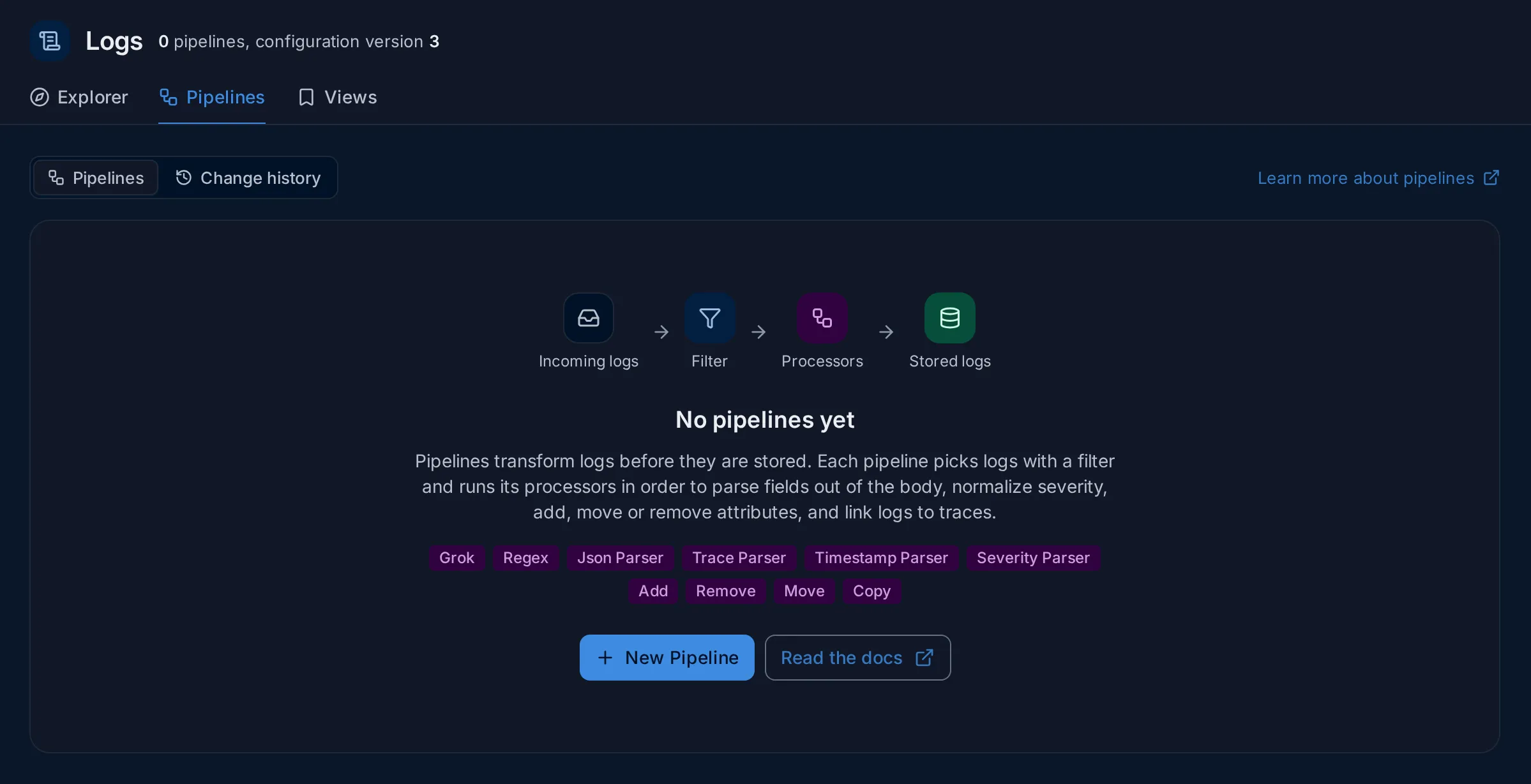
Section titled “Before the first pipeline”With no pipelines yet, the tab explains the idea instead of showing an empty table: incoming logs go through a filter, then processors, then are stored. It lists the processor types, and offers New Pipeline and Read the docs, which opens this page.
Related
Section titled “Related”- Logs explorer: search the logs your pipelines produce.
- Severity levels: how FuseScope groups severities on screen.
- Instrument applications: send logs that already carry fields and trace IDs.