

Sessions
The Sessions tab of an application (/frontend/applications/<id>/sessions) lists the
visits of your users, newest first. Click one to open its timeline: what the user saw
and did, in order, with every request linked to its backend trace.
Use it when a user reports a problem and you want to see what happened to them, or when you want to see what visits with errors have in common.
A session ends after 15 minutes without a
click, key press, scroll or touch, or after 4 hours. The next one carries the previous
one’s id as session.previous_id, so you can follow a long visit across sessions. No
screen is recorded: there is no replay, and form inputs and page text are never captured.
The session list
Section titled “The session list”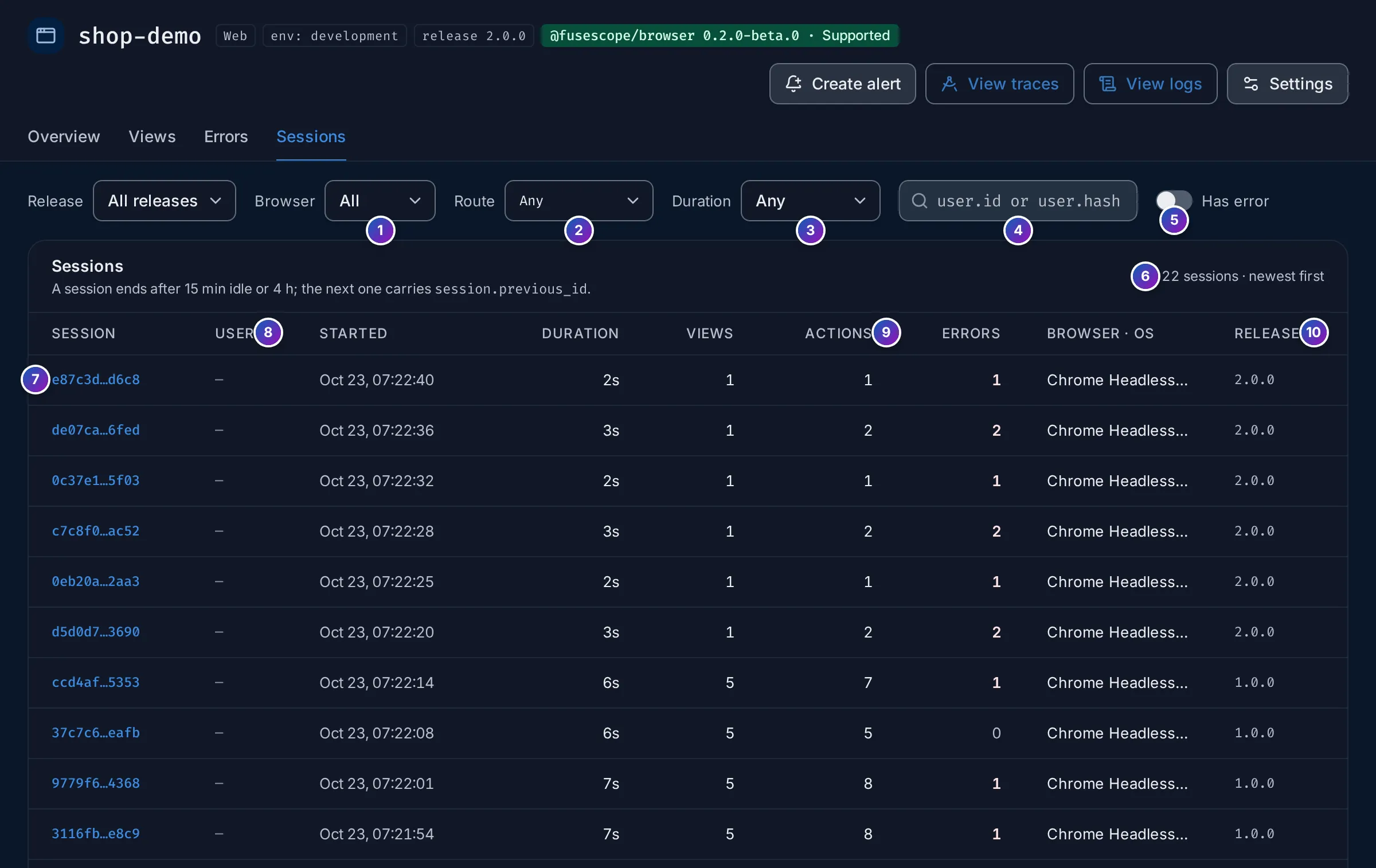
The filters next to Release narrow the list. They are kept in the URL, so a filtered list can be shared.
- Browser: All, or one browser such as Chrome, Safari, Firefox or Edge. Hidden on Android.
- Route: only sessions that saw this route.
- Duration: < 10 s, 10 s – 1 min, ≥ 1 min, ≥ 5 min or ≥ 15 min. Very short sessions often mean users who left at once.
- User: sessions of one user, by their
user.id. Press Enter to apply. Users are only known when your app callssetUser(). By default the SDK sends a SHA-256 hash of the id, so search for the hash, not the raw id; see User identity. - Has error: only sessions with at least one JavaScript error.
- Count: how many sessions match. The list shows 50 per page by default (20, 50 or 100).
- Session: the short
session.id. Click it to open the timeline. When the session continues an earlier one, a line after links to the previous session. - User: the short
user.id, or — when the app set no user. - Started, Duration, Views, Actions (clicks and custom actions) and Errors.
- Browser · OS (Device · OS on Android) and Release.
The session timeline
Section titled “The session timeline”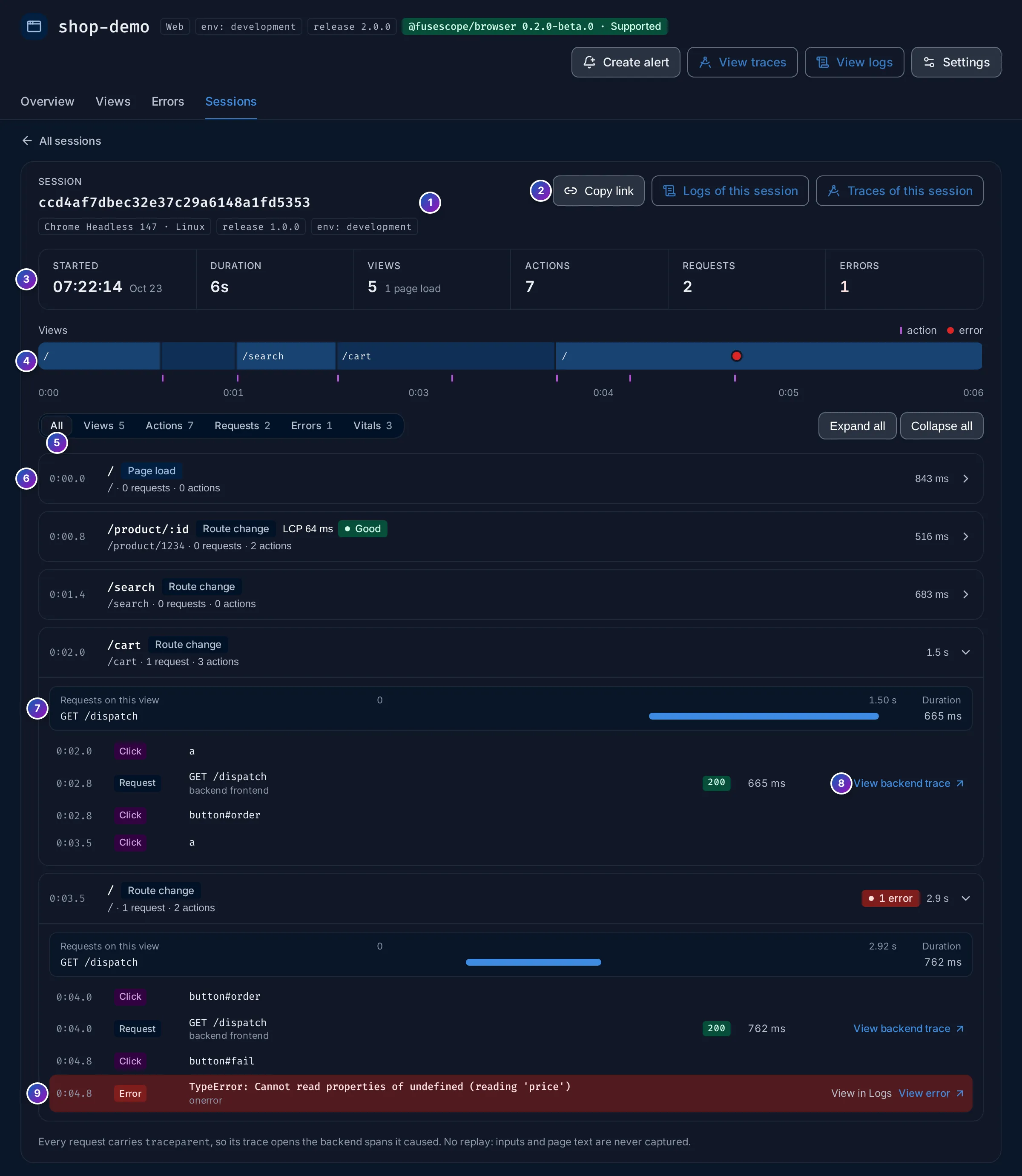
- Session: the full
session.id, with the browser and OS, the release and the environment. WithsetUser(), a user tag shows the shortuser.id. A line after links to the previous session. - Copy link copies the timeline’s URL. Logs of this session and Traces of
this session open the Logs and
Traces explorers filtered to its
session.id. - Key numbers: when it Started, its Duration, Views (and how many were page loads), Actions, Requests (and how many failed) and Errors.
- Views: the session as a bar, one segment per view, labelled with its route. Ticks under it are actions; a red dot is an error. Click a segment to jump to that view.
- Event types: show All events, or only Views, Actions, Requests, Errors or Vitals, each with its count. Expand all and Collapse all open or close every view.
- A view: the time it started since the beginning of the session, the route, Page load or Route change, the path, how many requests and actions it had, and how long the user stayed. Click it to expand it. A red badge counts its errors.
- Requests on this view: a waterfall of the view’s
fetchand XHR calls, with their duration. - Request events show the method and URL, the backend service that answered, the status and the duration. View backend trace opens the trace in Trace details: the browser’s request and, under it, the backend spans it caused. Trace means the request reached no instrumented backend.
- Error events show the type and message and how they were raised (
onerror,unhandledrejectionormanual). View error opens the error group; View in Logs opens the event itself.
The other events are Click, with the element that was clicked such as
button#order (see What a click records), and Vital, with
a Web Vital and its rating. Events recorded before the first view are listed under
Before the first view. When a session has more events than one page holds, a note
says the timeline stops early; its logs and traces have the rest.
What a click records
Section titled “What a click records”The SDK names what was clicked with a short, stable selector, sent as
fusescope.rum.action.target. It never records the element’s text. In order, it uses:
- the closest element with a
data-fusescope-actionattribute, such asdiv[data-fusescope-action="checkout"]; - else the closest button, link or form control by its
id, such asbutton#add-to-cart(ids that look generated are skipped), itsaria-label, such asbutton[aria-label="Close"], or its first class, such asa.nav-link.
To get readable names, add data-fusescope-action to the elements that matter:
<button data-fusescope-action="checkout">Pay now</button>Android sessions
Section titled “Android sessions”Sessions of an Android application differ in a few ways:
- When a session ends. After 15 minutes with the app in the background, or after
4 hours. A relaunch within those 15 minutes, such as after a crash or after the system
killed the app, continues the same session. Both limits are SDK options
(
session.inactivityTimeoutMillisandsession.maxDurationMillis). - Device · OS replaces Browser · OS, such as Google Pixel 8 · Android 14,
from the
device.*andos.*resource attributes, since an app sends no user agent. The Browser filter is hidden. - Views are screens, named as in Android screens.
- Actions are the custom actions sent with
FuseScope.addAction(); taps are not recorded. - Requests are OkHttp calls made through
FuseScope.callFactory. - Errors are crashes, ANRs and handled errors, shown with their source (
crash,anrormanual). A crash is usually the session’s last event. - User works the same:
FuseScope.setUser()sends the same SHA-256 hash as the browser SDK, so one user’s web and Android sessions share auser.id.
Example: what happened to this user?
Section titled “Example: what happened to this user?”-
Find their sessions. If your app calls
setUser(), hash the user’s id with SHA-256 and paste it into the user search. Otherwise, filter by Route and turn on Has error. -
Open the session. Click the session id. The view strip shows where the user went and where the error happened (the red dot).
-
Read what led to the error. Click the segment with the dot. The expanded view lists the clicks and requests before the error, in order.
-
Follow the request to the backend. On the request just before the error, click View backend trace to see which service answered and how long each span took.