

Notification channels
A notification channel is a destination for alerts. Alert rules pick channels per threshold, or through routing policies. Creating, editing and deleting channels needs the Admin role; the Editor role can send test notifications.
Use this page when you connect FuseScope to Slack, email, PagerDuty or another tool, before creating alert rules. An example with Slack is in Set up your first alert.
The channels list
Section titled “The channels list”Open Alerts → Notification Channels (also under Settings). The list shows each channel’s Name and Type, with Edit and Delete.
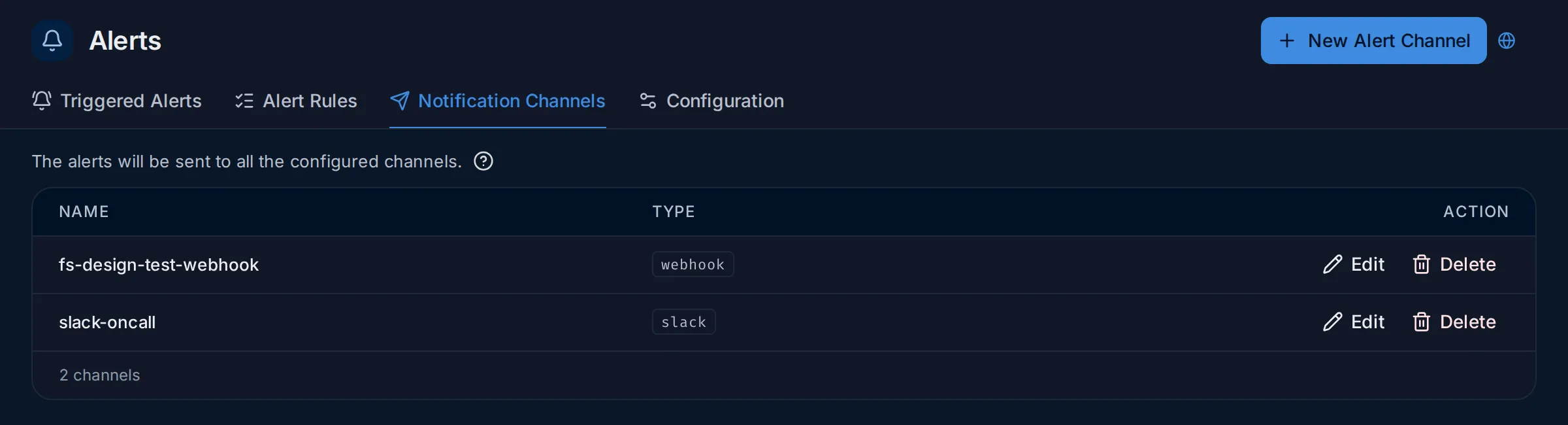
A channel does nothing on its own: a rule sends to it only when the channel is picked under send to on one of the rule’s thresholds, or when a routing policy matching the alert lists it.
Create a channel
Section titled “Create a channel”- Click New Alert Channel.
- Fill in the form below and click Save.
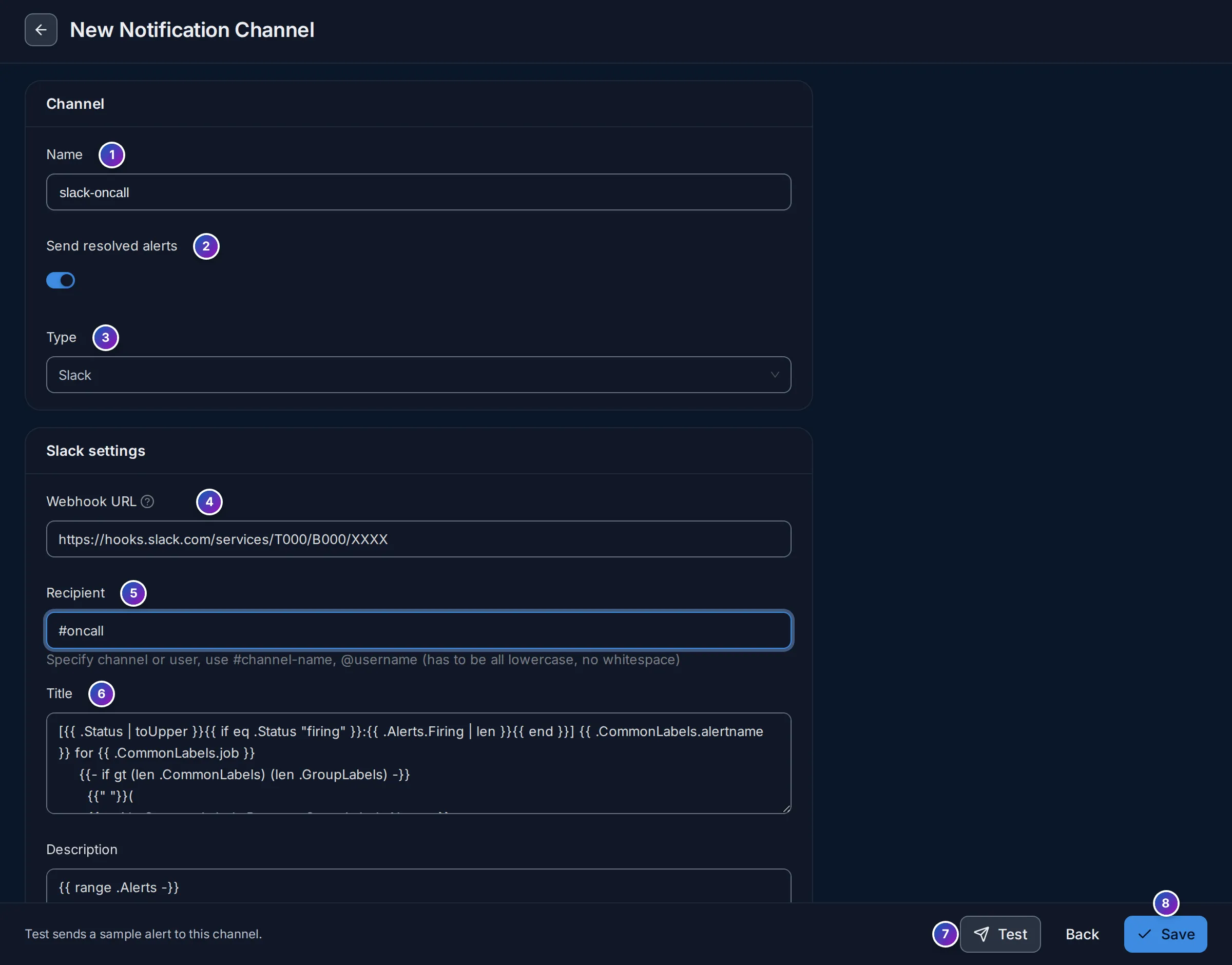
- Name: how rules and policies refer to the channel, such as
slack-oncall. It can’t be changed later. - Send resolved alerts: also notify when an alert resolves. On by default.
- Type: Slack, Webhook, PagerDuty and the others in Channel types. It can’t be changed later.
- to 6. The fields of the type, here the Slack Webhook URL, the Recipient
(
#channel-nameor@username, in lower case, without spaces) and the Title and Description templates. - Test sends a sample alert to the channel without saving it, to check the address and credentials. It reaches real people, so warn them first.
- Save creates the channel. Back leaves without saving.
The test alert is named Test Alert (<channel name>), has severity critical and the text
“Test alert fired from FuseScope”. Nothing is saved by a test.
Channel types
Section titled “Channel types”Fields in bold are required. Title and description fields come prefilled with templates that list the firing alerts, their labels and links to related logs and traces.
| Type | Fields |
|---|---|
| Slack | Webhook URL (an incoming webhook), Recipient (#channel or @user), Title, Description |
| Webhook | Webhook URL, User Name and Password for basic auth, or only Password to send it as a bearer token |
| Pagerduty | Routing Key, Description, Severity, Additional Information (JSON), Component, Group, Class, Client, Client URL |
| Opsgenie | API Key, Message, Description, Priority |
| To: comma-separated addresses. Needs SMTP. | |
| Microsoft Teams | Webhook URL, Title, Description |
| Google Chat | Webhook URL (https://chat.googleapis.com/...), Title, Description |
| Jira | Site URL (https://<site>.atlassian.net), Email, API token, Project key, Issue type (default Task), Summary, Description; advanced: Priority, Labels, Resolve transition, Reopen transition, Won’t-fix resolution, Reopen window (default 3d) |
| Jira Service Management Ops | API key, Message, Description; advanced: Priority, Tags (default signoz-alert) |
| incident.io | Alert source URL (https://.../v2/alert_events/http/<id>), Token, Title, Description, Additional metadata |
PagerDuty severity defaults to the alert’s severity label. Opsgenie priority maps
critical to P1, warning to P2, info to P3 and anything else to P4.
Templates
Section titled “Templates”Titles and descriptions use Alertmanager notification templates, for example:
[{{ .Status | toUpper }}{{ if eq .Status "firing" }}:{{ .Alerts.Firing | len }}{{ end }}] {{ .CommonLabels.alertname }}.Alerts, .CommonLabels, .CommonAnnotations and each alert’s .Labels and
.Annotations are available. The rule’s message is the description annotation.
Links in notifications point to alertmanager.signoz.external_url
(default http://localhost:8080); set it to the public URL of FuseScope.
Email and SMTP
Section titled “Email and SMTP”Email channels send through the SMTP settings under alertmanager.signoz.global in the
configuration file. These are separate from
the emailing section, which only sends invitations and password resets.
alertmanager: signoz: external_url: https://fusescope.example.com global: smtp_smarthost: smtp.example.com:587 smtp_from: fusescope@example.com smtp_auth_username: fusescope@example.com smtp_require_tls: true| Key | Default | Variable |
|---|---|---|
smtp_smarthost |
localhost:25 |
SIGNOZ_ALERTMANAGER_SIGNOZ_GLOBAL_SMTP__SMARTHOST |
smtp_from |
alertmanager@signoz.io |
SIGNOZ_ALERTMANAGER_SIGNOZ_GLOBAL_SMTP__FROM |
smtp_hello |
localhost |
SIGNOZ_ALERTMANAGER_SIGNOZ_GLOBAL_SMTP__HELLO |
smtp_auth_username |
none | SIGNOZ_ALERTMANAGER_SIGNOZ_GLOBAL_SMTP__AUTH__USERNAME |
smtp_auth_password |
none | SIGNOZ_ALERTMANAGER_SIGNOZ_GLOBAL_SMTP__AUTH__PASSWORD |
smtp_require_tls |
true |
SIGNOZ_ALERTMANAGER_SIGNOZ_GLOBAL_SMTP__REQUIRE__TLS |
Pass the password as an environment variable rather than in the file. The
alertmanager@signoz.io default and the SIGNOZ_ prefix are internal names.
Grouping and repeats
Section titled “Grouping and repeats”Alertmanager settings under alertmanager.signoz.route apply to every rule:
| Key | conf/example.yaml |
Description |
|---|---|---|
group_by |
[alertname] |
Labels alerts are grouped by. |
group_wait |
1m |
Wait before the first notification of a new group. |
group_interval |
1m |
Wait before notifying about changes to a group. |
repeat_interval |
1h |
Wait before repeating a notification. |
A rule’s own Group alerts by and Repeat notifications settings override these for its alerts. See alert rules.