

Services
Services is FuseScope’s APM (application performance monitoring) view. It lists
every service that sends
traces and tells you, for each one, how busy
it is, how often it fails and how long it takes. Any service whose spans carry a
service.name resource attribute
shows up here; you don’t need to set up anything else.
Use this page when something is slow or failing and you don’t yet know where, when you want to check a service after a deploy, or when you want to know what a service calls and what calls it. For step-by-step walkthroughs, see Investigate a slow endpoint and Find out why a service is failing.
APM in plain words
Section titled “APM in plain words”If you are new to APM, read this section first. The rest of the page uses these words.
Rate, errors and duration
Section titled “Rate, errors and duration”Three numbers describe the health of almost any service. Together they are called the RED metrics:
- Rate: how many requests the service handles, in requests per second (
req/s). - Errors: how many of those requests failed, usually shown as a share, the error rate. A request fails when its span has an error status.
- Duration: how long the requests take, its latency.
A change in any of the three is worth a look: a service that suddenly takes twice as long, fails more often, or receives far more (or far fewer) requests than an hour ago.
Percentiles
Section titled “Percentiles”Latency is never a single number: most requests are fast and a few are slow. An average hides the slow ones, so FuseScope shows percentiles:
- p50 (the median): half the requests are faster than this.
- p95: 95 requests in 100 are faster than this.
- p99: 99 requests in 100 are faster; one in a hundred is slower.
A service with a p50 of 100 ms and a p99 of 2 s is fast for most users and very slow for a few. That slow tail is often what people complain about.
Apdex turns latency into one score from 0 to
- You choose a target time T (500 ms by default). Requests that finish within T count fully, those within 4 × T count half, and slower or failed ones count zero. 1.00 means every request was fast enough. See Core concepts for the formula and Apdex threshold to change T.
Entry points and internal operations
Section titled “Entry points and internal operations”One request to a service usually produces several spans in it: the span where the request arrives, and spans for the work it does inside, such as a database query or a call to another service. The arriving span is the entrypoint span (or the root span, if the request started there).
The numbers on the services list and the service KPIs count entry points only, so that one request counts once. The Endpoints and Errors tabs also look at the internal operations, which is why their counts can be higher.
Where the numbers come from
Section titled “Where the numbers come from”By default FuseScope computes everything from the traces themselves. A FuseScope server can instead read the RED numbers from span metrics, counters and latency histograms the collector builds from spans as they arrive, which is faster on very large volumes. The pages look the same either way.
Service list
Section titled “Service list”Click Services in the sidebar (/services). The list covers the time range at the
top of the page, such as the last 30 minutes.
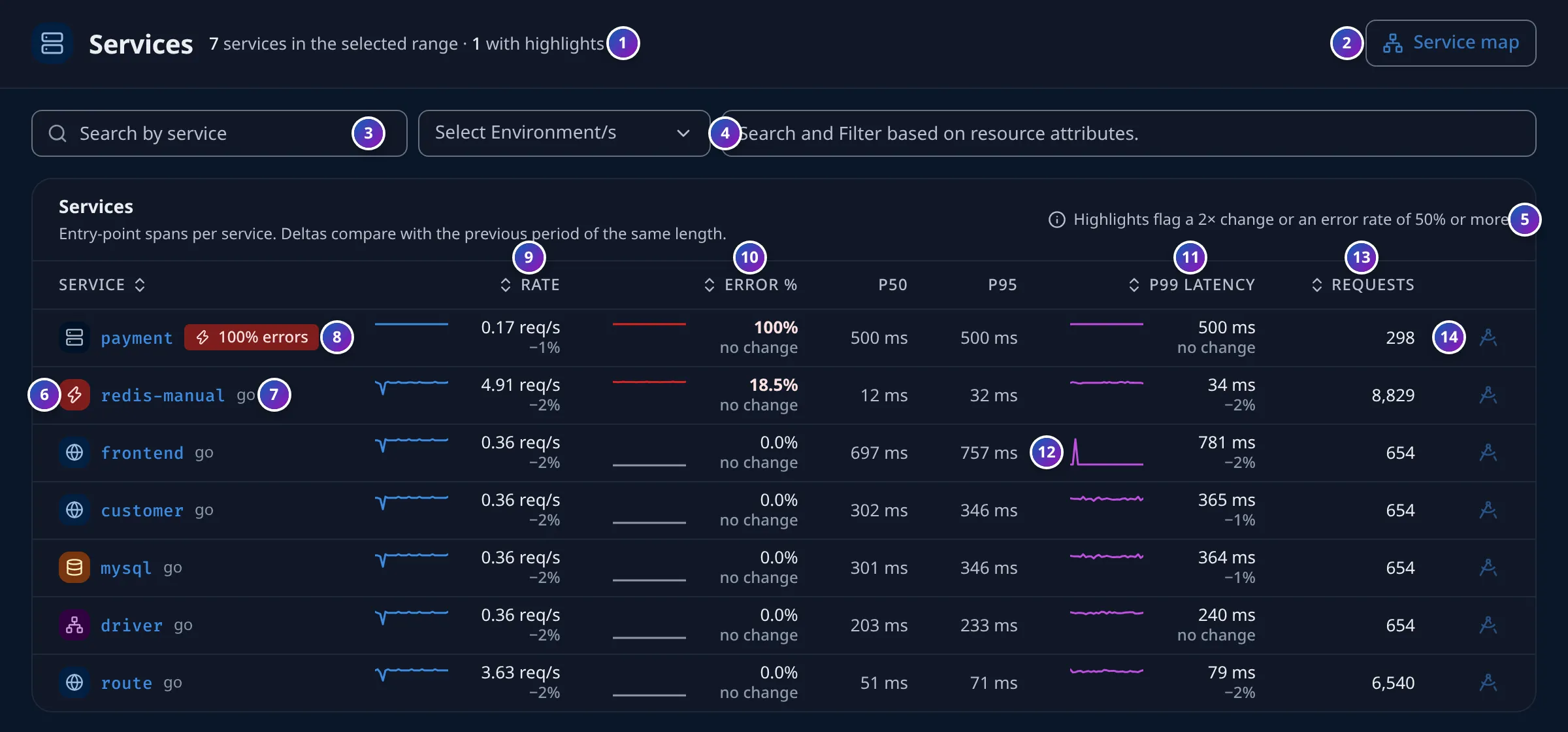
- Count line: how many services sent data in the range and how many of them have
a highlight, such as
7 services in the selected range · 1 with highlights. - Service map opens the Service Map.
- Search by service: type part of a name to narrow the list.
- Filters: Select Environment/s keeps only the services of one or more
deployment.environmentvalues; the box next to it filters by any other resource attribute. See Filter the list. - The highlight rule, as a reminder of what the badges mean.
- Type icon: what kind of service it is. See Service types.
- Language of the service’s OpenTelemetry SDK, from
telemetry.sdk.language, such asgoorjava. Nothing is shown when the SDK doesn’t report it. - Highlight badge: something crossed a rule. Hover it for the reason.
- Rate: requests per second.
- Error %: the share of requests that failed. It turns red and bold at 5% or more.
- p99 latency: the time 99 in 100 requests stay under. The p50 and p95 columns next to it complete the picture.
- Sparkline: how the value moved over the range. Rate, Error % and p99 each have one.
- Requests: how many requests the service handled in the range.
- View traces: the traces icon opens the service’s traces in the Traces explorer for the same range.
Click a row, or the service name, to open the service page. The list shows ten services per page.
How to read the list
Section titled “How to read the list”Under each Rate, Error % and p99 value is a delta: how it changed against the previous period, a stretch of time just as long that ends where the current range starts. For the last 30 minutes, the previous period is the 30 minutes before that.
| Delta | Meaning |
|---|---|
+12%, −20% |
The value rose or fell by that much |
↑2.4× |
The value more than doubled |
↑new |
The value was zero before |
+0.8 pp |
For error rates: the change in percentage points, so 1.0% → 1.8% is +0.8 pp |
no change |
Less than half a percent of difference |
A p99 delta turns red when latency rose by 10% or more, green when it fell by as much. An error-rate delta turns red when the rate rose by more than half a percentage point, green when it fell by as much. Rate deltas stay grey: more or less traffic is not good or bad by itself.
Some practical rules:
- Look at the badges first. They mark the changes big enough to matter.
- A steady error rate is not always a problem; a change is. A service that always fails 0.1% of its calls is behaving as usual. One that went from 0% to 3% is not.
- Compare p50 with p99. If p50 is fine and p99 is high, a few requests are slow. If both rose, everything got slower.
- A drop in rate can mean callers stopped reaching the service.
Highlight badges
Section titled “Highlight badges”A badge appears next to a service name when one of these rules is true. The rules compare the current range with the previous period.
| Badge | Colour | Rule |
|---|---|---|
100% errors, 62.0% errors |
Red | The error rate is 50% or more, whatever it was before |
errors ↑3× |
Red | The error rate is at least 1% and at least twice what it was |
new errors |
Red | The error rate is at least 1% and was zero before |
p99 ↑2× |
Amber | p99 latency is at least twice what it was |
rate ↑2× |
Blue | The request rate is at least twice what it was |
Hover a badge to see the numbers behind it, for example
Error rate 4.0% vs 1.5% in the previous period. Only increases are flagged; a
service that becomes faster or quieter gets no badge.
Sorting
Section titled “Sorting”Until you sort a column, the services with badges come first (more badges, higher), then the others by error rate, then by p99 latency, all from high to low. Click Service, Rate, Error %, p99 latency or Requests to sort by that column; click again to reverse the order.
Service types
Section titled “Service types”The icon before a name tells you what kind of service it is. FuseScope decides it from what the service’s spans contain, checking these rules in order and using the first that matches:
| Icon | Type | When |
|---|---|---|
| Lightning bolt | Cache | The name or db.system contains redis, memcache, valkey or dragonfly |
| Cylinder | Database | Its spans carry db.system, other services name it as peer.service on database calls, or its name contains a database name such as mysql, postgres, mongo or clickhouse |
| Speech bubbles | Queue | Its spans carry messaging.system, or its name contains kafka, rabbit, sqs, nats or pulsar |
| Connected boxes | RPC | It serves more RPC calls (server spans with rpc.method) than HTTP requests |
| Globe | Web | It serves HTTP requests (server spans with http.route or http.method) |
| Connected boxes / Globe | RPC / Web | No spans say either way, but its name contains grpc (RPC), or frontend, web, api, gateway or ui (Web) |
| Arrow out of a box | External | Only seen as the target of calls, never sending data itself. Appears on the Dependencies tab |
| Server | Service | None of the above |
In the demo, frontend, customer and route are Web services, driver is RPC
(it serves gRPC), mysql is a Database, redis-manual a Cache, and payment, whose
spans say nothing about their protocol, a plain Service.
Filter the list
Section titled “Filter the list”Select Environment/s lists the values of deployment.environment in your data.
The box next to it filters by any resource attribute, such as
k8s.namespace.name or service.namespace. Both filters stay set when you open a
service, and its page uses them on every tab. Set these attributes in your SDK, for
example with OTEL_RESOURCE_ATTRIBUTES; see OTLP.
Search by service only narrows the rows you see; it doesn’t change the counts.
Service details
Section titled “Service details”Click a service to open its page (/services/<service-name>). Every tab uses the time
range at the top and the filters under the tabs.
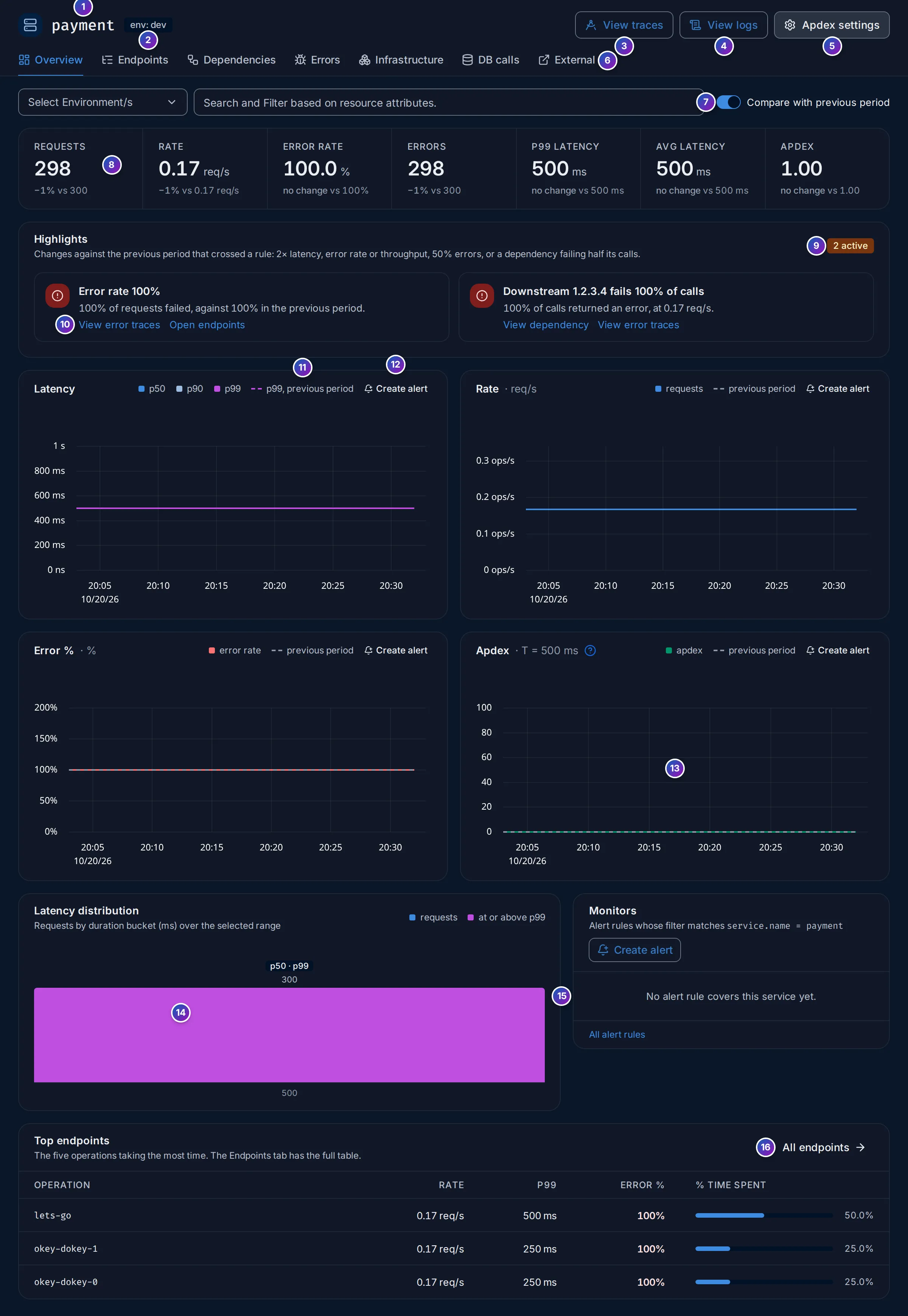
The header
Section titled “The header”- Name and type icon (see Service types).
- Badges: the environment (
env: dev) and the SDK language, when known. Next to them, N hosts counts the hosts that served the requests; click it to open the Infrastructure tab.paymentreports no language and no host, so only its environment shows. - View traces: the service’s traces in the Traces explorer.
- View logs: the service’s logs in the Logs explorer.
- Apdex settings: the service’s Apdex target. See Apdex threshold.
- Tabs: Overview, Endpoints,
Dependencies, Errors, Infrastructure,
DB calls and External. The tab is part of the address
(
?tab=ERRORS, for example), so you can send someone a link to it. - Compare with previous period (Overview only): shows the deltas under the KPIs and draws the previous period as a dashed line on the charts. It is on by default, and FuseScope remembers your choice in this browser.
Overview
Section titled “Overview”- One number per signal, for the whole range: Requests, Rate (req/s),
Error rate, Errors, p99 latency, Avg latency and Apdex. With
the comparison on, each shows its delta and the previous value, for example
−1% vs 300. Deltas follow the same rules as in the list; Apdex shows the difference in points, such as−0.09.
Highlights
Section titled “Highlights”- Highlights explains what crossed a rule, with the count of active ones. It uses
the badge rules of the list, plus one more: a downstream
dependency that fails 50% or more of its calls. When nothing crossed a rule, it
says
Nothing crossed a rule in this range. - Each highlight links to where to look next:
| Highlight | Links |
|---|---|
| Error rate | View error traces (the service’s failed spans), Open endpoints |
| p99 latency | View slowest traces (the service’s traces; order them by duration), Open endpoints |
| Throughput | Open endpoints |
| Downstream dependency | View dependency (the Dependencies tab), View error traces |
Highlights always compare with the previous period, even with the comparison switch off.
The charts
Section titled “The charts”Four charts, two per row: Latency (p50, p90 and p99), Rate (req/s),
Error % and Apdex. Apdex shows its target next to the title, such as
T = 500 ms.
- Legend: with the comparison on, the previous period is the dashed series. On Latency only p99 gets a previous-period line, to keep the chart readable.
- Create alert opens the alert editor with the chart’s query already filled in, so you only set the threshold.
- Each chart is drawn over the selected range. Drag across one to zoom into that stretch of time; the whole page follows.
Drill down from a chart
Section titled “Drill down from a chart”Click a point on a chart for a menu:
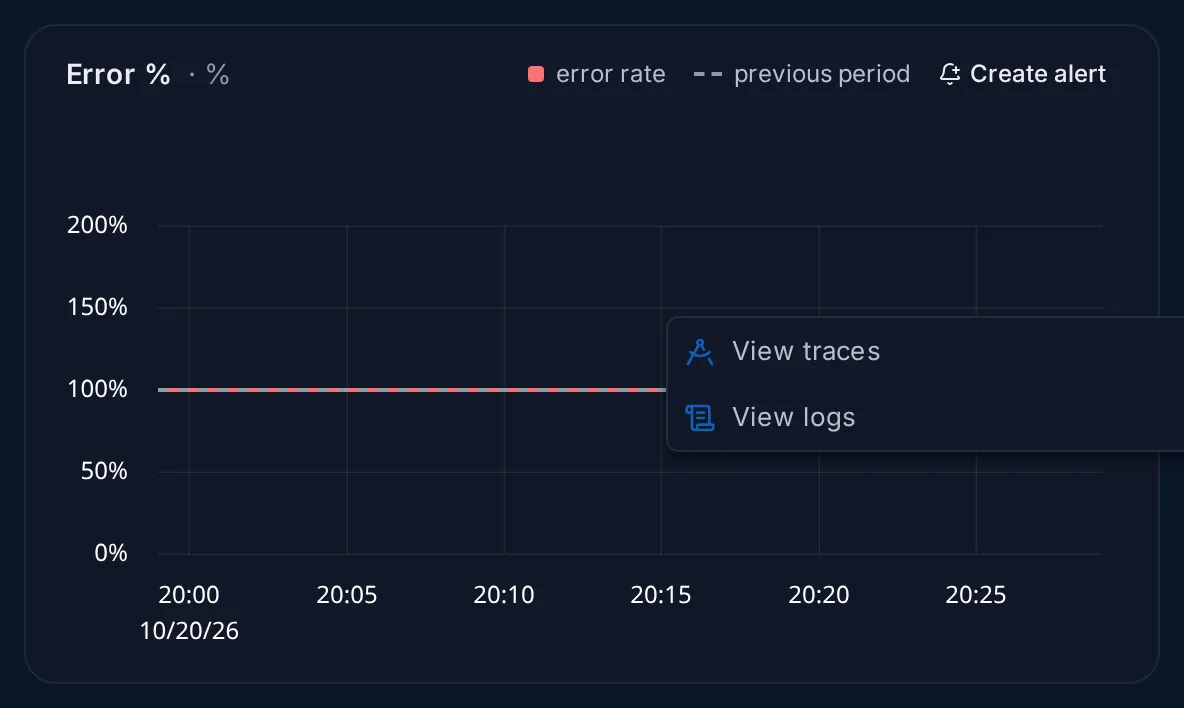
- View traces opens the service’s spans in the Traces explorer, for the time bucket you clicked.
- View logs opens the service’s logs for that bucket.
On the Error % chart, both are narrowed to errors: traces with an error status,
and logs of severity ERROR or FATAL. That makes “what went wrong at 14:05?” two
clicks away.
Latency distribution
Section titled “Latency distribution”- Latency distribution shows how many requests fell in each duration bucket, in
milliseconds, over the whole range. The bucket that holds the median is tagged
p50and the one that holds the 99th percentilep99; bars from the p99 bucket up are drawn in the second colour (at or above p99). Hover a bar for its count.
One tall bar means steady latency. Two humps mean two kinds of requests, for example cache hits and cache misses; a long tail to the right means a few requests are much slower than the rest.
Monitors
Section titled “Monitors”- Monitors lists the alert rules that watch this service, the ones that need attention first: Firing, Pending, Recovering, No data, OK, then Disabled. Under each name is the rule’s first filter. Click a rule to open it; Create alert starts a new one, and All alert rules opens the list.
A rule counts as watching the service when:
- one of its query filters has
service.name = '<service>', orservice.name IN [...]with the service in the list; or - it has a label
service.name(orserviceName,service_name) equal to the service.
A rule that covers every service without naming them, or names the service only in a
!= or NOT IN filter, is not listed. In the demo, redis-manual shows the rule
redis-manual error rate above 5%; payment shows
No alert rule covers this service yet.
Top endpoints
Section titled “Top endpoints”- Top endpoints lists the five operations where the service spends the most time, with their Rate, p99, Error % and % time spent. Click a row for its traces. All endpoints opens the Endpoints tab.
Endpoints
Section titled “Endpoints”The Endpoints tab lists everything the service does, one row per operation, with the numbers to compare them.
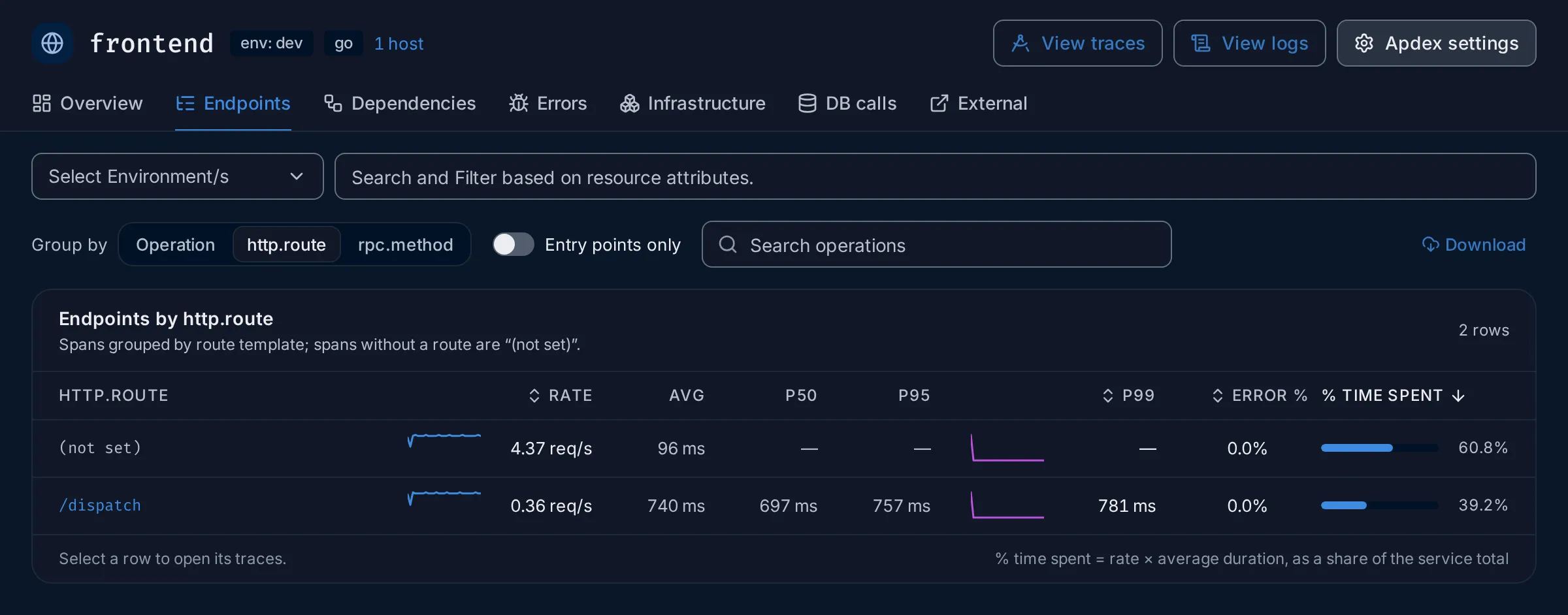
-
Group by chooses what a row is:
- Operation: the span name, such as
/dispatchorHTTP GET. This is the default. - http.route: the route template of HTTP spans, such as
/api/orders/{id}. - rpc.method: the method of gRPC spans.
Spans that don’t have the attribute are grouped into one row, (not set), shown in grey. Its percentiles are
—, because it mixes unrelated work. In the demo,frontend’s outgoingHTTP GETcalls have no route, so they land in (not set). http.route and rpc.method are only offered when the numbers come from traces (see Where the numbers come from). - Operation: the span name, such as
-
Entry points only keeps the operations where requests enter the service and hides the internal ones.
-
Search operations narrows the rows by name.
-
Download saves the table as CSV or Excel.
| Column | Meaning |
|---|---|
| Operation (or the attribute) | Click it, or the row, to open its traces |
| Rate | Requests per second, with a sparkline |
| Avg, p50, p95 | Average and percentile latency |
| p99 | 99th-percentile latency, with a sparkline |
| Error % | Share of its spans that failed; red and bold at 5% or more |
| % time spent | Its share of all the time the service spent, see below |
% time spent is rate × average duration, as a share of the service’s total. A fast operation called very often can take more of the service’s time than a slow one called rarely, and that is where speeding things up pays off most. The table is sorted by it until you click Rate, p99, Error % or % time spent. It shows ten rows per page.
Clicking a row opens the Traces explorer filtered on that operation, or on the attribute value. For (not set), it shows the spans where the attribute does not exist.
Dependencies
Section titled “Dependencies”The Dependencies tab shows what the service calls (downstream) and what calls it (upstream), from the same parent and child spans the Service Map uses.
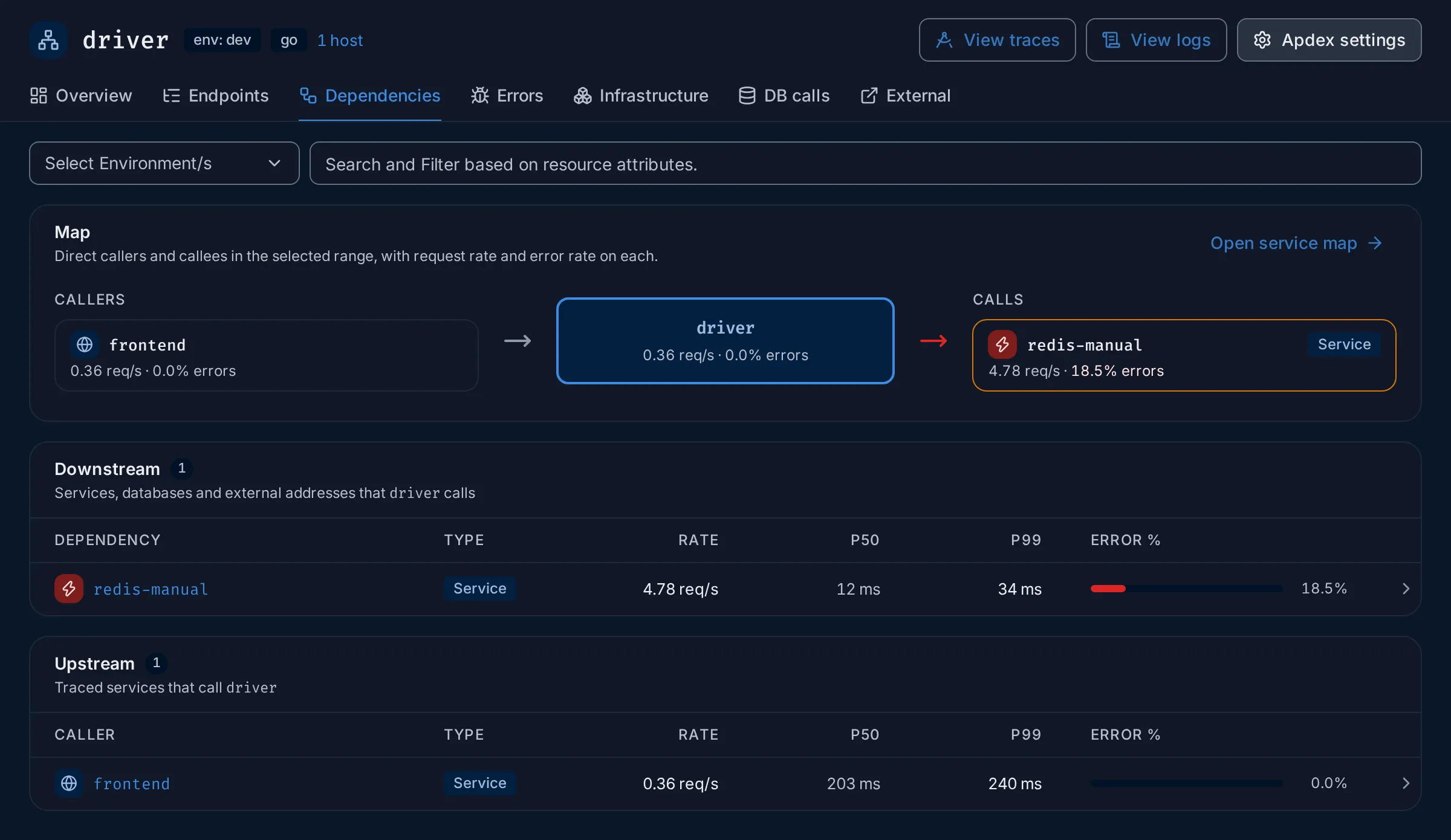
- Map: the callers on the left, the service in the middle with its rate and error rate, and what it calls on the right. Each box shows its own rate and error rate. A box gets an amber outline at 5% errors and a red one at 50%; the arrow towards a column turns red when any box in it is at 5% or more. Open service map opens the full map.
- Downstream: the services, databases and external addresses the service calls, with Type, Rate, p50, p99 and Error %, failing ones first.
- Upstream: the traced services that call it.
| Type | What it is |
|---|---|
| Service | Another traced service |
| Database | A peer named in peer.service on database calls |
| External | An address the service calls that sends no traces itself, such as a third-party API |
The type icon in each row follows the service type rules. Click a row to open that service’s page; for an External address, the External APIs page for it.
An empty Upstream with No traced callers in this range is normal for a service
that browsers or other untraced clients call directly: they send no trace context, so
there is no caller span to link to.
Errors
Section titled “Errors”The Errors tab answers “what is failing, and why?”. It counts every span of the service with an error status, internal operations included, so its numbers can be larger than the request counts on the Overview.
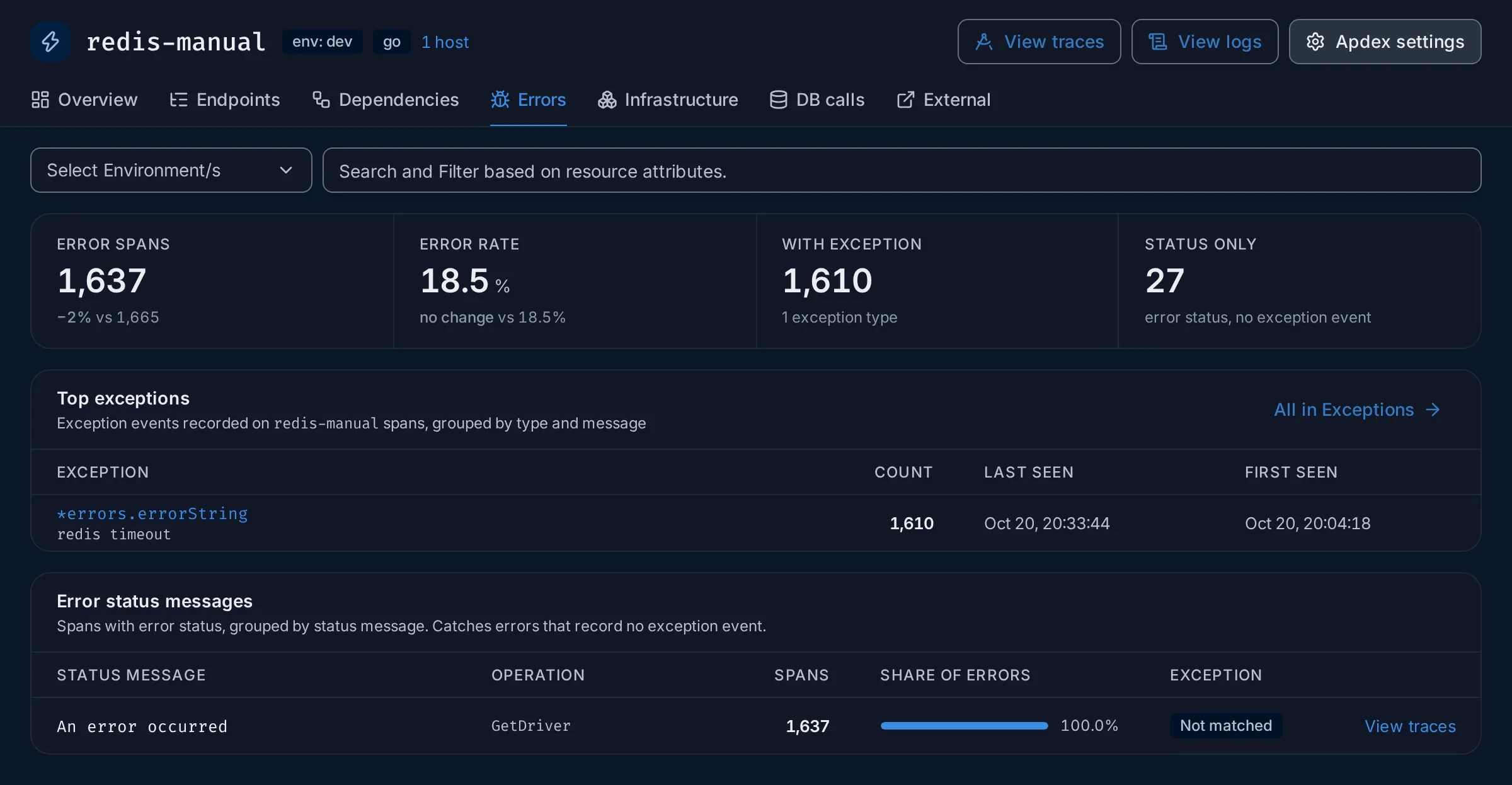
A span can say it failed in two ways, and this tab shows both:
- An exception: the code recorded an
exceptionevent on the span, with a type, a message and often a stack trace. This is what most SDKs do for an uncaught error. - A status message: the span’s status is error, with an optional short message. Some code sets the status without recording an exception, so those failures have no stack trace.
The tab has three parts:
- Summary: Error spans and Error rate, each against the previous period; With exception (and how many exception types); Status only, the error spans with no exception event.
- Top exceptions: the exceptions recorded on the service, grouped by type and message, with Count, Last seen and First seen. Click one for its stack trace and occurrences on the exception’s page; All in Exceptions opens the Exceptions page.
- Error status messages: error spans grouped by status message and operation, with
Spans and Share of errors. A span without a message shows
(no status message). View traces opens those spans. The Exception column says whether the message matches an exception:
| Exception | Meaning |
|---|---|
| Recorded | The service recorded an exception with exactly this message |
| None | The service recorded no exception at all in the range: these failures only set a status |
| Not matched | The service recorded exceptions, but none with this message. The error is probably described differently in the exception; check Top exceptions |
Infrastructure
Section titled “Infrastructure”The Infrastructure tab lists the hosts that served the service’s requests: each
value of the host.name resource attribute on its spans.
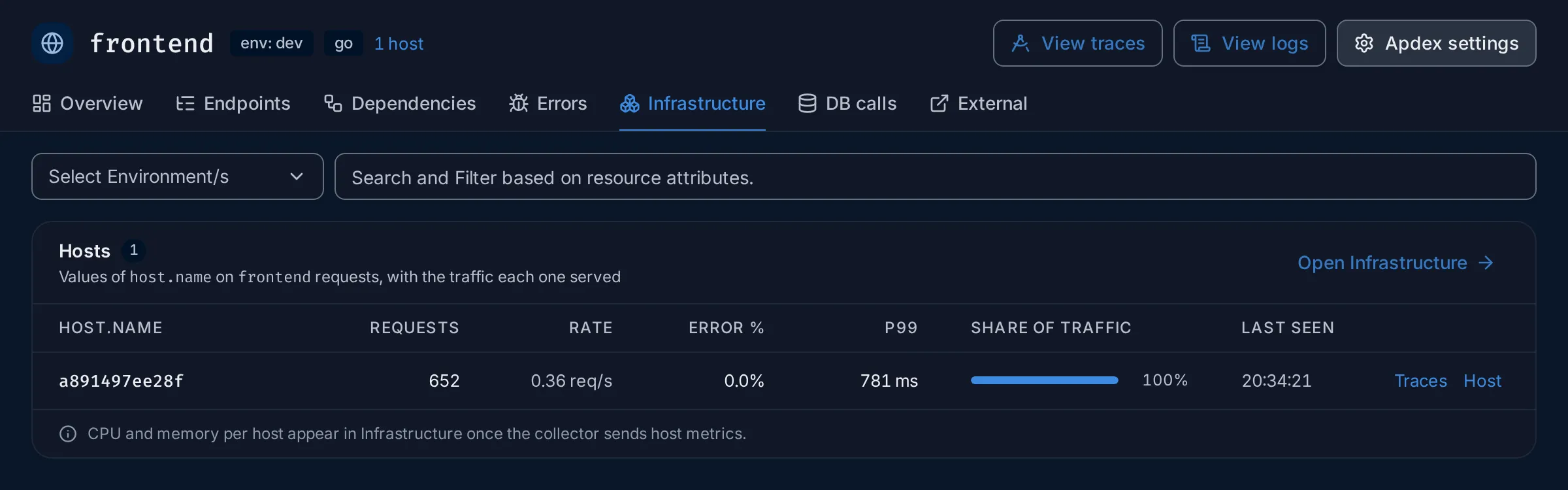
For each host: Requests, Rate, Error %, p99, Share of traffic and Last seen. Traces opens the service’s traces from that host; Host opens the host on the Infrastructure page. A host that fails much more than the others, or takes all the traffic, is easy to spot here.
The hosts come from your traces, so they appear as soon as your SDK sets host.name
(most do, or the collector’s resource detection adds it). CPU and memory are a
different matter: they come from host metrics, which the collector sends only when
its host metrics receiver is on. Until then, Open Infrastructure shows no CPU or
memory for the host. When no span carries host.name, the table says so.
DB calls
Section titled “DB calls”The DB calls tab charts Database Calls RPS and Database Calls Avg Duration,
one line per database system (db.system, such as mysql or postgresql).
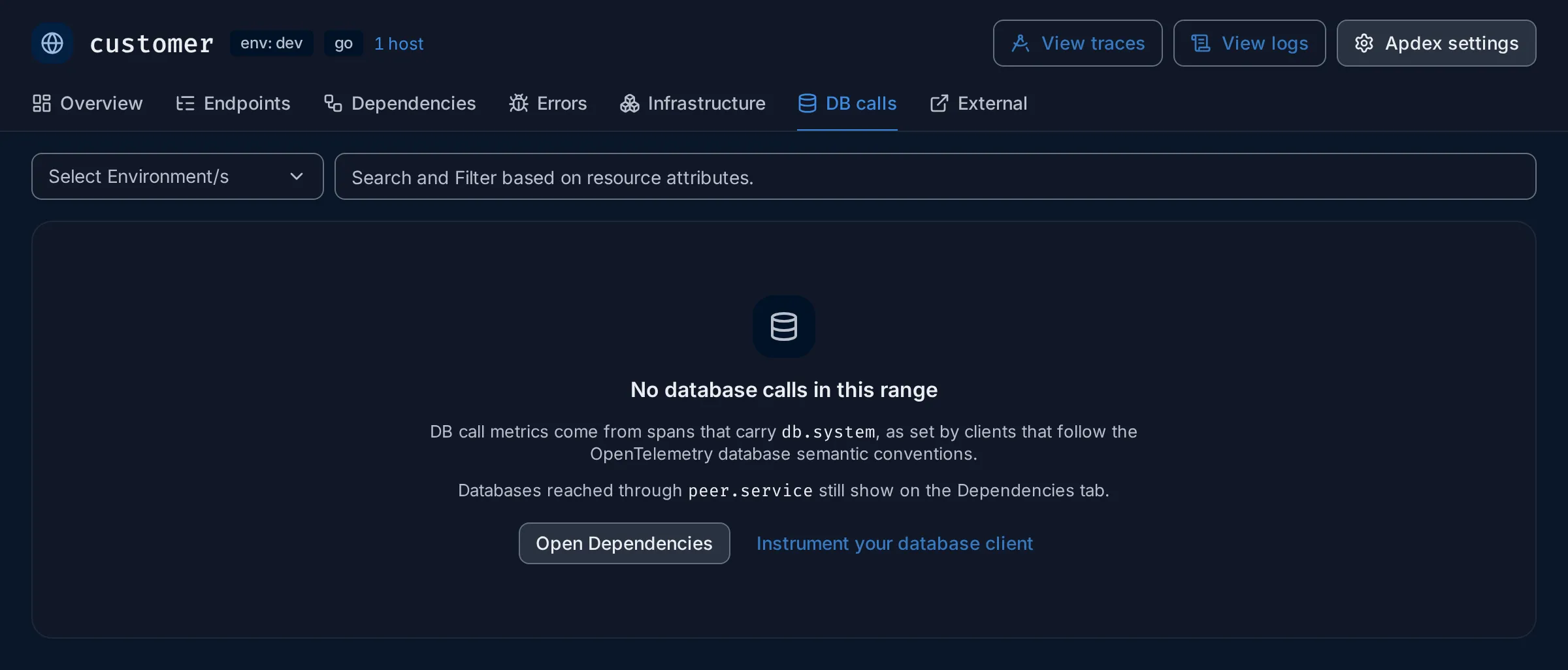
The charts need client spans that carry db.system, which database client
instrumentations set when they follow the OpenTelemetry database conventions. Without
them the tab shows No database calls in this range. In that case:
- Open Dependencies: databases the service reaches through
peer.servicestill appear on the Dependencies tab. - Instrument your database client: add the instrumentation library for your database driver; see Instrument applications.
The HotROD demo fakes its database and cache calls without db.system, so this tab is
empty for every demo service; customer’s calls to mysql show on its Dependencies
tab.
External
Section titled “External”The External tab charts the service’s calls to other addresses: External Call Error Percentage, External Call duration, External Call RPS(by Address) and External Call duration(by Address). Click a point for View traces, View logs or View External APIs, which opens the External APIs page for that address.
Apdex threshold
Section titled “Apdex threshold”Apdex settings at the top of the service page opens Application Settings. Set
Apdex threshold (in seconds), such as 0.3 for 300 ms, and click Save. The
default is 0.5 seconds. The Apdex KPI and chart use the new value right away; it is
saved per service for everyone.
Pick T as the time your users consider fast enough for this service’s typical request: a few hundred milliseconds for an API, more for a report.
Example: why is payment failing?
Section titled “Example: why is payment failing?”The demo’s payment service fails every request. Here is how you would find out what
is going on, starting from the list. The numbers are from the HotROD demo over the last
30 minutes.
-
Spot it in the list. Open Services. The count line reads
7 services in the selected range · 1 with highlights, andpaymentis at the top with a red 100% errors badge. Hover the badge:Error rate at or above 50%. Its Error % is100%and has been for the whole range (no change), at 0.17 req/s. -
Open the Overview. Click
payment. The KPIs read about 300 requests, all of them errors: Error rate100.0%, p99 latency500 ms. Highlights shows 2 active:- Error rate 100%:
100% of requests failed, against 100% in the previous period. - Downstream 1.2.3.4 fails 100% of calls:
paymentcalls an external address,1.2.3.4, and every call fails.
So the failure is not new, and it goes together with a failing outgoing call.
- Error rate 100%:
-
Check the dependency. Click View dependency. The Dependencies tab shows no callers (
paymentis an entry point) and one downstream:1.2.3.4, type External, at 0.17 req/s with100%errors. -
Read the errors. Open the Errors tab. Error spans is about 900, three times the request count, because each request runs three operations (
lets-go,okey-dokey-0andokey-dokey-1) and all three fail. With exception is0and Status only about 900: the code sets an error status but records no exception. Error status messages confirms it: three rows of(no status message), a third each, with ExceptionNone. -
Look at the traces. Click View traces on the
lets-gorow, or go back to the Overview and click View error traces in the highlight. The Traces explorer opens withserviceName in ['payment'] AND hasError in ['true'], listinglets-gospans of 500 ms andokey-dokeyspans of 250 ms. Open one to read it in Trace details.
What you learn: payment has failed on every request for the whole range, its
calls to 1.2.3.4 fail too, and the code records no exception or message, so the
trace and the attributes of its spans are the only clues. The fix starts in the code:
record the exception (span.recordException()) and set a status message, so the next
failure explains itself.
Example: what does driver depend on, and is it healthy?
Section titled “Example: what does driver depend on, and is it healthy?”driver itself shows no errors in the list. But does it rely on something that
fails?
-
Open driver. In Services, click
driver(RPC icon, about 0.36 req/s,0.0%errors, p99 about 240 ms). -
Open Dependencies. The map shows
frontendcallingdriver, anddrivercallingredis-manual. Theredis-manualbox has an amber outline and reads4.77 req/s · 18.5% errors; the arrow towards it is red. In Downstream,redis-manualis a Service with a Cache icon, p5012 ms, p9935 msand18.5%errors.drivercallsredis-manualabout 13 times for each request it serves, and almost one call in five fails.driverstill answers successfully, so it retries or skips the failed lookups, which costs time. -
Follow the dependency. Click
redis-manual. Its Overview reads an error rate of18.5%, steady against the previous period, so there is no highlight: 18.5% is below the 50% rule and hasn’t doubled. Monitors lists the ruleredis-manual error rate above 5%(Disabled in the demo). Top endpoints shows the culprit:GetDriver, with20.0%errors and about 90% of the time spent. -
Read the errors. Open Errors. Top exceptions has one entry,
*errors.errorStringwith the messageredis timeout, about 1,600 times. Under Error status messages,An error occurredonGetDriverholds 100% of the errors, marked Not matched: the status message and the exception message differ, but they are the same failures. -
Drill down to traces. Click View traces on that row. The Traces explorer opens with
serviceName in ['redis-manual'] AND hasError in ['true'] AND name in ['GetDriver'] AND status_message in ['An error occurred']. Open a span and look at its Events tab for theredis timeoutexception, and at the waterfall to see howdrivercarries on after the failed call.
What you learn: driver depends on redis-manual, which times out on almost one
GetDriver call in five. It doesn’t show in driver’s own error rate, but it adds to
its latency. Turning on the existing alert rule would warn you when it gets worse.
Service map
Section titled “Service map”Service Map (/service-map, also Service map on the services list) draws every
service and the calls between them, colours them by health and points at the service
where errors most likely start. It has its own page:
Service Map. For one service’s direct neighbours,
the Dependencies tab is quicker.
Exceptions
Section titled “Exceptions”Exceptions (/exceptions) groups the exceptions recorded on spans across all
services, with each one’s stack trace, logs and trace. It has its own page:
Exceptions. A service’s own exceptions are also on
its Errors tab.
If something is missing
Section titled “If something is missing”- A service is missing from the list. It sent no spans in the time range, or the filters exclude it. Widen the range and clear the filters. A service that only receives calls and sends nothing itself, such as a third-party API, is not a service here; it shows as External on its callers’ Dependencies tab.
- No language, environment or hosts in the header. The SDK doesn’t set
telemetry.sdk.language,deployment.environmentorhost.name. Set them withOTEL_RESOURCE_ATTRIBUTESor the SDK’s resource detectors. - No deltas or badges. There is no data for the previous period yet, for example right after you start sending.
- No latency distribution. It reads span metrics; check that the collector’s span metrics are enabled.
Related
Section titled “Related”- Investigate a slow endpoint and Find out why a service is failing: step-by-step guides.
- Core concepts: spans, entrypoint spans, percentiles and Apdex.
- Trace details: read one request end to end.
- Alert rules: get notified when a service degrades.