

Frontend alerts
RUM data is stored as ordinary logs, so frontend alerts are ordinary logs-based alert rules. Three templates fill the query, the condition and the name for you; you only pick a notification channel and save. Creating and editing rules needs the Admin or Editor role.
Use them when you want to know, without watching the screens, that pages became slow, that more users hit errors, or that one particular error came back.
The templates
Section titled “The templates”| Template | Fires when | Query | Condition |
|---|---|---|---|
| LCP p75 above 2.5 s | Largest Contentful Paint gets slow, one alert per route. | p75(browser.web_vital.value) of browser.web_vital events with browser.web_vital.name = 'lcp', grouped by fusescope.rum.view.route |
ABOVE 2.5 s ALL THE TIME |
| Session error rate above 5% | More than 5% of sessions hit a JavaScript error. | A: sessions with an exception event; B: all sessions (both count_distinct(session.id)); formula F1 = A / B * 100 |
ABOVE 5% AT LEAST ONCE |
| JS errors above 10 | More than 10 errors in the evaluation window. | count() of exception events |
ABOVE 10 IN TOTAL |
Every template is filtered to one application with fusescope.rum.application.id. Change
the values freely before saving: the threshold, the route, or Group By
service.version to get one alert per release. With the default evaluation window,
Last 5 minutes, JS errors above 10 means more than 10 errors in 5 minutes. See
Conditions for what ALL THE TIME,
AT LEAST ONCE and IN TOTAL mean.
Start from a template
Section titled “Start from a template”From anywhere, open Alerts, click New Alert and choose Log-based Alert. When you have RUM applications, a Start from a frontend template panel sits above the query:
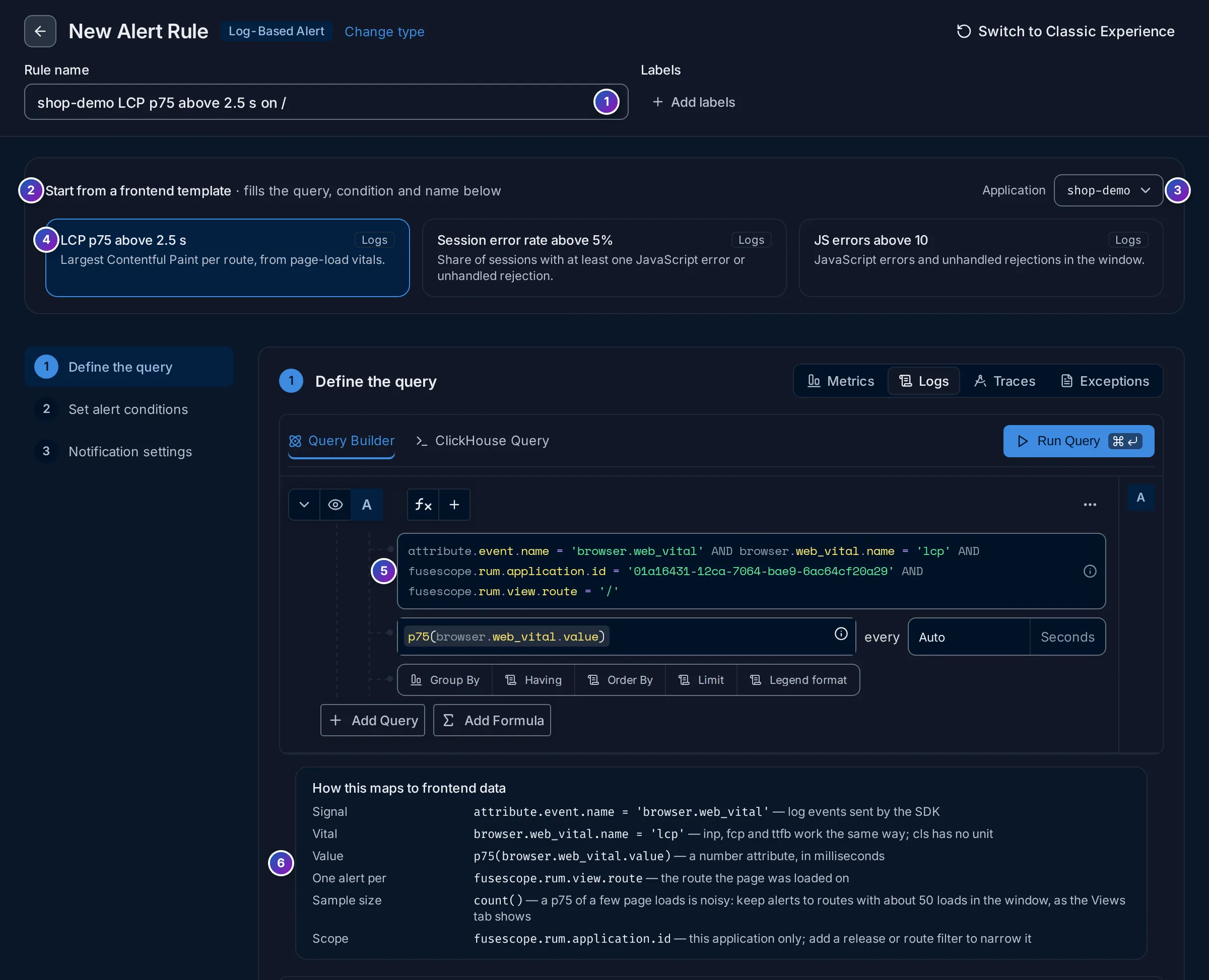
- Rule name: filled from the application and the template, such as
shop-demo LCP p75 above 2.5 s on /. Rename it as you like. - Start from a frontend template fills the query, the condition and the name.
- Application: the RUM application the rule watches.
- The templates; the selected one is highlighted. Picking another replaces the query.
- The query the template wrote, here LCP events of
shop-demoon the route/. - How this maps to frontend data: which events and attributes each part of the query reads, and tips such as keeping the LCP alert to routes with about 50 page loads in the window, since a p75 of a few loads is noisy.
Then set the notification channel in Notification settings and click Save Alert Rule. The rule then behaves like any other; see Alert rules.
Start from the RUM screens
Section titled “Start from the RUM screens”The RUM screens open the same editor with the template already applied:
-
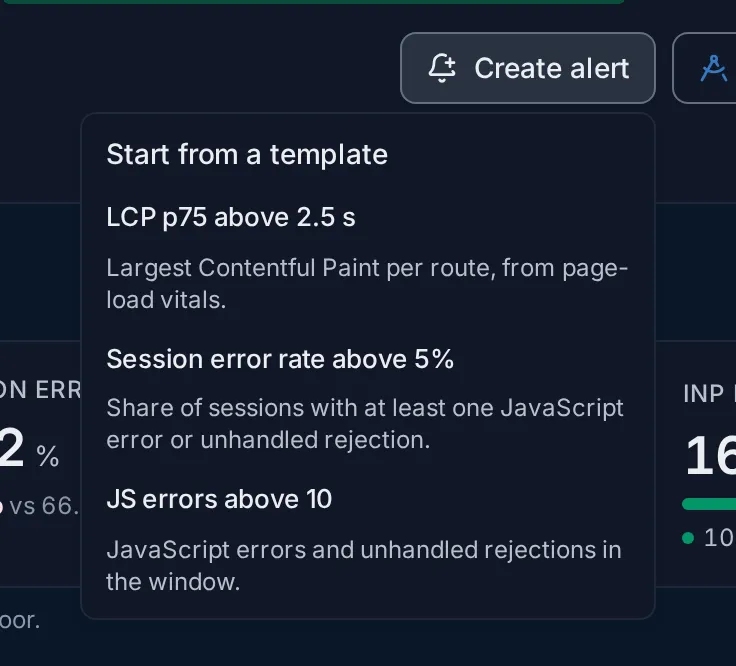
Create alert in an application’s header offers the three templates for that application. LCP p75 above 2.5 s is grouped by route, so each route alerts on its own.
-
Create alert in a route’s detail starts LCP p75 above 2.5 s filtered to that route.
-
Alert on this error in an error’s detail starts JS errors above 10 filtered to that exception type and message.
Example: be told when a release slows a page
Section titled “Example: be told when a release slows a page”-
Open the route. In Views, click the route your users land on, such as
/. -
Create the alert. Click Create alert in the sheet. The editor opens with
shop-demo LCP p75 above 2.5 s on /. -
Check the preview. The chart under the query draws the route’s LCP p75 with the 2.5 s threshold as a dashed line. If the line is far below it, the threshold is right.
-
Choose who is told. In Notification settings, pick a channel, such as
slack-oncall, and click Save Alert Rule.