

Applications and Overview
Frontend (/frontend/applications, under Observe in the sidebar, marked
Beta) lists your Real User Monitoring
applications. Click one to open its overview.
Use these screens when you want to know how fast your pages are for real users, which JavaScript errors they hit, or which backend request was behind a slow or failing page.
All numbers follow the time range at the top right, Last 30 minutes by default.
The applications list
Section titled “The applications list”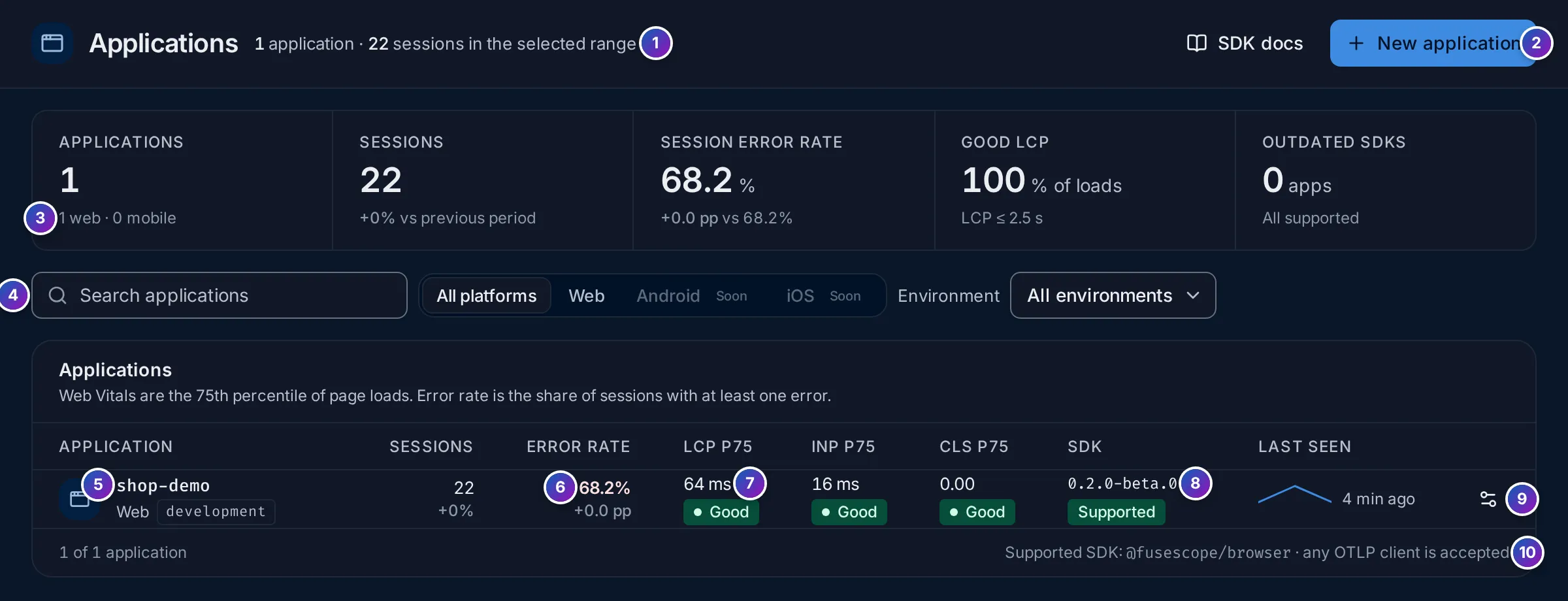
- Count line: how many applications there are and how many sessions they had in the range.
- New application: create one; see Set up a web application or Set up an Android application. SDK docs opens the SDK’s README.
- KPI strip, over every application:
- Applications, with how many are web and mobile;
- Sessions;
- Session error rate: the share of sessions with at least one error;
- Good LCP: the share of page loads with an LCP of 2.5 s or less;
- Outdated SDKs: applications whose latest data came from an SDK version this server no longer supports, or All supported.
- Search applications by name, and filter by platform (Web or Android) and Environment.
- Application: its name, platform and environment. Click the row to open its overview.
- Sessions and Error rate, with the change from the previous period of the same length.
- LCP p75, INP p75 and CLS p75, each rated Good, Needs work or Poor. See Web Vitals in plain words.
- SDK: the SDK and version the application last reported, such as
@fusescope/browserorio.fuseone.fusescope:android, and its support badge: Supported, Outdated (data is still accepted) or Other client for another OpenTelemetry SDK. Last seen shows recent activity and when the last data arrived, or No data yet. - Settings opens the application’s sheet: Settings, Public key, Install and Source maps, or R8 mappings for an Android application.
- Supported SDK: the SDK this server is tested with. Any OTLP client is accepted.
Platform and allowed sources
Section titled “Platform and allowed sources”Each application has a platform, Web or Android, chosen when you create it and fixed afterwards. iOS is shown as coming soon. The platform decides who may send data with the application’s key, which the gateway checks on every request:
| Platform | Allowed | Matched against | Examples |
|---|---|---|---|
| Web | Allowed origins | the browser’s Origin header |
https://shop.example.com, https://*.example.com, * |
| Android | Allowed package names | the app.package.name resource attribute, the app’s applicationId |
com.example.shop, com.example.shop.*, * |
- A wildcard entry such as
com.example.shop.*matches sub-packages, such ascom.example.shop.debug, nevercom.example.shopitself. - An Android application refuses requests that carry an
Originheader, or whose package is missing or not allowed. A web application can’t have package names, nor an Android one origins. - Both lists are server settings: a change applies when you save, without a new app build.
The other settings, sampling, consent and privacy, are the same for both platforms; see Set up a web application and Set up an Android application.
The overview
Section titled “The overview”Click an application to open its overview (/frontend/applications/<id>). Here it is
narrowed to release 1.0.0:
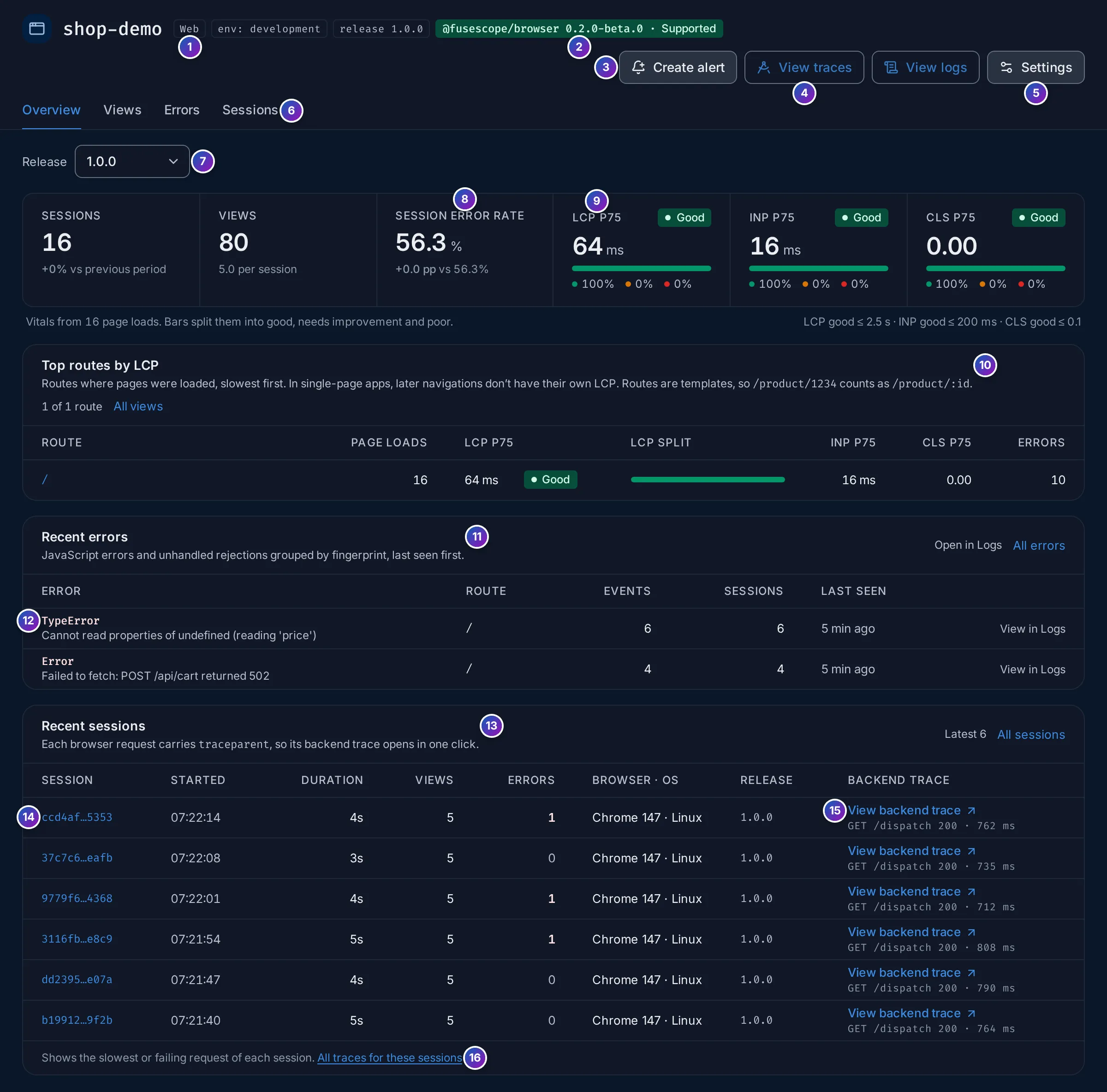
Header
Section titled “Header”- Badges: the platform (Web or Android), the environment and the release,
which is the
versionyour app passes toinit()(on Android, therelease, by default theversionName): the latest one, or the one selected in Release. - SDK badge: the SDK and version last seen, such as
@fusescope/browser 0.2.0-beta.0 · Supported. - Create alert starts an alert rule from a frontend template: LCP p75, session error rate or JavaScript errors. See Frontend alerts.
- View traces and View logs open the Traces and Logs explorers filtered to this application. RUM spans (views and requests) are traces; errors, Web Vitals and clicks are logs.
- Settings opens the application’s sheet: Settings, Public key, Install and Source maps.
- Tabs: this Overview, then Views (one row per route), Errors (errors grouped, with their stack traces) and Sessions (every visit, with its timeline). The release and the time range follow you from tab to tab.
Key numbers
Section titled “Key numbers”- Release: narrow every tab to one release, to compare a new version with the previous one.
- Sessions, Views (with views per session) and Session error rate, the share of sessions with at least one error, each compared with the previous period of the same length.
- LCP p75, INP p75 and CLS p75, each with its rating and a bar that splits the page loads into good (green), needs improvement (amber) and poor (red). The line under the strip says how many page loads the vitals come from, and the thresholds for good.
Panels
Section titled “Panels”- Top routes by LCP: one row per route template where pages were loaded, slowest
LCP first, with the number of Page loads, LCP p75 and its split, INP p75,
CLS p75 and Errors. Vitals belong to the route the page was loaded on, so a
single-page app that is always entered through
/shows mostly/here. All views opens the Views tab, which has every route. - Recent errors: errors (on Android, crashes and ANRs too) grouped by fingerprint, with the Route, the number of Events and of Sessions affected, and Last seen. Open in Logs shows all of them in the Logs explorer; All errors opens the Errors tab.
- Click an error to open its detail, with its stack trace. View in Logs opens its events.
- Recent sessions: the latest sessions with when they Started, their Duration, number of Views and Errors, Browser · OS (Device · OS on Android, such as Google Pixel 8 · Android 14) and Release. All sessions opens the Sessions tab.
- Click a session to open its timeline.
- View backend trace opens, in
Trace details, the backend trace of the
session’s slowest or failing request, such as
GET /dispatch 200 · 759 ms. No backend requests means the session made no linked request. - All traces for these sessions opens the Traces explorer filtered to their
session.idvalues.
Example: errors, and the backend behind a click
Section titled “Example: errors, and the backend behind a click”The numbers are from the shop-demo sample application. Its Order a ride button
calls the HotROD demo’s /dispatch API, and two buttons raise JavaScript errors.
Release 2.0.0 is a bundled build whose source maps are uploaded.
-
Open the application. In Frontend, the
shop-demorow shows 22 sessions and an Error rate of 68%: more than half the visits hit an error. LCP, INP and CLS are all Good, so the pages are fast; the problem is errors. -
Read the errors. In Recent errors,
TypeErrorCannot read properties of undefined (reading ‘price’) is an uncaught error, a bug in the page’s code.ErrorFailed to fetch: POST /api/cart returned 502 is an unhandled promise rejection. -
See the stack trace. Click the
TypeError. Its detail shows the original code when source maps are uploaded for the release, and the clicks and requests that led to it. See Errors. -
Open the backend side of a click. Back on the overview, in Recent sessions, each row’s Backend trace shows the session’s slowest request, such as
GET /dispatch 200 · 759 ms. Click View backend trace: Trace details opens the trace that started in the browser, with the browser’s request span and, under it, the spans of the HotROD services that answered it. That is where the time went.
What you learn: the pages are fast but fragile: two JavaScript errors account for the error rate, and the slowest user-facing wait is a backend call you can now read span by span.