

Metrics explorer
The Metrics explorer lists the metrics FuseScope receives, explains each one, and charts them.
Use this page when you want to know which metrics exist and what they measure, or to chart one before putting it on a dashboard or in an alert. For the latency and errors of your services you don’t need metrics at all: Services computes them from traces.
Open the Metrics page
Section titled “Open the Metrics page”Click Metrics in the sidebar. The page has these tabs:
- Summary (
/metrics-explorer/summary): every metric received in the time range, with its type, unit and size. See Browse metrics. - Explorer (
/metrics-explorer/explorer): build queries and chart them. See Chart a metric. - Views: the metric queries you saved. See Views, alerts and dashboards.
- Volume Control, only when metrics reduction is enabled for the workspace: compares what is ingested with what the reduction rules keep.
Metric basics
Section titled “Metric basics”If you are new to metrics, read this section first. The rest of the page assumes it.
A metric is a number with a name, measured again and again over time, such as
http.server.request.count or system.memory.usage. Each measurement is a
sample: one value at one moment.
Metric types and temporality
Section titled “Metric types and temporality”The type tells FuseScope what the numbers mean and how they may be added up. The Summary shows it as a coloured badge.
| Type | What it holds | Example | Usual query |
|---|---|---|---|
| Sum | A total. A counter when it only goes up. | Requests served | Rate, then Sum |
| Gauge | The value right now; it goes up and down. | Memory in use, queue length | Avg or Max, then Avg or Sum |
| Histogram | How many values fell in each range (bucket). | Request durations | P50 to P99 |
| Exp. Histogram | A histogram whose buckets grow exponentially, so it needs no bucket setup. | Request durations | P50 to P99 |
| Summary | Percentiles the application computed itself. | Older Prometheus clients | As a gauge |
A Sum is monotonic when it can only grow, like requests served. A non-monotonic Sum, such as items in a cart, can also shrink, and is queried like a gauge.
Temporality says how a counter reports its value. Picture a page-view counter on a web server:
- Cumulative: every report gives the total since the server started: 100, then 160, then 230. Each number includes all the earlier ones.
- Delta: every report gives only what happened since the last one: 100, then 60, then 70.
You don’t need to convert between them: FuseScope reads the temporality and computes rates correctly for both. You see it in the metric details.
Samples and time series
Section titled “Samples and time series”A metric is rarely one line. Every combination of its
attribute values is a separate
time series. A request counter with
service.name (5 services) and http.route (10 routes) can have up to 50 time series,
each with its own samples.
The Summary shows both numbers for every metric:
- Samples: how many values arrived in the time range. More series or a shorter reporting interval means more samples.
- Time series: how many separate series the metric has, its cardinality. An attribute with many values, such as a user or request ID, multiplies it quickly, which makes storage and queries more expensive.
Why counters are queried with a rate
Section titled “Why counters are queried with a rate”A counter only grows, so its raw value says little: “4,182,051 requests since the pod started” changes every time the pod restarts. What you want to know is how fast it grows. Rate turns the counter into per second: “35 requests per second”. Increase gives the growth per interval instead, such as 2,100 requests per minute.
That is why, when you pick a counter in the Explorer, the aggregation starts as Rate.
Browse metrics
Section titled “Browse metrics”Summary lists every metric received in the selected time range.
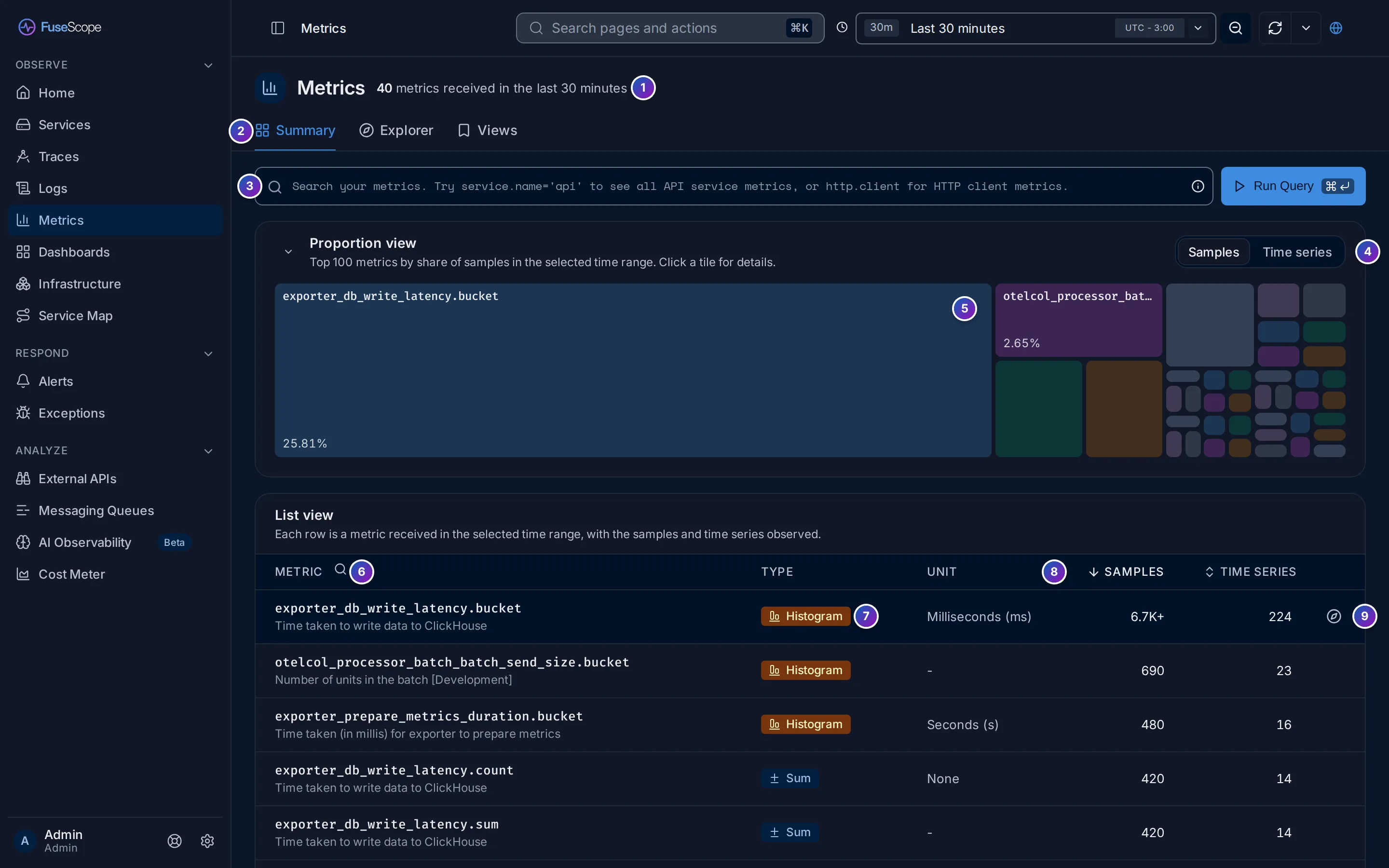
- Count line: how many metrics arrived, such as
40 metrics received in the last 30 minutes. It follows the search and the time range. - Tabs: Summary, Explorer and Views.
- Search bar. Filter by attribute, such as
service.name = 'api'for the metrics an API service sends, or type part of a name, such ashttp.client. Click Run Query to apply it. - Samples or Time series: what the Proportion view sizes its tiles by.
- Proportion view: the top 100 metrics as tiles, each sized by its share of the total. The biggest tile is the metric that sends the most data. Click a tile to open its details; the arrow next to the title folds the view away.
- List view and its name search: the magnifier next to Metric looks up a metric by name.
- Type badge: Sum, Gauge, Histogram, Exp. Histogram or Summary. Under each name is its description, when the metric has one.
- Samples and Time series columns. Click a header to sort by it; the list starts sorted by samples, largest first.
- Open in Explorer appears when you hover a row: it charts the metric in the Explorer with a query that suits its type.
Click a row to open its details. The pager at the bottom of the list moves between pages and changes how many rows each one shows.
Metric details
Section titled “Metric details”Clicking a metric opens its details in a panel on the right.
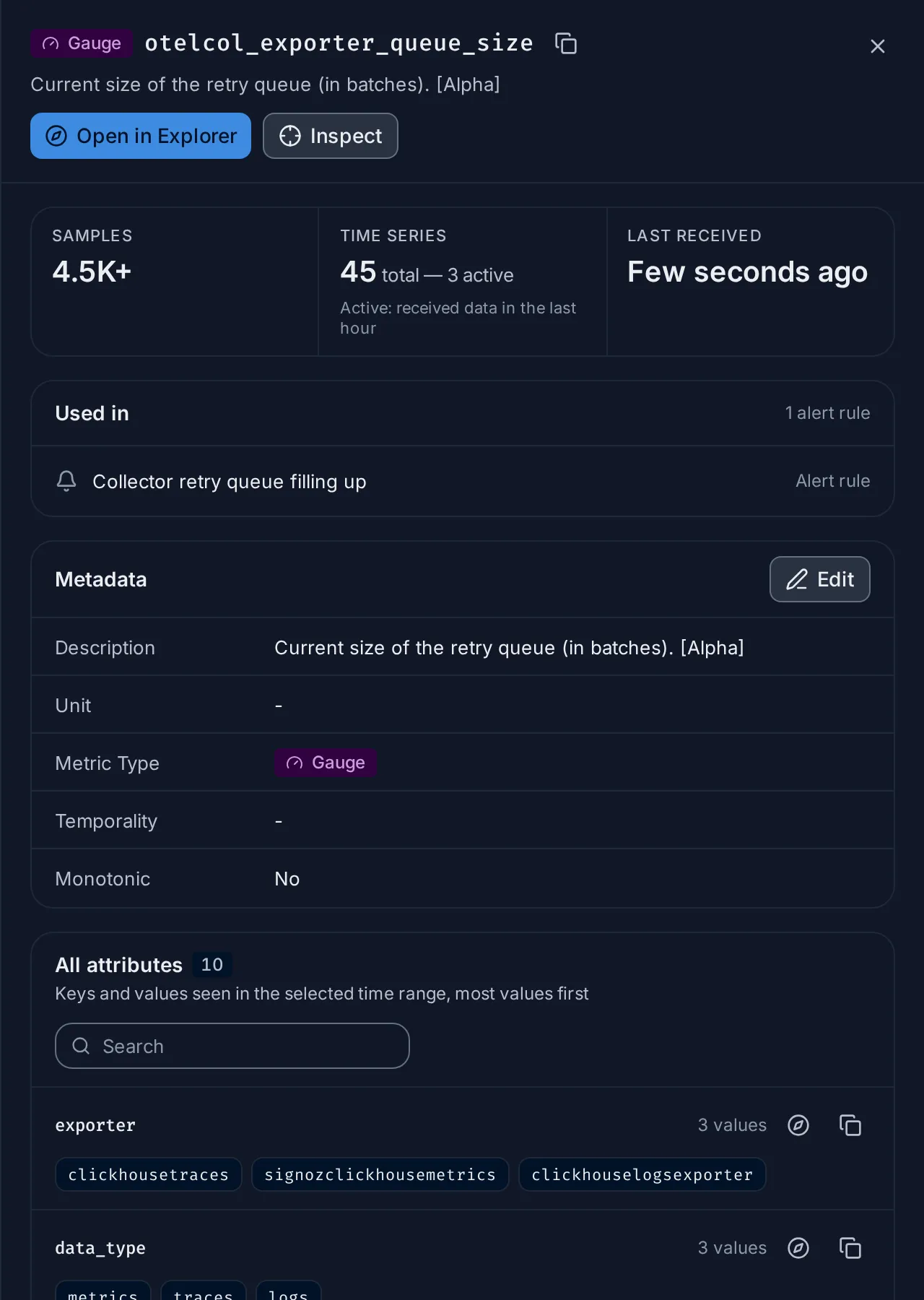
- The header has the type badge, the name (the copy icon copies it) and the description. Open in Explorer charts the metric. Inspect appears on gauges only.
- Samples, Time series and Last received. Time series reads, for example,
45 total — 3 active: active series received data in the last hour, the others only earlier. Hover a value for the exact number or date. - Used in lists the dashboards and alert rules whose queries use the metric; click one to open it. It is hidden when nothing uses the metric. Check it before you rename or stop sending a metric.
- Metadata: description, unit, metric type, temporality and whether it is monotonic. See Edit metadata.
- All attributes. See Attributes.
The panel follows the time range of the page. Close it with the × or Esc.
Edit metadata
Section titled “Edit metadata”The metadata decides which aggregations the query builder offers and how values are labelled, so it pays to get it right. Click Edit in Metadata, change the fields and click Save.
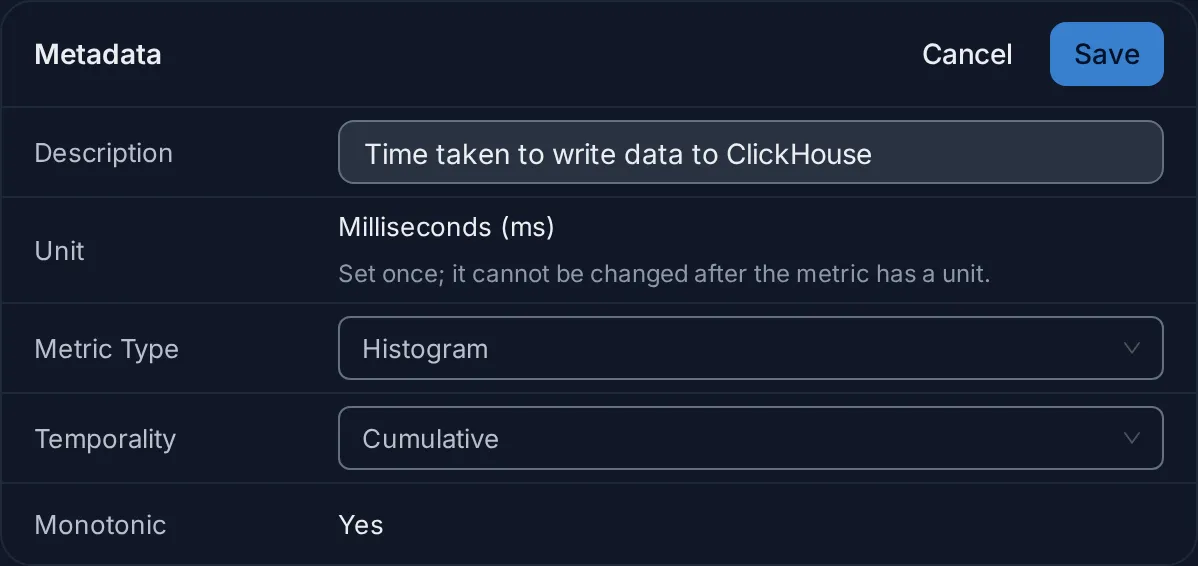
| Field | Can you change it? |
|---|---|
| Description | Yes, at any time. |
| Unit | Only while the metric has none. Once set, it is locked: Set once; it cannot be changed after the metric has a unit. |
| Metric Type | Yes: Sum, Gauge, Histogram, Summary or Exponential Histogram. |
| Temporality | Yes: Delta or Cumulative. |
| Monotonic | No. It comes from the data the application sends. |
Attributes
Section titled “Attributes”All attributes lists the attribute keys seen on the metric in the time range, the keys with most values first, with the number of values and up to five of them. Search matches keys and values.
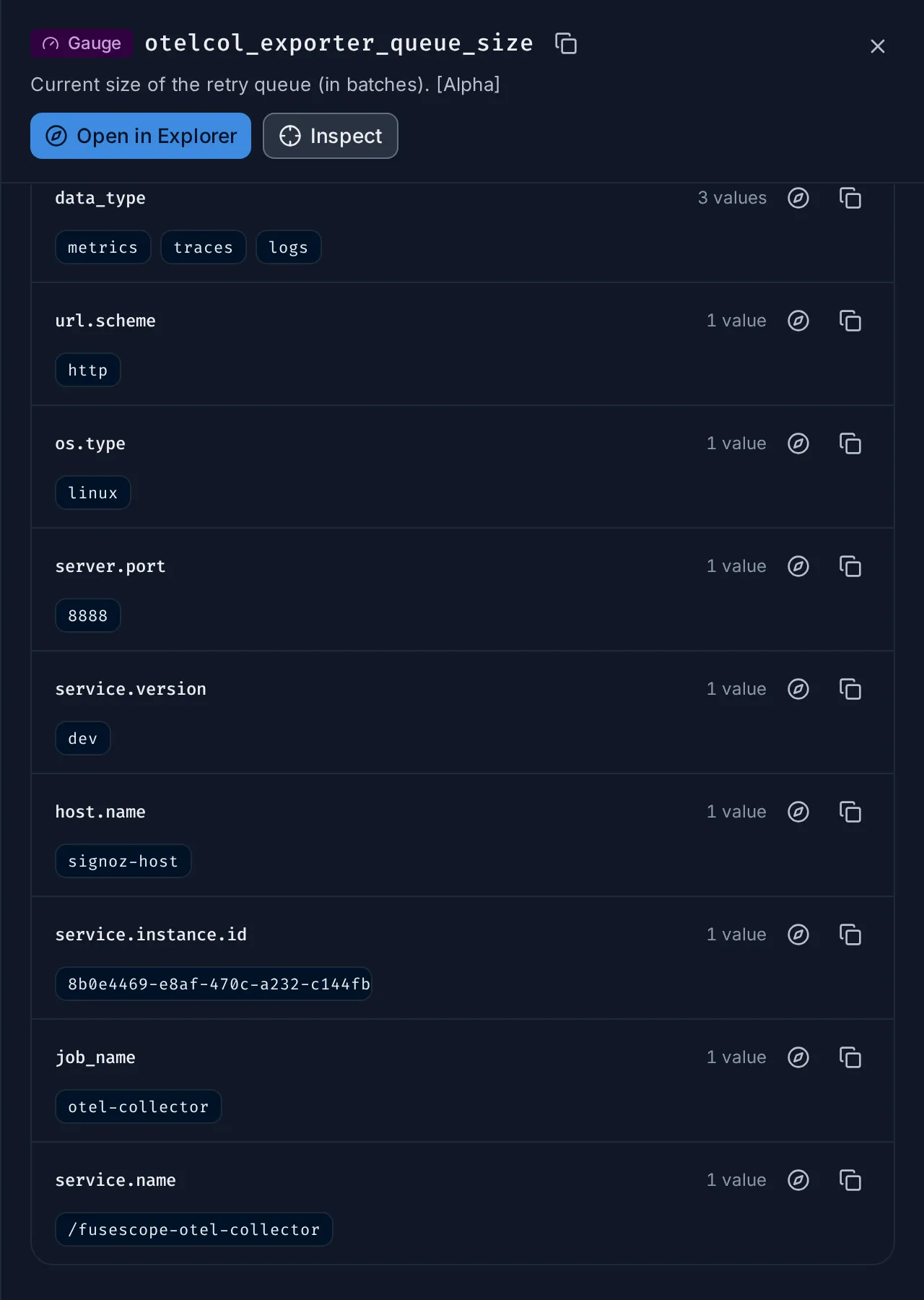
- The compass icon, Open in Metric Explorer, charts the metric split by that key: one line per value.
- The copy icon, Copy Key, copies the key name, ready to paste into a filter.
- Click a value for Open in Metric Explorer, which charts only the series with that value, or Copy Value.
- All values (n) opens the full list when there are more than five, with its own search.
Chart a metric
Section titled “Chart a metric”The Explorer tab charts metrics. Queries sit in a panel on the left and the charts on the right.
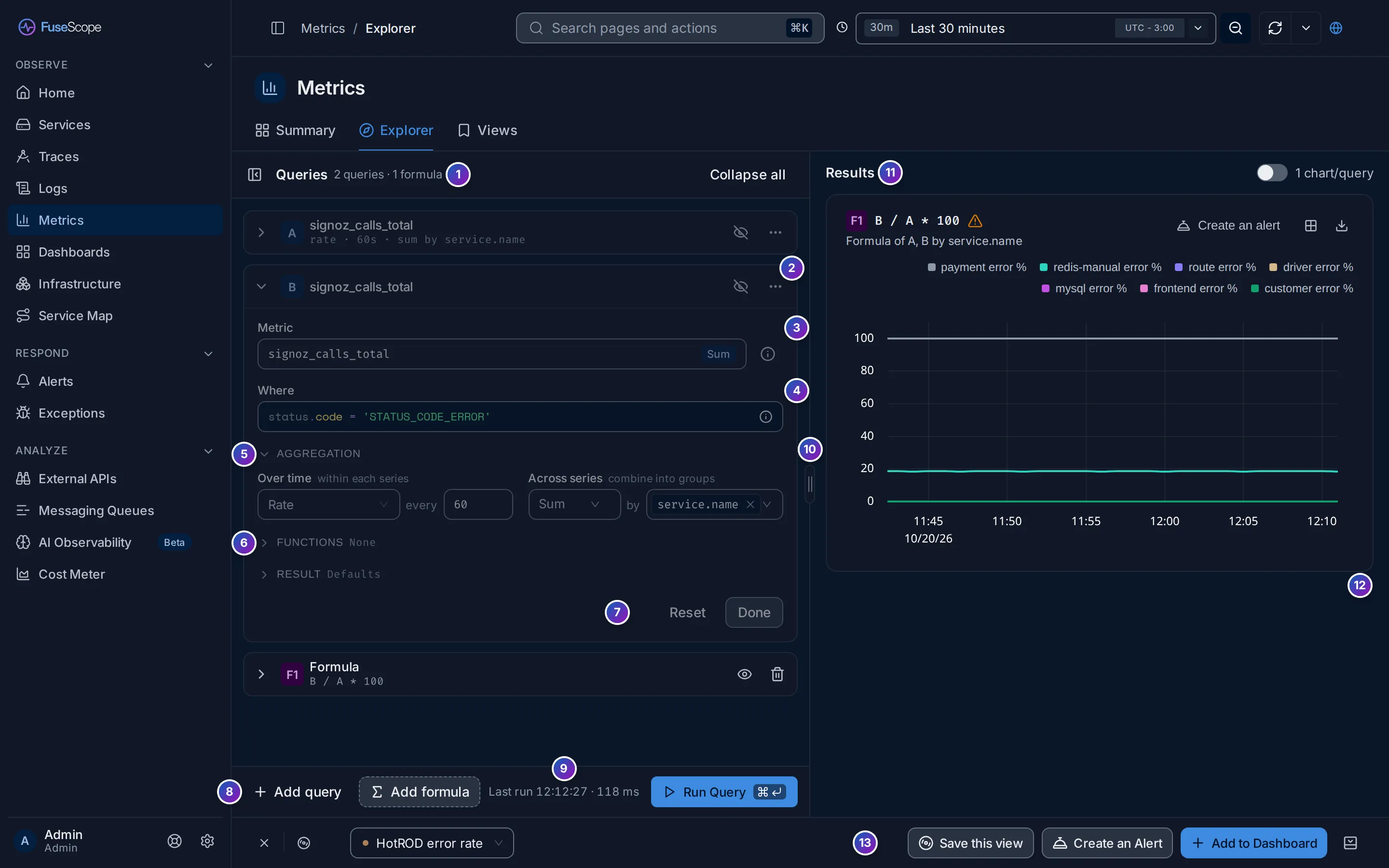
- Queries, with the number of queries and formulas, such as
2 queries · 1 formula. The icon on the left collapses the panel; Collapse all closes every card. - A query card. Its head shows the letter, the metric, the eye that shows or hides its result, and a menu (…) to clone or delete it.
- Metric. Type part of a name and pick the metric; its type appears in the field. The ⓘ icon next to it opens the metric details.
- Where: a filter that keeps only some
series, such as
status.code = 'STATUS_CODE_ERROR'. - Aggregation: how the series become lines. See Aggregation.
- Functions and Result: optional steps. See Functions and Result.
- Reset puts the card back as it was when you opened it; Done closes it.
- Add query and Add formula.
- Last run, such as
Last run 12:12:27 · 118 ms, then Run Query. While a query runs, the button becomes Cancel. - The grip between the panel and the results.
- Results and the 1 chart/query switch. See Read the results.
- The chart and its legend.
- The bottom bar: the saved view in use, Save this view, Create an Alert and Add to Dashboard. See Views, alerts and dashboards.
Query cards
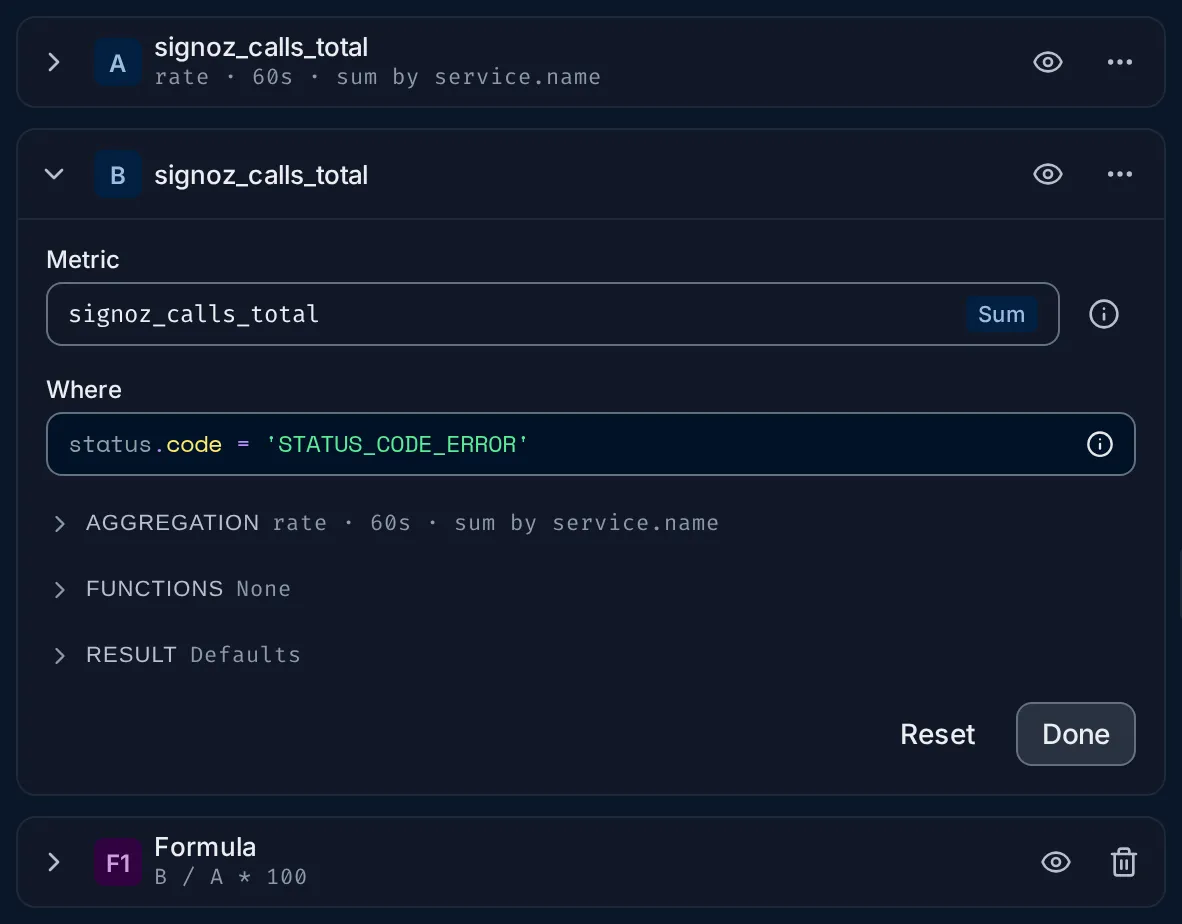
Section titled “Query cards”Each query and formula is a card, named by a letter: A, B and so on for queries, F1, F2 for formulas. Only one card is open at a time, so the panel stays short: opening a card closes the one before, and a card you add opens by itself.
A closed card reads as one line, for example:
signoz_calls_totalrate · 60s · sum by service.name · where status.code = 'STATUS_CODE_ERROR'Inside an open card, the fields come in reading order: Metric, then Where, then three sections that fold to a one-line summary. A section opens by itself when it holds a setting, such as a group by; otherwise it stays as you last left it.
Aggregation
Section titled “Aggregation”A metric query works in two steps, and the Aggregation section has one field for
each. The summary next to the title reads them in order, such as
rate · 60s · sum by service.name.
- Over time, within each series: what to do with the samples of one series in each interval. Rate for counters, Avg, Max or Latest for gauges. every sets the interval in seconds; leave it empty (Auto) and FuseScope picks one from the time range. See Time step.
- Across series, combine into groups: how to merge the series into lines.
Sum, Avg, Min or Max, and by the keys to keep apart. With
service.nameyou get one line per service; with no key, one line for everything (no breakdown).
Histograms skip the first step: pick a percentile, such as P95, and the keys. The options for each type are listed in Aggregations.
Functions and Result
Section titled “Functions and Result”- Functions change the finished lines, applied in order, top to bottom: for example EWMA 5 to smooth a noisy line, or Time Shift to compare with an earlier period. Up to three per query. See Functions.
- Result has Having, to keep only groups whose value matches, such as
value > 5; Order by; Limit, to keep the first n lines; and Legend, to name the lines, such as{{service.name}}. Its summary reads Defaults while none is set. See Legend format.
Formulas
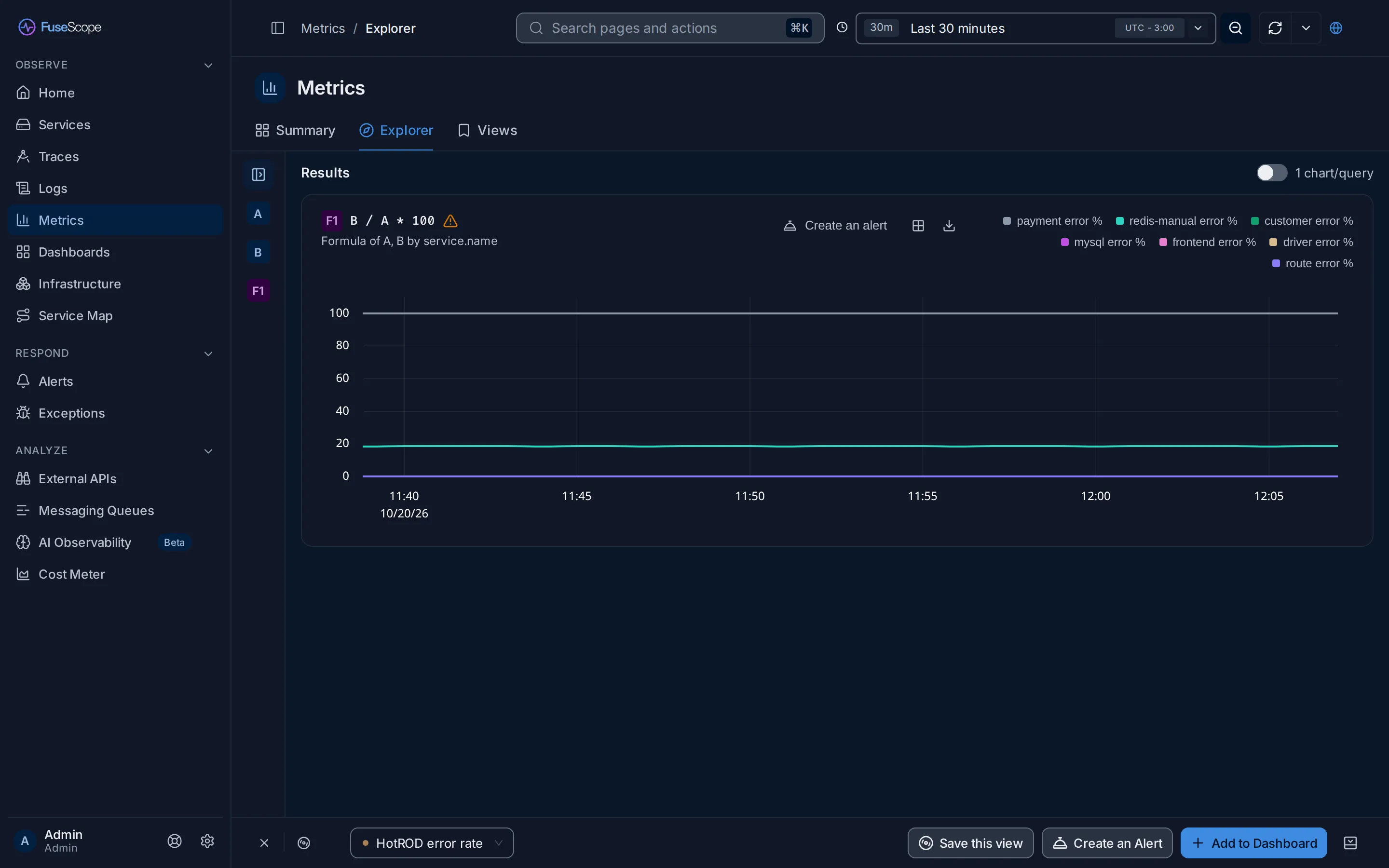
Section titled “Formulas”Add formula adds a card that combines queries by letter, such as B / A * 100.
Write it in Expression (reference queries by letter). Its Result section has
Order by, Limit and Legend.
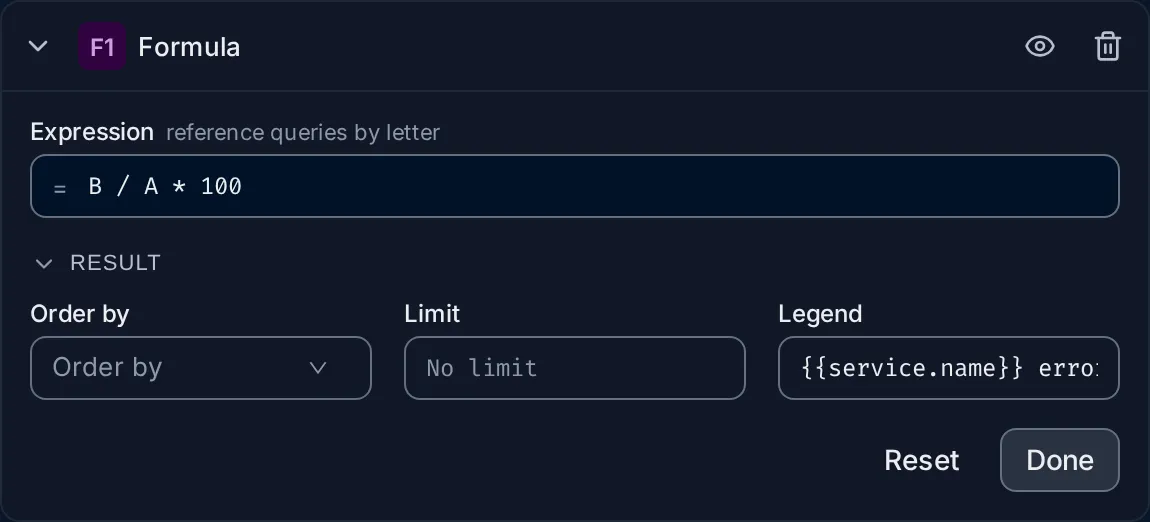
A formula needs its queries to be grouped by the same keys, so that each line of B
meets the matching line of A. Hide the queries a formula uses with their eye icon
and the chart shows only the formula’s lines: the hidden queries still run. The
operators and functions a formula accepts are listed in
Several queries and formulas.
Run a query
Section titled “Run a query”Click Run Query, or press ⌘ + Enter (Ctrl + Enter on Windows and Linux). Editing a card does not change the chart until you run it. Last run says when the last run finished and how long it took.
Read the results
Section titled “Read the results”- One chart for every visible query and formula. The chart title names what it
plots: the metric for a single query, the expression for a single formula, such as
B / A * 100withFormula of A, B by service.nameunder it, or All queries when there are several. When several share a chart, each legend entry starts with its letter, such asA · frontend. - 1 chart/query draws each query and formula on its own chart instead. It turns on by itself when queries have different units, so that unrelated values don’t share an axis.
- The legend names each line, from the Legend set in the card’s Result section.
- Chart actions, top right of the chart: Create an alert, add to a dashboard, and download the data.
- A warning triangle next to the title means a metric on the chart has no unit; its tooltip links to the metric details, where you can set one.
Y-axis unit
Section titled “Y-axis unit”When the chart shows one metric without a unit, a Y-axis unit field appears above it. Pick a unit to format the axis, for example Count or Bytes. FuseScope then asks whether to keep it:
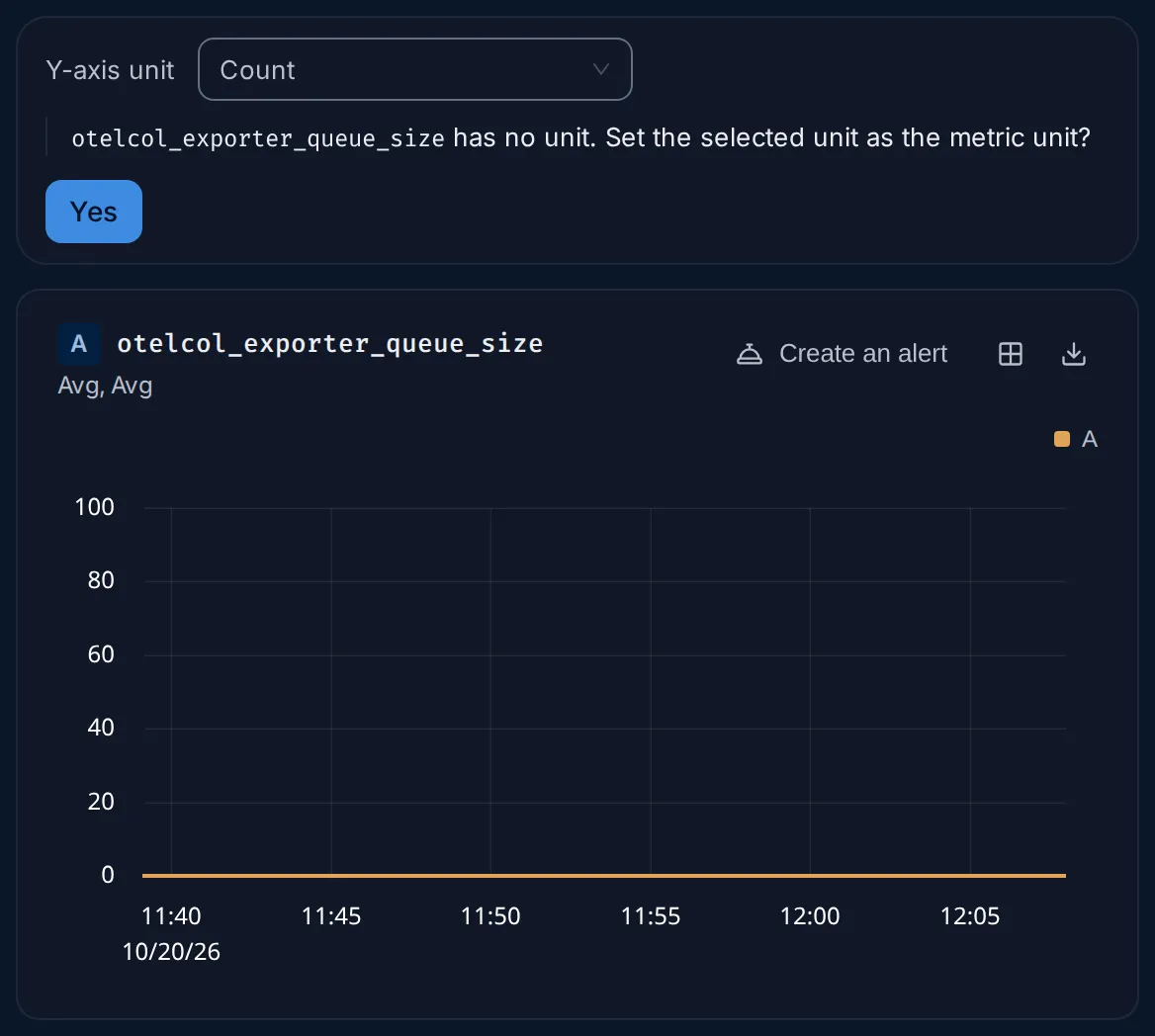
Yes saves the unit as the metric’s own, for every chart, dashboard and alert. As with Edit metadata, it can’t be changed afterwards, so leave the prompt unanswered if you are only trying a unit out.
Resize and collapse the panel
Section titled “Resize and collapse the panel”- Resize: drag the grip between the panel and the results. The panel takes between 30% and 70% of the width; double-click the grip to return to half.
- Collapse: the icon left of Queries folds the panel into a narrow rail of query letters, leaving the width to the charts. Click a letter to reopen the panel on that card, or the icon at the top of the rail to reopen it as it was.
The browser remembers the width and whether the panel is collapsed.
Example: error rate per service
Section titled “Example: error rate per service”The goal: one line per service with the percentage of its calls that failed. It uses
signoz_calls_total, a counter FuseScope derives from traces: one count per call,
with the attributes service.name and status.code. Failed calls have
status.code = 'STATUS_CODE_ERROR'; in the demo the others have STATUS_CODE_UNSET.
The metric details of a metric list the values each key really has.
-
Count all calls. Open Metrics › Explorer. In card A, type
signoz_calls_totalin Metric and pick it. Open Aggregation: Over time is already Rate, as for any counter. Set Across series to Sum byservice.name. Click Run Query: one line per service, in calls per second. -
Count the failed calls. In the card menu (…), click Clone. In the new card B, type this in Where:
status.code = 'STATUS_CODE_ERROR'It keeps the same metric, rate and group by, so each of its lines matches a line of A.
-
Divide. Click Add formula. In F1, enter the expression
B / A * 100: the failed calls as a percentage of all calls. -
Name the lines. Open the Result section of F1 and set Legend to:
{{service.name}} error % -
Show only the result. Click the eye icon on A and on B. They still run for the formula, but leave the chart.
-
Click Run Query.
What you get, in the demo data over the last 30 minutes: payment error % at 100,
because every call of the payment demo service fails; redis-manual error % at about
18.5; and the other services at 0. The chart title reads B / A * 100, with
Formula of A, B by service.name under it.
This query is saved in the demo as the view HotROD error rate. To be told when the rate climbs, click Create an Alert and set a threshold on F1; see Set up your first alert, which builds the same percentage from traces.
Inspect
Section titled “Inspect”Inspect shows, step by step, how a query turns raw series into a chart. It exists for gauges only: open the metric details of a gauge and click Inspect. It always uses the last 30 minutes of data.
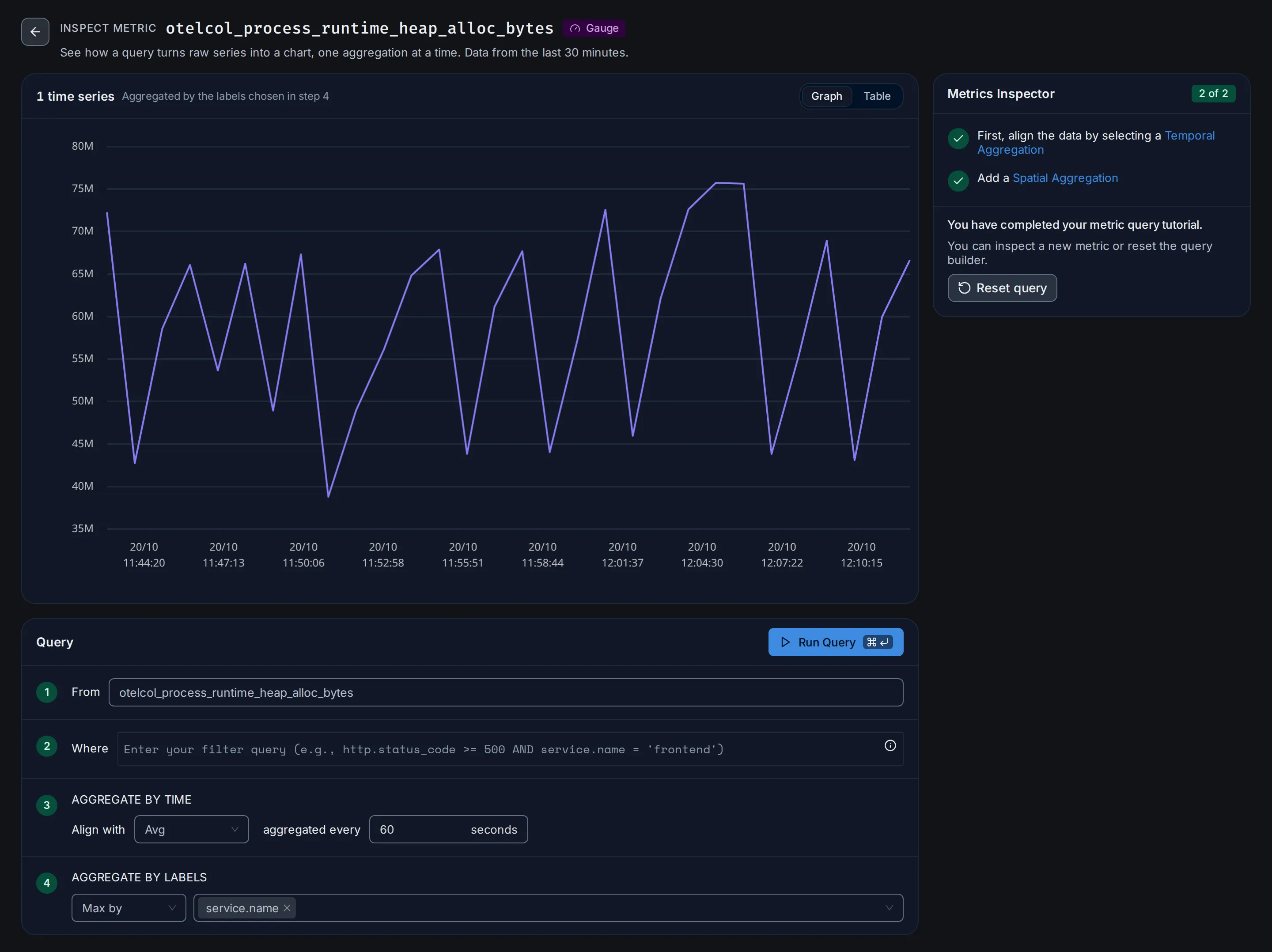
The Query card has four numbered steps:
- From: the metric. You can switch to another one here.
- Where: an optional filter on its attributes.
- AGGREGATE BY TIME: Align with an aggregation, such as Avg, aggregated every a number of seconds. This is the Over time step of the Explorer.
- AGGREGATE BY LABELS: Sum by, Min by, Max by or Avg by, and the labels to keep. This is the Across series step.
Click Run Query after each step and watch the chart: first the raw series, one line
each, then each series aligned in time, then the series combined. The Metrics
Inspector checklist on the right ticks off steps 3 and 4 (2 of 2); Reset query
starts again.
- Graph and Table switch between the lines and their values in a table.
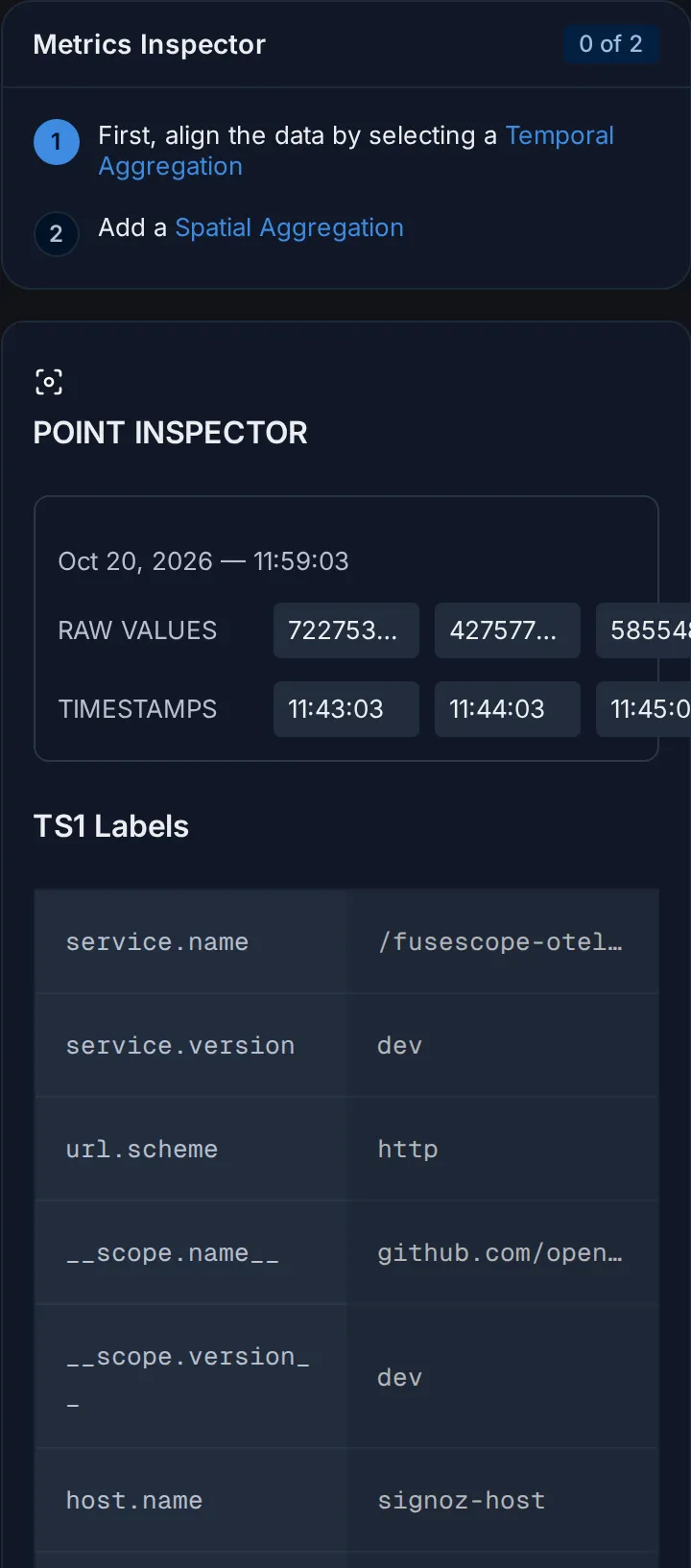
- Point inspector: click a point on the chart, then View details. Before the aggregation steps it lists the raw values and their timestamps around that point, and the labels of the series.
Views, alerts and dashboards
Section titled “Views, alerts and dashboards”The bar at the bottom of the Explorer acts on the current query:
- Select a view loads a saved view. Once one is loaded, its name shows in the selector, with an × to clear it.
- Save this view saves the queries under a name, to come back to later or share with the team.
- Create an Alert opens a new alert rule with the query filled in.
- Add to Dashboard adds the chart as a panel to a new or existing dashboard.
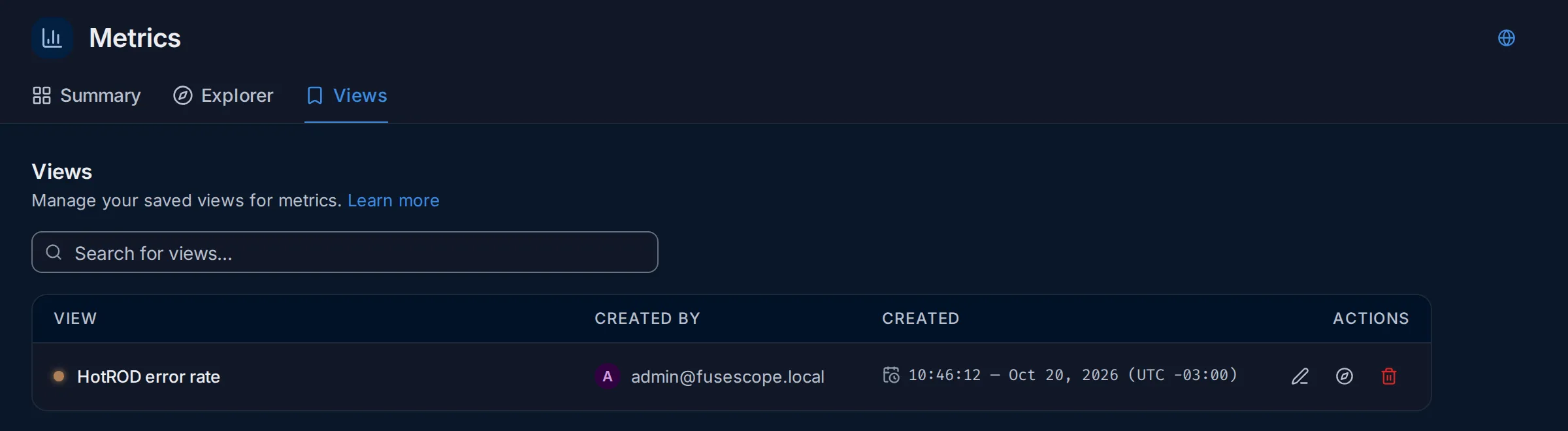
The Views tab lists the saved metric views, with who created each one and when. Search for views… filters them. In Actions, the pencil edits a view’s name and colour, the compass opens it in the Explorer and the bin deletes it.
Before the first metric
Section titled “Before the first metric”When no metric has arrived and no search is set, the Summary explains what will appear and where to start, instead of an empty table. Sending metrics to FuseScope opens OTLP, and Other guides links to Instrument applications, Kubernetes and this page.
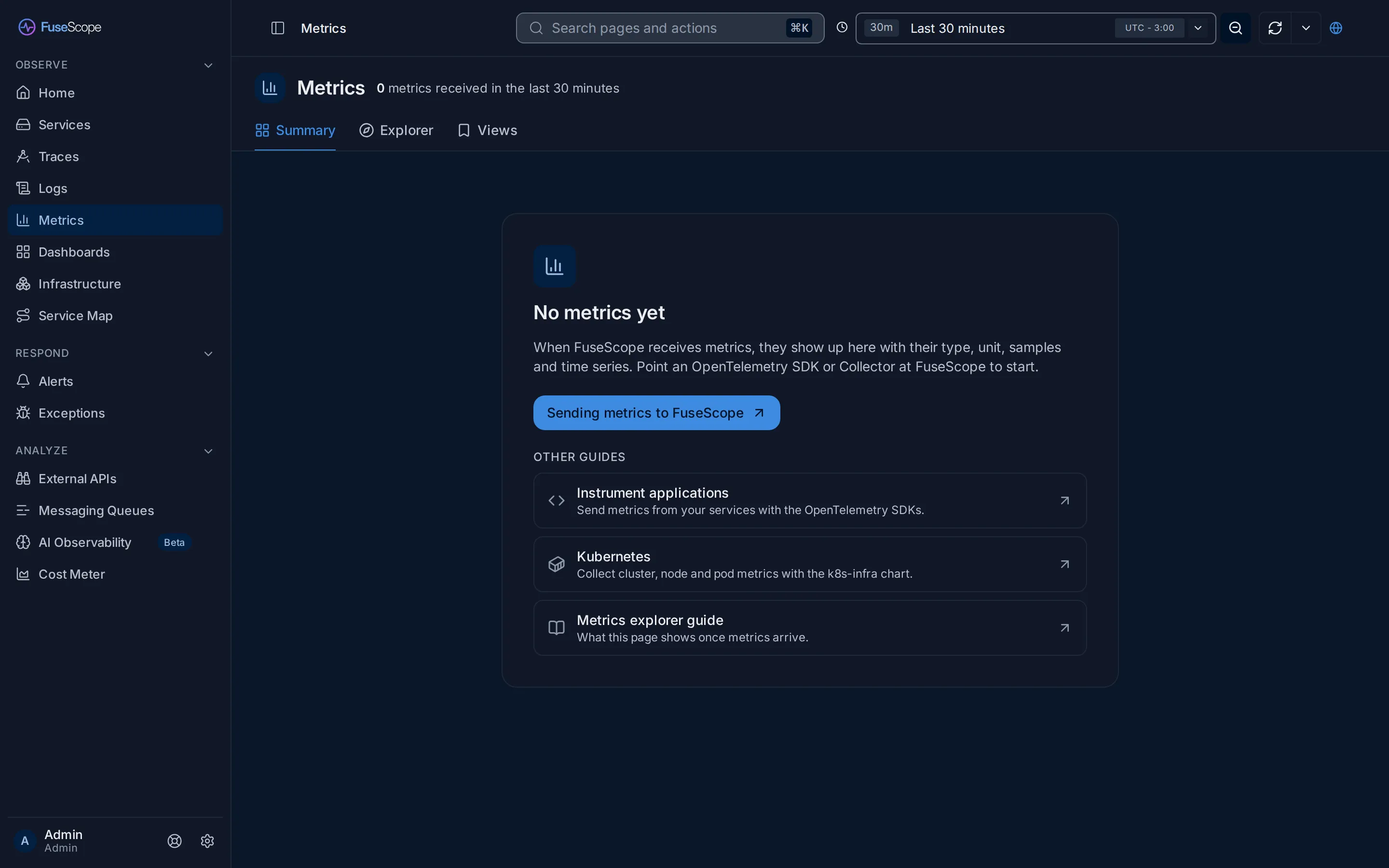
If you expected metrics, widen the time range first, then check that the application or collector exports metrics to FuseScope’s OTLP endpoint.
Related
Section titled “Related”- Query builder: every aggregation, function and formula option.
- Build your first dashboard and Set up your first alert: put a query to work.
- Core concepts: metrics next to traces and logs.