

Views
The Views tab of an application (/frontend/applications/<id>/views) has one row per
route: a page of your app named by its
route template, such as
/product/:id. Click a route to open its detail.
Use it when you want to know which pages are slow, which pages users spend time on, which pages raise errors, or which API call makes a page wait.
All numbers follow the time range at the top right and the Release filter. Any role, Viewer included, can read this tab.
Page loads and route changes
Section titled “Page loads and route changes”A single-page app loads its HTML once, then changes route without reloading. RUM tells the two apart:
- a page load is the view the browser loaded the page on: the first view of a visit, or a reload;
- a route change is any later view, after a click on a link or a router navigation.
Only page loads have Web Vitals: the browser measures LCP, CLS, FCP and TTFB once per loaded page. Route changes still count their time on view, errors and requests.
The SDK sends the kind as fusescope.rum.view.loading_type (initial_load or
route_change), from version 0.2.0. Views from older SDKs have no loading type: they are
counted in neither column, marked with *, and a note above the table asks you to
update the SDK.
The routes table
Section titled “The routes table”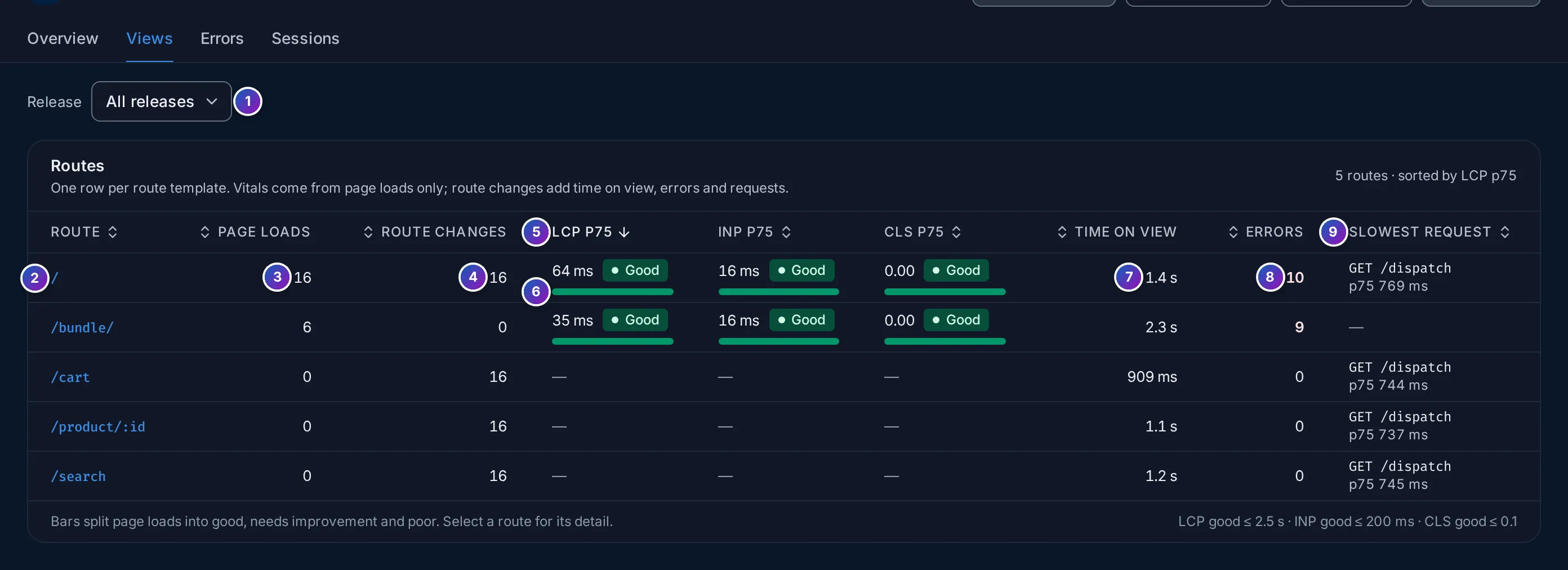
- Release: narrow the table to one release, the
versionyour app passes toinit(). - Route: the route template. Click it to open the route detail.
- Page loads: views that loaded the page on this route.
- Route changes: views reached by navigating inside the app. In the example, users
always enter on
/, so/cart,/product/:idand/searchonly have route changes, and no vitals. - LCP p75, INP p75 and CLS p75, each rated Good, Needs work or Poor. See Web Vitals in plain words. The table is sorted by LCP p75, slowest first; click any heading to sort by it.
- Split bar: the share of page loads rated good (green), needs improvement (amber) and poor (red). A p75 can look fine while one load in five is poor; the bar shows it.
- Time on view: the median time users stayed on the route, from the moment it opened until the next navigation or until the tab was hidden.
- Errors: JavaScript errors raised while the route was open, page loads and route changes together.
- Slowest request: the
fetchorXMLHttpRequestcall with the highest p75 on the route, by method and URL template, such asGET /dispatch. A p75 of 800 ms or more is shown in amber.
The footer repeats the thresholds for good: LCP ≤ 2.5 s, INP ≤ 200 ms and CLS ≤ 0.1. The table lists up to 200 routes, the most viewed first.
Route detail
Section titled “Route detail”Click a route to open its detail sheet. The URL keeps it (?route=/), so you can share
the link.
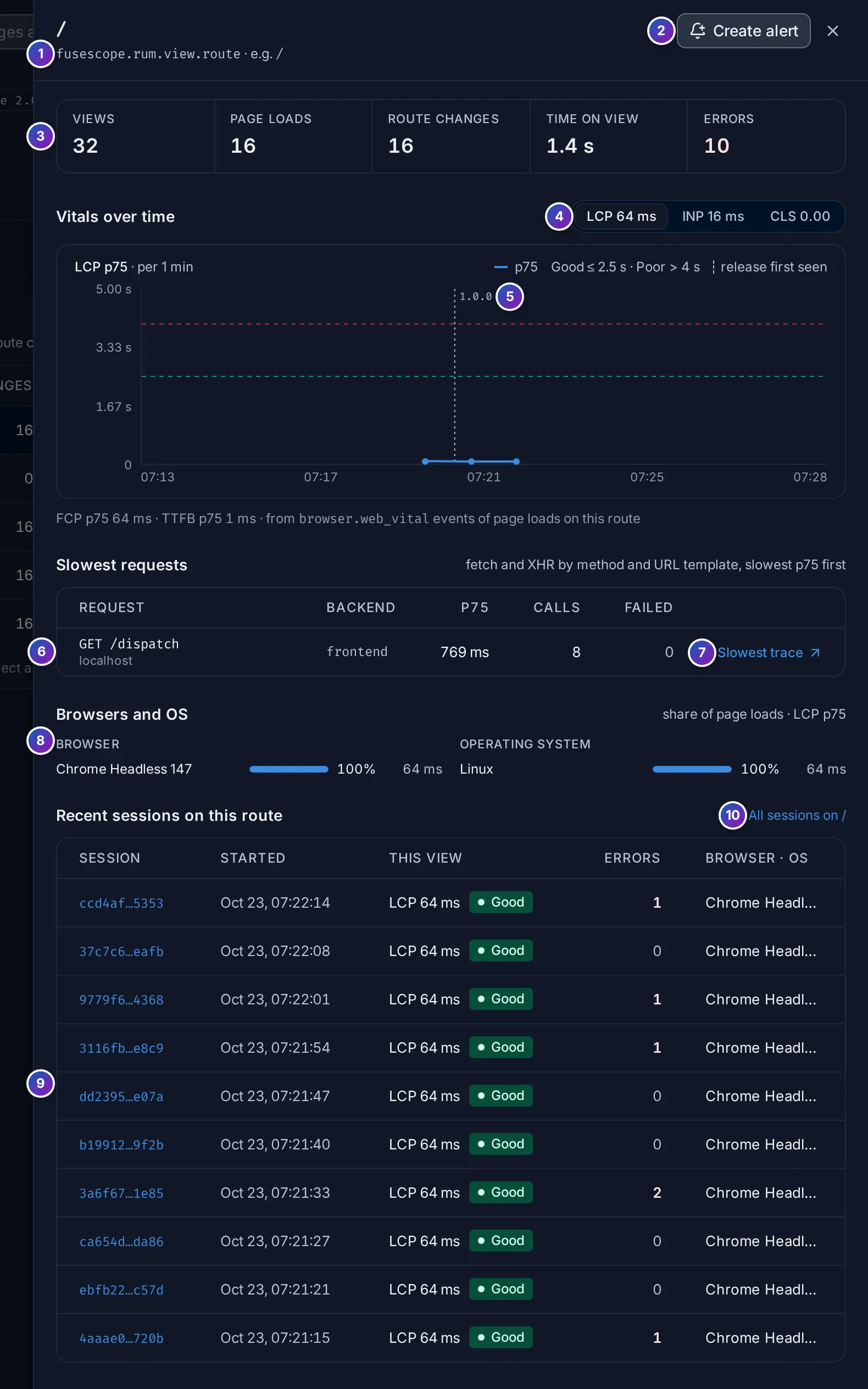
- Route and the attribute it comes from,
fusescope.rum.view.route, with a few example paths, such as/product/1234for/product/:id. - Create alert opens the alert editor with the template LCP p75 above 2.5 s, filtered to this route. See Frontend alerts.
- Key numbers: Views, Page loads, Route changes, the median Time on view and Errors. Click the error count to open the Errors tab filtered to this route.
- Vitals over time: switch between LCP, INP and CLS; each button shows the p75 of the range. The chart draws the p75 per step, such as per 1 min, with the good (green) and poor (red) thresholds as dashed lines. Under the chart, the FCP p75 and TTFB p75 of the route.
- Release markers: a dotted vertical line where a release was first seen, labelled
with its version, such as
1.0.0. If the line goes up right after a marker, that release made the page slower. - Slowest requests: the route’s
fetchand XHR calls by method and URL template, slowest p75 first, with the number of Calls and how many Failed. Backend is the first backend service in the slowest call’s trace, such asfrontendfor the HotROD demo; — means the call reached no instrumented backend, as for a third-party API. - Slowest trace opens, in
Trace details, the trace of the slowest
call: the browser’s request and, under it, the backend spans it caused. Backend spans
only appear for APIs that receive
traceparent; see Allow traceparent. - Browsers and OS: the share of page loads per browser and per operating system, with their LCP p75, to spot a browser that is slower than the rest.
- Recent sessions on this route: the latest sessions that saw it, with This view: whether it was a page load (with its LCP) or a route change. Click a session to open its timeline.
- All sessions on the route opens the Sessions tab filtered to it.
Android screens
Section titled “Android screens”On an Android application, a view is a screen, and the same tab lists them:
- Route is the screen’s name. For Activities and Fragments it is the class name, or
the name given with OpenTelemetry Android’s
@RumScreenNameannotation. For Compose and Navigation screens it is the destination’s route template, such asorders/{id}; see Compose screens. A screen named withFuseScope.startView()uses that name. - The screen is the last Activity or Fragment resumed, so a host Activity or a
NavHostFragmentgets no row of its own. - Page loads are the first screen after the app process starts; Route changes are every later screen. A screen shown again, such as on returning from another app, counts as a route change.
- Time on view ends when the next screen starts or the app goes to the background.
- Slowest request covers OkHttp requests made through
FuseScope.callFactory. - LCP, INP and CLS stay empty: they are browser measures. App start p75 is on the overview.
- A route’s detail shows Devices and OS instead of Browsers and OS: the share of views per device and per OS, without LCP.
Example: is a page slow, and why?
Section titled “Example: is a page slow, and why?”-
Find the slowest route. Open the Views tab. The table is sorted by LCP p75, so the slowest route is on top. A red share in its split bar means some users wait more than 4 s.
-
Check whether a release caused it. Click the route. In Vitals over time, look for a jump right after a release marker. Set Release to the previous version to compare.
-
Find the wait. In Slowest requests, a call with a high p75, such as
GET /dispatchat 725 ms, delays the page. Click Slowest trace to see which backend span took the time. -
Watch it. Click Create alert to be notified when the route’s LCP p75 goes above 2.5 s again.