

Home
Home (/home) is the page FuseScope opens after you log in. It answers two
questions at a glance: is my data arriving? and is anything wrong right now? Each
panel is a short summary with a link to the page that has the details.
Use this page when you start your day and want a quick check before digging in, when you have just connected an application and want to see its data arrive, or when you are new to a workspace and want to know what has already been set up.
The page, part by part
Section titled “The page, part by part”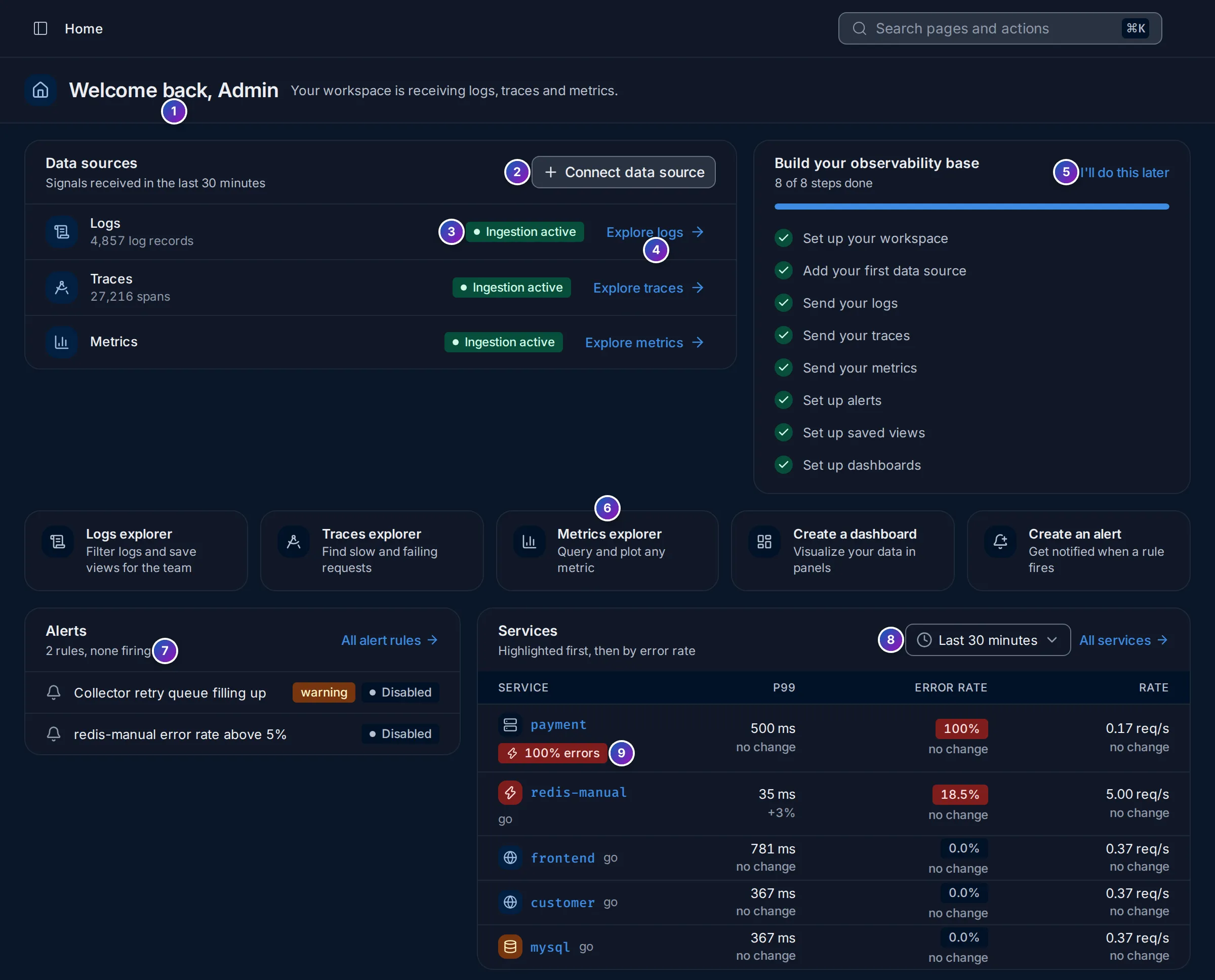
- Greeting:
Welcome back, <first name>once data arrives, followed by the signals the workspace is receiving, such asYour workspace is receiving logs, traces and metrics.Before any data arrives it readsYou are not sending any data yet. - Connect data source: opens Instrument applications, which explains how to send data to FuseScope. Viewers don’t see this button.
- Data sources: one row per signal received in the last 30 minutes, with the Ingestion active badge. Logs show how many log records arrived and traces how many spans. A signal that sent nothing in the last 30 minutes has no row.
- Explore logs, Explore traces and Explore metrics open the Logs, Traces or Metrics explorer.
- Build your observability base: the setup checklist. I’ll do this later hides it.
- Shortcuts: Logs explorer, Traces explorer, Metrics explorer, Create a dashboard and Create an alert. Viewers, who can’t create anything, don’t see this row.
- Alerts: a summary of your alert rules.
- Services: the services that need a look first, over the time range you pick here.
- Highlight badges on services, the same as on the services list.
Below these, two more panels list your dashboards and saved views.
A new workspace
Section titled “A new workspace”Until the first log, span or metric arrives, Home shows a short welcome instead of the data panels:
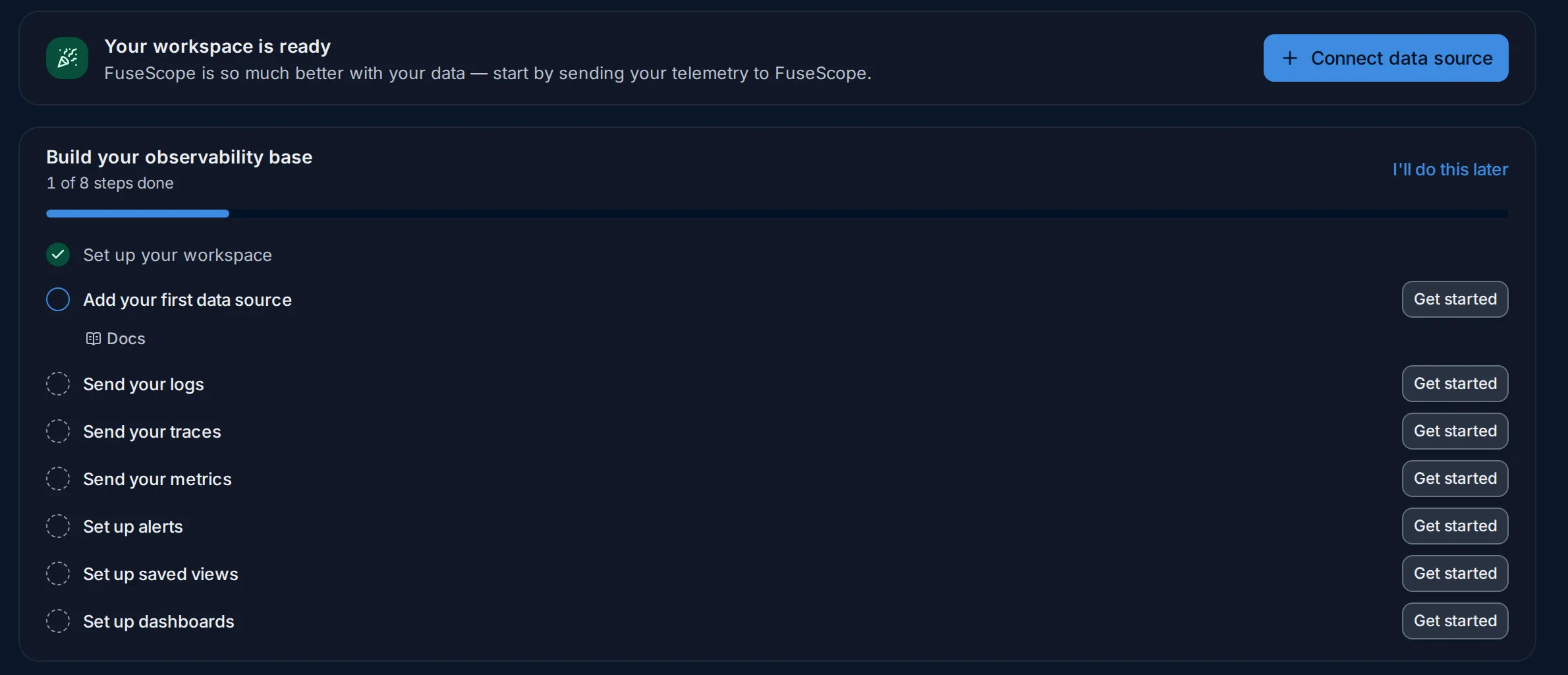
Sample data: this image is a Storybook story, not a live workspace.
Your workspace is ready has the same Connect data source button. The data panels (Data sources, Alerts, Services, Dashboards and Saved views) appear as soon as any signal arrives; refresh the page after you send your first data.
The setup checklist
Section titled “The setup checklist”Build your observability base lists eight steps and counts how many are done,
such as 1 of 8 steps done:
| Step | Done when | Get started opens |
|---|---|---|
| Set up your workspace | Always done | |
| Add your first data source | Any logs, traces or metrics arrived | Instrument applications |
| Send your logs | Logs arrived in the last 30 minutes | Logs explorer docs |
| Send your traces | Spans arrived in the last 30 minutes | Traces explorer docs |
| Send your metrics | The workspace has metrics | Metrics explorer docs |
| Set up alerts | At least one alert rule exists | The new alert rule editor |
| Set up saved views | At least one saved view exists | The Logs explorer |
| Set up dashboards | At least one dashboard exists | The dashboards list |
The first step that isn’t done is expanded: it shows a short description, a Docs link to the matching page of this documentation and, for some steps, Skip for now. The steps for alerts, saved views and dashboards are checked once data arrives and their panels load.
I’ll do this later hides the checklist for you. It then moves behind a Welcome checklist button at the top right of Home, so you can still open it and see what is left.
Alerts
Section titled “Alerts”The Alerts panel shows up to five alert rules, the firing ones first, then the most
recently updated. Its subtitle counts them: 2 firing, 1 pending, or, when nothing
is wrong, 2 rules, none firing. Each row shows the rule name, its severity, such as
warning, and its state, such as Firing or Disabled. Click a rule to open it,
or All alert rules for the Alerts page.
With no rules yet, the panel says No Alert rules yet. with a button to create one.
Services
Section titled “Services”The Services panel lists five services, Highlighted first, then by error rate: the ones with a highlight badge at the top, then the ones that fail most. For each service it shows P99 latency, Error rate and Rate, each with its change against the previous period, as on the services list.
The time range picker on the panel goes from Last 5 minutes to Last 1 month; the default is Last 30 minutes. Click a service to open its page, or All services for the full list.
Dashboards and saved views
Section titled “Dashboards and saved views”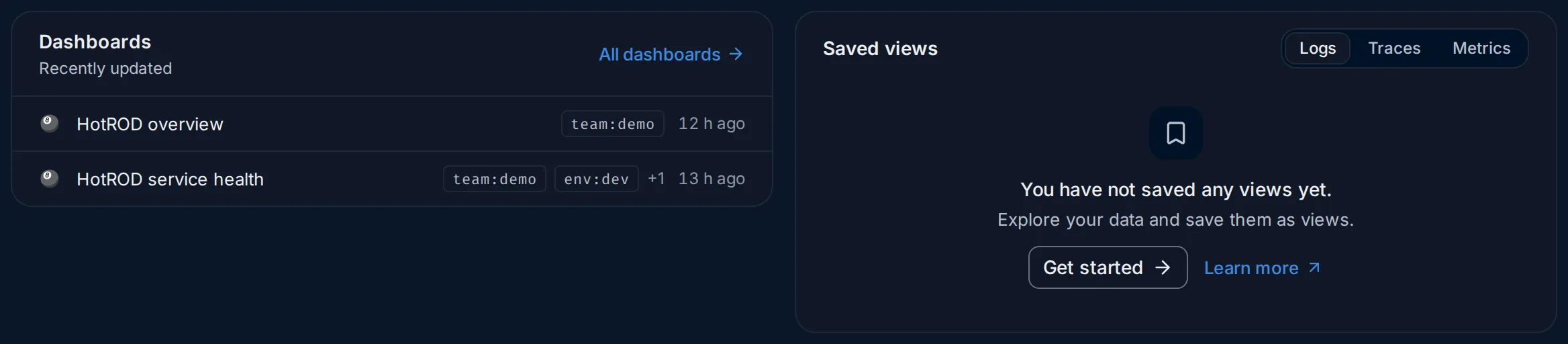
- Dashboards lists the five most recently updated dashboards, with up to two tags
each (
+1when there are more) and how long ago each changed, such as12 h ago. All dashboards opens the dashboards list. - Saved views lists up to five saved views for the signal you pick: Logs, Traces or Metrics. Click one to open the explorer with that view. With none, Get started opens the explorer and Learn more explains views for that signal.
Example: a morning check on the demo
Section titled “Example: a morning check on the demo”The numbers are from the HotROD demo.
-
Is data arriving? Data sources shows Logs, Traces and Metrics, all with Ingestion active; about 4,800 log records and 27,000 spans arrived in the last 30 minutes. Nothing stopped sending overnight.
-
Is anything firing? Alerts reads
2 rules, none firing. Both rules are Disabled, so they couldn’t fire anyway: worth turning one on (see Alert rules). -
Which service needs a look? Services puts
paymentat the top with a red 100% errors badge: every request fails, at 0.17 req/s, withno changeagainst the previous period, so it has been failing for a while.redis-manualcomes next at 18.5% errors. -
Dig in. Click
paymentto open its service page. The Services page walks through this case.
What you learn: in a few seconds Home tells you the data is flowing, that no alert watches the failing service, and where to start.
Related
Section titled “Related”- Tour of the interface: the sidebar and the top bar.
- Instrument applications: send your first data.
- Services: the full services list and service pages.