

Tour of the interface
This page is a map of the FuseScope app. It names each part of the screen, so the rest of the documentation makes sense when it says “open Traces in the sidebar” or “pick a time range in the top bar”.
Read this page when you log in for the first time.
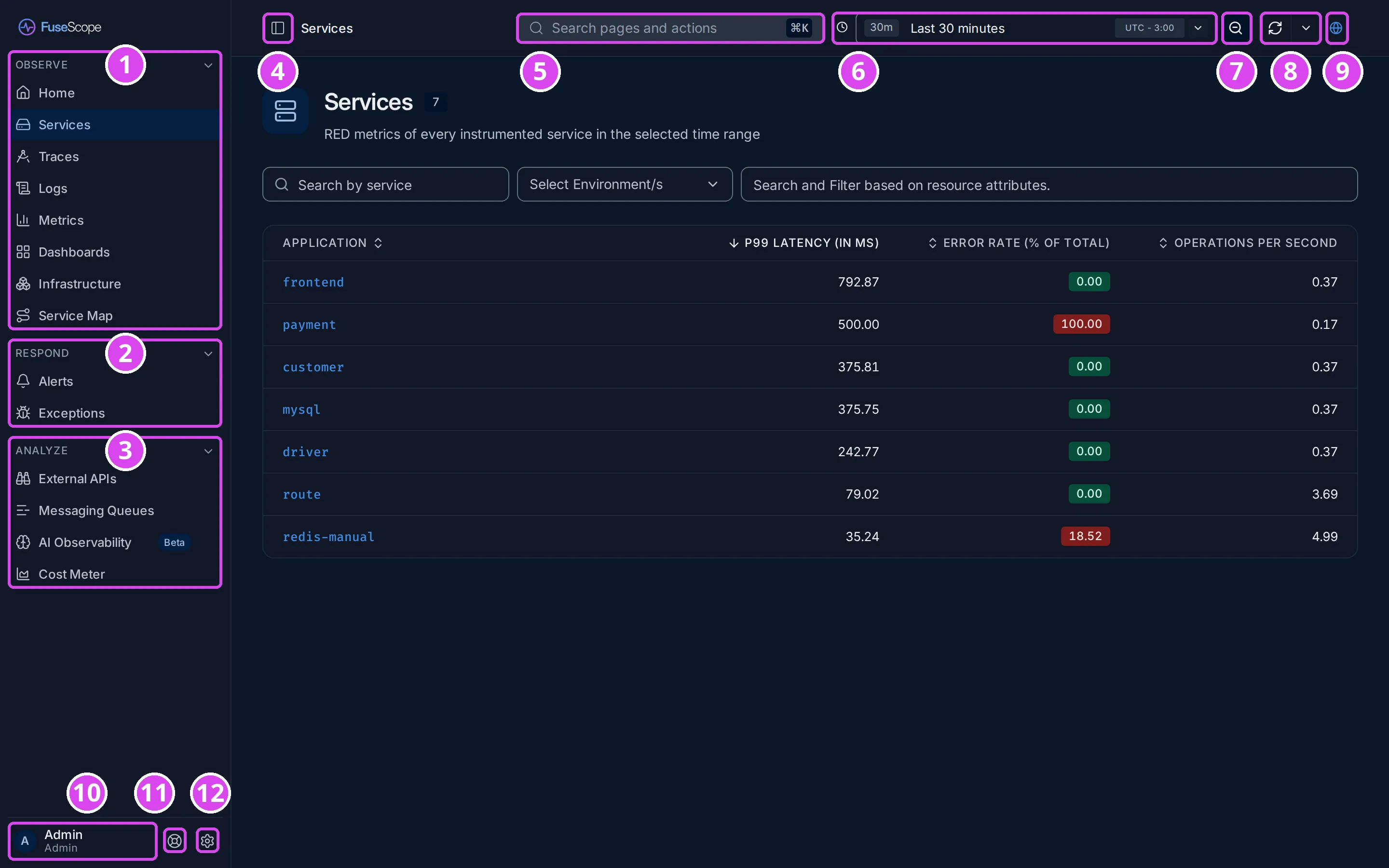
The sidebar
Section titled “The sidebar”The sidebar on the left lists every page, in three groups.
- Observe: look at your systems.
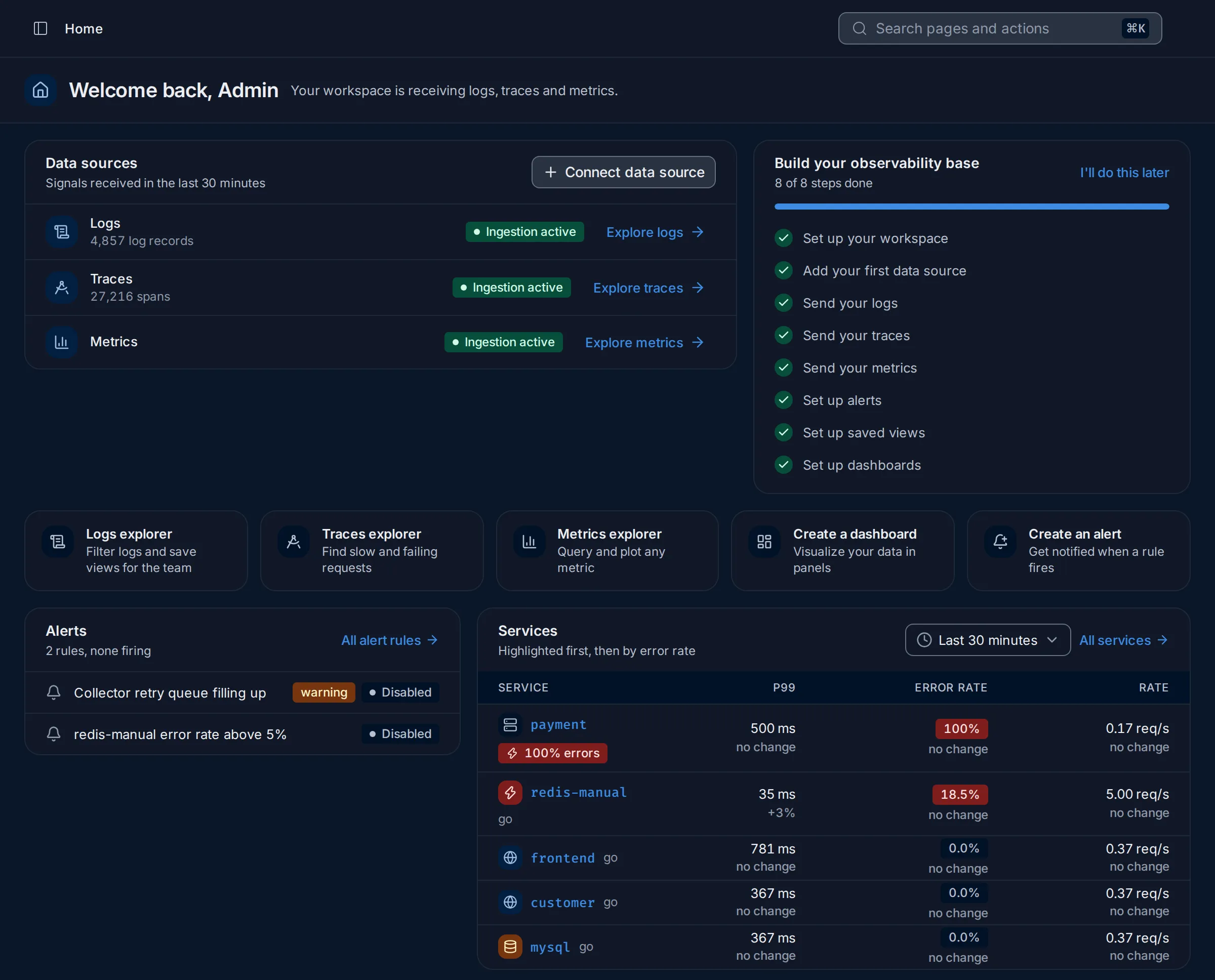
- Home: which signals are arriving, a setup checklist, shortcuts, and short summaries of alerts and services. See Home.
- Services: latency, error rate and throughput of every service. Start here when something is slow or failing. See Services.
- Traces, Logs and Metrics: the explorers, to search each signal. See Traces explorer, Logs explorer and Metrics explorer.
- Dashboards: pages of charts you build. See Dashboards.
- Infrastructure: hosts and Kubernetes resources. See Infrastructure.
- Service Map: a graph of which service calls which, and where errors start. See Service Map.
- Respond: act when something breaks.
- Alerts: alert rules, the alerts firing now, and where notifications go. See Alert rules.
- Exceptions: errors recorded by your code, grouped by type and message. See Exceptions.
- Analyze: focused views for specific kinds of traffic.
- External APIs: calls your services make to outside APIs. See External APIs.
- Messaging Queues: Kafka and Celery producers and consumers. See Messaging Queues.
- AI Observability: calls to language models: cost, tokens, latency and errors. See AI Observability.
- Cost Meter: how much telemetry you ingest, to keep costs in check. See Cost Meter.
Click a group label to fold it.
The top bar
Section titled “The top bar”- Sidebar toggle: switch the sidebar between full labels and a narrow rail of icons. The shortcut is Ctrl+B (⌘+B on a Mac). The name next to it shows where you are; on deeper pages, such as one service, it shows the path back.
- Search pages and actions: open a command palette with ⌘+K or Ctrl+K. Type to jump to a page (“Go to Traces”), or to switch between dark and light themes.
- Time range: the period every chart and list on the page covers, such as Last 30 minutes. Pick a preset, type a range, or choose Custom Date Range. The badge on the right shows the timezone.
- Zoom out: widen the time range one step, for example from 15 minutes to 45 minutes.
- Refresh: reload the data now. The arrow next to it sets auto-refresh, so the page reloads on its own every few seconds or minutes.
- Share: copy a link to the page as you see it, with its time range.
The time range controls appear only on pages that show data over time. A dashboard has its own time range in its toolbar.
The bottom of the sidebar
Section titled “The bottom of the sidebar”- User menu: your name and role. It has Workspace Settings, Account Settings, Keyboard Shortcuts, the FuseScope Version and Sign out.
- Help & Support: links to this documentation, GitHub, Report an issue and what is new in the latest release.
- Settings: workspace settings, for admins mostly:
- Workspace: how long traces, logs and metrics are kept. See Data retention.
- Account: your name, password and preferences such as the timezone.
- Notification Channels: where alerts are sent. See Notification channels.
- Roles, Members and Service Accounts: who can do what. See Users and roles.
- Single Sign-on: log in with your company account. See Single sign-on.
- Keyboard Shortcuts.
Where to go next
Section titled “Where to go next”- Something is slow or failing: open Services, sort by P99 latency or Error Rate, and click the service at the top.
- You want to see one request end to end: open Traces and click a row.
- You don’t know a word on screen: see the Glossary.