

Routing and planned downtime
Both live under Alerts → Configuration, in the Planned Downtime and
Routing Policies tabs (/alerts?tab=Configuration&subTab=planned-downtime and
…&subTab=routing-policies). Each opens its form in a panel on the right, so the
list stays in view.
Use this page when different teams should get different alerts, or when you plan maintenance and don’t want alerts to wake anyone up while it runs.
Routing policies
Section titled “Routing policies”A routing policy sends every alert whose labels match an expression to a set of
notification channels. It lets one
rule notify different teams, for example by service.name or environment, without
listing channels on each threshold.
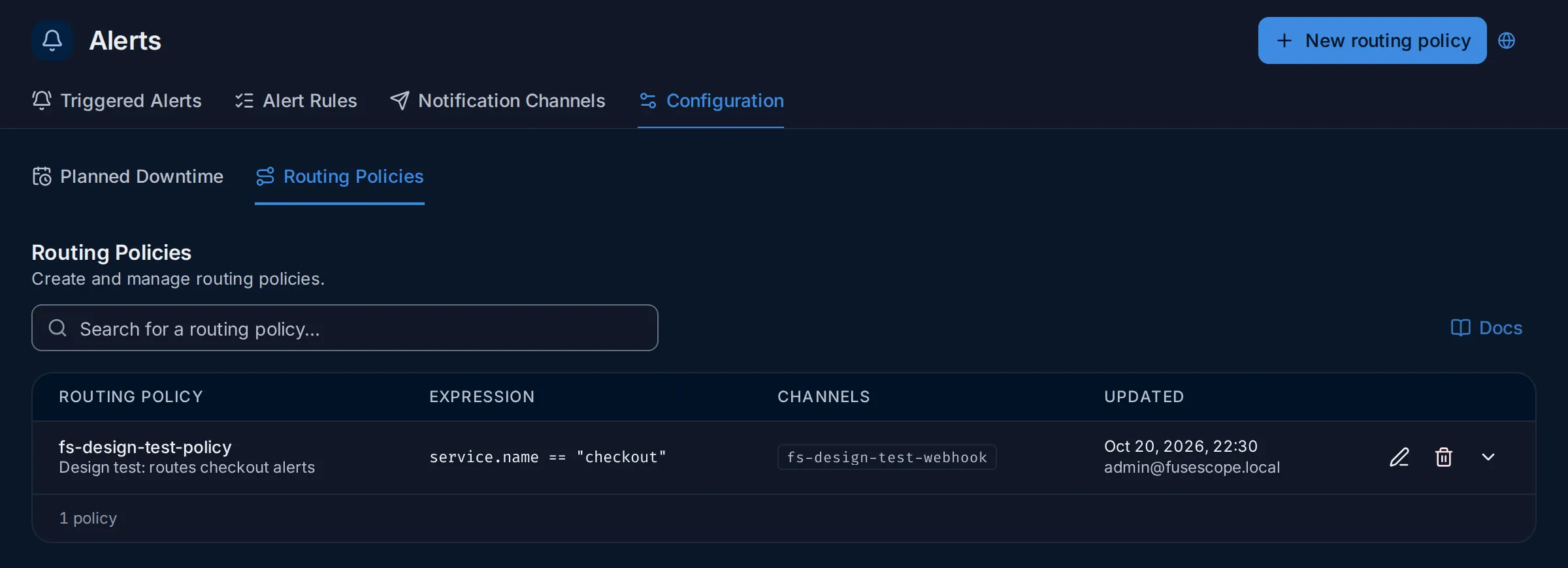
The list shows each policy’s name and description, its Expression, its Channels and when and by whom it was Updated. The pencil edits a policy, the bin deletes it, and the arrow expands the row for who created it and when. Docs links to this page; the search box finds a policy by name.
Create a routing policy
Section titled “Create a routing policy”-
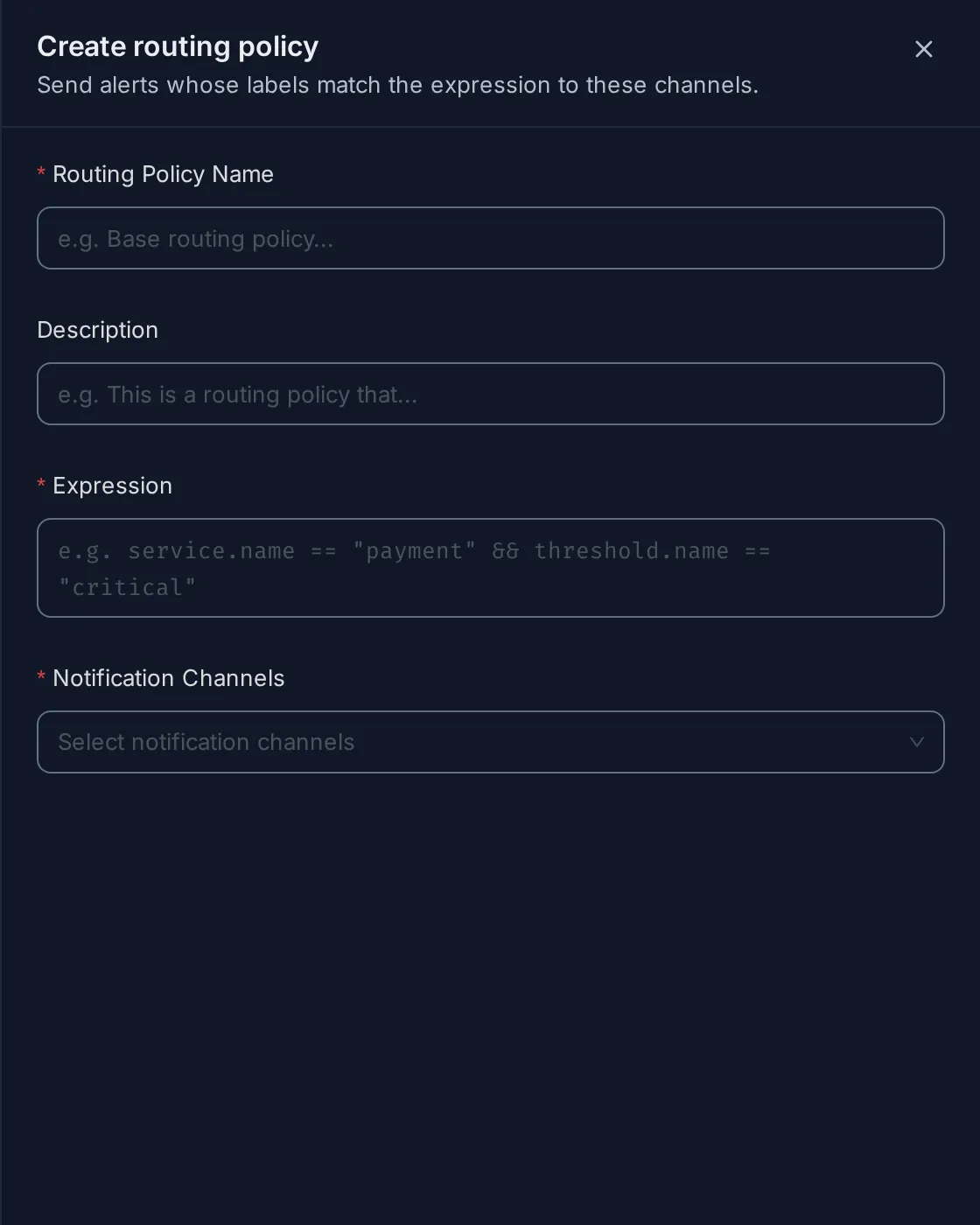
Click New routing policy. The Create routing policy panel opens on the right.
-
Fill in Routing Policy Name, an optional Description, the Expression and one or more Notification Channels, then click Save Routing Policy.
-
In each alert rule that should use policies, turn on Use Routing Policies for dynamic routing in the conditions step. The rule’s per-threshold channel pickers are then hidden.
Expressions compare alert labels: the rule’s group-by attributes and labels, plus
alertname, ruleId, severity and threshold.name.
service.name == "payment" && threshold.name == "critical"Every policy is evaluated against each alert, and the channels of all matching policies are notified. Creating, editing and deleting routing policies needs the Admin role.
Planned downtime
Section titled “Planned downtime”A planned downtime silences alerts during a maintenance window. Alerts are still evaluated and recorded, and they show as Suppressed on Triggered Alerts; only the notifications are held back. Managing downtimes needs the Editor or Admin role.
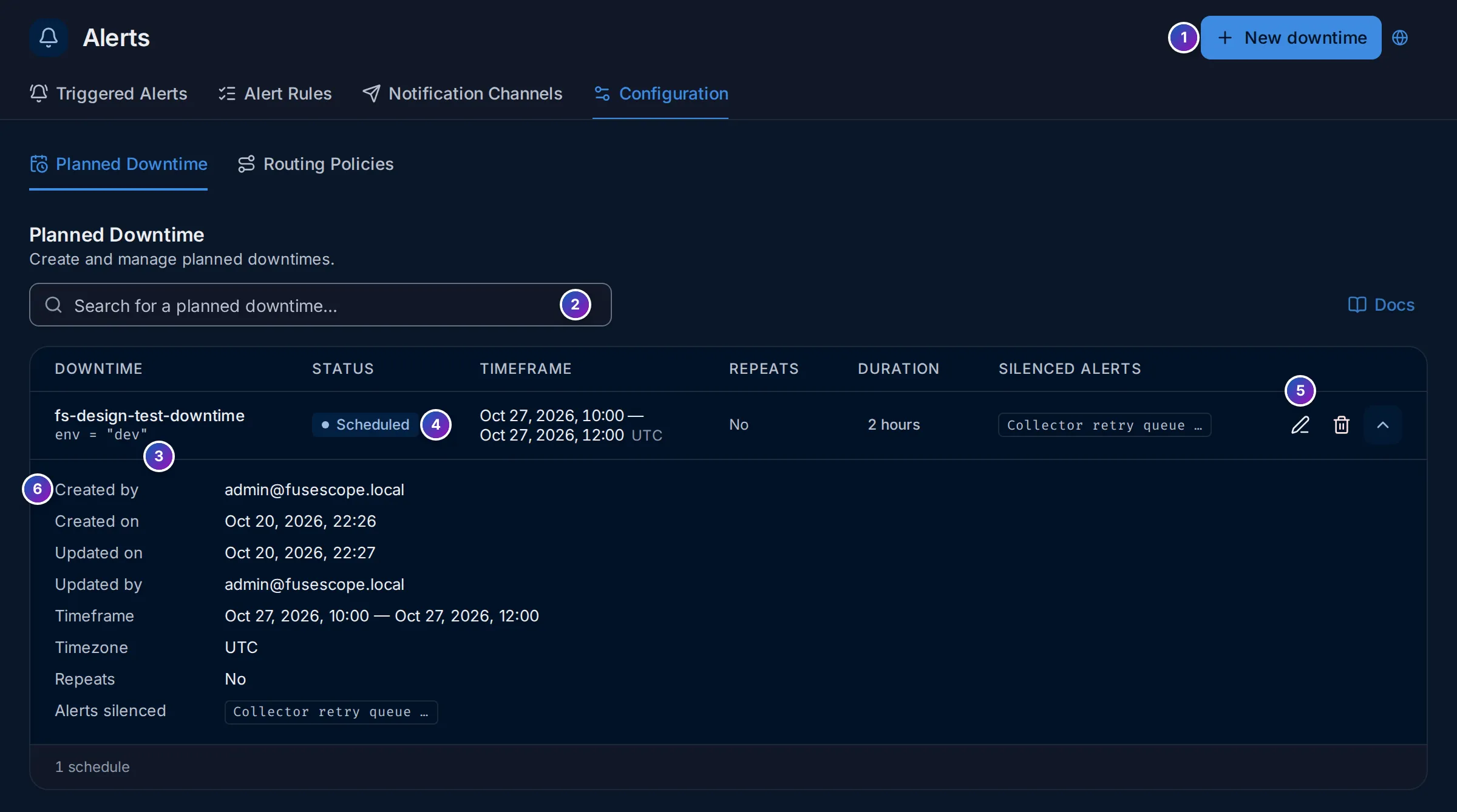
- New downtime opens the form.
- Search for a planned downtime by name.
- Under the name, the downtime’s scope, when it has one, such as
env = "dev". - Status: Scheduled (in the future), Active (silencing now) or Ended. Next to it, the Timeframe, whether it Repeats, the Duration and the Silenced alerts.
- Edit, delete, and expand the row.
- The expanded row: who created and last updated it, the full timeframe, the timezone, the recurrence and the alert rules it silences.
Create a planned downtime
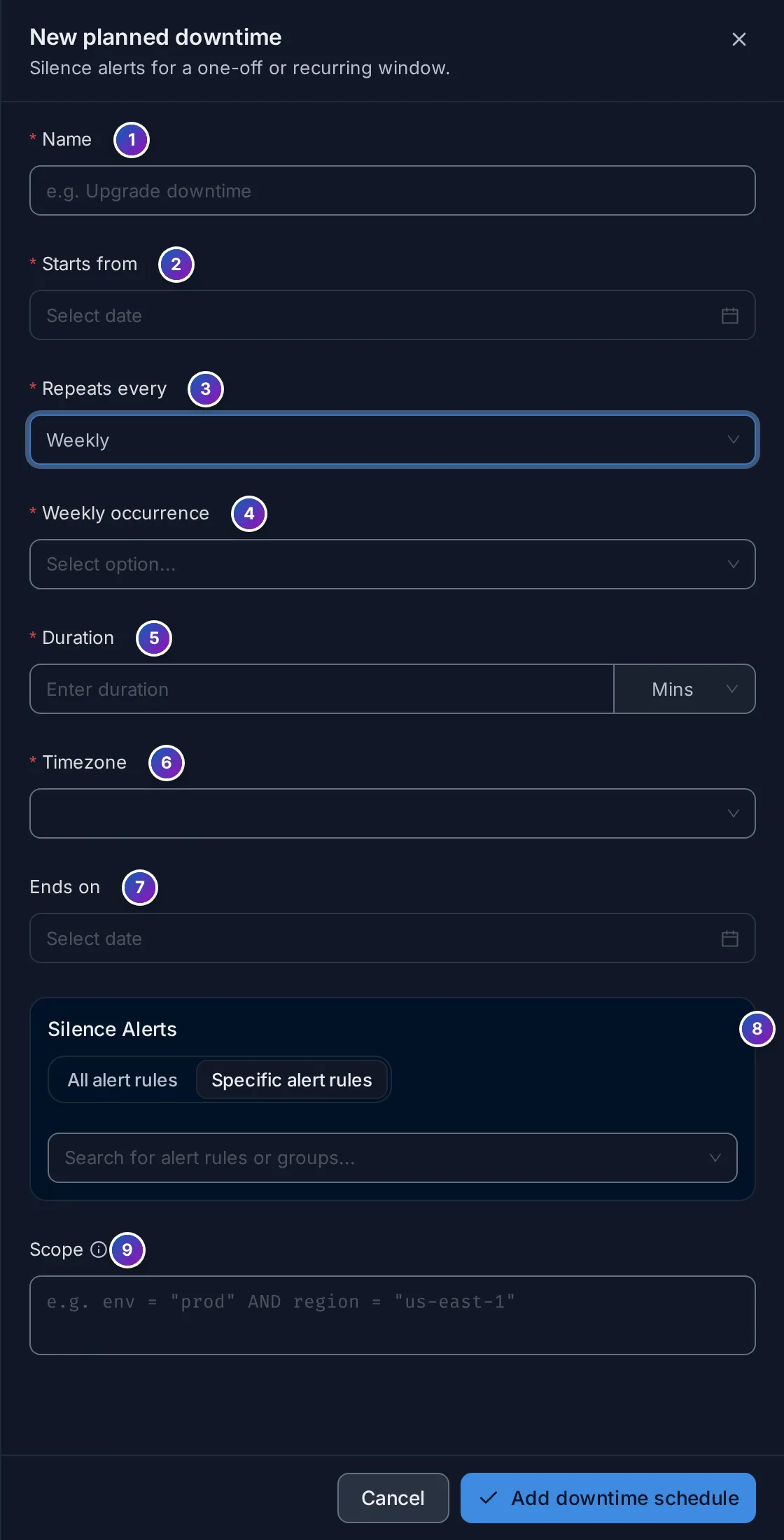
Section titled “Create a planned downtime”Click New downtime. The New planned downtime panel opens on the right:
| Field | Description |
|---|---|
| 1. Name | For example Upgrade downtime. |
| 2. Starts from | Start date and time. |
| 3. Repeats every | Does not repeat, Daily, Weekly or Monthly. |
| 4. Weekly occurrence | The days of the week, for a weekly downtime. |
| 5. Duration | Length of each window of a recurring downtime, in minutes or hours. |
| 6. Timezone | Timezone of the start and end times. |
| 7. Ends on | End of the window. Required for a downtime that doesn’t repeat; for a recurring one, the date it stops repeating (optional). |
| 8. Silence Alerts | All alert rules, or Specific alert rules picked from the list. |
| 9. Scope | Optional label expression; only alerts whose labels match are silenced. |
Click Add downtime schedule to save, or Cancel.
Scope expressions support =, AND, OR and in:
env = "prod" AND region = "us-east-1"env in ["production", "staging"]Example: the demo’s downtime and policy
Section titled “Example: the demo’s downtime and policy”The demo workspace has one of each, to show how they fit together.
-
Read the downtime. Open Alerts → Configuration → Planned Downtime.
fs-design-test-downtimeis Scheduled for Oct 27, 2026, 10:00 to 12:00 UTC, does not repeat (2 hours), and silences one rule,Collector retry queue filling up, only for alerts labelledenv = "dev". During those two hours that rule would still be evaluated and could show as Suppressed, but nobody would be notified. -
Read the policy. Open Routing Policies.
fs-design-test-policysends every alert whoseservice.nameischeckoutto the channelfs-design-test-webhook. -
Check who uses it. A rule only follows policies when its Use Routing Policies for dynamic routing switch is on. The demo’s
redis-manualrule has it off and sends straight toslack-oncall, so this policy doesn’t affect it, and the demo has nocheckoutservice anyway.
What you learn: a downtime silences notifications for chosen rules and labels for a while; a policy chooses channels by labels, but only for rules that opt in.